

Introduction
The name Application Bar sounds similar to Taskbar. In fact, yes they are similar to some extent.
ApplicationBar is a concept of WindowsRT whereas Taskbar belongs to the conventional Windows OS.
Agenda
So, our agenda for this article will be:
- Try to get a basic idea of an Application Bar
- Learn how to put it into a Windows Store XAML App
- Deal with related events
Exploring Application Bars
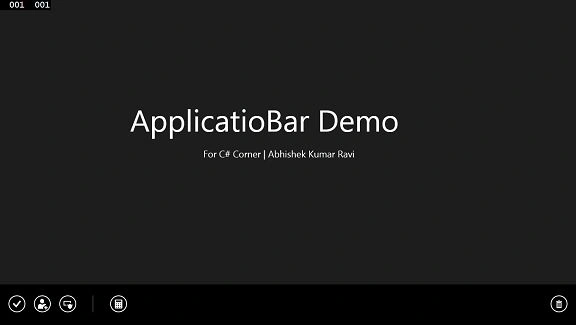
If you are familiar with Windows 8 or the Windows RT OS then you must have tried Windows Store Apps. And there you may have seen some Horizontal Bar at the bottom of the screen.
It appears when you right-click your mouse.
It looks like.

It's just like an Application Bar in Windows Phone.
Unlike Windows Phone, here you can manipulate the styling and design yourself.
Now, Put it in XAML
Step 1
Start a Blank Windows Store project and get inside the XAML window (MainPage.xaml).
Step 2
We will now provide the XAML for the Application Bar. And ensure that your XAML is below the main Grid section (in other words below the </Grid> line).
We will first start with <Page.BottomAppBar>.
And then define the AppBar.
- <AppBar x:Name="myApplicationBar" Padding="10">
Here I have named my AppBar "myApplicationBar" with internal padding of 10.
Within these tags, provide the Appbar buttons using a horizontal stack panel.
- <Grid>
- <StackPanel Orientation="Horizontal" HorizontalAlignment="Left">
- <AppBarButton IsCompact="True" Icon="Accept"/>
- <AppBarButton IsCompact="True" Icon="AddFriend"/>
- <AppBarButton IsCompact="True" Icon="Admin"/>
- <AppBarSeparator/>
- <AppBarButton IsCompact="True" Icon="Calculator"/>
- </StackPanel>
- <StackPanel Orientation="Horizontal" HorizontalAlignment="Right">
- <AppBarButton IsCompact="True" Icon="Delete"/>
- </StackPanel>
- </Grid>

Join the conversation! Your thoughts help the community grow.