

Introduction
The project makes use of a class written by T. Clark to execute the actual
conversion, I found the project containing this very useful class located here
on the Code Project website: http://www.codeproject.com/Articles/29670/Converting-HL7-to-XML.
The application included here takes this class and wraps it up in a Windows Form
application. This application allows the user to open up the HL7 message in raw
format, uses T. Clark's class to convert it to XML, and then displays the XML in
a tree view control. The application also provides the means to save the XML
file as a true XML document and, based upon a query of the derived XML, sets the
default file name to the message control ID associated with the raw HL7
document.
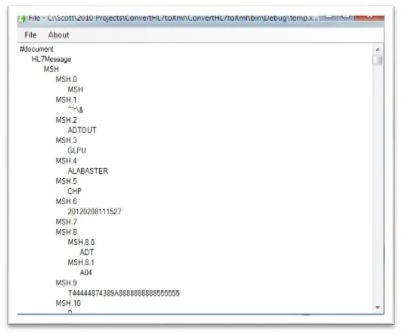
Figure 1: Application Displaying a Fake HL7 Message in a Tree View
Getting Started
Download and unzip the attached project to get started. Open the project up into
Visual Studio 2012 and review its contents. In general you will find a Windows
Forms application with a main application form cleverly entitled, "Form1.cs".
There is also an about box listed as, "AboutApp.cs". Aside from the two forms,
there is a single class, "HL7ToXmlConverter.cs" that wraps up the class written
by T. Clark and mentioned earlier in the article.
The main form contains the code necessary to open the raw files, convert the
files to XML using Clark's class, and to then save the raw HL7 messages having
been converted into true XML format. The conversion has worked flawlessly with
the HL7 messages I have encountered but you may need to alter the conversion
class if you have any problems working with different sources for the raw HL7
messages.
The Code: ConvertHL7ToXml Class
As was mentioned, this class was written by a T. Clark and is sited from the URL
provided previously. Clark has annotated his code and you may open the class and
read that annotation to study the approach used to handle the conversion.
The Code: Form1 Class
This class puts Clark's conversion class into the context of a Windows Form
based application. This form allows the user to open up the raw (non-XML format)
HL7 messages (which oddly enough carry the .xml extension). Once opened and
converted to XML, the class temporarily stores the true XML file, and then
displays the XML document in a tree view control as is shown in Figure 1 of this
document. The class also allows the user to save the file in proper XML format
to the file system; in so doing, the code queries the XML document to obtain the
message control ID and uses that message control ID as the default file name.
The system I am using now initially saves the HL7 messages using a GUID as the
file name, this GUID does not identify the records in any meaningful way and it
makes evaluating message errors more difficult as finding the file needed cannot
be accomplished using the GUID file name. The GUID provided as a file name never
appears in any part of the message itself and therefore it is never captured nor
stored into the database built from the messages; at that, if you wish to look
at the raw message.
The code for the entire class is presented below; it is annotated to describe
the purpose of each part of the code:
using System;
using System.Linq;
using System.Windows.Forms;
using System.Xml;
using System.IO;
using System.Xml.XPath;
namespace ConvertHL7ToXml
{
public partial class Form1 : Form
{
// the file to be converted; this is the HL7 message in its raw format; even
// though it uses an xml file extension, is it not xml but rather is a
// pipe and character delimited file with a specific definition
String sourceFilePath;
// a temporary place to save the file after it is converted to true xml format
String tempFilePath;
// the actual xml document to be
XmlDocument doc = new XmlDocument();
/// <summary>
/// Constructor
/// </summary>
public Form1()
{
InitializeComponent();
// define the temporary xml file storage path
tempFilePath = Application.StartupPath + "\\temp.xml";
}
/// <summary>
/// Exit the application
/// </summary>
/// <param name="sender"></param>
/// <param name="e"></param>
private void ExitToolStripMenuItemClick(object sender, EventArgs e)
{
Application.Exit();
}
/// <summary>
/// Open an existing HL7 message file and convert it to actual XML,
/// Then display the document in a tree view
/// </summary>
/// <param name="sender"></param>
/// <param name="e"></param>
private void OpenToolStripMenuItemClick(object sender, EventArgs e)
{
try
{
// define the open file dialog, since HLy messages are saved with
// an xml extension (even though they are not xml) we will set up
// the dialog to allow the user to open a file with that extension
openFileDialog1.Title = "Open HL7 Message File";
openFileDialog1.Filter = "XML Files|*.xml";
openFileDialog1.DefaultExt = "XML";
openFileDialog1.FileName = string.Empty;
// or you can use the dialog result
openFileDialog1.ShowDialog();
// make sure we get a file name
if (String.IsNullOrEmpty(openFileDialog1.FileName))
return;
// set the file path member variable
sourceFilePath = openFileDialog1.FileName;
// read the contents of the file into a stream reader
StreamReader sr = new StreamReader(sourceFilePath);
string hl7Message = sr.ReadToEnd();
sr.Close();
// define a string to hold the xml returned from the convert to xml call,
// refer to the HL7ToXmlConverter class by T. Clark for details on how
// the conversion works
string xmlFileContents = HL7ToXmlConverter.ConvertToXml(hl7Message);
// save the returned XML into a temporary xml file for now, then we can
// work with the xml to get it displayed in the treeview
using (StreamWriter outfile = new StreamWriter(tempFilePath))
{
outfile.Write(xmlFileContents);
}
// Clear out the treeview in case it has another xml file displayed in it
treeXml.Nodes.Clear();
// set the wait cursor
this.Cursor = Cursors.WaitCursor;
// create a new xml doc
XmlDocument doc = new XmlDocument();
try
{
// load the xml doc from the temporary xml file
doc.Load(tempFilePath);
// set the form text to display the file name
this.Text = "File - " + tempFilePath;
// return the cursor to normal
this.Cursor = Cursors.Default;
}
catch (Exception ex1)
{
// return the cursor to normal
this.Cursor = Cursors.Default;
// and describe the error to the user
MessageBox.Show(ex1.Message, "Error Opening File");
// since we had an error, don't try to display the file
// in the treeview
return;
}
// open the xml doc into the treeview for inspection
amr kamalPosted Jul 16, 2017, 8:01 AM
How can i load hl7 file to convert it to xml ?
vijay pPosted May 26, 2017, 6:54 AM
It askes to chose xml file instead of hl7 file