Introduction
In this article we will discuss arrays using MVC 5 and types of array with diagrammatic representation & explanation.
Array using MVC 5
- Arrays are stored in continues manner. Every element in array is accessed using their indexes. Array index always starts with 0.
- Array is used to store the similar type of data.
Types of Array
A. Single Dimensional using MVC 5
Create one single dimensional array like the following code snippet:
- int[] my_array = new int[] {100,200,300,400,500 };
Will show name of array, array indexing, base address of each elements and elements in an array.
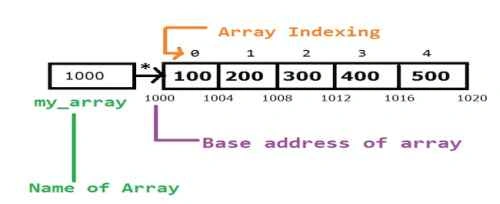 Step 1:
 Create one MVC 5 project in Visual Studio 2013.
Create one controller to our project in solution folder of
Controller.
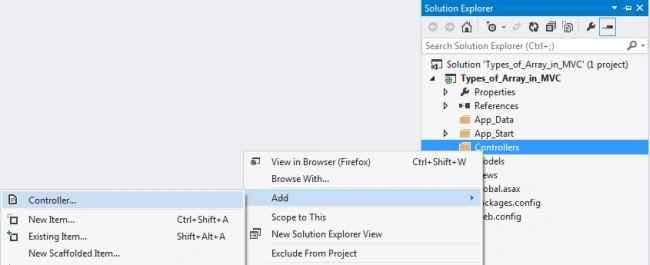 Step 2:
 First go through the following steps:
- Create one single dimensional array.
- Add some elements while creating array.
- Take array length in one ViewBag & take on ViewBag for copying all elements in an array, which will be useful in .cshtml i.e on UI.
Add one view by right clicking on action method
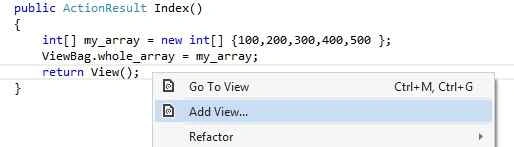
Step 3: Steps while creating a view.
- We take array from controller to view in Razor view of hidden field ViewBag.
- Add following for loop to print each element in an array.
- We are going to use some html format to show an array element.
- <div>
- <ul> @Html.Hidden("array", (object)ViewBag.myArray) @for (int i = 0; i
- < ViewBag.id; i++) { {<text>...</text>}
- <li> @ViewBag.myArray[i] </li> }
- </ul>
- </div>
If we put debugger on our .cshtml page then we can see all the elements in ViewBag like the following:
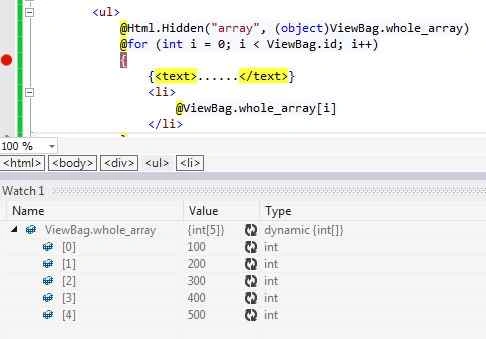 Step 4:
 Now our final output while running the application.
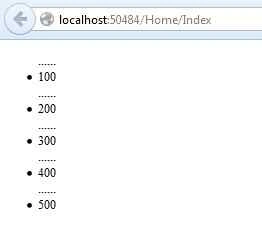 B. Two Dimensional using MVC
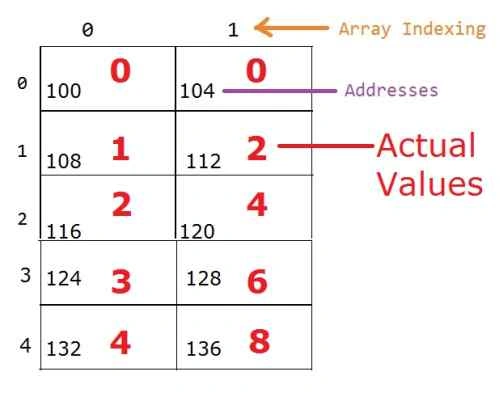
Now create two dimensional array like the following code snippet:
- int[,] Two_Dim_Array = new int[5, 2] { { 0, 0 }, { 1, 2 }, { 2, 4 }, { 3, 6 }, { 4, 8 } }
 Step 1:
 First create new action in controller like the following code snippet:
- public ActionResult Two_Dim_Array()
- {
- return View();
- }
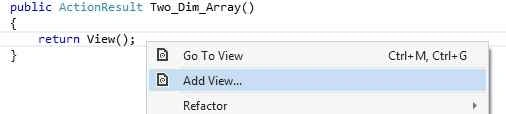
Add one view by right clicking on above action.
 Step 2:
 Do the following steps to get clear output.
- Add style to our div because we need to add some blank space from the left side.
- Add one foreach loop to print elements of array.
- <div style="margin-left: 40px;">
- @{int[,] Two_Dim_Array = new int[5, 2] { { 0, 0 }, { 1, 2 }, { 2, 4 }, { 3, 6 }, { 4, 8 } };}
- @foreach (int num in Two_Dim_Array)
- {
- {<br />}
- {@Html.Label(num.ToString())}
- }
- </div>
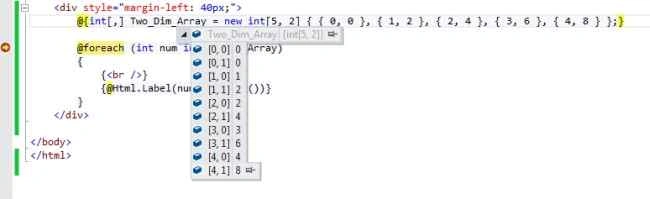
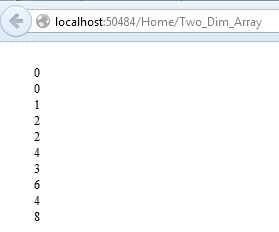
Step 3: If we put debugger on our .cshtml page then we can see all the elements like the following:
Now our final output while running the application:
C. Three Dimensional using MVC
Now create three dimensional array as:
- int[, ,] three_Dimensional = new int[2, 4, 2] { { { 0, 0 }, { 1, 2 }, { 2, 4 }, { 3, 6 } }, { { 10, 10 }, { 11, 11 }, { 12, 12 }, { 13, 13 } } };
How can we read the following array?
- int[, ,] three_Dimensional = new int[2, 4, 2]
The
three_Dimensional is the three dimensional array which contains four two dimensional arrays. Each two dimensional array contains four one dimensional array, each one dimensional array contains two elements & each element is of type int.
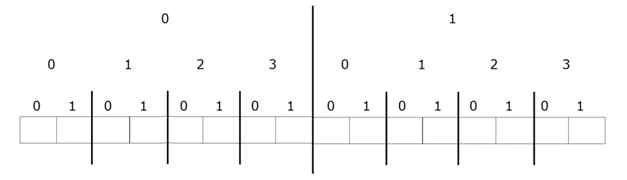
Diagram 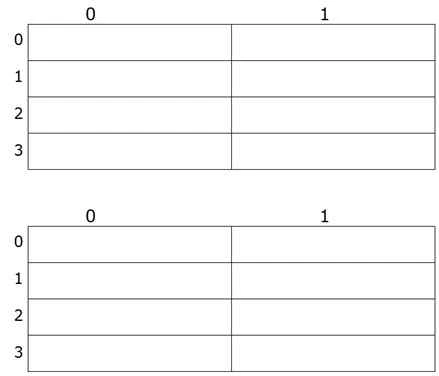 Memory representation
In memory representation array is stored continuously (for more information please see step number 4)
 Step 1:
 Firstly, create new action in controller like the following code snippet:
- public ActionResult Three_Dim_Array()
- {
- return View();
- }
Do the following steps to get clear output:
- Add style to our div because we need to add some blank space from the left side and font size.
- Add one foreach loop to print elements of array.
- Add some dots for distance purpose in elements using text.
- Now add view by right clicking on action method & write the following code.
- <div style="margin-left: 40px; font-size:40px;">
- @{int[, ,] three_Dimensional = new int[2, 4, 2] { { { 0, 0 }, { 1, 2 }, { 2, 4 }, { 3, 6 } }, { { 10, 10 }, { 11, 11 }, { 12, 12 }, { 13, 13 } } };}
- @foreach (int num in three_Dimensional)
- {
- { @Html.Label(num.ToString())}
- {<text>......</text>}
- }
- </div>
Step 3: If we put debugger on our .cshtml page then we can see all elements as:
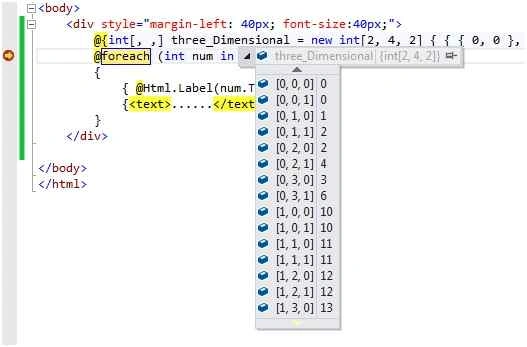
Step 4: Now our final output after running the application.

D. Four Dimensional using MVC
Create four dimensional array as:
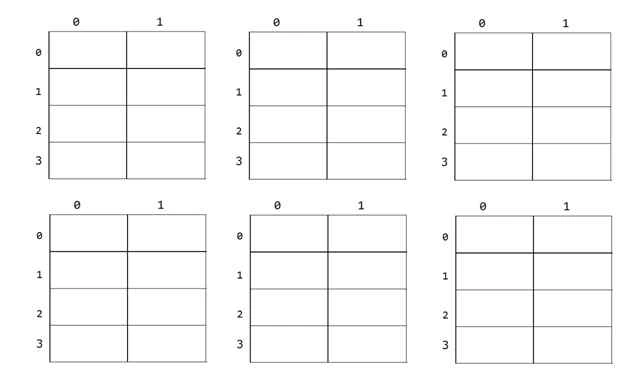
- int[, , ,] Four_Dimensional = new int[2, 3, 4, 2]
 Step 1:
 Firstly, create new action in controller like the following:
- public ActionResult Four_Dim_Array()
- {
- return View();
- }
Do the following steps to get clear output,
- Add style to our div because we need to add some blank space from left side and font size.
- Add one foreach loop to print elements of array.
- Add some dots for distance purpose in elements using text.
- Add style word break to break words.
Now add view by right clicking on action method & write the following code.
- <div style="margin-left: 39px; font-size:20px; word-break:break-all">
- @{int[, , ,] Four_Dimensional = new int[2, 3, 4, 2]
- {
- {{{101,1},{101,2},{101,3},{101,4}},{{102,1},{102,2},{102,3},{102,4}},{{103,1},{103,2},{103,3},{103,4}}},
- {{{11,1},{11,2},{11,3},{11,4}},{{12,1},{12,2},{12,3},{12,4}},{{13,1},{13,2},{13,3},{13,4}}}};}
-
- @foreach (int num in Four_Dimensional)
- {
- { @Html.Label(num.ToString())}
- {<text>......</text>}
- }
-
- </div>
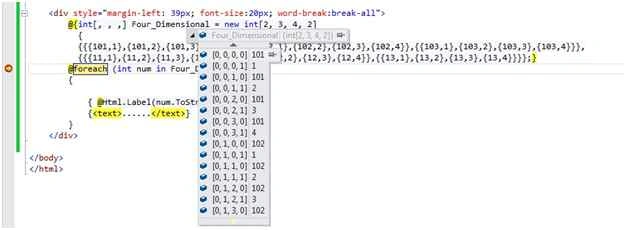
If we put debugger on our .cshtml page then we can see all the elements like the following
Now our final output after running the application
 Summary
This article will help freshers as well as experienced candidates to understand array in depth.
Hope you enjoyed this one. Don’t forget to comment on the article.


Santhakumar MunuswamyPosted Oct 25, 2015, 10:57 AM
Good Article
Rupesh KahanePosted Oct 25, 2015, 2:24 AM
Nitin Tyagi sir thx
NitinPosted Oct 25, 2015, 2:18 AM
Good one
Rupesh KahanePosted Oct 24, 2015, 12:44 PM
Agree with your statement Nilesh Jadav :)
Rupesh KahanePosted Oct 24, 2015, 12:43 PM
Thanks Mukesh Kumar
Rupesh KahanePosted Oct 24, 2015, 12:41 PM
Rakesh Chavda thanks
Nilesh JadavPosted Oct 24, 2015, 12:37 PM
Worthy Article !!
Mukesh KumarPosted Oct 24, 2015, 12:02 PM
Great One
RakeshPosted Oct 24, 2015, 11:31 AM
Good share