

Modern web development focuses more and more on user interaction due to which there are tons of cool interactive plugins available to be integrated in any web platform. Twenty Twenty is one such plugin which provides interactive image comparison visualization. This JQuery based plugin can be utilized to showcase product comparison in a more interactive way.
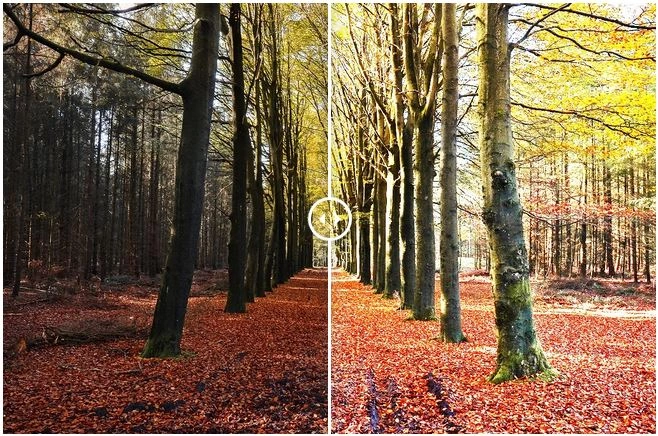
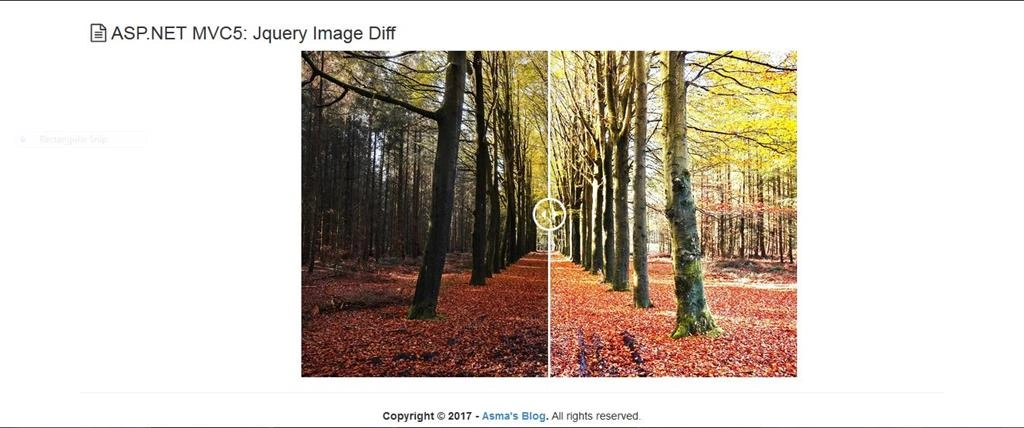
So, today, I shall be demonstrating Twenty Twenty JQuery based plugin with ASP.NET MVC5 platform.
Following are some prerequisites before you proceed further in this tutorial,
- Download Twenty Twenty JQuery plugin.
- Knowledge of ASP.NET MVC5.
- Knowledge of HTML.
- Knowledge of JavaScript.
- Knowledge of Bootstrap.
- Knowledge of Jquery.
- Knowledge of C# Programming.
You can download the complete source code for this tutorial or you can follow the step by step discussion below. The sample code is being developed in Microsoft Visual Studio 2015 Enterprise.
Let's begin now.
Step 1
Create a new MVC project and name it "ImgDiff".
Step 2
Make sure to download "Twenty Twenty" JQuery plugin, then create new folder "Plugin" under project root and copy "CSS" & "JS" folders of the plugin into this new folder.
Step 3
Open "Views->Shared->_Layout.cshtml"file and replace following code in it
- <!DOCTYPE html>
- <html>
- <head>
- <meta charset="utf-8" />
- <meta name="viewport" content="width=device-width, initial-scale=1.0">
- <title>@ViewBag.Title</title>
- @Styles.Render("~/Content/css")
- @Scripts.Render("~/bundles/modernizr")
- <!-- Font Awesome -->
- <link rel="stylesheet" href="https://maxcdn.bootstrapcdn.com/font-awesome/4.4.0/css/font-awesome.min.css" />
- <!-- Img Diff -->
- @Styles.Render("~/Plugin/Twenty-Twenty/css")
- </head>
- <body>
- <div class="navbar navbar-inverse navbar-fixed-top">
- <div class="container">
- <div class="navbar-header">
- <button type="button" class="navbar-toggle" data-toggle="collapse" data-target=".navbar-collapse">
- <span class="icon-bar"></span>
- <span class="icon-bar"></span>
- <span class="icon-bar"></span>
- </button>
- </div>
- </div>
- </div>
- <div class="container body-content">
- @RenderBody()
- <hr />
- <footer>
- <center>
- <p><strong>Copyright © @DateTime.Now.Year - <a href="http://wwww.asmak9.com/">Asma's Blog</a>.</strong> All rights reserved.</p>
- </center>
- </footer>
- </div>
- @*Scripts*@
- @Scripts.Render("~/bundles/jquery")
- @Scripts.Render("~/bundles/bootstrap")
- <!-- Img Diff -->
- @Scripts.Render("~/Plugin/Twenty-Twenty")
- @RenderSection("scripts", required: false)
- </body>
- </html>
Farhan AhmedPosted Jul 24, 2018, 4:23 AM
Hood one.....
Manav PandyaPosted Jul 3, 2017, 12:33 AM
Nice share ...............