

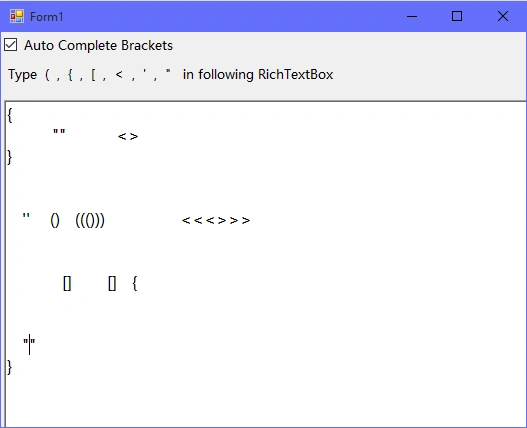
Step 1: Start Visual Studio and create Windows Form Application in C# or VB as you wish.
Step 2: Add CheckBox and RichTextBox to your form.
Step 3: Add KeyPress and KeyDown events to RichTextBox.
Step 4: Now add the following code defined in KeyPress and KeyDown event into your code.
How it Works
It's simple, just identify which key is pressed in richTextBox, if it is ( open round bracket then read SelectionStart from richTextBox and insert opposite character to richTextBox at position SelectionStart+1.
How it Works
It's simple, just identify which key is pressed in richTextBox, if it is ( open round bracket then read SelectionStart from richTextBox and insert opposite character to richTextBox at position SelectionStart+1.
Finally add one line once opposite character is inserted and that is e.Handled=true;
C# Code for Auto Complete Brackets,
- using System;
- using System.Collections.Generic;
- using System.ComponentModel;
- using System.Data;
- using System.Drawing;
- using System.Windows.Forms;
- namespace Auto_Complete_Brackets
- {
- public partial class Form1 : Form
- {
- public Form1()
- {
- InitializeComponent();
- }
- //declare isCurslyBracesKeyPressed variable as Boolean and assign false value
- //to check { key is pressed or not
- public static Boolean isCurslyBracesKeyPressed = false;
- //richTextBox1 KeyPress events
- // if key (,{,<,",',[ is pressed then insert opposite key to richTextBox1 at Position SelectionStart+1
- // add one line after inserting, e.Handled=true;
- //finally set SelectionStart to specified position
- private void richTextBox1_KeyPress(object sender, KeyPressEventArgs e)
- {
- String s = e.KeyChar.ToString();
- int sel = richTextBox1.SelectionStart;
- if (checkBox1.Checked == true)
- {
- switch (s)
- {
- case "(": richTextBox1.Text = richTextBox1.Text.Insert(sel, "()");
- e.Handled = true;
- richTextBox1.SelectionStart = sel + 1;
- break;
- case "{":
- String t = "{}";
- richTextBox1.Text = richTextBox1.Text.Insert(sel, t);
- e.Handled = true;
- richTextBox1.SelectionStart = sel + t.Length - 1;
- isCurslyBracesKeyPressed = true;
- break;
- case "[": richTextBox1.Text = richTextBox1.Text.Insert(sel, "[]");
- e.Handled = true;
- richTextBox1.SelectionStart = sel + 1;
- break;
- case "<": richTextBox1.Text = richTextBox1.Text.Insert(sel, "<>");
- e.Handled = true;
- richTextBox1.SelectionStart = sel + 1;
- break;
- case "\"": richTextBox1.Text = richTextBox1.Text.Insert(sel, "\"\"");
- e.Handled = true;
- richTextBox1.SelectionStart = sel + 1;
- break;
- case "'": richTextBox1.Text = richTextBox1.Text.Insert(sel, "''");
- e.Handled = true;
- richTextBox1.SelectionStart = sel + 1;
- break;
- }
- }
- }
- // richTextBox1 Key Down event
- /*
- * when key { is pressed and {} is inserted in richTextBox
- * and isCurslyBracesKeyPressed is true then insert some blank text to richTextBox1
- * when Enter key is down
- * it will look like this when Enter key is down
- {
- |
- }
- * */
- private void richTextBox1_KeyDown(object sender, KeyEventArgs e)
- {
- int sel = richTextBox1.SelectionStart;
- if (e.KeyCode == Keys.Enter)
- {
- if(isCurslyBracesKeyPressed==true)
- {
- richTextBox1.Text = richTextBox1.Text.Insert(sel, "\n \n");
- e.Handled = true;
- richTextBox1.SelectionStart = sel + " ".Length;
- isCurslyBracesKeyPressed = false;
- }
- }
- }
- }
- }
Tridib ArjoPosted Sep 27, 2020, 3:36 AM
You are really mastermind. You should be top 1 in C Sharp Corner
Sushma MPosted Oct 26, 2019, 6:07 AM
How do i change colour for the brackets only
Pritam ZopePosted Dec 22, 2015, 11:12 AM
Thanks Kiranteja and Santhakumar
Santhakumar MunuswamyPosted Dec 22, 2015, 8:55 AM
Thanks for sharing
Kiranteja JallepalliPosted Dec 22, 2015, 8:55 AM
Nice article..Pritam Zope,Welcome to C# Corner.
Pritam ZopePosted Dec 22, 2015, 6:08 AM
Thanks Raj
Raj KumarPosted Dec 22, 2015, 5:51 AM
really good post
Pritam ZopePosted Dec 22, 2015, 3:53 AM
Thanks Sibeesh
Sibeesh VenuPosted Dec 22, 2015, 12:00 AM
Nice Share