

Introduction
As we know, Azure offers an Auto Shutdown feature under Operations to reduce costs by automatically stopping virtual machines. However, if a VM shuts down earlier than scheduled, there has been no built-in mechanism to start it again automatically. Recently, Microsoft announced that VMs can now be automatically started using an Automation Task.
In this article, we will explore how to configure an Automation Task to enable Auto Start for an Azure VM.
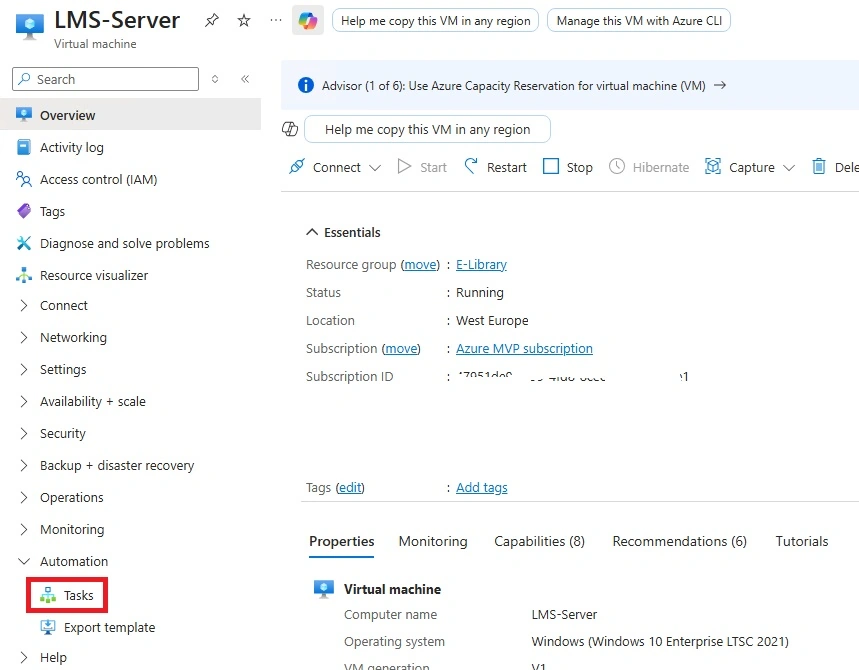
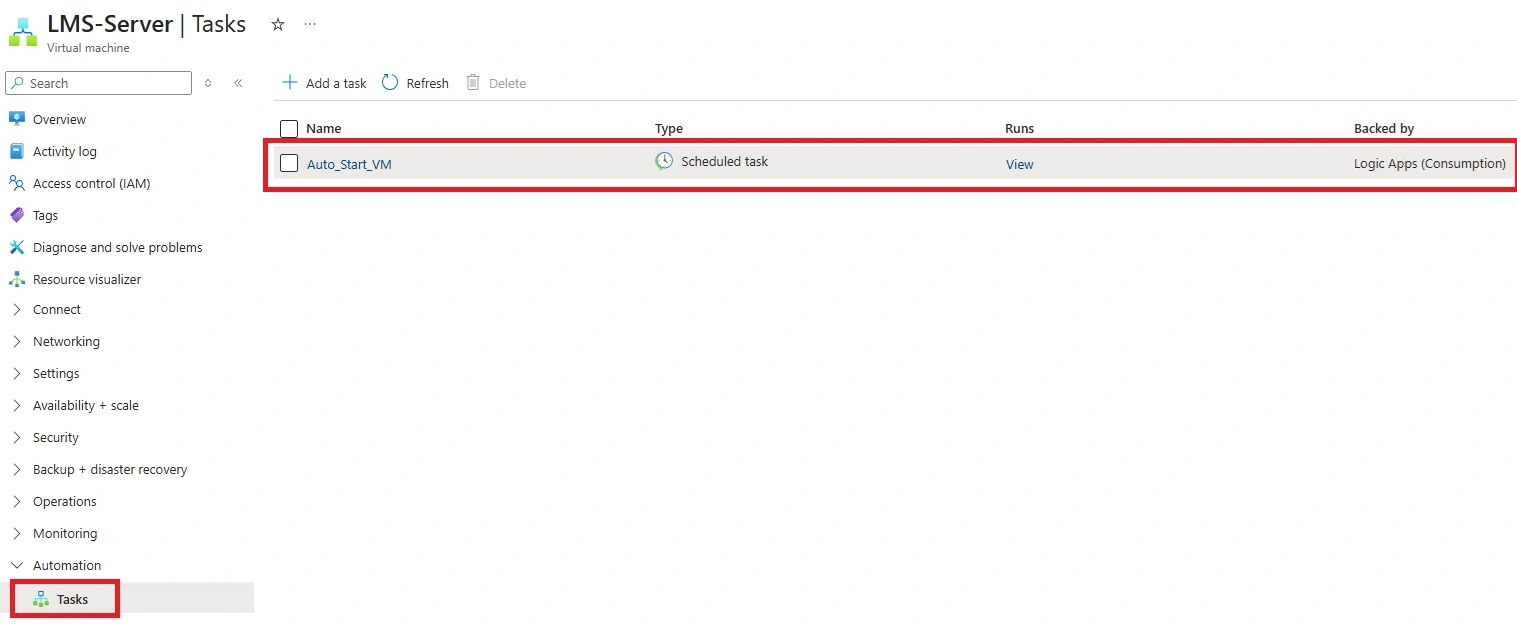
Step 1: In the Azure portal, select the VM you want to start automatically and navigate to Tasks under Automation.
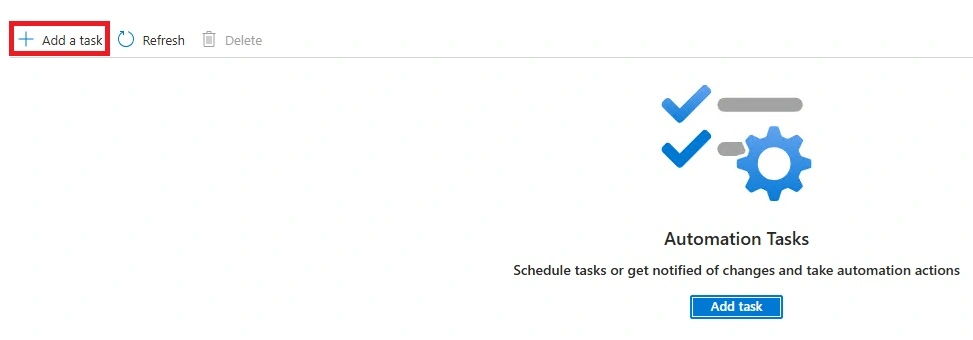
Step 2: Click + Add a task.
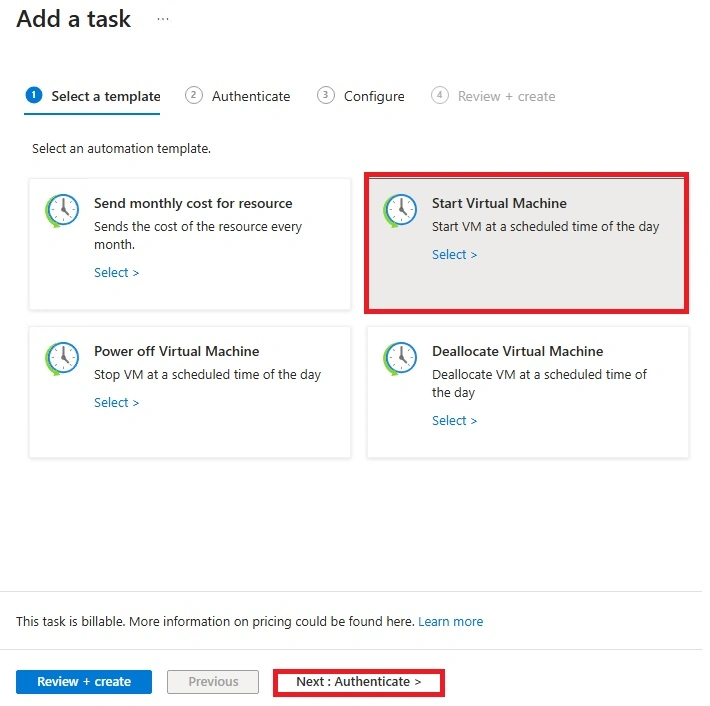
Step 3: Choose the Start Virtual Machine template and click Authenticate.
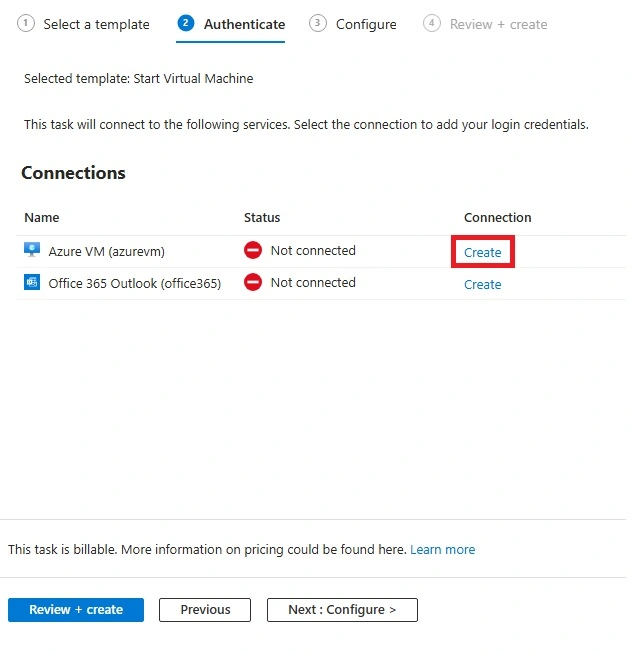
Step 4: For authentication, use your email address to authenticate the VM. If you want to receive email alerts, you can also authenticate Office 365. Then click Create.
Step 5: Select Sign in.

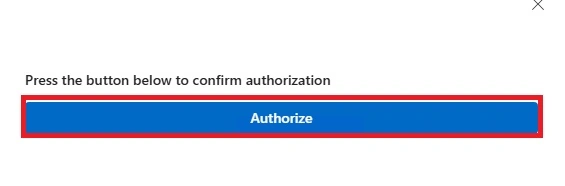
Step 6: Click Authorize.
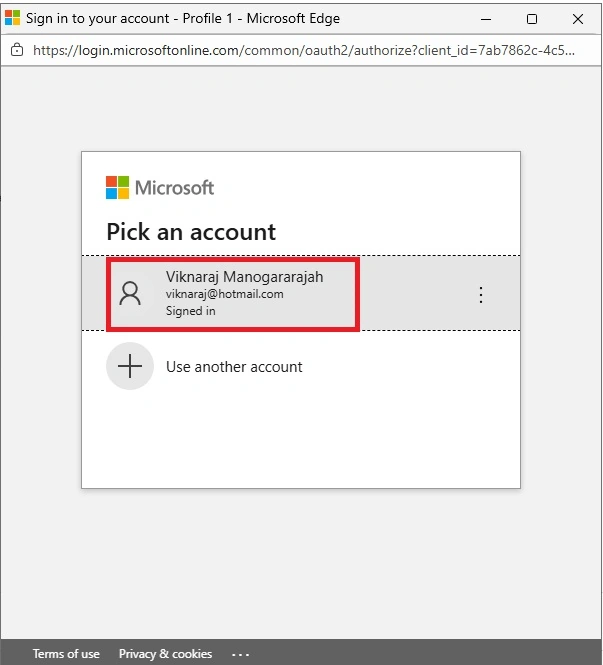
Step 7: Select your Azure portal email address.
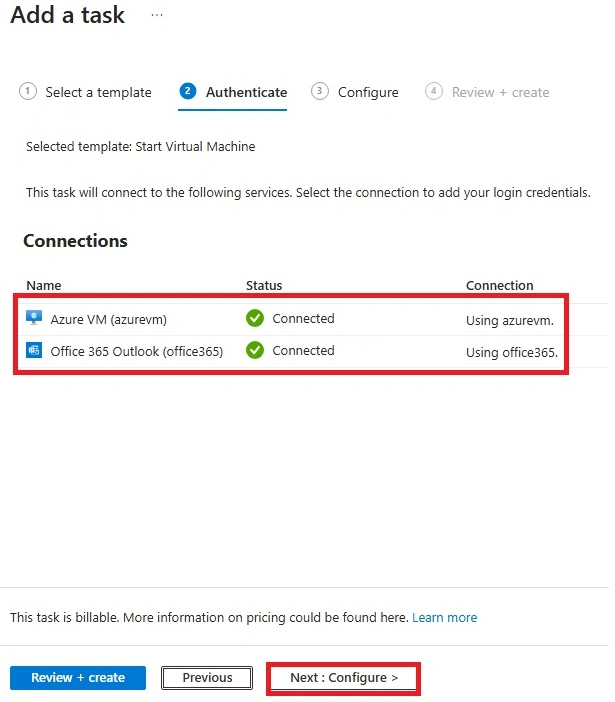
Step 8: After authentication, the status will show as Connected. Click Next to proceed to configuration.
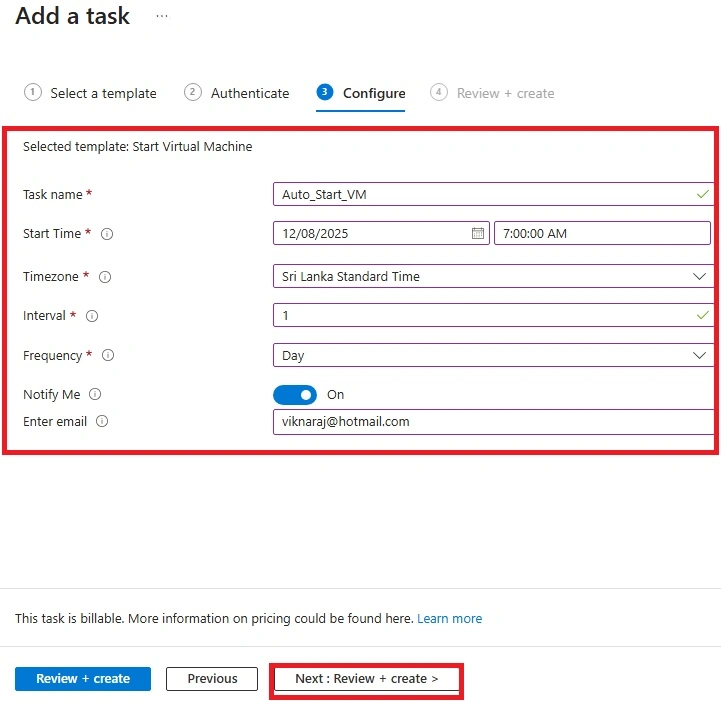
Step 9: In the configuration settings, select the required Start time, choose the appropriate Time zone, and set the Interval to 1 if the task needs to run daily. Set Frequency to Day. If needed, enable Notify me. Then click Review + Create.
Step 10: After reviewing, click Create.
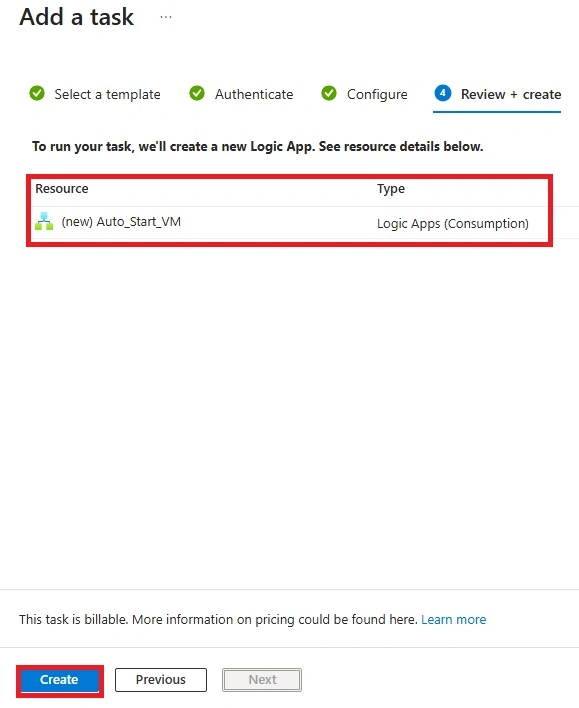
Step 11: The scheduled task will now run every day. To view details, click View.
Summary
In this article, we learned how to automatically start Azure VMs using an Automation Task. The underlying automation is handled by Logic Apps. If you need further clarification, feel free to leave a comment below the article.
Join the conversation! Your thoughts help the community grow.