

Introduction
- TextView
- EditText
- AutoCompleteTextView
- MultiCompleteTextView
You have already learned about the first two Text Controls in my previous article (Working With Text Controls in Mono for Android). In this article, I am going to explain the next two Text Controls AutoCompleteTextView and MultiCompleteTextView.
AutoCompleteTextView
The AutoCompleteTextView is like a text box that can show suggestions based on a list of data that I provide as a source for this field. The list of suggestions is displayed in a drop down menu from which the user can choose an item to replace the content of the edit box with. The drop-down can be dismissed at any time by pressing the back key or, if no item is selected in the drop-down, by pressing the enter/dpad center key. AutoCompleteTextView has an Android:completionThreshold property, to indicate the minimum number of characters a user must enter before the list filtering begins.
- Start a new project named AutoComplete

- Go to the Resources\layout\main.xml file and make changes
In the above code you can see I create an simple AutoCompleteTextView.
- <?xml version="1.0" encoding="utf-8"?>
- <LinearLayout xmlns:android="http://schemas.android.com/apk/res/android"
- android:orientation="vertical"
- android:layout_width="fill_parent"
- android:layout_height="wrap_content"
- >
- <AutoCompleteTextView android:id="@+id/ACT"
- android:layout_width="fill_parent"
- android:layout_height="wrap_content"
- />
- </LinearLayout>
-
Add a new Android layout inside the project layout folder
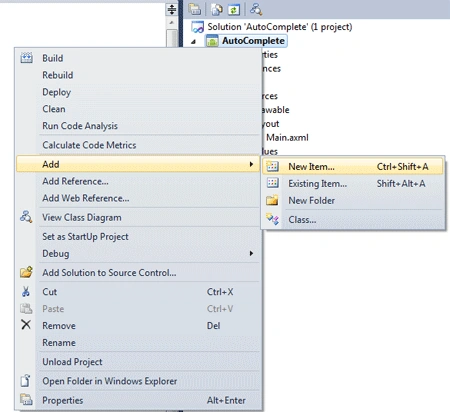
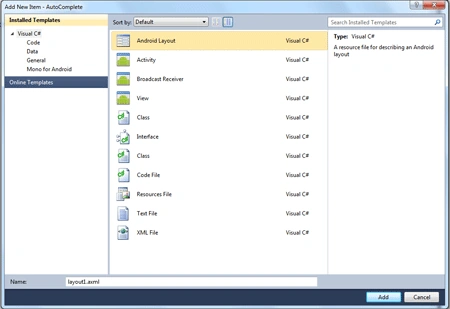
-
Open layout1.axml file and make changes, here we create a simple TextView for the items
- <?xml version="1.0" encoding="utf-8"?>
- <TextView xmlns:android="http://schemas.android.com/apk/res/android"
- android:layout_width="fill_parent"
- android:layout_height="fill_parent"
- android:textSize="15sp"
- android:textColor="#000"
- ></TextView>
-
Set the Build Action of layout1.axml file to AndroidResource
-
Now go to the Activity1.cs and create a string array inside the Activity1 class named names and insert values for it
- static string[] names = new string[] {"Hello" , "He" , "Hell" , "Hewells" , "Heat" , "Henrry" , "House" , "Hole"};
-
At last write the following code below inside the OnCreate() methodHere is the complete code of Activity.cs
- AutoCompleteTextView textView = FindViewById<AutoCompleteTextView>(Resource.Id.ACT);
- var adapter = new ArrayAdapter<String>(this, Resource.Layout.layout1, names);
- textView.Adapter = adapter;
- using System;
- using Android.App;
- using Android.Content;
- using Android.Runtime;
- using Android.Views;
- using Android.Widget;
- using Android.OS;
- namespace AutoComplete
- {
- [Activity(Label = "AutoComplete", MainLauncher = true, Icon = "@drawable/icon")]
- public class Activity1 : Activity
- {
- static string[] names = new string[] { "Hello", "He", "Hell", "Hewells", "Heat", "Henrry", "House", "Hole" };
- protected override void OnCreate(Bundle bundle)
- {
- base.OnCreate(bundle);
- SetContentView(Resource.Layout.Main);
- AutoCompleteTextView textView = FindViewById<AutoCompleteTextView>(Resource.Id.ACT);
- var adapter = new ArrayAdapter<String>(this, Resource.Layout.layout1, names);
- textView.Adapter = adapter;
- }
- }
- }
-
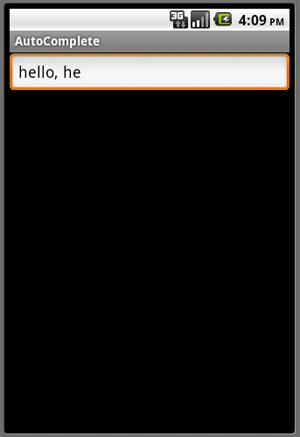
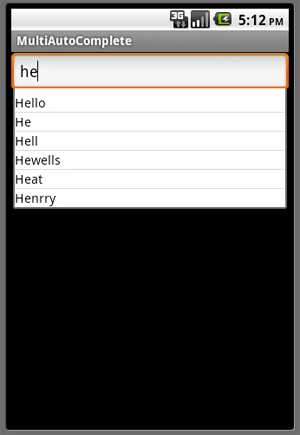
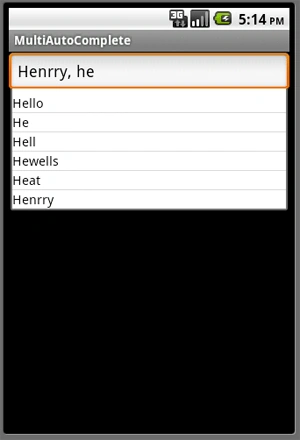
Run the application, the output looks like below
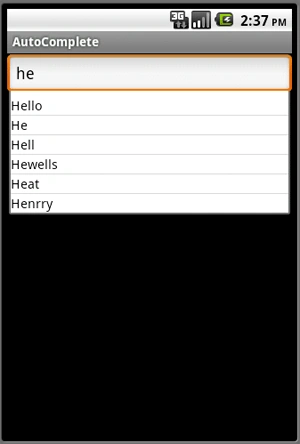 As you see above AutoComplete will populate the list of suggestions like you enter he than all the matching records will come out in the list. And following you see that if you increase the text like he to hel only two matching records will shows.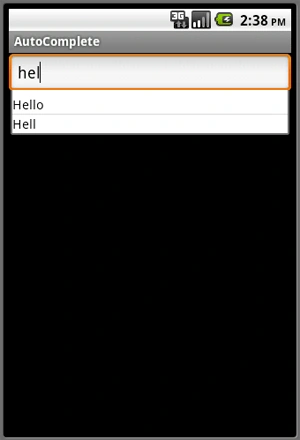
Ranjith KumarPosted Jul 29, 2011, 2:21 AM
Is there any crack version for mono for android in vs2010
Dea SaddlerPosted Jul 29, 2011, 12:12 AM
Interesting Article
LegolasPosted Jul 29, 2011, 12:09 AM
It is very useful & helpful article..... :)