

I have started working with Azure recently and I have to create many resources on Azure and modify them as per my need. In order to do so, I need to visit the Azure portal and believe it takes time and effort to create them manually. But what if I said there is a way to automate everything? You just need to push the changes to Github and it will automatically perform everything.
Before doing anything, first, you need to have Azure CLI installed on your machine and you must authenticate yourself in order to create resources on Azure automatically.
Install the Azure CLI
Use the following commands if you're using Ubuntu.
- sudo apt-get update
- sudo apt-get install azure-cli
- az login
So this is what we are going to do. Let's divide it into simple steps.
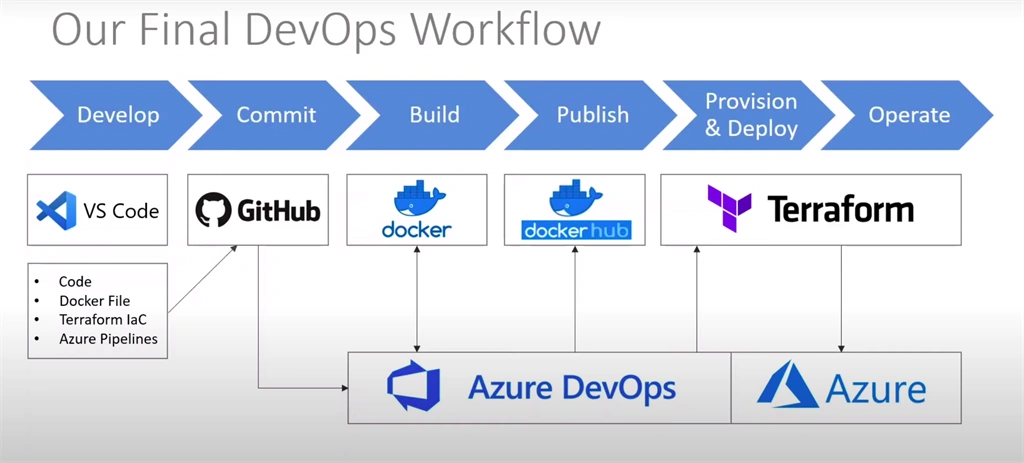
- Step 1: We are going to create a simple 'Hello World' in Node.js and push it to GitHub and write DockerFile
- Step 2: Setup a pipeline in Azure DevOps
- Step 3: Automatically create a docker image and push it to docker hub
- Step 4: Set up Terraform for automatically creating resources in Azure and deploying docker image.
So let us start with our first step.
Step 1 - Create a simple 'Hello World' in Node.js and push it to GitHub
What is Node.js?
Node.js is an open-source, cross-platform, JavaScript runtime environment that executes JavaScript code outside a web browser. Node JS enables us to write server-side Javascript code. It is built on Chrome’s V8 JavaScript engine. With Node JS we can build different types of applications like web servers, command Line Applications, Rest APIs, and so on. To learn more you can go to here.
Installing node js
To create a project it should be installed on your machine and to install node js please visit here and install the node js.
Creating a Node Project
Create a new directory and initialize the node with the command.
- npm init
What is NPM?
Npm is a package manager where all the javascript packages reside. We use NPM to download all the javascript packages through npm.
- mkdir nodeexample
- cd nodeexample/
- npm init -y
Configure Express
Express is used to create a server. The below command is used to create our server.
- npm install express --save
We are creating a new server that will be running on port 3000. I am creating a route that returns hello world. Here is the complete code.
- const express = require('express')
- const app = express()
- const port = 3000
- app.get('/', (req, res) => {
- res.send('Hello World!')
- })
- app.listen(port, () => {
- console.log(`Example app listening at http://localhost:${port}`)
- })
- npm start
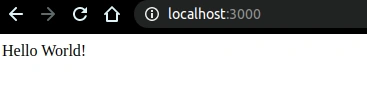
Open your browser and navigate to http://localhost:3000/. You should see Hello world getting displayed.
Dockerize the project
What is docker?
Docker is a set of the platform as a service products that use OS-level virtualization to deliver software in packages called containers. Containers are isolated from one another and bundle their own software, libraries, and configuration files.
Create an empty file named Dockerfile in the root directory and paste the following code
- # Create app directory
- WORKDIR /usr/src/app
- # Install app dependencies
- # A wildcard is used to ensure both package.json AND package-lock.json are copied
- # where available (npm@5+)
- COPY package*.json ./
- RUN npm install
- # If you are building your code for production
- # RUN npm ci --only=production
- # Bundle app source
- COPY . .
- EXPOSE 80
- CMD [ "node", "index.js" ]
- docker build -t <your username>/nodeexample
- docker run -p 49160:3000 -d <your username>/nodeexample
if successful you can go to your browser and visit this address http://localhost:49160/You must see Hello World. You can learn more here and this is very detailed documentation. Now what you need to do is create a Github repository and push the code to Github.
Step 2 - Setup a pipeline in Azure DevOps
Now go to Azure DevOps click on start free and log in using your email and password. After logging in click on New Project.
Provide your project name and description and choose visibility.
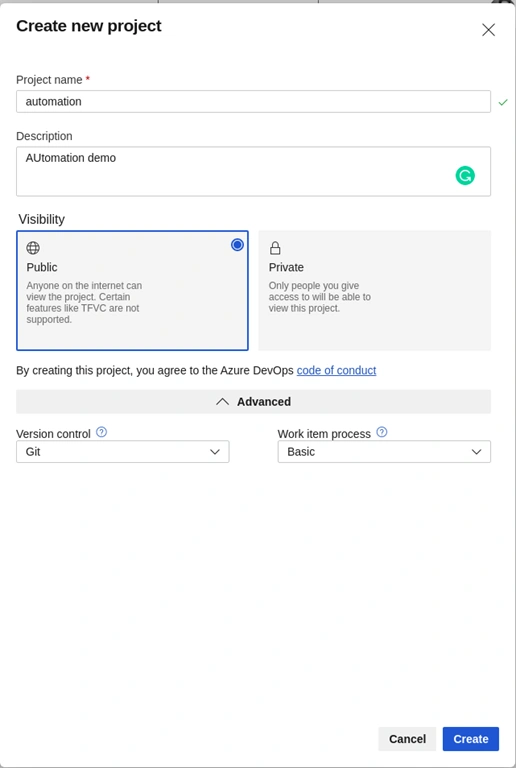
I am choosing Git as version control since I have my code on GitHub. After successfully creating the project you will see the below screen.
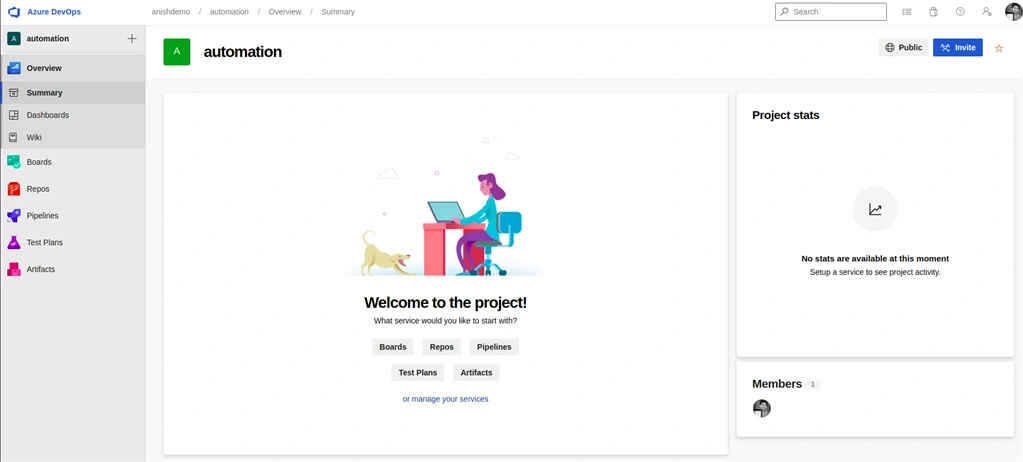
Now go to project settings.
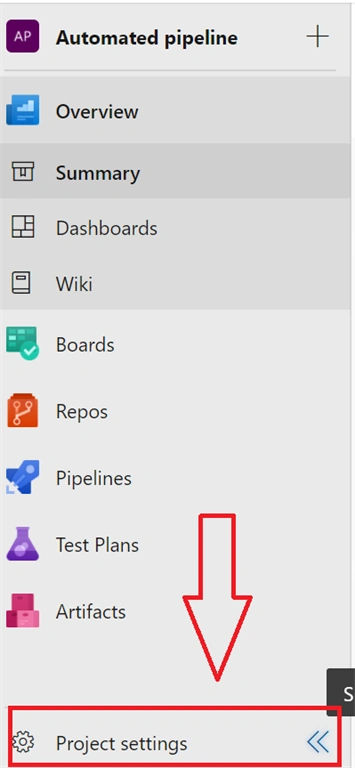
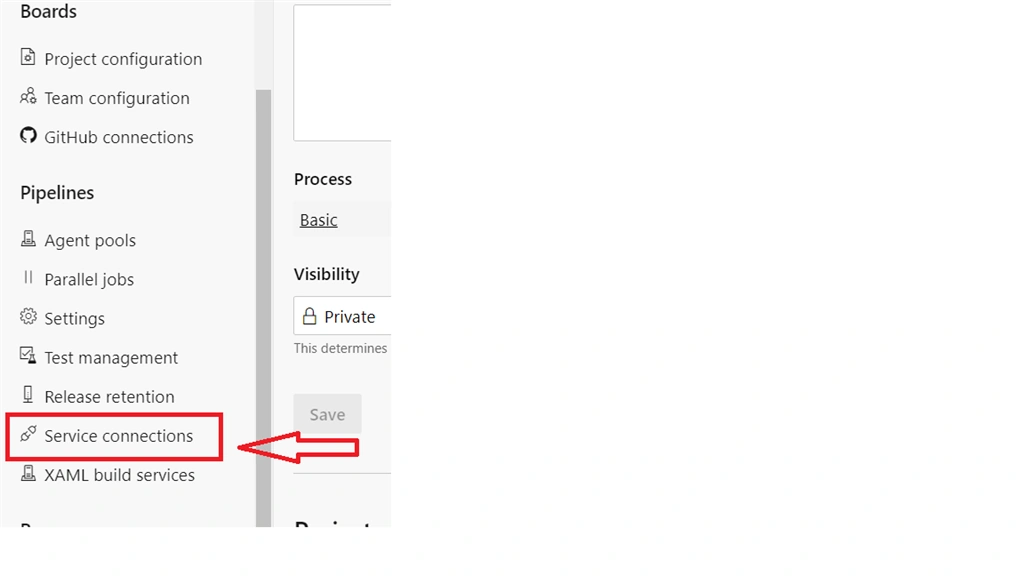
Choose a service connection.
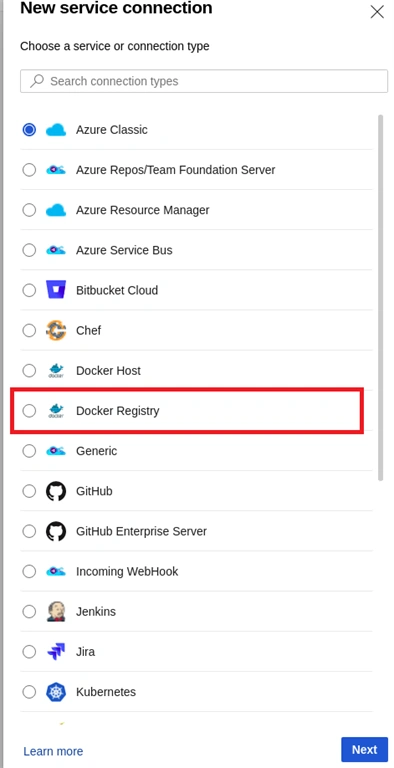
You may ask why are we doing this. So what we are going to do is create a docker image and push that image to docker hub so we need to connect Azure DevOps to docker hub. Now choose the Docker registry.
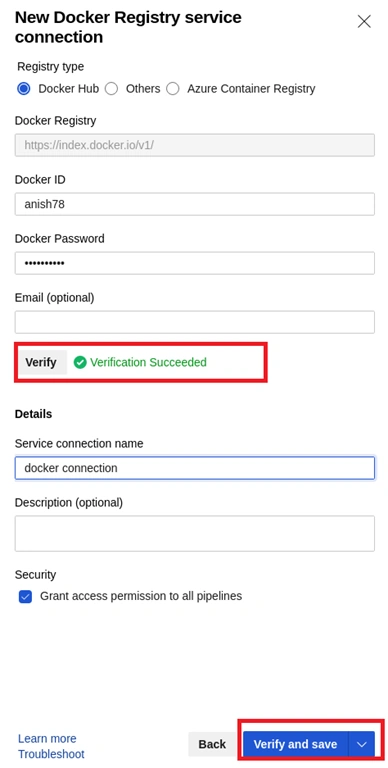
Provide your credentials and after that click on verify; if verified then enter the service name and click on it.
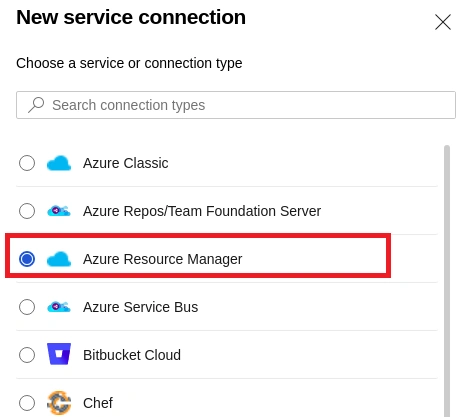
Again click on New service connection and click on Azure Resource Manager and click Next.
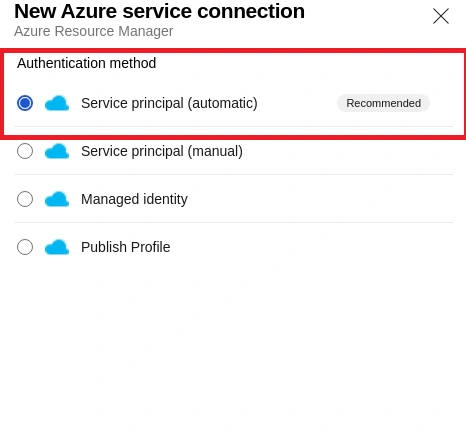
Choose service principal automatic.
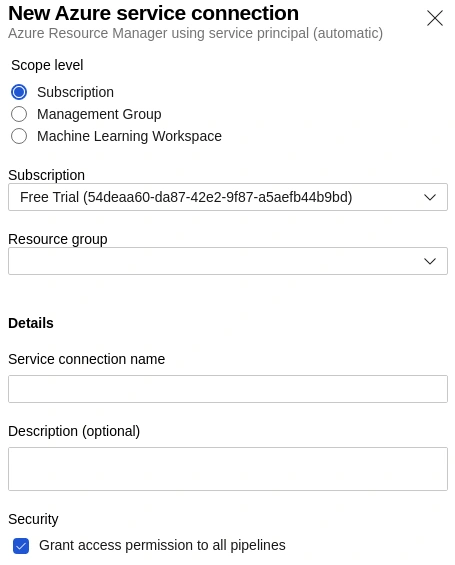
Choose your subscription and provide your service connection name and then click on next.
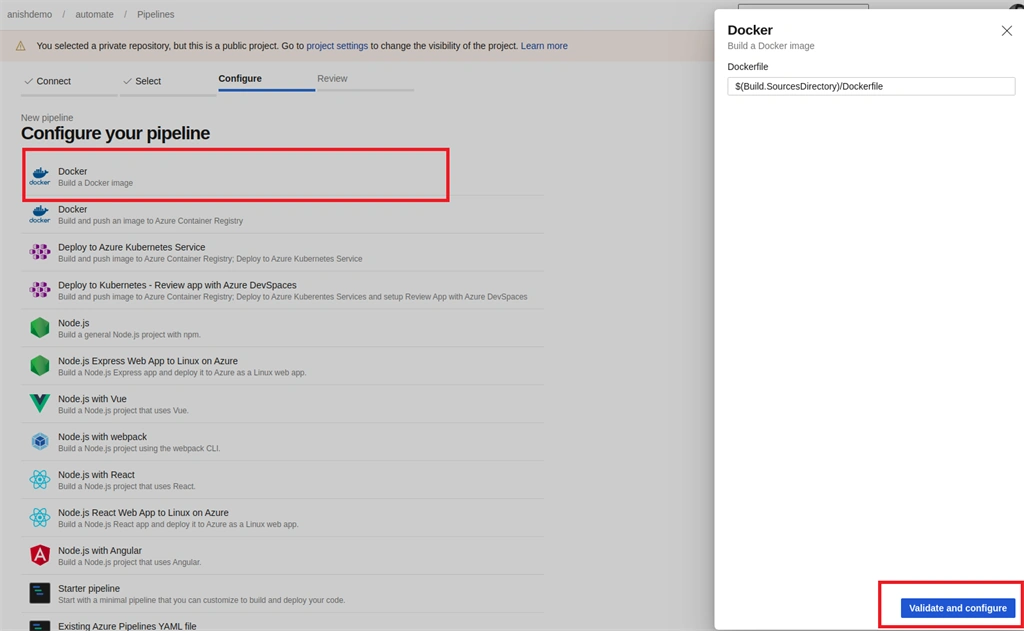
Go back to Pipeline and click on Create Pipeline. Now choose Git and sign in to GitHub if needed. After signing in you will see a list of your repository and you need to choose the repository which contains your node js code. You may need to provide permission to Azure Pipeline to access your code.
Based on the code and file in the project, it will automatically suggest many options to configure our pipeline with. We are going to choose Docker in this case. Click on validate and configure.
You will be presented with an azure-pipeline.yml file to review. This file contains pretty much what we need to do but we are going to add something more to this file. wW are going to add a different task to this file and for that click on Show Assistant and search for Docker and choose docker.

Step 3 - Automatically create a docker image and push it to docker hub
Search for Docker and choose docker.
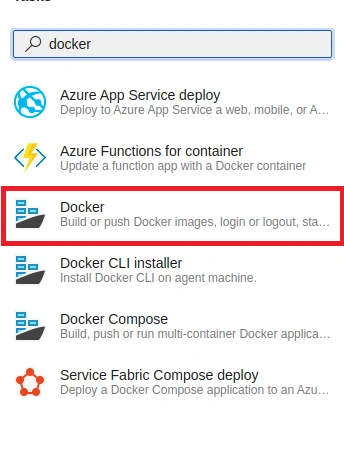
Choose your docker registry. We have already set up our service connection to docker then you must see the connection name so choose the connection and give Container repository a name. Leave everything default and click on Add. It will add another task.
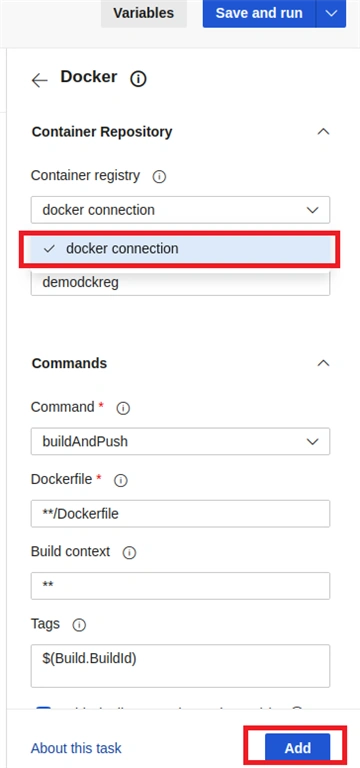
Our previous task only builds the docker image but it doesn't push to the docker hub so we are going to remove or replace the task with the task we have just created. Your YAML file should look something like this.
- # Docker
- # Build a Docker image
- # https://docs.microsoft.com/azure/devops/pipelines/languages/docker
- trigger:
- - main
- resources:
- - repo: self
- variables:
- tag: '$(Build.BuildId)'
- stages:
- - stage: Build
- displayName: Build image
- jobs:
- - job: Build
- displayName: Build
- pool:
- vmImage: 'ubuntu-latest'
- steps:
- - task: Docker@2
- inputs:
- containerRegistry: 'docker connection'
- repository: 'anish78/demodckreg'
- command: 'buildAndPush'
- Dockerfile: '**/Dockerfile'
- tags: |
- $(tag)
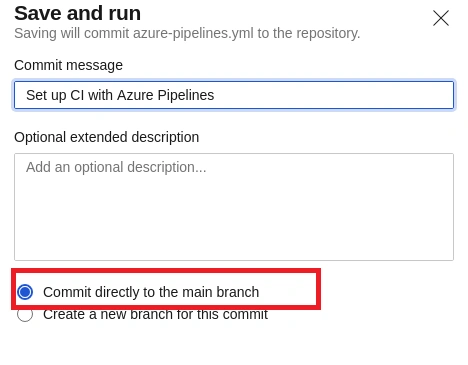
Now click on Save and Run. Commit directly to the main branch.
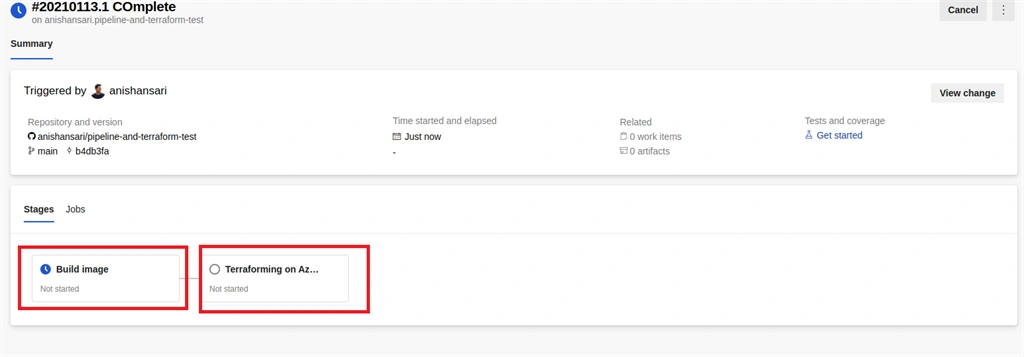
You will be presented with the below screen and you will see the build running.
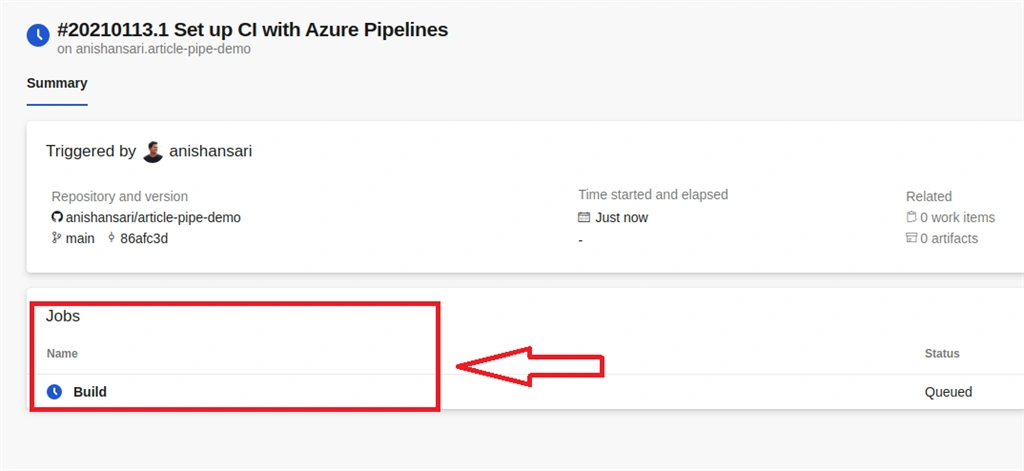
If you click on the build then you can see the full log of the build.
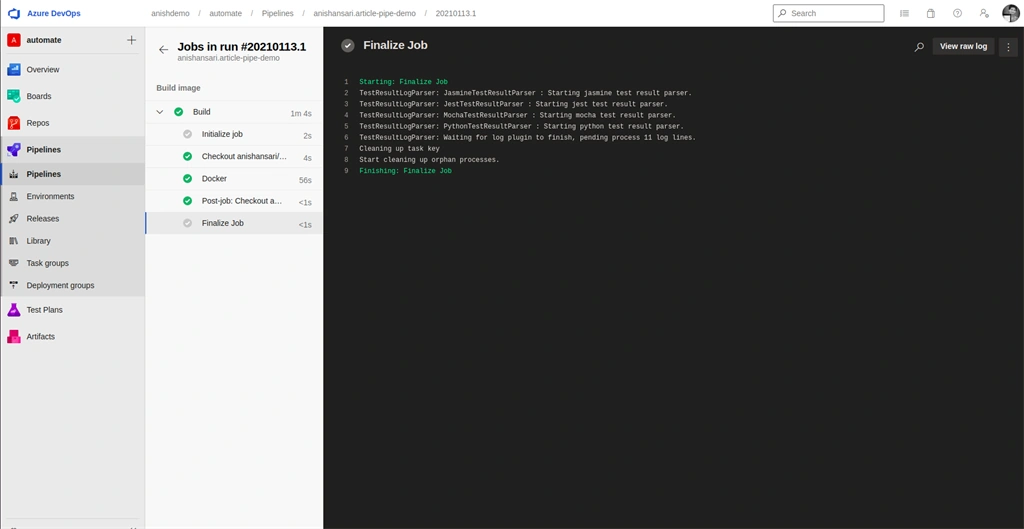
If the build is successful and if you go to Dockerhub and login then you will see one new image being pushed to your repository.
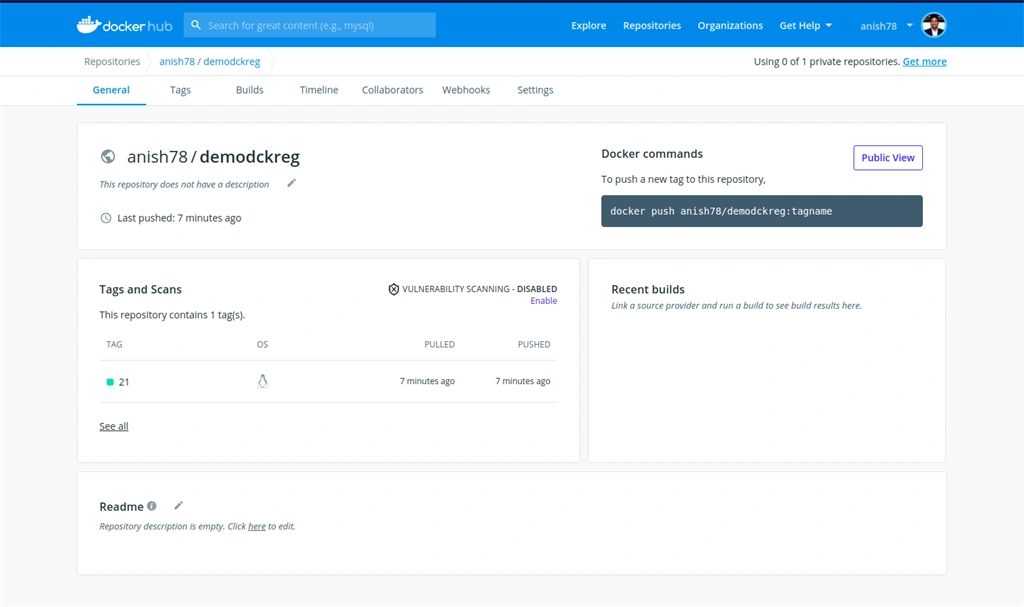
Step 4 - Set up Terraform for automatically creating resources in Azure and deploying docker image.
So what is Terraform?
Terraform is an open-source infrastructure as a code software tool that provides a consistent CLI workflow to manage hundreds of cloud services. You can learn more here.
What is Infrastructure as Code?
Infrastructure as code (IaC) is the process of managing and provisioning resources on the Cloud rather than logging in to your cloud provider and doing it manually. You can write codes which will interact with your cloud provider and can create, modify, and delete resource automatically without visiting the portal.
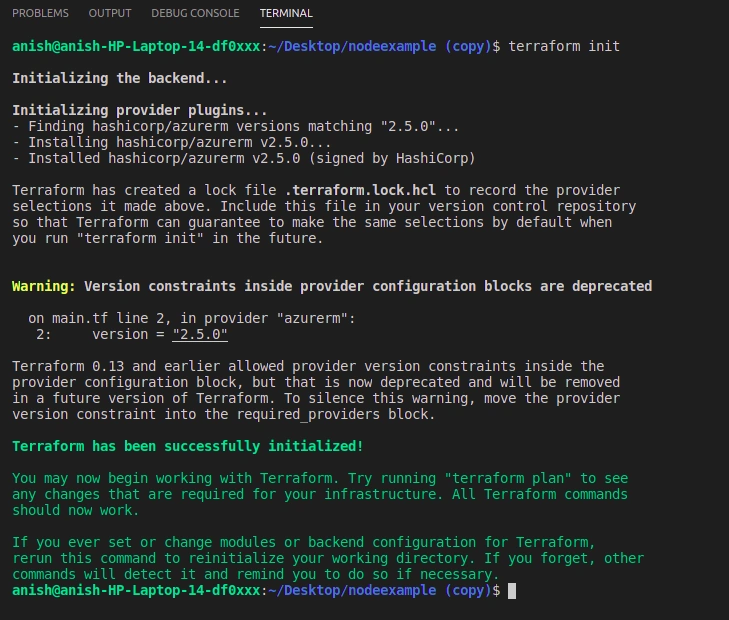
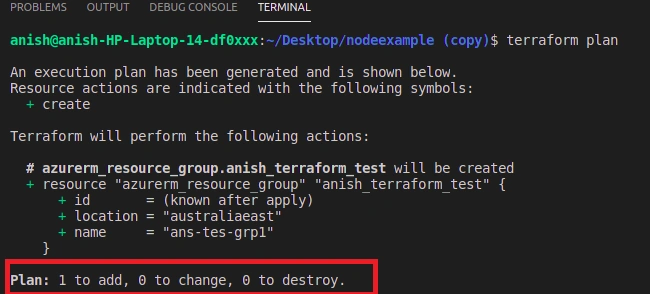
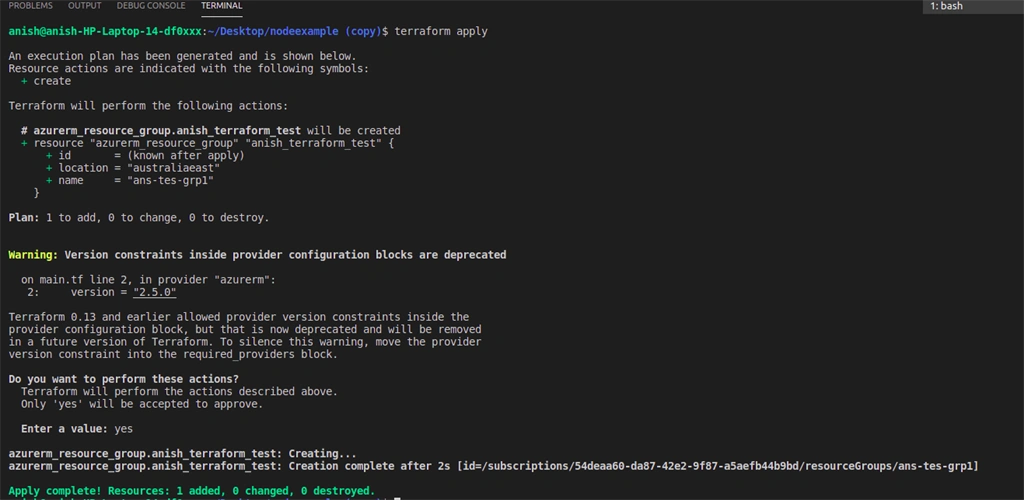
Create a file named main.tf in the root directory of the project. This file holds the terraform configuration code. Add the following code.
- provider "azurerm" {
- version = "2.5.0"
- features {}
- }
Join the conversation! Your thoughts help the community grow.