

Introduction
Problem: Important messages get missed in Teams channels
Solution: Use @mentions to notify everyone instantly
Tools used: Power Automate + Teams
When sending notifications to a large group in Teams, there are two practical approaches to notify everyone effectively:
Approach 1: @Team / @Channel Mention (Using JSON)
Approach 2: Using Tags in Teams
In this article we will focus on approach 1
In this approach, we will send a notification in Microsoft Teams mentioning @Everyone using JSON formatting.
[ Note: You can’t directly type @everyone via Power Automate like in UI.]
Prerequisite
A Microsoft Teams channel where notifications will be sent, and a Microsoft Power Automate flow to handle the @mention.
Step-By-Step Implementation:
Step 1: Retrieve the Team ID and Channel ID
Identify the Team ID and Channel ID from Microsoft Teams. These are required to target the correct location where the notification will be posted.
To retrieve these IDs from Microsoft Teams:
Navigate to the required Team and Channel
Click on the three dots (⋯) next to the channel name
Select “Get link to channel” or "Copy link"
Paste the copied link into Notepad or any text editor
From the URL:
The value after
/team/represents the Team ID. [ Important Note: Replace%3Awith:in the Team ID (typically after the first two characters).]
The value after
groupId=represents the Channel ID
Step 2: Use “Send a Microsoft Graph HTTP Request” in Power Automate
In Microsoft Power Automate, add the action “Send a Microsoft Graph HTTP request (Teams)”.
This action allows you to send a custom request to Microsoft Graph, enabling advanced scenarios such as posting messages with @mentions.
URI:
https://graph.microsoft.com/v1.0/teams/YourTeamID/channels/YourChannelID/messagesMethod: POST (As we need to post message)
Body:
{
    "body": {
    "content": "<at id=\"0\">The Innovators</at> <div>
  <p><at>Team</at> 🚨 <b>Important Update</b></p>

  <p>A new request has been submitted and requires your attention.</p>

  <p><b>Details:</b></p>
  <ul>
    <li>Request ID: 12345</li>
    <li>Submitted By: John Doe</li>
    <li>Status: Pending Approval</li>
  </ul>

  <p>Please review and take the necessary action.</p>
</div>",
    "contentType": "html"
            },
    "mentions": [
                {
                "id": 0,
                "mentionText": "The Innovators",
                "mentioned": {
                                "conversation": {
                                                    "id": "YourTeamID",
                                                    "displayName": "The Innovators",
                                                    "conversationIdentityType": "channel"
                                                }
                            }
                }
                ]
}
Replace “The Innovators” with the name of your channel where you want to post the message. Also, replace the HTML with the message body you want to send.
Content-Type: application/json
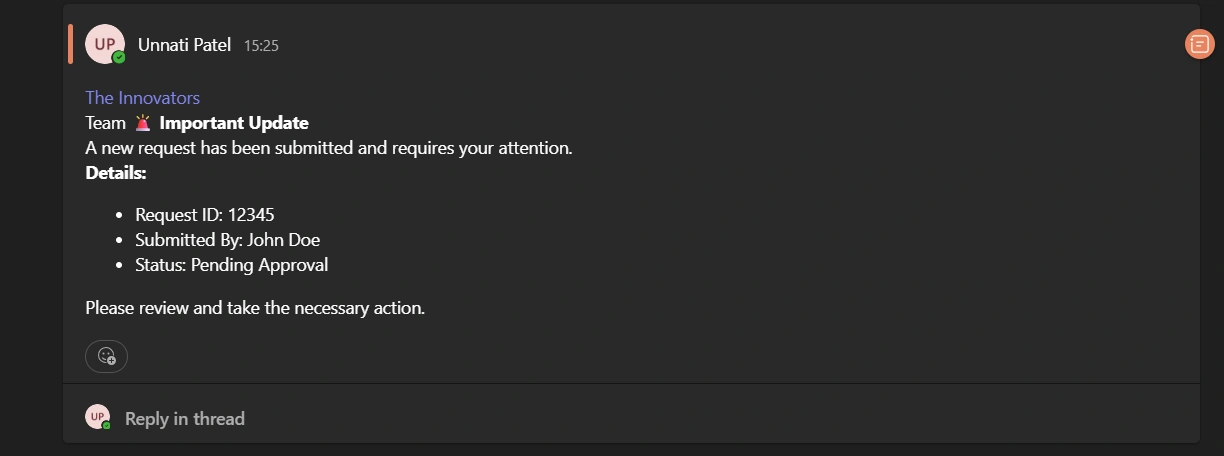
Result
Conclusion
In this article, we explored how to send notifications in Microsoft Teams by mentioning everyone using JSON and Microsoft Power Automate. This approach ensures that important messages reach all team members effectively and improves visibility for critical updates.
Join the conversation! Your thoughts help the community grow.