

I've been working on Microsoft Azure Services for the last 3-4 years. I always like to work on the cloud platform provided by Microsoft. Microsoft always comes up with new services and features with their products. I have observed one thing with Azure that creating any resources or creating the design is no big deal. There are lots of technical material and forums provided by Microsoft. The most challenging thing with Azure is troubleshooting any issue till you reach the actual root cause. In practice, many times, what happens that if we are getting an exception/error message, we check for other way or replace the solution. We just try to get out of that issue. We never try to go to the root of that issue and find out the actual root cause.
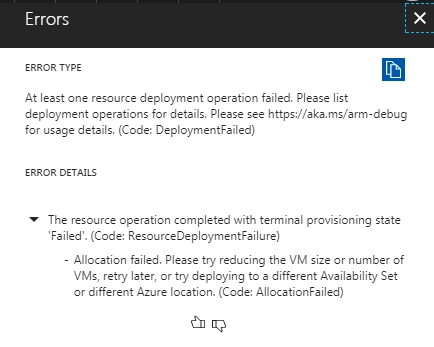
In Azure, while deploying any resources, if we get an exception or error, there are different ways to find out the details of the error. Today, I will show you how to get/extract the exact detail of error/exception from Azure portal.
We all know that with ARM, every resource on Azure is connected with any Resource Group. I hope you are aware of Resource Group. If you want to know more about resource group, check the article Resource Group.
Here, I will explain how you can get more details on exception/error from Azure deployment which will help to dig out the actual issue and find the root cause. In our day to day work, we use PowerShell runbooks to manage (Create , Update , Delete) all Azure resources. In my automation account, I have created multiple runbooks for different actions and resources.
Two ways are there to check the logs and details of exception (if any).
JobEvery time you execute any runbook, it gets mapped with Jobs, which shows all details such as what are inputs parameters, Output, Logs, Errors, and warnings.
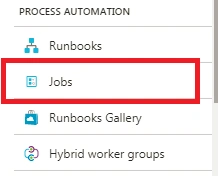
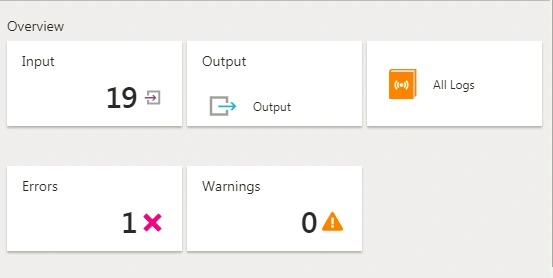
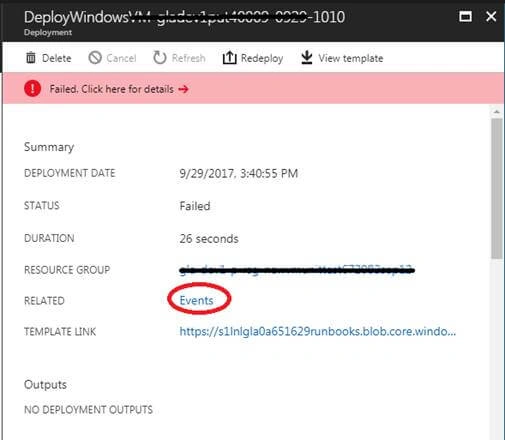
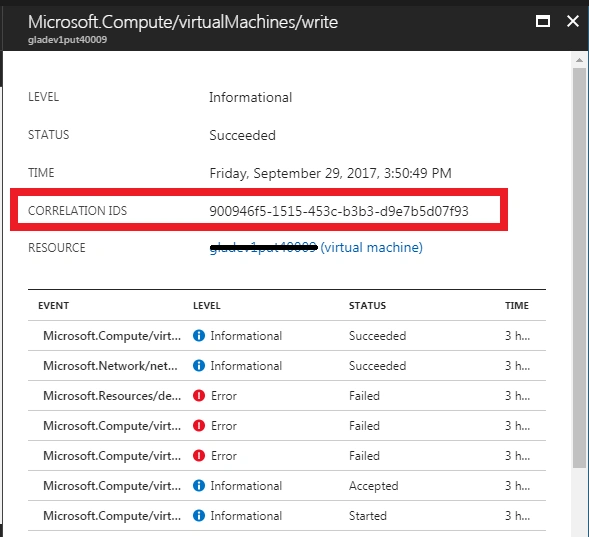
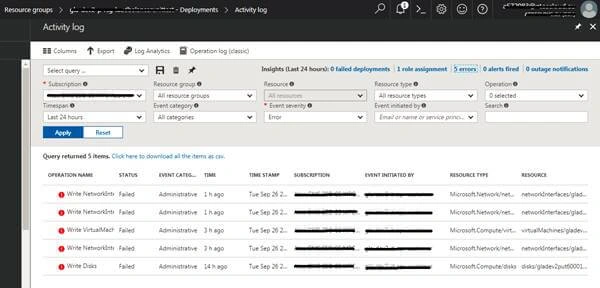
Deployment details provide you all the information about exception and errors. You can troubleshoot your actual issue with this deployment log. Below, you will find the process of how to get this deployment log/details.
- Login to the Azure Portal.
- Open Resource Group which you are using to perform the related action. Ex. If you are creating new VM in Azure, you need to open the particular resource group in which you are creating this new VM.
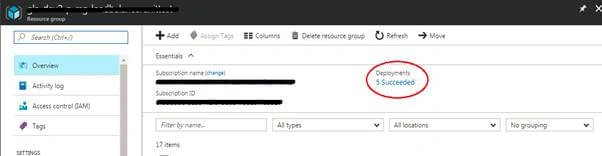
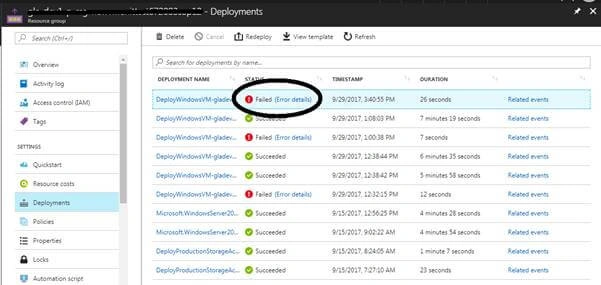
- When you will open Resource Group >> Overview tab, you will see Deployment value like “Succeeded” or “Failed” and count as well. Click on that link.

Avinash PhadkePosted Feb 10, 2018, 3:55 AM
Yes this is a good article, but could you explain us same functionality with the help of new portal. Do Microsoft continues with this feature or they have introduced any other method to achieve the same?