

Azure Dashboards
Azure Dashboards are used to add widgets for graphical representations to your project. We have Azure DevOps marketplace to add widgets as per our requirement by clicking on the "Add a widget" button. We can customize and configure dashboards to your teams. It will help to monitor progress, and improve your workflow processes and information about the project.
Features
Dashboards, Charts, Widgets, Power BI reports, system-generated reports, and Quick Links by using charts.
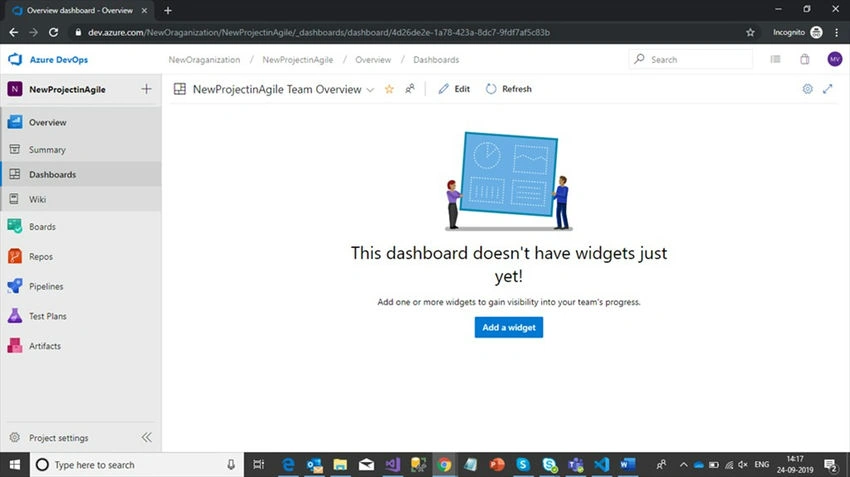
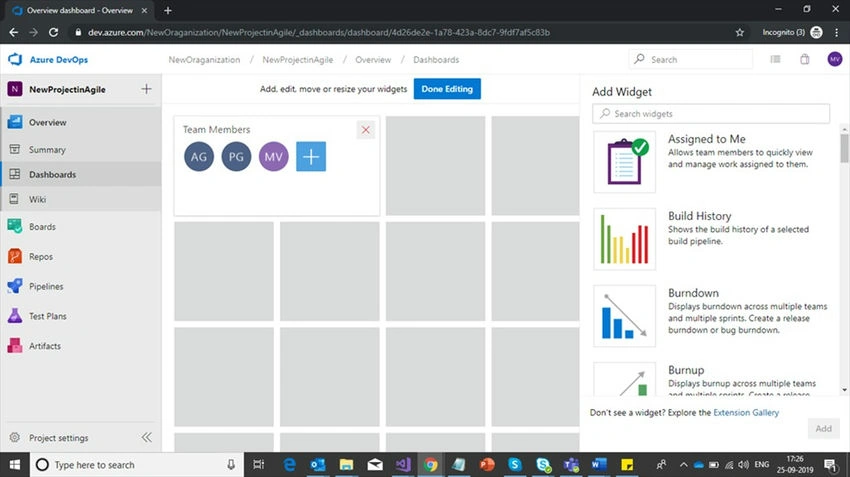
You'll get an option to select widgets to visualize the items as shown in the below screen. If you want more widget items click on this URL:https://marketplace.visualstudio.com/ to configure.
Azure Boards
Azure boards are used to create story points, features, and epics for planned sprint releases in our organization and track work items with Kanban boards, backlogs, team dashboards, and custom reporting. You can quickly and easily start tracking user stories, backlog items, tasks, features, and bugs associated with your project.
Below are the components available in Azure boards.
- Work Items
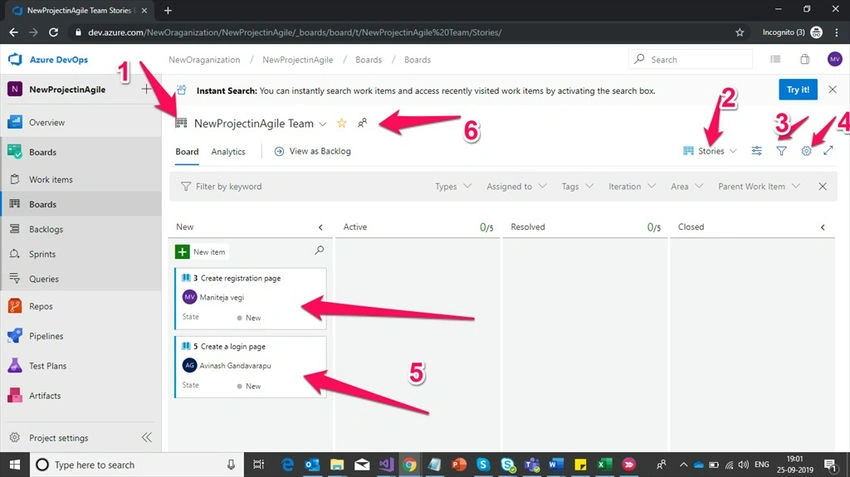
- Boards
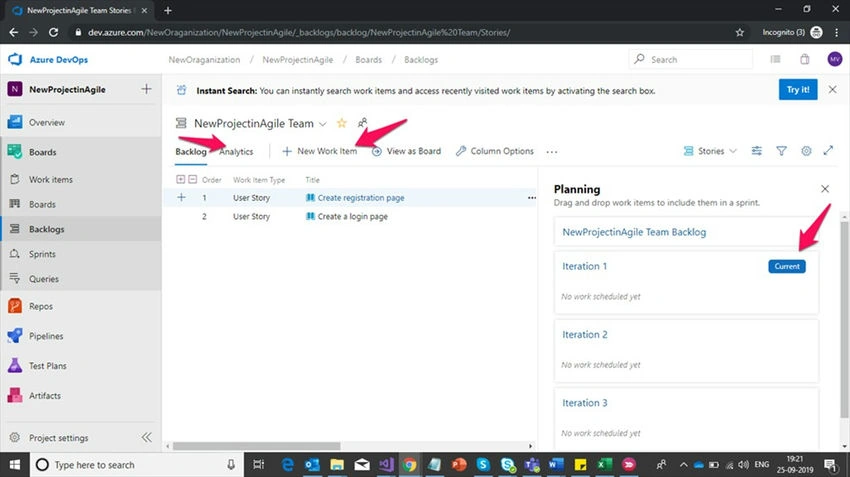
- BackLogs
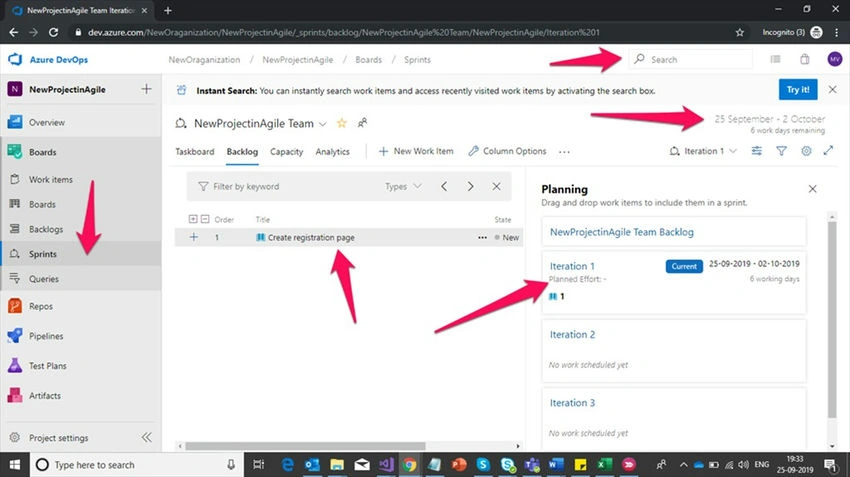
- Sprints
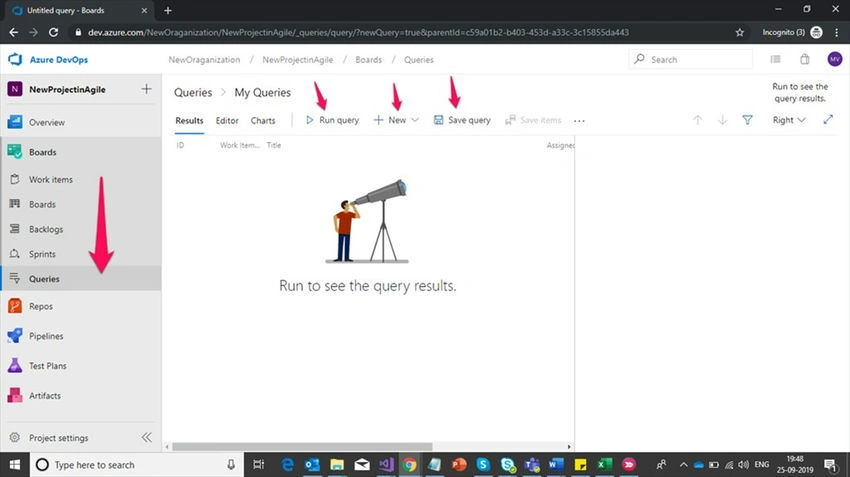
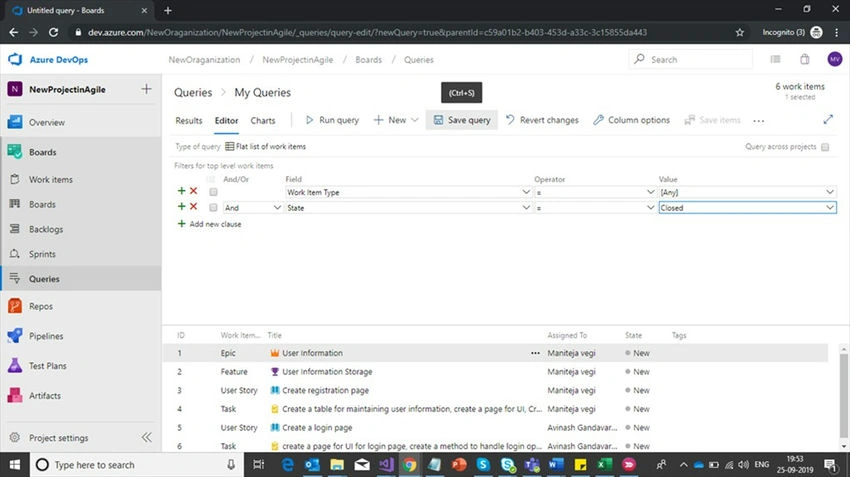
- Queries
Work Items
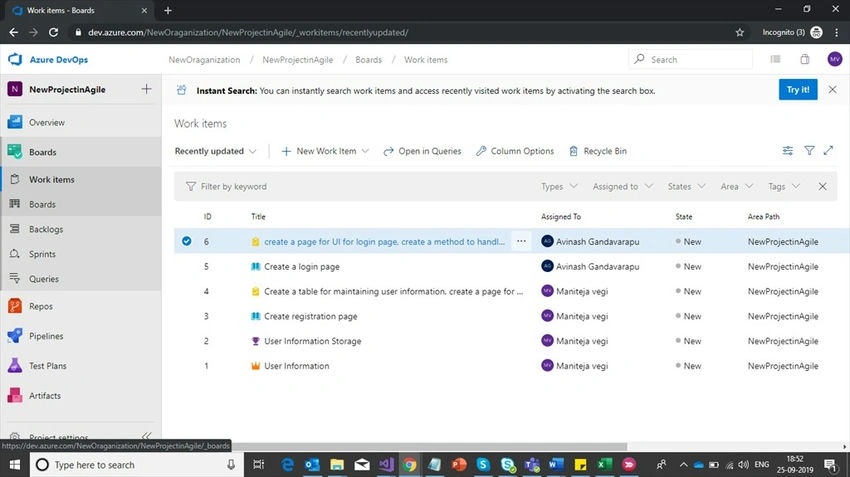
Work items are a collection of epics, features, issues, bugs, test cases, user stories, etc. to track the features and requirements for developing code in the project.
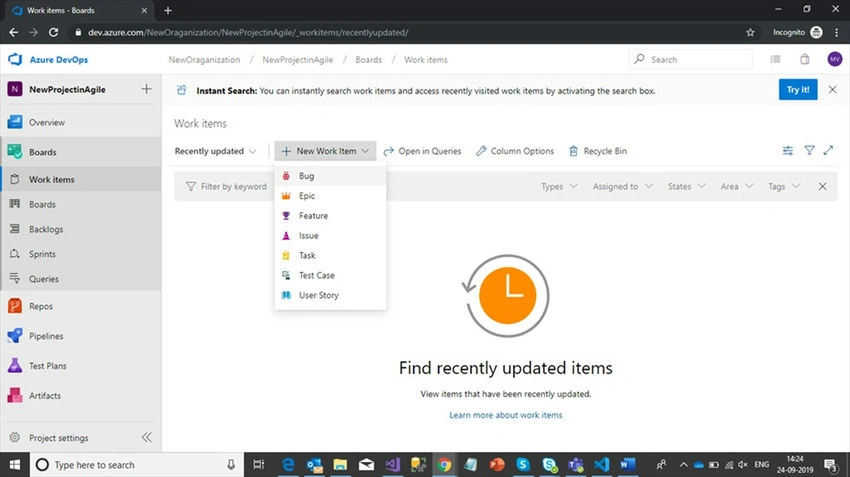
Features for Work Items
We can upload work items manually from the application or else we can connect DevOps projects by using team extensions in Excel.
Follow the below link for Working with Excel.
https://docs.microsoft.com/en-us/azure/devops/boards/backlogs/office/track-work?view=azure-devops
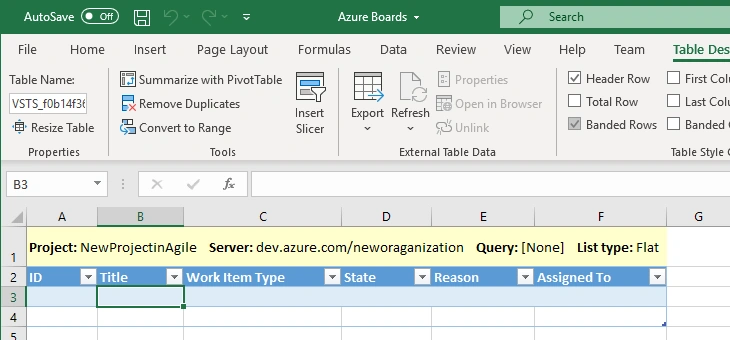
Now create one Excel workbook for managing all work items.
- You need to add a team plugin
- Select New List
- Connect your TFS server (Azure DevOps Server) by clicking on the servers button.
- In Server windows, add your project URL as shown in the below screenshot.
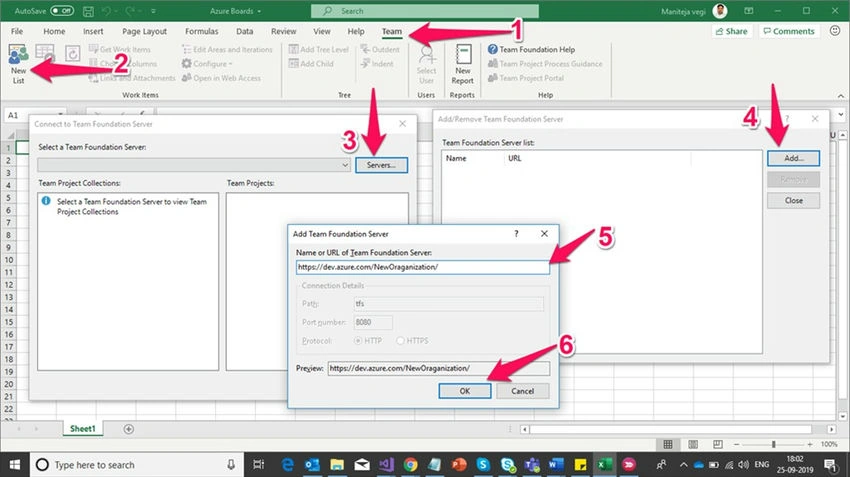
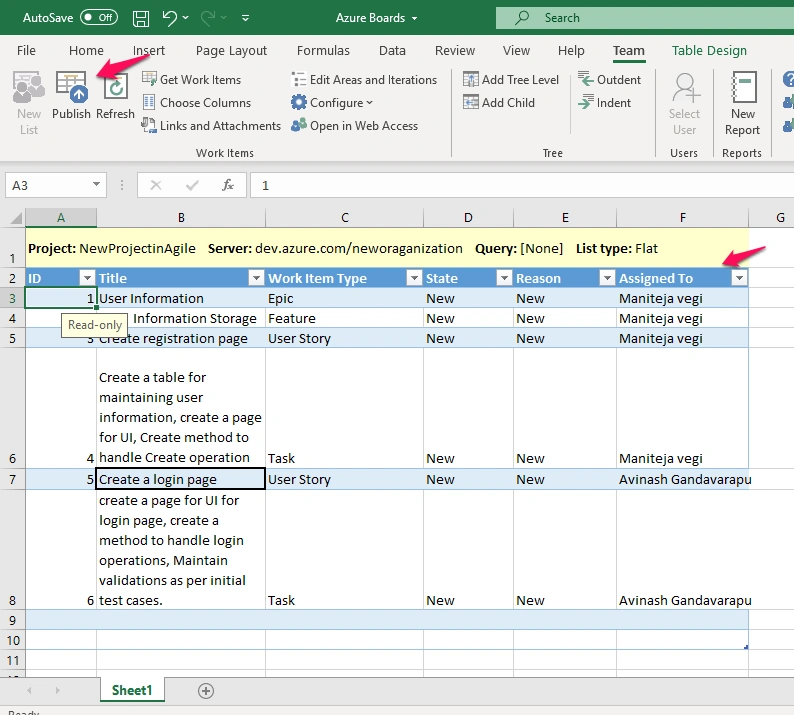
After clicking on OK, It will be redirected to login and authenticate with your username and password. Once you're done with your login, add your project and select the input list for the default template. Fill your story points for sprint releases by selecting dropdown options in WorkItem type, State, Reason, and Assigned To.
Here we will check how Azure Boards will help to execute.
Scrum Master/Project Manager knows the features, epics, tasks, stories, allocation resources for sprints, task cards, etc. All this type of management activity will happen in this Azure Boards.
We will discuss more about Azure boards and basic use cases step by step.
Now our PM has planned an activity to release one registration page and login page for the first sprint.
Now the organization's HR has allocated resources for a brand new project, and below is the initial resources list.
Ex
| Name | Mail ID | Expertise |
| Naveen Kumar | [email protected] | Technical Architect |
| Maniteja Vegi | [email protected] | Full Stack Developer |
| Avinash Reddy | [email protected] | Full Stack Developer |
| Ravi Kumar | [email protected] | Tester |
Railton SantanaPosted Jun 21, 2022, 5:48 PM
Hi, Do you know ir is it possible to have diferent boards at the same project where each boad is loaded by a query? Like we have on JIRA. Thanks