

Introduction
In this article, we will focus on how to generate the token using the Azure active directory with role-based permission and then validate the Azure management service using this token.
Azure Active Directory (AAD): Active Directory (AD) is Microsoft's proprietary directory service. It runs on Windows Server and enables administrators to manage permissions and access to network resources. Active Directory stores data as objects. An object is a single element, such as a user, group, application, or device such as a printer. Objects are normally defined as either resources, such as printers or computers, or security principals, such as users or groups.
API Management Services (APIM): Deploy API gateways side-by-side with the APIs hosted in Azure, other clouds, and on-premises, optimizing API traffic flow. Meet security and compliance requirements while enjoying a unified management experience and full observability across all internal and external APIs.
Topics Covered
This article demonstrates how to build the following,
- Create and configure AAD.
- Create and configure APIM and Resource Group.
- Testing using Postman.
- Clean up resources.
Pre-requisites
- An Active Azure Account.
- User with sufficient access to create Azure resources group, Azure directory, and APIM for this article.
Task 1. Create and configure an APIM and Resource group.
Consider this Azure API Management and Resource Group Setup
Task 2. Create and configure the Azure active directory.
- Sign in to the Azure portal.
- From the Azure portal menu, select Azure Active Directory.
- On the overview page, select Manage Tenants.
- Select Create.

- On the Basics tab, select the type of tenant you want to create, either Azure Active Directory or Azure Active Directory (B2C).
- Select Next: Configuration to move on to the Configuration tab.
- On the Configuration tab, enter the following information:
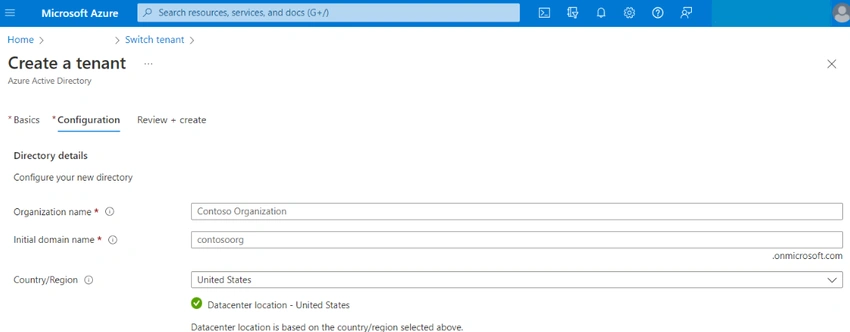
- Type your desired Organization name (for example Contoso Organization) into the Organization name box.
- Type your desired Initial domain name (for example Contosoorg) into the Initial domain name box.
- Select your desired Country/Region or leave the United States option in the Country or region box.
- Select Next: Review + Create. Review the information you entered and if the information is correct, select Create.
Task 3. Configure API in APIM.
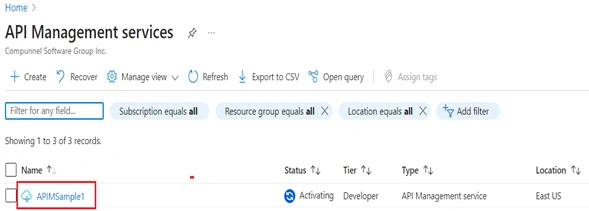
- On the API Management services page, select your API Management instance
- Import and publish a backend API
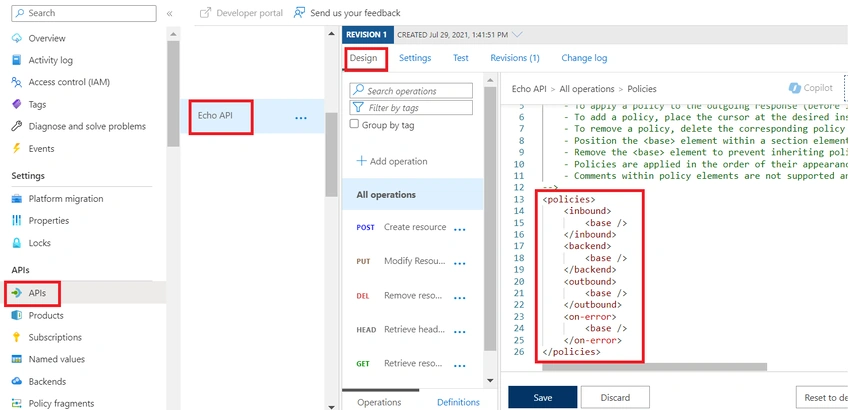
- In the left navigation of your API Management instance, select APIs.
- Select the OpenAPI tile.
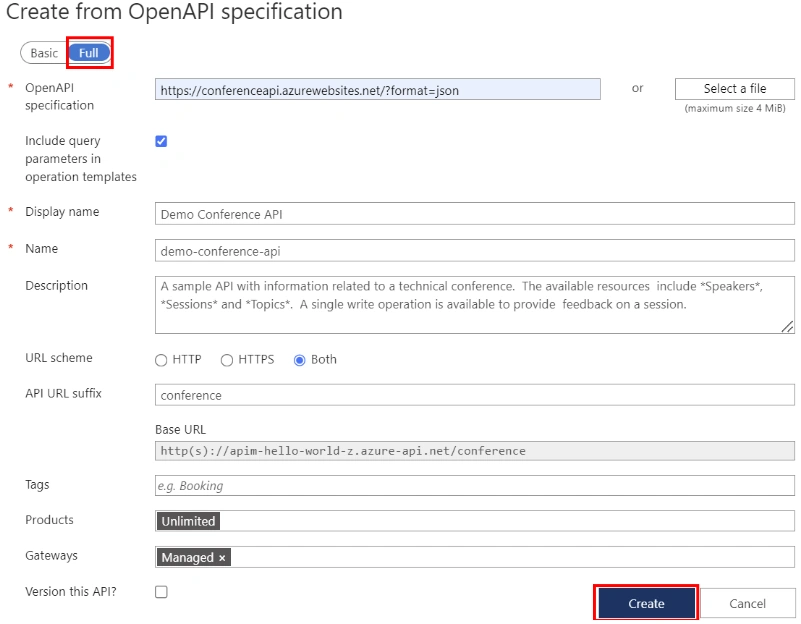
- In the Create from OpenAPI specification window, select Full.
- Enter the values from the following table.
- You can set API values during creation or later by going to the Settings tab.
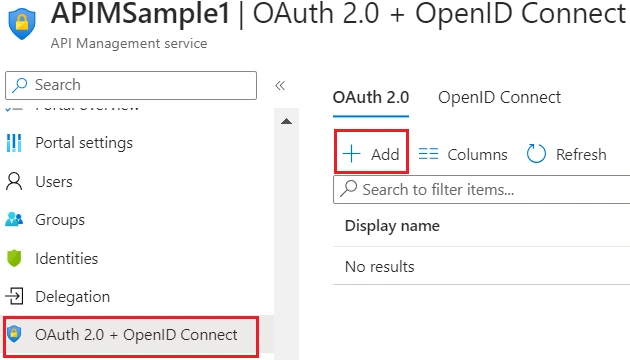
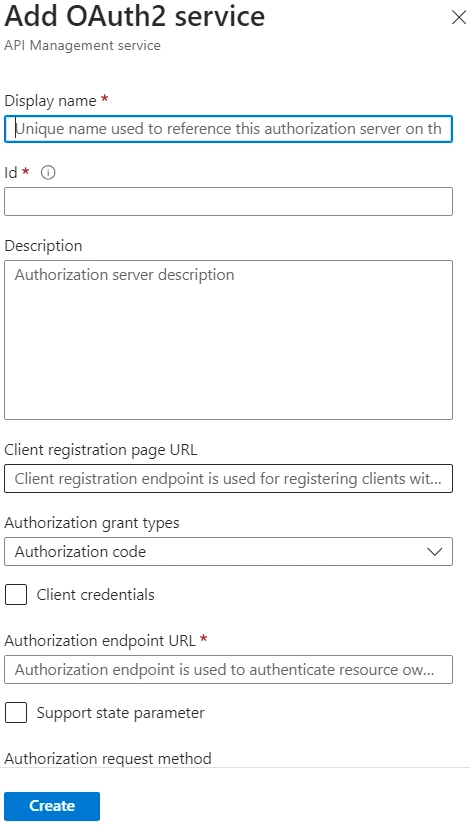
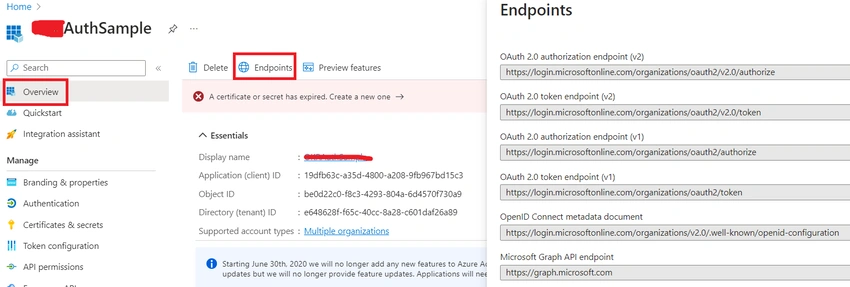
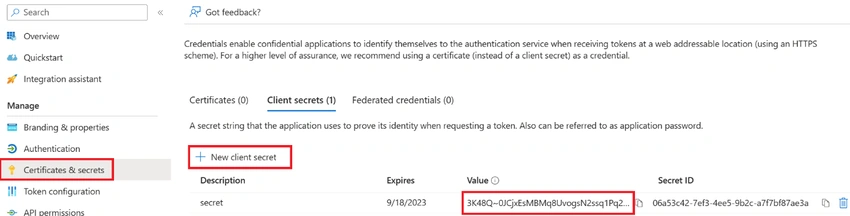
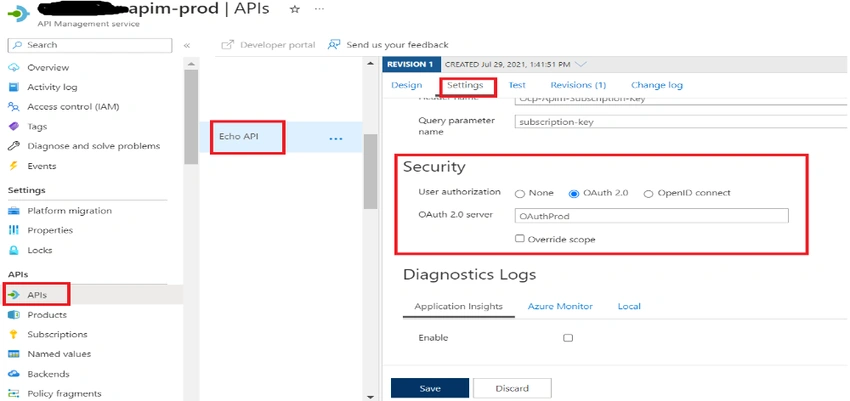
Task 4. Configure OAuth in APIM.
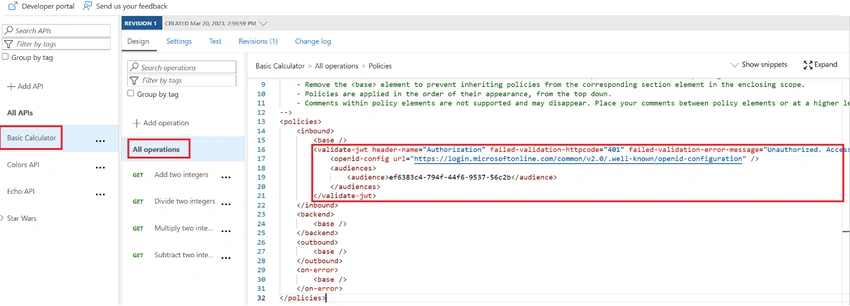
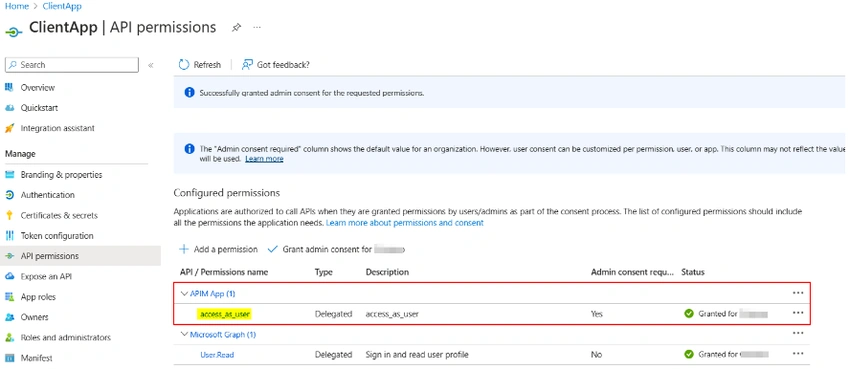
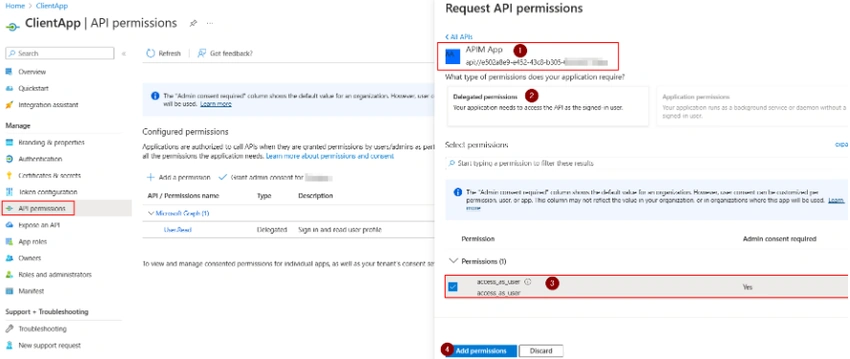
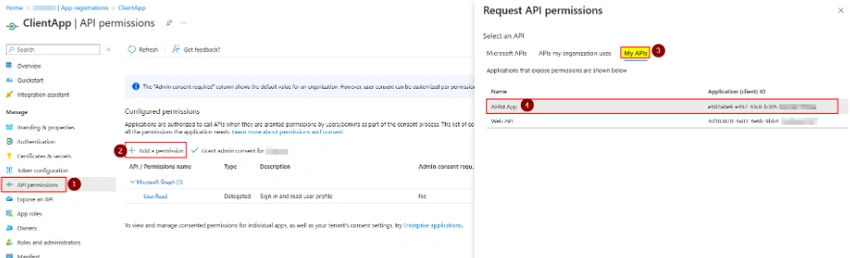
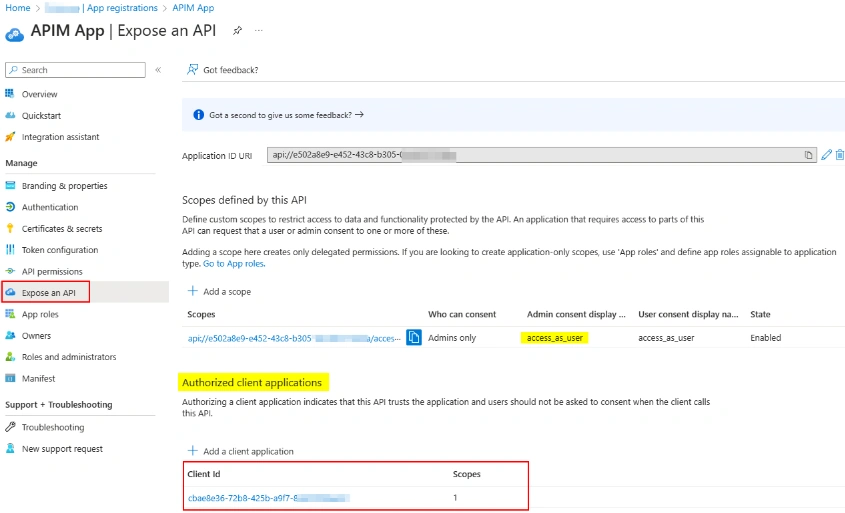
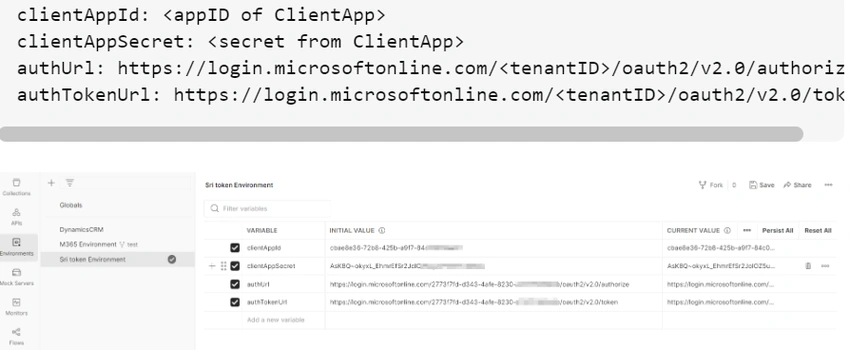
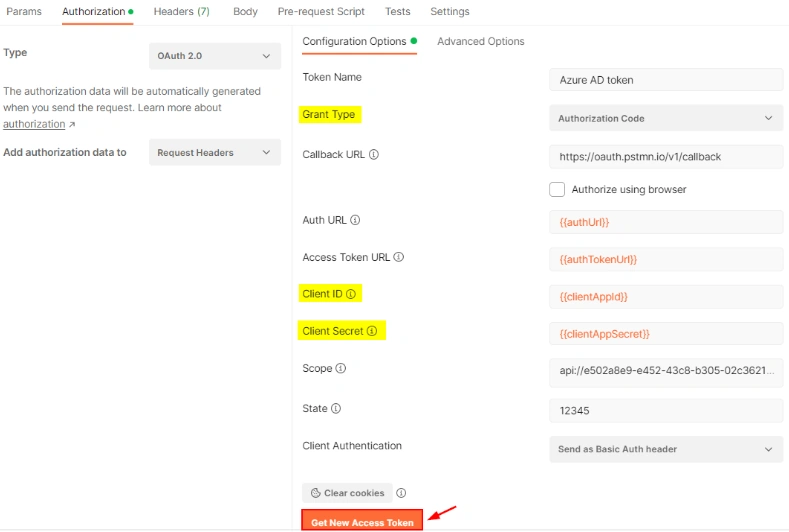
Join the conversation! Your thoughts help the community grow.