This article is the second module of the Azure Az-900 course, and we will learn about the following.
- What are Azure and its services
- Using Azure Cloud Shell to launch configure your virtual machine to run a basic web server
- Scale up your server to give you more compute power
What is Azure
Azure is Microsoft's cloud computing platform. Azure is a continually expanding set of cloud services, that helps your organization meet your current and future business challenges. Azure gives you the freedom to build, manage, and deploy applications on a massive global network using your favorite tools and frameworks.
Azure services
Microsoft categorizes Azure cloud services into more than 18 main product types, let's take so a look at the most used categories -
Compute
It is one of the most primary reasons to move to Azure. It allows the user to deploy and manage virtual machines (VMs), containers and batch processing, as well as, it supports remote application access.
Networking
Networking category in Azure has a range of options to connect the outside world to services and features in the global Microsoft Azure datacenters; virtual networks, dedicated connections and gateways, as well as services for traffic management and diagnostics, load balancing, domain name system (DNS) hosting, and network protection against distributed denial-of-service (DDoS) attacks.
Storage
This category provides 4 main types of storage services: Azure Blob storage (Storage service for very large objects,), Azure File storage (file server), Azure Queue storage(date store) and Azure Table storage(NoSQL store) with several common characteristics such as durable, secure and scalable cloud storage.
Mobile
It enables developers to create mobile backend services, providing notification services, support for back-end tasks, tools for building APIs and the ability to couple geospatial context with data.
Databases
This category provides multiple database services to store a wide variety of data types and volumes. such as Azure SQL Database, Azure Database for MySQL, Azure Database for PostgreSQL, Azure Database Migration Service ...etc
Web
This category of services support the development and deployment of web applications, and also offer features such as the Azure Notification Hubs, Azure Search, Azure SignalR Service …
Internet of Things
This category helps users capture, monitor and analyze IoT data from sensors and other devices. it includes a number of services that can assist and drive end-to-end solutions for IoT, such as IoT Central, Azure IoT Hub, and IoT Edge.
Artificial Intelligence
It is based around a broad range of services, the core of which is Machine Learning.
Machine Learning is a data science technique that allows computers to use existing data to forecast future behaviors, outcomes, and trends. Using machine learning, computers learn without being explicitly programmed.
DevOps
This category of services provides project and collaboration tools, such as Visual Studio Team Services, that facilitate DevOps software development processes. It also offers features for application diagnostics, DevOps tool integrations, and test labs for build tests and experimentation.
Create a virtual machine using Cloud Shell
The first step is to open your Azure account (it can be the free one); then click on the button as below.
A new Azure Cloud shell windows appear in the bottom of your Azure page, please switch from Powershell to Bash by selecting Bash as below,
Create a resource group
The first step is to create a resource group to hold all the things that we need to create. This allows us to administer all the VMs, disks, network interfaces, and other elements that make up our solution a unit.
And in this article, we will use the Azure CLI to create a resource group with the az group create command. It takes a --name to give it a unique name in our subscription, and a --location to tell Azure what area of the world we want the resources to be located by default.
So, let’s create a resource group by running the below command.
az group create --name myFirstResourceGroup --location
Choosing a location
Do not forget to change local using one of the following lists.
'Centralus, eastasia, southeastasia, eastus, eastus2, westus, westus2, northcentralus, southcentralus, westcentralus, northeurope, westeurope, japaneast, japanwest, brazilsouth, australiasoutheast, australiaeast, westindia, southindia, centralindia, canadacentral, canadaeast,u ksouth, ukwest, koreacentral, koreasouth, francecentral, southafricawest’
Create a virtual machine
Let's get our Windows VM up and running.
Run the following commands to create a username and generate a random password.
- USERNAME=azureuser
- PASSWORD=$(openssl rand -base64 32)
Run the following az vm create command to create your VM. (use the same location as the group location in the previous step).
- az vm create \
- --name myVM \
- --resource-group myFirstResourceGroup\
- --image Win2016Datacenter \
- --size Standard_DS2_v2 \
- --location location\
- --admin-username $USERNAME \
- --admin-password $PASSWORD
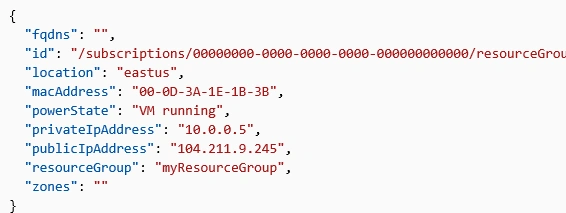
When the VM is ready, you see information about it. Here's an example.
Add a web server
Step 1 Configure IIS
From Cloud Shell, run this az vm extension set command to download and execute a PowerShell script that installs IIS and configures a basic home page.
- az vm extension set \
- --resource-group myFirstResourceGroup \
- --vm-name myVM \
- --name CustomScriptExtension \
- --publisher Microsoft.Compute \
- --settings "{'fileUris':['https://raw.githubusercontent.com/MicrosoftDocs/mslearn-welcome-to-azure/master/configure-iis.ps1']}" \
- --protected-settings "{'commandToExecute': 'powershell -ExecutionPolicy Unrestricted -File configure-iis.ps1'}"
Step 2
Open the port 80 for web traffic by running the following command.
az vm open-port --port 80 --resource-group myFirstResourceGroup --name myVM
Verify the configuration
Run this az vm show command to get your VM's public IP address.
az vm show -d -g myFirstResourceGroup -n myVM --query publicIps -o tsv
In a new browser tab, navigate to your VM's IP address (http:// followed by the IP address). You'll see your welcome message and your VM's name.
Scale up
What is scale?
Scale refers to adding network bandwidth, memory, storage, or compute power to achieve better performance.
Scale up your VM
In this example, we will increase our VM's size to Standard_DS3_v2.
- az vm resize \
- --resource-group myFirstResourceGroup \
- --name myVM \
- --size Standard_DS3_v2
Run az vm show to verify that your VM is running the new size.
- az vm show \
- --resource-group myFirstResourceGroup\
- --name myVM \
- --query "hardwareProfile" \
- --output tsv
You see your new VM size, 
Summary
In this module, we have learned about Microsoft Azure and how it relates to cloud computing, and we have used Azure Cloud Shell to configure a new virtual machine to run a basic web server.





Aakash MauryaPosted May 30, 2019, 1:00 PM
Great job.. Keep the good stuffs coming..