

Introduction
This article explains how to create and connect Azure SQL database in the Azure portal.
SQL database
First, we need to log into the Azure Portal with our Azure credentials. Then we need to create an Azure SQL database in the Azure portal.
Click on "Create a resource" on the left side menu and it will open an “Azure Marketplace”. There, we can see the list of services. Click “Databases” then click on the “SQL Database”.
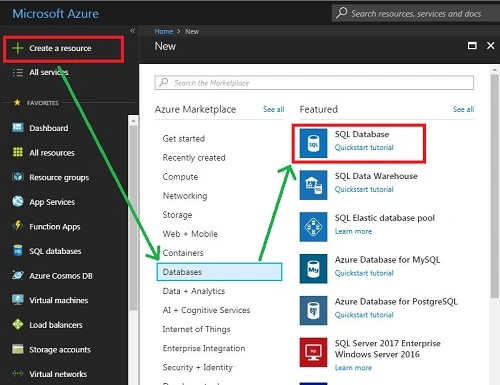
Create a SQL database
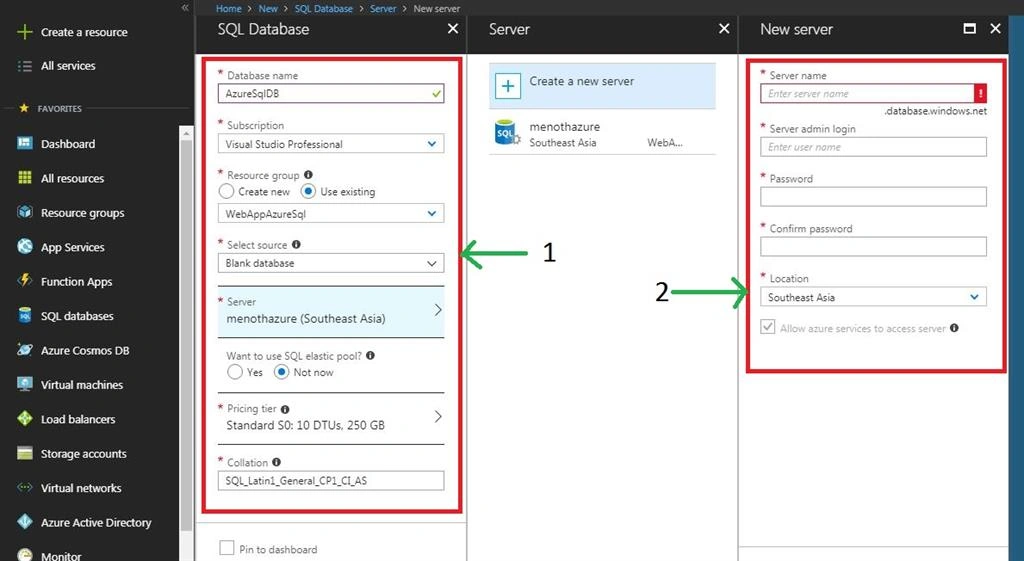
After clicking the “SQL Database”, it will open another section. There, we need to provide the basic information about our database like Database name, Storage Space, Server name, etc.
Database name
The valid name of our SQL Database ( We have given the Database name as “AzureSQLDB” ).
The valid name of our SQL Database ( We have given the Database name as “AzureSQLDB” ).
Subscription
We can select our Azure subscription for SQL Database creation.
We can select our Azure subscription for SQL Database creation.
Resource group
We can create a new resource group or choose from an existing one ( We have selected our existing resource group as “WebAppAzureSql” ).
We can create a new resource group or choose from an existing one ( We have selected our existing resource group as “WebAppAzureSql” ).
Select source
We select Blank database ( This will create a blank database ). The following Select source categories are available in the SQL Database.
We select Blank database ( This will create a blank database ). The following Select source categories are available in the SQL Database.
- Blank database – This will create a blank database.
- AdventureWorksLT – This will generate an AdventureWorksLT sample schema.
- Backup - Create a new database from an existing backup.
Server
Under the server, we need to configure required settings.
Under the server, we need to configure required settings.
- Server name - Any globally unique name we can give which will store our database information.
- Server admin login - Create our server admin name for future access.
- Password & Confirm Password - Create our server admin password for future access.
- Location - Choose an available location that will be more suitable for our requirement.
Once we enter all the "Server" details then Click on "Select".
Pricing Tier
Select an appropriate pricing tier for our requirement.
Select an appropriate pricing tier for our requirement.
Collation
Create a name for the Collation (Collation defines the rules that sort and compare the data and cannot be changed after the database creation ).
Create a name for the Collation (Collation defines the rules that sort and compare the data and cannot be changed after the database creation ).
Rajesh GamiPosted Apr 14, 2018, 1:59 AM
Nice one sir.. Very useful article