

In our previous article listed below, we have learned how to create a Long Term Retention Backup of an Azure SQL Database which lasts for 10 years.
In this article, let's see how to restore the backup taken as part of LTR backup. Navigate to the SQL Servers for which you have configured the Long Term Retention backup, as shown below.

The "Essentials" blade lists all the databases associated with the selected logical SQL Server, as shown below.
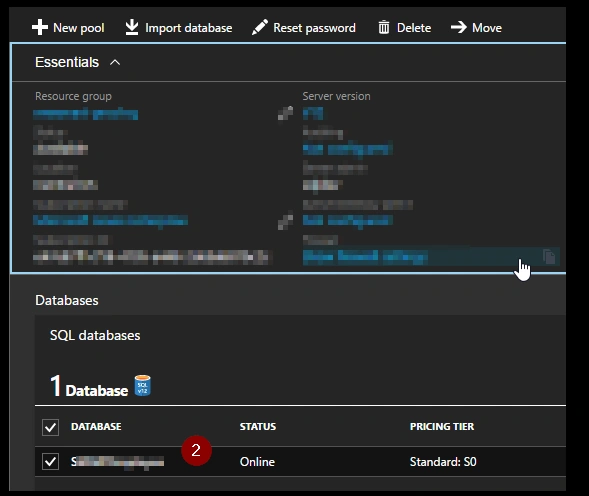
Click on the required database. In your case, there might be multiple databases. You need to choose the right database that you would like to restore.
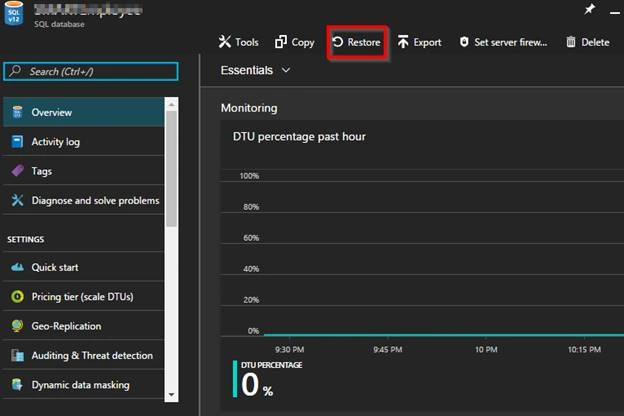
Now, click on "Restore" button, as shown in the above screen capture.
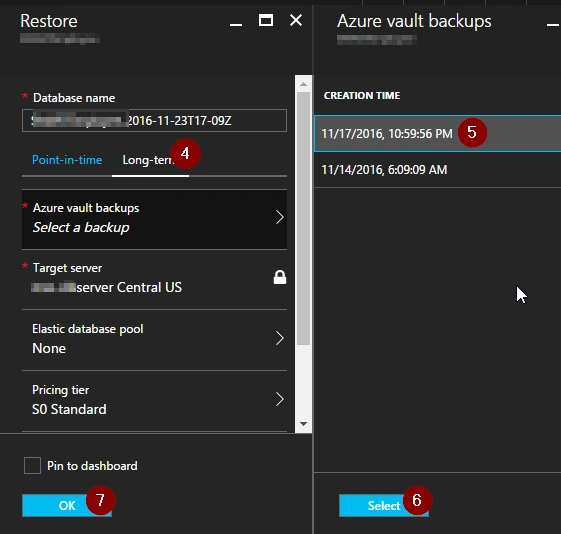
In the above "Restore" blade, click on the Long-term tab to choose the required settings. Given below are the settings that we would need to choose.
- Database name - Provide a name for the new database that gets created as a part of restoring process.
- Azure Vault backups - We need to choose the backup using which we would like to restore.
- Target Server - As of this writing, we can restore the database within the same SQL Server from where the database is backed up.
- Elastic database pool - In case, if you would like to associate the new database in an Elastic pool.
- Pricing tier - In case. if you would like to change the Pricing Tier of the new database that gets created as part of the restoration process.
Once you are ready with all the details, click on “OK” button.
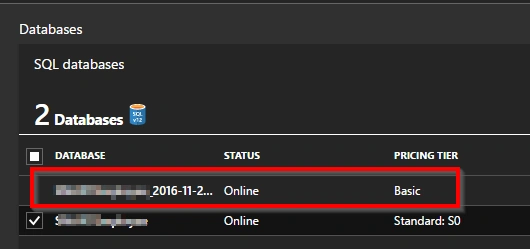
After a couple of minutes (depending on the size of your database, it might take hours to complete the restoration), given below is the screenshot of the new database that gets created.
Summary
In this article, we have learned how to restore a database from the backup that was saved in a Backup vault as part of Long Term Retention.
Hope you enjoyed reading the article. You can read the original article here.
Join the conversation! Your thoughts help the community grow.