

Please go through the articles given below to learn more about storage account.
- Azure Storage – Basics
- Azure Resource Manage Template: Create A Storage Account Using Blank Template
- Create a Storage Account and learn how to access It Programmatically
What is Blob container?
Container is a collection, which can be used like a folder to store Blobs.
The steps are given below, which are required to create a container, using .NET Storage Client Library.
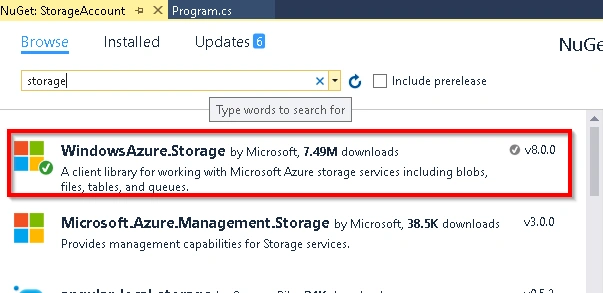
- Download and install WindowsAzure.Storagefrom NugetPackage Library – A client library for working with Microsoft Azure storage services like Blobs, Files and Queues.
- Build a connection string to the storage account’s end point, using Storage Account access keys.
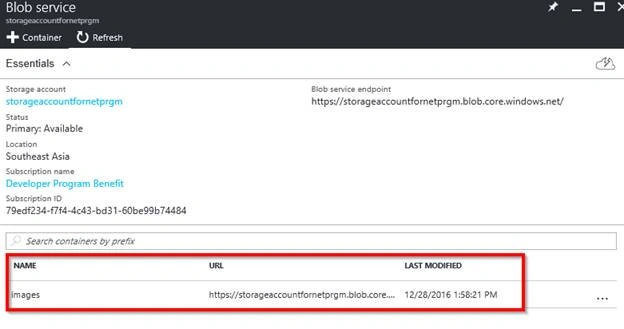
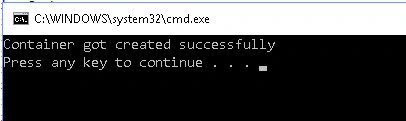
- Programmatically connect to the storage account and create the Storage container.
For this example, I have created a console Application, which creates a container in the selected Storage account.
Add the WindowsAzure.StorageNuget Package from NuGet.
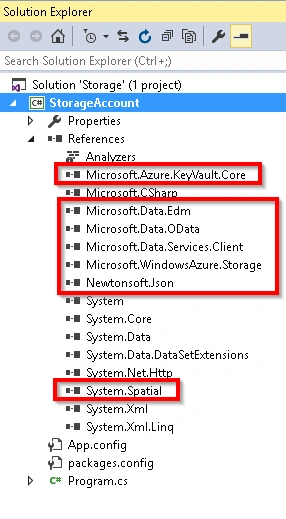
Below are the highlighted references, which get added, as soon as I installed the package given above.
The next thing is to have the connection string for the Storage account. Grab the connection string from the access keys blade from the Storage Account, which was explained in our previous articles.
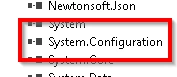
Create an AppSetting key in the App.Config to store the ConnetionString, as shown below.
- <?xmlversion="1.0"encoding="utf-8" ?>
- <configuration>
- <startup>
- <supportedRuntimeversion="v4.0" sku=".NETFramework,Version=v4.6.1" /> </startup>
- <appSettings>
- <addkey="ConnectionString" value="DefaultEndpointsProtocol=https;AccountName=<Storage Account name>;AccountKey=<Key>;" /> </appSettings>
- </configuration>
Ravi KandelPosted Mar 8, 2017, 8:53 AM
Awesome Thanks for sharing