
Introduction
Windows Powershell is a command line tool from Microsoft to facilitate the system administrators or a developer to interact with the system. When we say it is a command line tool, it means that the user interacts with the system through set of commands.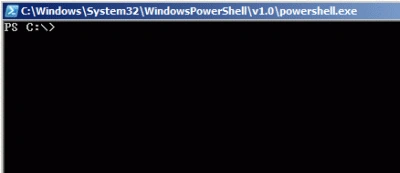
We simply specify a command through the console window which is as shown above and the Powershell executes the command supplied to it to complete the operation. We can relate the Windows Powershell to the Unix shells such as C-shell or BASH etc.
What is the use of Powershell
Windows Powershell is of great use to the System administrators. The administrators can write scripts using Powershell commands to automate the repetitive administrative tasks, hence reducing the effort of manual work. Also, Powershell provides a rich set of commands which can be used to do not just system administration but a variety of tasks too.
So lets get our hands on Windows Powershell. In your Windows 7/Vista/Windows Server 2008 OS, Go to RUN-> type Powershell and hit enter. You will get a console window. 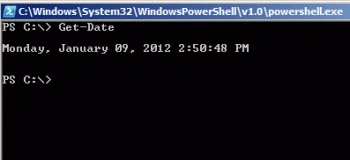
Here you can see that we have given a Get-Date command and we received the current date-time as the output. So we instructed Powershell with a command and we got a result.
Similarly try and give the command Get-Process which lists all the processes running on your machine. These commands that we write are called "cmdlets". There are huge number of in-built cmdlets. Each command is prefixed with an operation. For example "Get-" in the above two commands that we used: Get-Date and Get-Process. Similarly there is 'Set-', 'Remove-' etc. You can list all the inbuilt Powershell cmdlets by using the command : Get-Command. You can also iterate through the list of Powershell commands one by one. Just type 'Get-' and hit the "TAB" button on your keyboard. For every TAB button hit, Powershell will show you the commands for "Get-" one by one.
So what is the first thing we do when we start learning a new language or a framework? Yes, you guessed it right. The good old "Hello world". So now, we will try writing a simple Hello world to the console window of Powershell. Write the command Write-Host Hello World !!! and hit Enter. The console window will write out the string entered in front of the "Write-Host" command.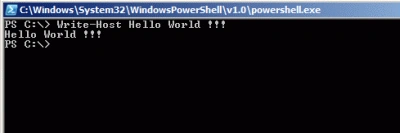
Simple enough. Now we will accept some input from the user through the console window and store it in a variable.
Type in the following code
$variable1 = Read-Host
This will take you to the next line where the console is waiting for a user input. I'll enter the string "Hello World !!!". Now we will print this user input to the console using the Write-Host command that we have used above.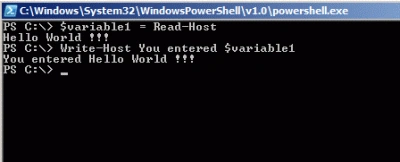
Getting help of a CMDLET
You can get the help of a particular CMDLET from the Powershell itself.
For example
Hit Enter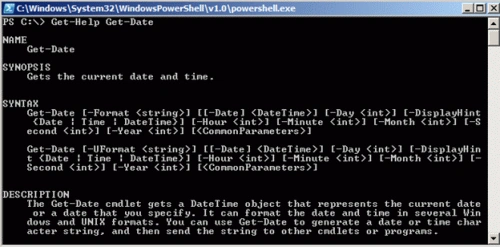
A Tip : If you don't want to write the entire command by yourself and want to enjoy some Intellisense kind of a thing, you can write the command partially and hit the TAB button. The Powershell will complete the command for you.
Eg just type "write-h" and hit TAB. The command Write-Host will appear to the console window.
The commands are not case sensitive. "write-host" is same as "Write-Host"
There is an editor available for writing Powershell scripts- Windows Powershell ISE.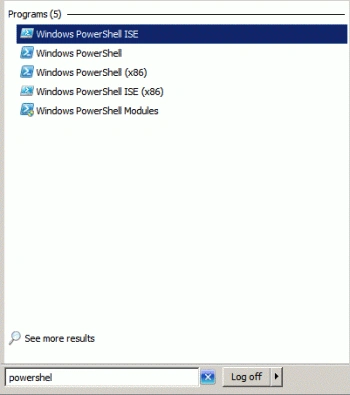
We will write our first script in a simple notepad file.
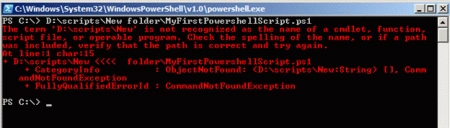
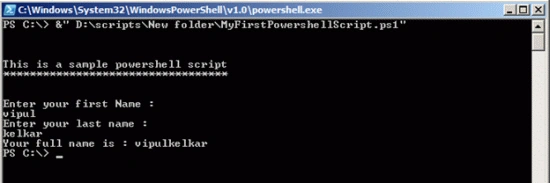
Open notepad and save the new file as MyFirstPowershellScript.ps1. Enter the following script:
Write-Host `n`n
Write-Host This is a sample Powershell script
Write-Host **********************************
Write-Host `n
Write-Host Enter your first Name :
$firstname = Read-Host
Write-Host Enter your last name :
$lastname = Read-Host
$fullname = $firstname + $lastname
Write-Host Your full name is : $fullname
In the above script

Basics of Powershell
Join the conversation! Your thoughts help the community grow.
Sign in to leave a comment
It is the same account you read, post and publish with — and you will come straight back to this page.
Alok PandeyPosted Feb 5, 2012, 11:38 PM
Very useful article. Thanks for sharing.
Akash AhlawatPosted Feb 5, 2012, 11:29 PM
Thanks for sharing
Dinesh BeniwalPosted Feb 5, 2012, 11:08 PM
Good work Vipul.
Stephen JohnsonPosted Feb 5, 2012, 10:58 PM
Hi Vipul. Nicely presented article.
Arjun PanwarPosted Feb 5, 2012, 10:48 PM
Thanks for this article