Introduction
Search is a very common feature in any type of application whether the application is a web application or console application. Now let us talk about Android and mobile applications. Android applications also have search features of their own.
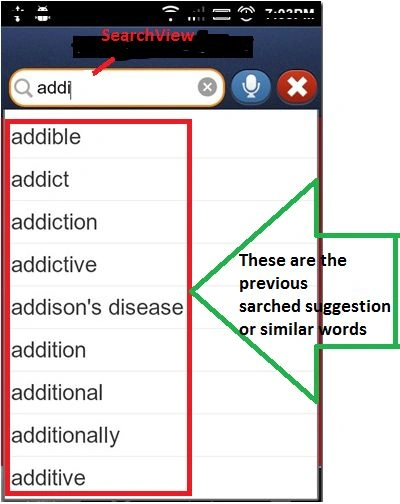
Android enabled devices to have a very robust feature of search queries within the devices or searching with the web so that it is combined in the device itself. A user can search for something in the Android device and user settings can be saved on that devices and when the user searches in the future again for something and the matched characters would show and the previous search words appear in the dropdown selection list.
Let us see an example in which we have a dictionary application. When we begin the search in the dictionary search provider tab, there are suggestions based on recent searches or after five or four search results we have seen that what happens is when the user type a word again into that space then the previously searched keyword is shown below the typing space as in the form of a list.
Features of Search Widgets
- Enable voice search
- Provide search suggestions based on recent user queries
- Provide custom search suggestions that match actual results in your application data
- Offer your application's search suggestions in the system-wide Quick Search Box
Creating a Search Interface
In an Android application, a search interface could be created using two methods, namely by search widgets or with a search dialog box.
- The search dialog is a UI component that's controlled by the Android system. When activated by the user, the search dialog appears at the top of the activity as we have already learned in previous articles.
The Android system controls all events in the search dialog. When the user submits a query, the system delivers the query to the activity that we have defined and coded as in the following so that it can specify to handle searches. The dialog can also provide search suggestions while the user types.
- The search widget is an instance of SearchView so that we can place it anywhere in your layout. By default, the search widget behaves like a standard EditText widget but does nothing more.
Note: However, the search widget is available only in Android 3.0 (API Level 11) and higher.
However, a user's query must be saved in the locale using an Intent so as to provide an efficient search for it. To enhance this use the following procedure:
- A searchable configuration
An XML file that configures some settings for the search dialog or widget. It includes settings for features such as voice search, search suggestion and hint text for the search box.
- A searchable activity
The Activity that receives the search query, searches your data and displays the search results.
- The search dialog
By default, the search dialog is hidden, however, we can enable it if needed but most commonly it appears at the top of the screen when you call onSearchRequested() (when the user presses your Search button).
- SearchView widget
Using the search widget allows you to put the search box anywhere in your activity. Instead of putting it in your activity layout, you should usually use SearchView as an action view in the Action Bar.
Creating a Searchable Configuration
For creating a searchable configuration we must use the code for a search widget or a dialog in the XML layout file. It configures certain UI aspects of the search dialog.
- <?xml version="1.0" encoding="utf-8"?>
- <searchable xmlns:android="http://schemas.android.com/apk/res/android"
- android:label="@string/app_label"
- android:hint="@string/search_hint" >
- </searchable>
The android: label attribute is the only required attribute. However, it is pointing towards a string resource. Its attributes must be defined in the string.xml file.
The <searchable> element accepts several other attributes. However, you don't need most attributes until one must attach the features on the search suggestions and voice search.
Creating the Searchable Activity
- Declare the activity to accept the ACTION_SEARCH intent, in an <intent-filter> element.
- Specify the searchable configuration to use, in a <meta-data> element.
activity_main.xml- <application ... >
- <activity android:name=".SearchableActivity" >
- <intent-filter>
- 1<action android:name="android.intent.action.SEARCH" />
- </intent-filter>
- <meta-data android:name="android.app.searchable"
- android:resource="@xml/searchable"/>
- </activity>
- ...
- </application>
Note: The <intent-filter> does not need a <category> with the DEFAULT value because the system delivers the ACTION_SEARCH intent explicitly to searchable activity.
Performing a search
This includes the following three steps basically:
- Receiving the result
- Searching your data
- Presenting the results
Receiving the query
When a user executes a search from the search dialog or widgets then the system starts your searchable activity and sends it an ACTION _SEARCH intent. An intent can carry the information. Here it carries the search result.
- import android.app.Activity;
- import android.os.Bundle;
- import android.view.Menu;
- import android.view.MenuItem;
-
-
- public class RecentActivity extends Activity {
-
- @Override
- protected void onCreate(Bundle savedInstanceState) {
- super.onCreate(savedInstanceState);
- setContentView(R.layout.activity_recent);
-
- Intent intent = getIntent();
- if (Intent.ACTION_SEARCH.equals(intent.getAction())) {
- String query = intent.getStringExtra(SearchManager.QUERY);
- doMySearch(query);
- }
- @Override
- public boolean onCreateOptionsMenu(Menu menu) {
-
- getMenuInflater().inflate(R.menu.recent, menu);
- return true;
- }
-
- @Override
- public boolean onOptionsItemSelected(MenuItem item) {
-
-
-
- int id = item.getItemId();
- if (id == R.id.action_settings) {
- return true;
- }
- return super.onOptionsItemSelected(item);
- }
- }
Searching Data using Search Widget
The processing and storing of the data in an Android application using the database SQLite is done uniquely. The SearchView widgets are available in Android 3.0 and higher. If we are developing for Android version 3.0 and higher then we must insert search widgets as an action view in the ActionBar.
Configuring the search widgets
After you've created a searchable configuration and a searchable activity as discussed above you need to enable searching. For example, if you're using a SearchView as an action view in the Action Bar, you should enable the widget during the onCreateOptionsMenu() callback:
- @Override
- public boolean onCreateOptionsMenu(Menu menu) {
-
- MenuInflater inflater = getMenuInflater();
- inflater.inflate(R.menu.options_menu, menu);
-
-
- SearchManager searchManager = (SearchManager) getSystemService(Context.SEARCH_SERVICE);
- SearchView searchView = (SearchView) menu.findItem(R.id.menu_search).getActionView();
-
- searchView.setSearchableInfo(searchManager.getSearchableInfo(getComponentName()));
- searchView.setIconifiedByDefault(false);
-
- return true;
- }
Other features of Search Widgets
- A submit button
By default, there's no button to submit a search query, so the user must press the "Return" key on the keyboard to initiate a search. You can add a "submit" button by calling setSubmitButtonEnabled(true).
- Query refinement for search suggestions
Search optimizing such that we could search very accurately so as processor needed to refine this is good and however you can add a button alongside each suggestion that inserts the suggestion in the search box for refinement by the user, by calling setQueryRefinementEnabled(true).
- The ability to toggle the search box visibility
Toggling the search using a toggles button is very common and it is one of the main features to toggle. By default, the search widget is "iconified," meaning that it is represented only by a search icon (a magnifying glass), and expands to show the search box when the user touches it. As shown above, you can show the search box by default, by calling setIconifiedByDefault(false). You can also toggle the search widget appearance by calling setIconified().
Summary
This article illustrates the basics of search widgets and SearchView objects and the various aspects of them. This article has clearly explained how to configure the search widgets and search the data using it.


Neeraj KumarPosted Jul 30, 2015, 4:32 PM
Good
Gowtham RajamanickamPosted Apr 21, 2015, 2:49 AM
keep writing
Gowtham RajamanickamPosted Apr 21, 2015, 2:49 AM
fabulous
Praveen KumarPosted Feb 16, 2015, 10:53 PM
fabulous... Gaurav Kumar