
This article has been excerpted from book "The Complete Visual C# Programmer's Guide" from the Authors of C# Corner.
The Mobile Internet Toolkit is actually an extension of ASP.NET controls. When you install the toolkit, the installation program places the mobile DLL in the .NET Framework's directory and updates any necessary system files, and this provides you access to mobile controls with the .NET Framework. The Mobile Internet Toolkit consists of only one assembly, System.Web.Mobile.dll. The assembly contains two namespaces-System.Web.Mobile and System.Web.UI.MobileControls-for application development as well as a designer namespace.
When a mobile project is created with Visual Studio .NET, the setup program creates a virtual directory in IIS and stores the DLLs in the bin directory, so you can build mobile pages and run them through the server.
Mobile Web Forms Classes
Web forms in a wireless environment are called mobile Web forms. These forms are similar to Web forms but are designed to work with mobile devices. The mobile classes are similar to Web classes in ASP.NET. The Web Forms controls are described briefly in Table 24.1. We'll discuss these classes in more detail in the following sections. 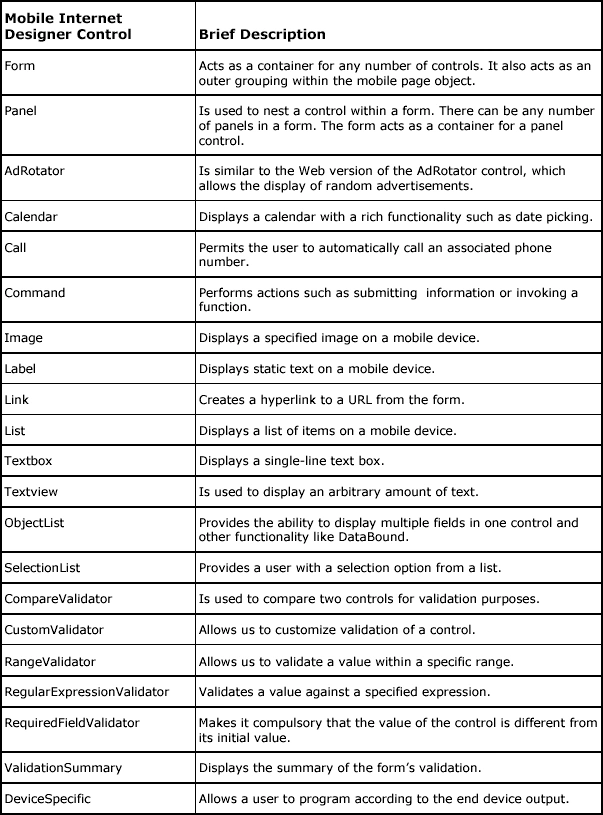
Table 24.1: Mobile Web Controls
The MobilePage Control
The first class we will discuss is the System.Web.UI.MobileControls.MobilePage class. This class is inherited from the ASP.NET Page class. Below given example, is the starting point for using mobile controls in your page. Here we inherit our page from the MobilePage class.
Here is a simple scenario, where we inherit directly from the MobilePage class:
<%@ Page Inherits="System.Web.UI.MobileControls.MobilePage" Language="cs" %>
<%@ Register TagPrefix="mobile" Namespace="System.Web.UI.MobileControls" Assembly="System.Web.Mobile" %>
The language attribute must be set with the programming language you intend to use, such as C# or Visual Basic.
The Form Control
The Form control is another very basic control. As with any other type of Web application, a mobile form acts as a container for all other controls in the page. Any other control, whether it is a user interface, validation, or utility control, is contained within the <form> tag. So there must be at least one form in a mobile page.
Listing 24.2 is a simple example of using a form as a container. We discuss other user interface controls in detail in subsequent sections. In this example we display the text "Welcome to Mobile World" on the screen.
Listing 24.2: Welcome to Mobile World
<%@ Register TagPrefix="Mobile" Namespace="System.Web.UI.MobileControls" Assembly="System.Web.Mobile" %>
<%@ Page Inherits="System.Web.UI.MobileControls.MobilePage" Language="CS" %>
<Mobile:Form id="Form1" runat="server">
<Mobile:Label id="Label1" runat="server">
WELCOME TO MOBILE WORLD
</Mobile:Label>
The code in Listing 24.2 simply displays a string on the mobile screen, as shown in Figure 24.2. 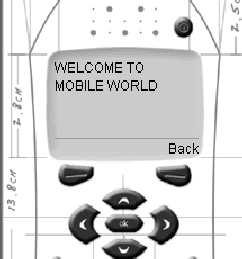
Figure 24.2: Displaying "Welcome to Mobile World"
Here we have used a Label control with the value WELCOME TO MOBILE WORLD. Before we deal with individual controls, let's discuss some of the basic properties that apply to most controls. They are as follows:


Join the conversation! Your thoughts help the community grow.