
Introduction
The information in this article was born out of a need to develop new standalone SSRS reports (to replace a stack of Crystal reports) where the report designer couldn't see the data sources involved due to various account, security, and other restrictions. Therefore I developed a process whereby I could set up dummy data sources (even on my local PC) to provide the fields for the report. Once the report was finished it could then be tested against the real data source.
In this article, I demonstrate how to create a standalone .rdlc report and how to access it via C# code only. I also demonstrate how to set up the report fields for the report designer using a very simple technique based on stored procedures. Additionally, I also demonstrate how to map a dataset consisting of two tables (ds. Tables[0] and ds.Tables[1] - a 3 & 4 column table respectively) to the standalone report. I also cover the setting up of a simple Test Harness C# project in Visual Studio 2005 to test your standalone .rdlc report.
This article is deliberately written with the beginner in mind, hence it is rather lengthy as I try to explain in detail what to do, so I apologize if you find it slow-going. It is also for those who have a particular need to create standalone .rdlc reports that are unbound at design time but have their data added at runtime. In many examples, I have seemed to assume that you will be running your report against the same data source that the report was originally designed against. For me, this was not the case and I needed an alternative, hence the procedure outlined in this article. I hope what follows will be of some help to you.
Acknowledgments
I would like to thank Justin Saraceno whose article The ReportViewer control, a local SSRS 2005 report, and data from a Web Service got me going in the right direction. I use the same type of code approach that he uses. His article can be found on the http://www.c-sharpcorner.com website.
Requirements
My .rdlc reports had to be able to do the following
- Be 100% standalone and capable of being accessed in code only i.e. there should be no need to add the .rdlc file to your Visual Studio project.
- Some of our current production report queries run Stored Procedures that have multiple SELECT statements in them. These SPROCS return a single dataset containing multiple tables. If ds is our dataset, then we get back ds. Tables[0] ds.Tables[1], ds.Tables[2] etc. These tables had to be able to be wired into the report in code only.
By the way, with the following technique, you can also wire in Tables from different data sources as well. So if I had 2 datasets ds1 & ds2, then you can wire in ds1.Tables[0] and ds2.Tables[0]. The ds1 object might be an SQL Server query result. ds2 might be a mainframe query result etc. The report viewer control doesn't care where these data tables are coming from they are all just tables as far as the viewer control is concerned.
Prerequisites
To use the following technique that I am about to describe you should make sure you meet the following prerequisites:
- Visual Studio 2005 with SSRS on your local PC.
- SQL Server 2005 Management Studio (with NorthwindCS or similar database) installed on your local PC.
- Sufficient permissions within SQL Server 2005 Management Studio to CREATE and DROP Stored Procedures from the NorthwindCS (or similar) database.
We are using NorthwindCS here just for simplicity because it gets installed when you install SQL Server 2005 Management Studio. We just want somewhere to park our Stored Procedures that we are going to create soon. The Sprocs we create have nothing to do with the NorthwindCS database In a real Development environment you would probably want to store the Sprocs in a meaningful location.
Values for this example
- Our standalone .rdlc file will be called MyTestReport.rdlc
- It will reside here C:\Reports\MyTestReport.rdlc for standalone testing.
- It will require 2 data sources to be added to it called Reportdata_Table0 consisting of 3 columns
(ID, DESCRIPTION and QUANTITY) and Reportdata_Table1 consisting of 4 columns
(CUSTOMER_ID, NAME, ADDRESS and POSTAL_CODE). - Our design version .rdlc file will be called TestReport.rdlc
The report-friendly name will be "TESTREPORT" Here is a summary of the data source/dataset mapping.
| Report Datasource name | Data coming from the dataset | Table type |
| Reportdata_Table0 | dsMyDataSet.Tables[0] | 3 column table |
| Reportdata_Table1 | dsMyDataSet.Tables[1] | 4 column table |
We will hard-code some test data into the test harness (by building a 2-tabled dataset in code) so that there is something to show on the report itself, but in your application, you can derive the data from anywhere (a query, or a .xml file, web-service call, etc.)
The first step though is to create a simple test harness.
Create a simple TestHarness application
Our test harness will be where we design our .rdlc reports and test them also.
The basic approach will be to add a .rdlc file to our Visual Studio test harness project called TestReport.rdlc, merely so that we can get access to the designer, but when the report is finished it will be copied from the Visual Studio project location to the C:\Reports folder and then renamed to MyTestReport.rdlc to prove absolutely that we are dealing with a standalone file. The project has no knowledge of a file called MyTestReport.rdlc and this file is accessed in code only.
Step 1. Create a test harness
For this, we want the following
- A standard C# Windows application consisting of a single dialog.
- One SSRS report viewer control (reportViewer1).
- One Exit button (btnExit).
- One View Report button (btnViewReport).
- One combo drop-down control (cmbReport).
- A label for the combo (Report).
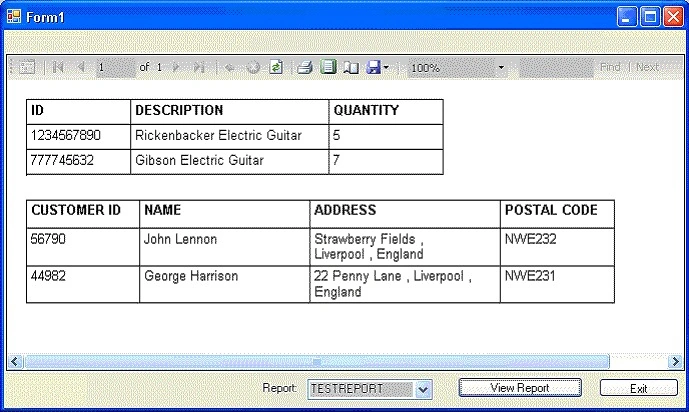
Here is what mine looks like

Anchor the buttons etc. to the Bottom and Right. Anchor the Report viewer to the Top, Bottom, Left, and Right.
The code behind the Exit button click event is.
private void btnExit_Click(object sender, EventArgs e)
{
    this.Close();
}
Let's say our new report user-friendly name will be "TESTREPORT". Therefore in the Form_Load event for this dialog put the following.
this.cmbReport.Items.Add("TESTREPORT");
As you design more reports keep adding them to the combo in the Form_Load event so you can easily select the report you want to test.
I found I needed the following using directives.
using System.Data.SqlClient;
using System.Xml;
using System.Xml.Serialization;
using System.Data.OleDb;
using System.IO;
I have been running SQL and Mainframe queries in my test harness. Depending on what you will be designing you may not need all of them. For this walk, you do not need any of them.
Add the following module variable dsMyDataSet this will be our ds. Tables[0] and ds.Tables[1] object I alluded to earlier.
public partial class Form1 : Form
{
    // Module scope dataset variable
    DataSet dsMyDataSet = new DataSet();
}
Now in the click event for btnViewReport button add the following code.
private void btnViewReport_Click(object sender, EventArgs e)
{
    // Reset the report viewer
    this.reportViewer1.Reset();
    // Set processing to local mode
    this.reportViewer1.ProcessingMode = Microsoft.Reporting.WinForms.ProcessingMode.Local;
    // Check which report to test
    if (this.cmbReport.Text.Trim() == "TESTREPORT")
    {
        // Load .rdlc file and add a datasource
        this.reportViewer1.LocalReport.ReportPath = @"C:\Reports\MyTestReport.rdlc";
        // Loop through each table in our dataset
        for (int i = 0; i < this.dsMyDataSet.Tables.Count; i++)
        {
            this.reportViewer1.LocalReport.DataSources.Add(this.GetMyDataTable(i));
        }
    }
    // Refresh viewer with above settings
    this.reportViewer1.RefreshReport();
}
Now we need 1 function called GetMyDataTable(int i)) and here is what it looks like.
private Microsoft.Reporting.WinForms.ReportDataSource GetMyDataTable(int i)
{
    // Form the datasource name - you need a naming convention for this to work
    string sDataSourceName = "Reportdata_Table" + i.ToString().Trim();
    // The line above will generate datasource names of "Reportdata_Table0" and
    // "Reportdata_Table1" for our 2 tabled dataset - we just need to ensure our .rdlc
    // report has been designed to receive 2 datasources with these same names, and that
    // the columns match up precisely one-to-one for each table.
    // Return the relevant dataset table
    return new Microsoft.Reporting.WinForms.ReportDataSource(sDataSourceName, this.dsMyDataSet.Tables[i]);
}
Create a function that sets up the 2-tabled dataset using our module variable dsMyDataSet. Call this function from the Form_Load event so that dsMyDataSet is pre-populated with some data ready for display.
This is what I did: Note the column names, you will see them later when we do the Stored Procedures.
private void SetupDataSet()
{
    // Create 1st DataTable to hold some report data
    System.Data.DataTable myTable0 = new DataTable("myTable0");
    System.Data.DataColumn column;
    System.Data.DataRow row;
    // Create 3 columns for myTable0
    column = new DataColumn();
    column.DataType = System.Type.GetType("System.String");
    column.ColumnName = "ID";
    column.ReadOnly = true;
    column.Unique = true;
    myTable0.Columns.Add(column);
    column = new DataColumn();
    column.DataType = System.Type.GetType("System.String");
    column.ColumnName = "DESCRIPTION";
    column.ReadOnly = true;
    column.Unique = true;
    myTable0.Columns.Add(column);
    column = new DataColumn();
    column.DataType = System.Type.GetType("System.String");
    column.ColumnName = "QUANTITY";
    column.ReadOnly = true;
    column.Unique = true;
    myTable0.Columns.Add(column);
    // Add a row of data to myTable0
    row = myTable0.NewRow();
    row["ID"] = "1234567890";
    row["DESCRIPTION"] = "Rickenbacker Electric Guitar";
    row["QUANTITY"] = "5";
    myTable0.Rows.Add(row);
    // Add a second row of data to myTable0
    row = myTable0.NewRow();
    row["ID"] = "777745632";
    row["DESCRIPTION"] = "Gibson Electric Guitar";
    row["QUANTITY"] = "7";
    myTable0.Rows.Add(row);
    // Add myTable0 to global dataset
    this.dsMyDataSet.Tables.Add(myTable0); // dsMyDataSet.Tables[0] object;
    // Create 2nd DataTable to hold some report data
    System.Data.DataTable myTable1 = new DataTable("myTable1");
    // Create 4 columns for myTable1
    column = new DataColumn();
    column.DataType = System.Type.GetType("System.String");
    column.ColumnName = "CUSTOMER_ID";
    column.ReadOnly = true;
    column.Unique = true;
    myTable1.Columns.Add(column);
    column = new DataColumn();
    column.DataType = System.Type.GetType("System.String");
    column.ColumnName = "NAME";
    column.ReadOnly = true;
    column.Unique = true;
    myTable1.Columns.Add(column);
    column = new DataColumn();
    column.DataType = System.Type.GetType("System.String");
    column.ColumnName = "ADDRESS";
    column.ReadOnly = true;
    column.Unique = true;
    myTable1.Columns.Add(column);
    column = new DataColumn();
    column.DataType = System.Type.GetType("System.String");
    column.ColumnName = "POSTAL_CODE";
    column.ReadOnly = true;
    column.Unique = true;
    myTable1.Columns.Add(column);
    // Add a row of data to myTable1
    row = myTable1.NewRow();
    row["CUSTOMER_ID"] = "56790";
    row["NAME"] = "John Lennon";
    row["ADDRESS"] = "Strawberry Fields, Liverpool, England";
    row["POSTAL_CODE"] = "NWE232";
    myTable1.Rows.Add(row);
    // Add a second row of data to myTable1
    row = myTable1.NewRow();
    row["CUSTOMER_ID"] = "44982";
    row["NAME"] = "George Harrison";
    row["ADDRESS"] = "22 Penny Lane, Liverpool, England";
    row["POSTAL_CODE"] = "NWE231";
    myTable1.Rows.Add(row);
    // Add myTable1 to global dataset
    this.dsMyDataSet.Tables.Add(myTable1); // dsMyDataSet.Tables[1] object;
}
Do not forget to call the above function from your Form_Load event, similar to.
private void Form1_Load(object sender, EventArgs e)
{
    this.cmbReport.Items.Add("TESTREPORT");
    this.SetupDataSet();
}
At this point, the project should be built.
We have now got our Dataset that contains 2 tables, i.e. we have created dsMyDataSet.Tables[0] and dsMyDataSet.Tables[1], a 3 and 4-column table respectively with the column names as shown in the above code snippet and a couple of rows of data for each one.
If you look at the return statement in the above GetMyDataTable(int i) function you can see that our report will have to be designed to expect 2 data sources to be added to it called ReportdataTable0 and ReportdataTable1, and additionally, these data sources have to have 3 and 4 columns defined within them respectively with identical names for the columns as we are using in the dataset dsMyDataSet.
The next step is to design the actual report, and the starting point for this is to get the report fields to show up in the Data Sources pane in Visual Studio so that you can drag and drop them onto the report designer surface.
Report Design
Create the report input fields via Stored Procedures
This is where we make use of the NorthwindCS database on your locally installed instance of SQL Server 2005. Here we just want to use a couple of stored procedures to define the report input fields. There is no intention to use the stored procedures at runtime to provide data. At runtime, the data will come from somewhere else (in this case a hard-coded Dataset in the app.), but in your application, the dataset can be from anywhere.
Make sure your local instance of SQL server 2005 is started. Check the icon in the system tray.
Step 2. Create Stored Procedures in Notepad
Create Stored Procedures in Notepad ready to copy across to SQL Server 2005 that look like this (or type them directly into the SQL Server 2005 query window after selecting NorthwindCS).
Sproc #1
USE NorthwindCS
GO
/*------------------------------------------------------------------*
This stored procedure provides a starting point for the
design of a Test SSRS Report.
*-------------------------------------------------------------------*/
CREATE PROC up_SSRS_TestReport_InputFields0
AS
SELECT DISTINCT
    '1' AS ID,
    '2' AS DESCRIPTION,
    '3' AS QUANTITY
Sproc #2
USE NorthwindCS
GO
/*------------------------------------------------------------------*
This stored procedure provides a starting point for the
design of a Test SSRS Report.
*-------------------------------------------------------------------*/
CREATE PROC up_SSRS_TestReport_InputFields1
AS
SELECT DISTINCT
    '1' AS CUSTOMER_ID,
    '2' AS NAME,
    '3' AS ADDRESS,
    '4' AS POSTAL_CODE
Note. It is the column names that are important here, not the data. Note also that the column names match exactly the column names that we added to our data tables earlier (dsMyDataSet).
Step 1. Go into SQL Server 2005, connect to the local server instance browse to NorthwindCS, and select New Query. Run each of the above SPROC codes as a query, then refresh to see your new Stored Procedures in the NorthwindCS database.
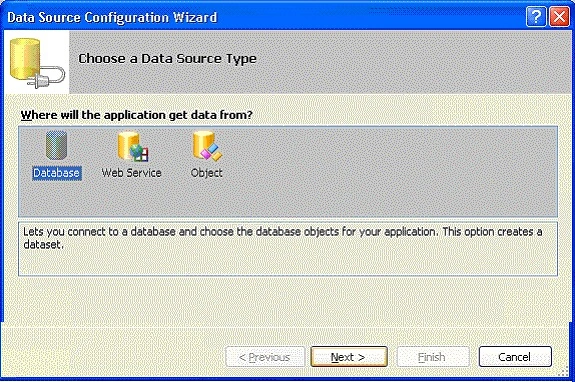
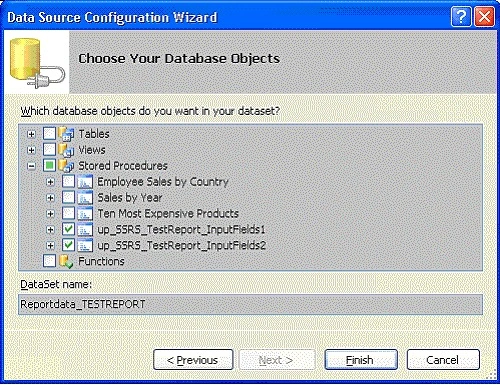
Step 2. In Visual Studio 2005 with your Test Harness app. open make sure you can see the Data Sources pane. Single right-click in this pane and select Add New Data Source. This starts the Wizard.


Bidyasagar MishraPosted Jul 29, 2019, 9:45 PM
Nice article boss
likhithPosted Mar 16, 2015, 1:11 AM
hi, I have created rdlc report to display the complete profile of the employer,but now i have challenge to display the multiple employer profile can any one guide me on this... Thanks in Advance
joni nemonicPosted Feb 7, 2011, 11:00 AM
Hi. I'm trying to bind a busniness object data source to a chart report in Visual Basic 2008. I have created: - a report viewer - a rdlc report - a chart inside the rdlc report - a class with data to print, that is the data source of the report I can bind report.rdlc to report viewer, I can bind data to the chart inside the report, but the chart doesn't work. It doesn't print anything. I can send you mi little code as a ZIP if necessary. No problem. Can you help me? thank you in advance.
Biplab SinghaPosted Dec 24, 2009, 12:11 AM
Thanks this is a very good article. I need a help about binding object to .rdlc file This object containg one more object as a property and List of one more Property So normal Properties of the object i can bind in the report but object values and and list element i cant be able to bind Need some assistance on that
vijay patelPosted Jul 3, 2009, 9:19 AM
really great article, i can add record, but i can't see these records. they are navigate using navigation bar, but i can't see anything on report. what was the problem? can u help me? thanks.
jane AlpinPosted Jan 7, 2009, 1:46 PM
What's new in RDLC compare to RDL and what's benefit of RDLC?
Michael DonnelPosted Dec 4, 2008, 12:53 PM
My buisiness situation requires that the user has the ability to select any of 6 criteria for the report via calendar controls and dropdowns. We are then required to provide the report data based on what was selected. Thank you much.
Thusitha MabotuwanaeditedPosted Nov 30, 2008, 1:43 AMEdited Nov 30, 2008, 1:45 AM
Hi Rob Great article and this was more or less exactly what I was looking for to learn about ReportViewer control. My actual requirement is a wee bit different, so just wondering if you could help. The requirement is to create a report with the following structure: <p> REPORT NAME Name Details p1 p1details1 p1 details2 p1details3 p1details4 p2 p2details1 p2details2 p3 p3details1 </p> Hope you get where I'm going. Essentially I have some number of "details" per person that I'd like to display; ideally with person groups in alternating colours or something. Anything you could offer? Thanks
Carolyn BowmanPosted Feb 20, 2008, 9:40 AM
Thanks for the detailed, easy-to-follow article. What about reports where the data is generated at runtime and you do not know how many tables will be in the report?
KishorePosted Dec 25, 2007, 3:58 AM
Thanks. It was of great help. I was searching for such a beginners article for a long time.