

Background
I have often read the common question in forum posts of how to upload Excel file records and bind them to a GridView but no one has provided the proper solution and many solutions contain a lot of code that is not required so by considering the preceding requirements I have decided to write this article to provide the solution to bind a GridView from Excel file records with a minimum amount of code. So let us start creating an application so beginners can also understand.
First create the Excel file named Employee as:
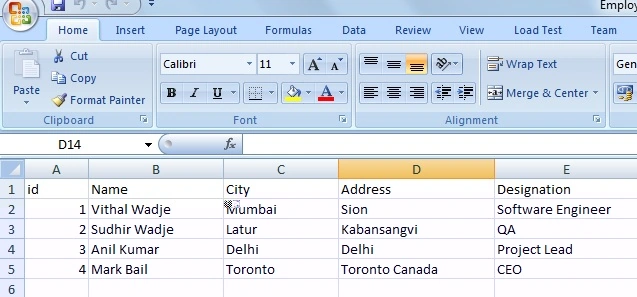
Now we have records to bind to the GridView, let us create the sample web application as follows:
Now open the Default.aspx.cs page and write the following code to create an oledbconnection for the Excel file as in the following:
Create a function to read the Excel File records and bind the GridView as:
Now call the preceding function upon an Upload button click as:
The entire code of the default.aspx.cs page will look as follows:
- "Start" - "All Programs" - "Microsoft Visual Studio 2010".
- "File" - "New WebSite" - "C#" - "Empty WebSite" (to avoid adding a master page).
- Provide the web site a name such as "BindGridviewFromExcelFileRecords" or another as you wish and specify the location.
- Then right-click on Solution Explorer and select "Add New Item" and Add Web Form.
- Drag and drop one Button, a GridView and a FileUploader control onto the <form> section of the Default.aspx page.
Now the default.aspx page source code will look such as follows.
- <%@ Page Language="C#" AutoEventWireup="true" CodeFile="Default.aspx.cs" Inherits="_Default" %>
- <!DOCTYPE html PUBLIC "-//W3C//DTD XHTML 1.0 Transitional//EN" "http://www.w3.org/TR/xhtml1/DTD/xhtml1-transitional.dtd">
- <html xmlns="http://www.w3.org/1999/xhtml">
- <head id="Head1" runat="server">
- <title>Article by Vithal Wadje</title>
- </head>
- <body bgcolor="blue">
- <form id="form1" runat="server">
- <div style="color: White;">
- <h4>
- Article for C#Corner
- </h4>
- <table>
- <tr>
- <td>
- Select File
- </td>
- <td>
- <asp:FileUpload ID="FileUpload1" runat="server" />
- </td>
- <td>
- </td>
- <td>
- <asp:Button ID="Button1" runat="server" Text="Upload" OnClick="Button1_Click" />
- </td>
- </tr>
- </table>
- </div>
- <asp:GridView ID="GridView1" runat="server">
</asp:GridView> - </form>
- </body>
- </html>
- private void ExcelConn(string FilePath)
- {
- constr = string.Format(@"Provider=Microsoft.ACE.OLEDB.12.0;Data Source={0};Extended Properties=""Excel 12.0 Xml;HDR=YES;""", FilePath);
- Econ = new OleDbConnection(constr);
- }
- private void ReadExcelRecords(string FilePath)
- {
- ExcelConn(FilePath);
- Query = string.Format("Select [Name],[City],[Address],[Designation] FROM [{0}]", "Sheet1$");
- OleDbCommand Ecom = new OleDbCommand(Query, Econ);
- Econ.Open();
- DataSet ds = new DataSet();
- OleDbDataAdapter oda = new OleDbDataAdapter(Query, Econ);
- Econ.Close();
- oda.Fill(ds);
- GridView1.DataSource = ds;
GridView1.DataBind(); - }
- protected void Button1_Click(object sender, EventArgs e)
- {
- string CurrentFilePath = Path.GetFullPath(FileUpload1.PostedFile.FileName);
- ReadExcelRecords(CurrentFilePath);
- }
- using System;
- using System.Data;
- using System.IO;
- using System.Data.OleDb;
- public partial class _Default : System.Web.UI.Page
- {
- OleDbConnection Econ;
- string constr, Query;
- protected void Page_Load(object sender, EventArgs e)
- {
- }
- private void ExcelConn(string FilePath)
- {
- constr = string.Format(@"Provider=Microsoft.ACE.OLEDB.12.0;Data Source={0};Extended Properties=""Excel 12.0 Xml;HDR=YES;""", FilePath);
- Econ = new OleDbConnection(constr);
- }
- private void ReadExcelRecords(string FilePath)
- {
- ExcelConn(FilePath);
- Query = string.Format("Select [Name],[City],[Address],[Designation] FROM [{0}]", "Sheet1$");
- OleDbCommand Ecom = new OleDbCommand(Query, Econ);
- Econ.Open();
- DataSet ds = new DataSet();
- OleDbDataAdapter oda = new OleDbDataAdapter(Query, Econ);
- Econ.Close();
- oda.Fill(ds);
- GridView1.DataSource = ds;
GridView1.DataBind(); - }
- protected void Button1_Click(object sender, EventArgs e)
- {
- string CurrentFilePath = Path.GetFullPath(FileUpload1.PostedFile.FileName);
- ReadExcelRecords(CurrentFilePath);
- }
- }
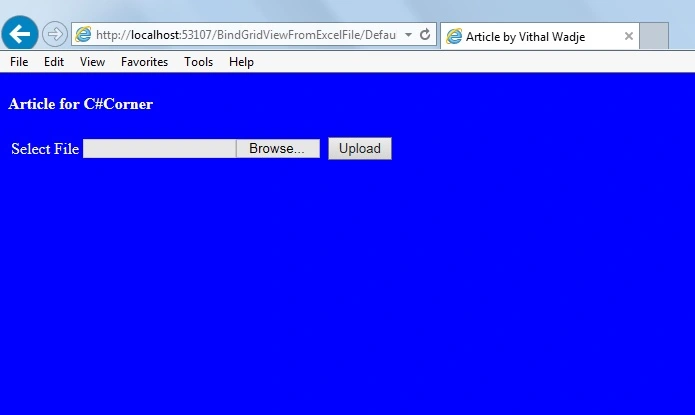
Now run the application and the UI will look as follows:
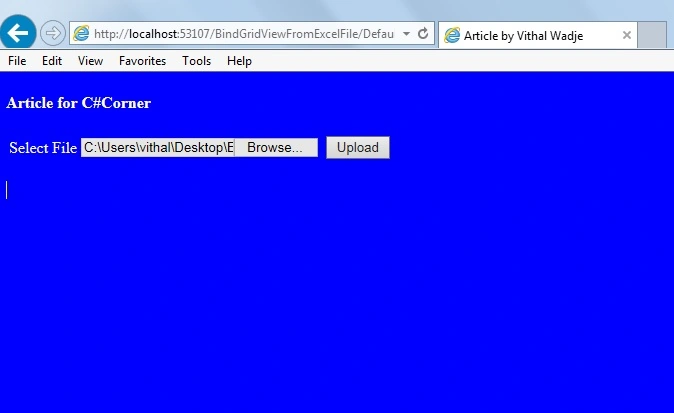
Now select the file by using the browse button as:
Now click on the Upload button. The records in GridView will then look as in the following:
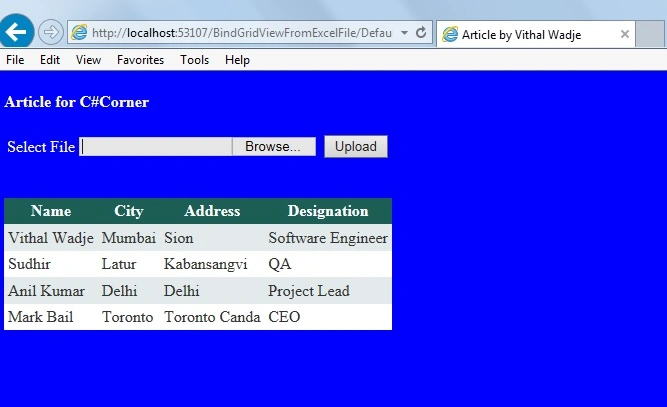
Now you have seen how the records are displayed in the GridView using an Excel file with a minimal amount of code and effort.
Notes
- For detailed code please download the sample Zip file.
- Do a proper validation such as date input values when implementing.
Summary
From all the preceding examples you have learned how to bind a GridView with Excel file records. I hope this article is useful for all readers, if you have a suggestion then please contact me.
Nitin SharmaPosted Jul 22, 2015, 6:06 AM
can we import images from excel to data grid view ??
Vithal WadjePosted Jan 2, 2015, 2:20 AM
Thanks Sir
Humayun Kabir MamunPosted Jan 2, 2015, 2:08 AM
Nice...
Vithal WadjePosted Jan 2, 2015, 12:24 AM
Thanks
Saber ShaikhPosted Jan 1, 2015, 11:52 PM
best