

Introduction
InfoPath is based on the Extensible Markup Language (XML) that can be easily designed and published.
Use the following procedure to create a sample.
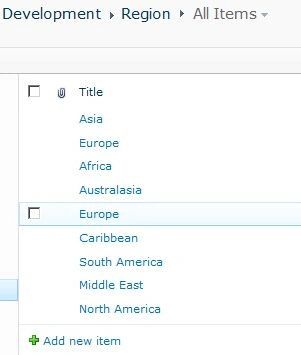
- Create a List Region and add some entries as below.
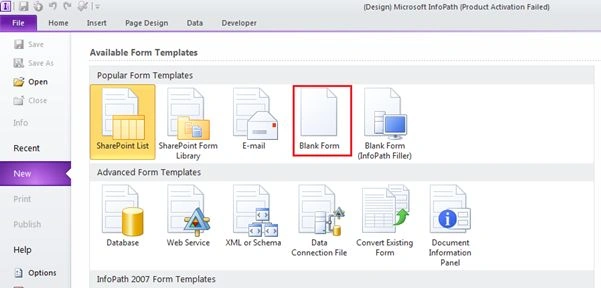
- To start open the InfoPath designer and select blank form.
- Design the form as below.
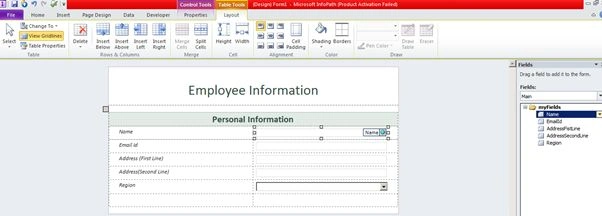
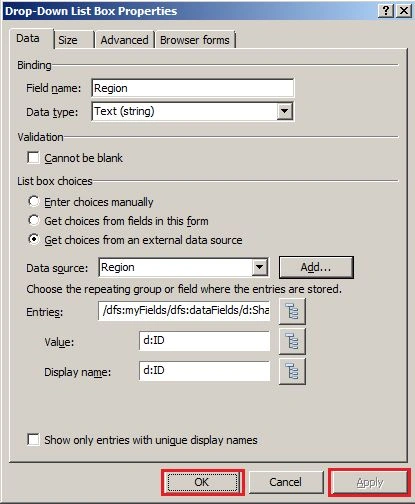
- Select the Region Dropdownlist control.
- On the Control Tools Properties tab, click Control Properties.
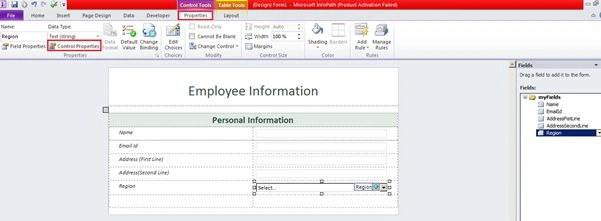
- On the Data tab, in List box choices, select Get Choices from an external source.
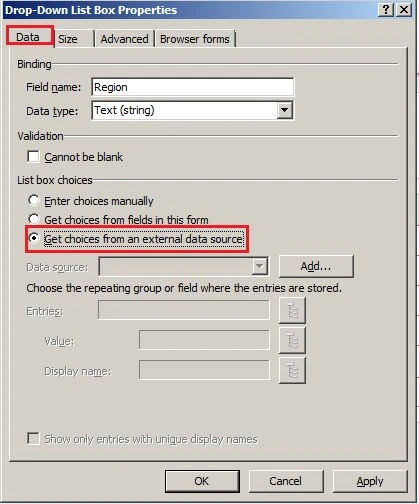
- Click the Add button.
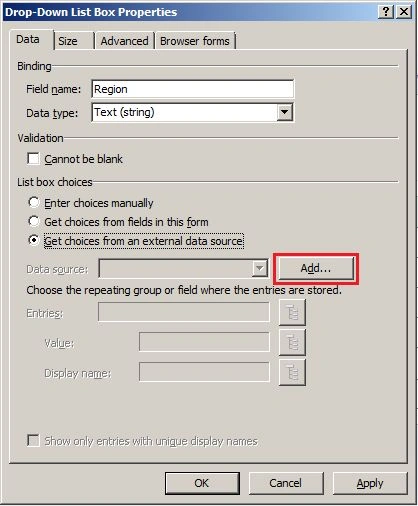
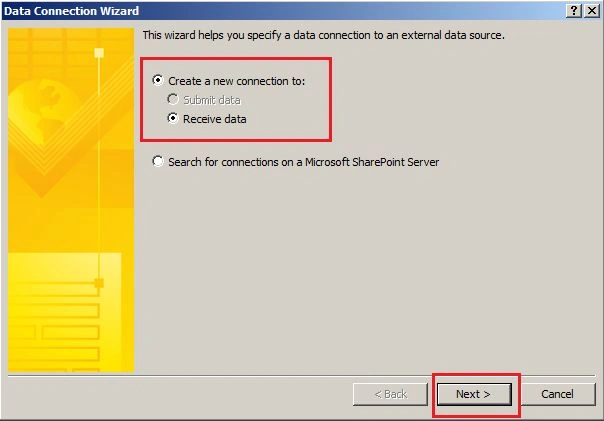
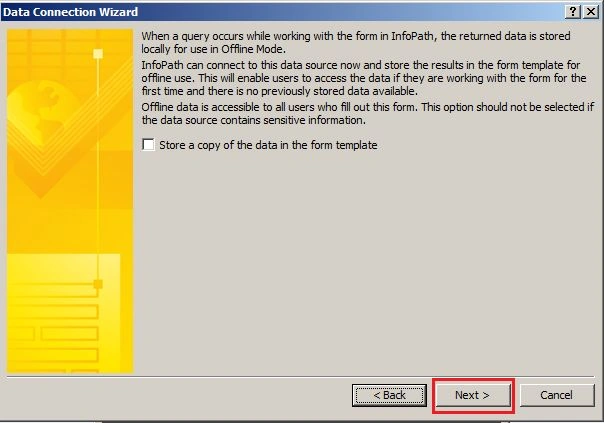
- Click Next, keeping the default options in the first page of the wizard.
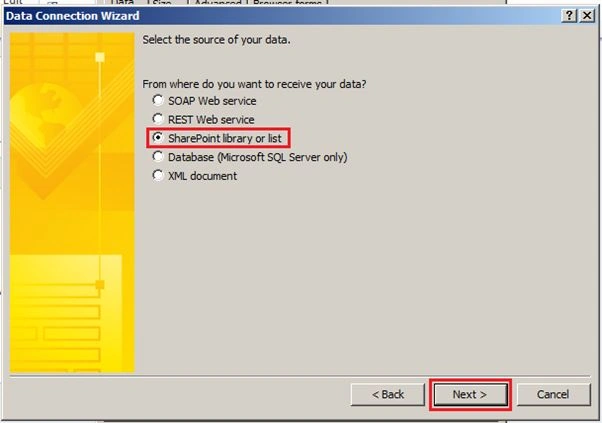
- Select SharePoint library or list, and then click Next.
- Type in the SharePoint site URL, http://<SiteUrl> and then click Next.
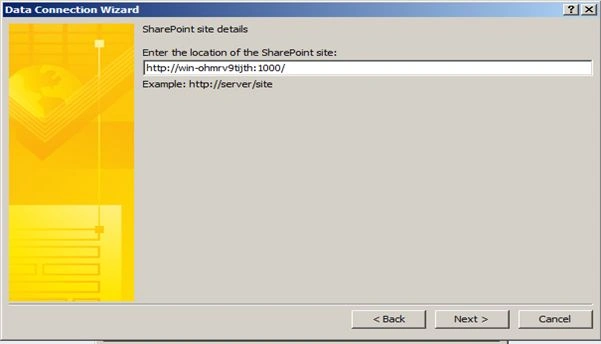
- Provide credentials if asked.
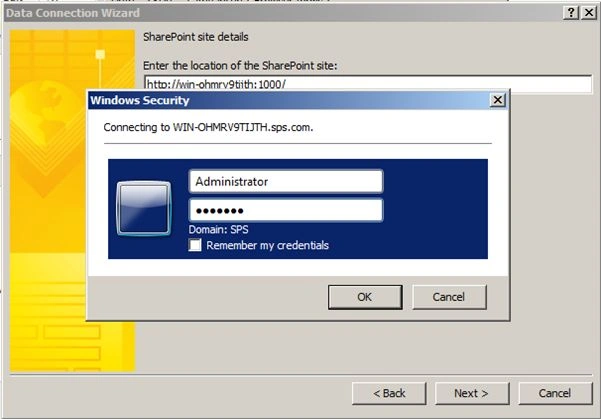
- Select the Region list, and then click Next.
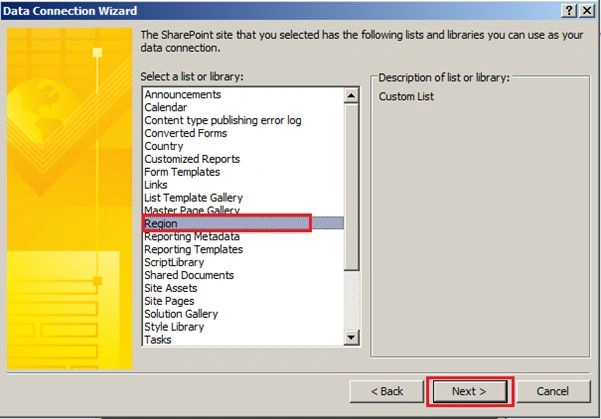
- Select the Title check box in the fields list (you do not need the other fields in this form), and then click Next.
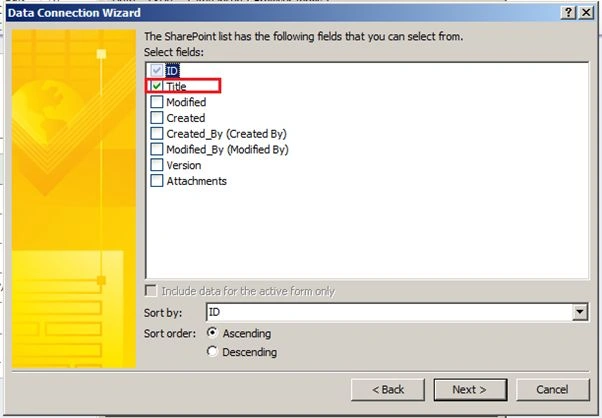
- On the following page of the wizard, click Next.
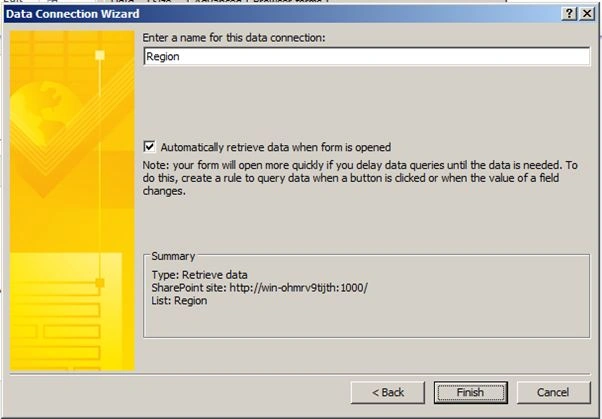
- Click Finish on the final page of the wizard.
- Click Apply then OK
- Now Publish the form.
- In my case I have published the form in the EmployeeInformation Form library.
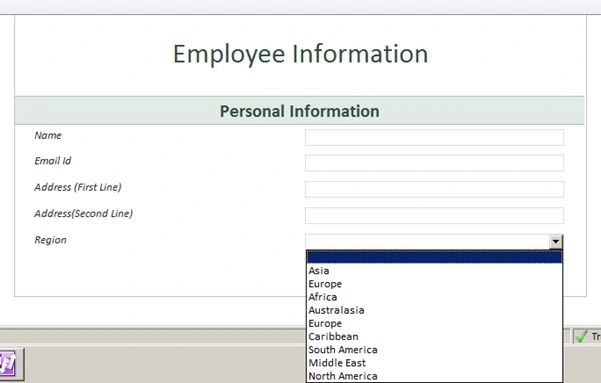
- When you open the form the form will show the dropdown as below.
- Add an entry to the form as below.
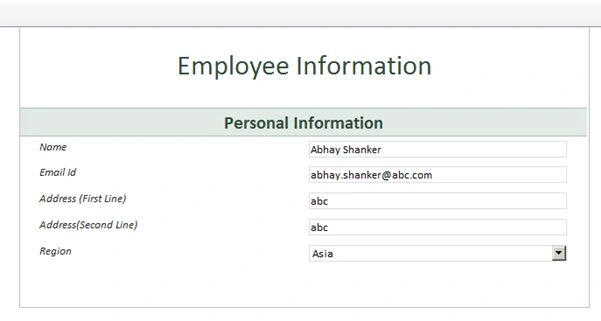
- Entries in the Form Library are displayed as below.

Conclusion
In this article I have explained how to create an InfoPath and get a record in the InfoPath dropdown list from the SharePoint List.
Join the conversation! Your thoughts help the community grow.