

We will use a bunch of CheckBoxLists and bind them using SQL Server.
Initial Chamber
Step 1
Open Visual Studio 2010 and create an empty website, name it CheckBoxList_demo.
Step 2
In Solution Explorer, you will get your empty website. Add a web form and SQL Database using the following procedure.
For Web Form:
CheckBoxList_demo (your empty website): right-click and select Add New Item Web Form. Name it CheckBoxList_demo.aspx.
For SQL Server Database:
CheckBoxList_demo (your empty website): right-click and select Add New Item SQL Server Database. Add Database inside the App_Data_folder.
Database Chamber
Step 3
In Server Explorer, click on your database Database.mdfTables and Add New Table. Form a table as in the following:
Table, got tp tbl_data [don't forget to make ID as IS Identity -- True]

This is our data that we will bind to the CheckBoxList and show at run time.
Design Chamber
Step 4
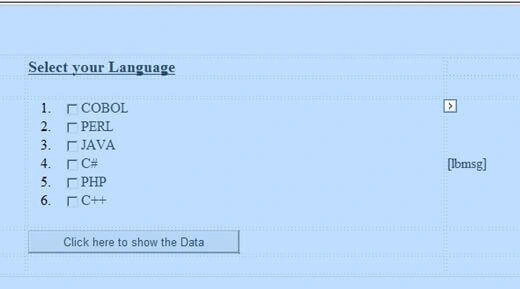
Open your CheckBoxList_demo.aspx file from Solution Explorer and start designing your application.
Here's the code:
- <%@ Page Language="C#" AutoEventWireup="true" CodeFile="Default.aspx.cs" Inherits="_Default" %>
- <!DOCTYPE html PUBLIC "-//W3C//DTD XHTML 1.0 Transitional//EN" "http://www.w3.org/TR/xhtml1/DTD/xhtml1-transitional.dtd">
- <html
- xmlns="http://www.w3.org/1999/xhtml">
- <head runat="server">
- <title></title>
- <style type="text/css">
- .style1
- {
- text-decoration: underline;
- font-size: large;
- }
- .style2
- {
- width: 128px;
- }
- .style3
- {
- width: 407px;
- }
- </style>
- </head>
- <body>
- <form id="form1" runat="server">
- <div>
- <br />
- <br />
- <br />
- <table style="width:100%;">
- <tr>
- <td class="style2">
- </td>
- <td class="style3">
- <span class="style1">
- <strong>Select your Language</strong>
- </span>
- </td>
- <td></td>
- </tr>
- <tr>
- <td class="style2">
- </td>
- <td class="style3">
- </td>
- <td>
- </td>
- </tr>
- <tr>
- <td class="style2">
- </td>
- <td class="style3">
- <asp:CheckBoxList ID="CheckBoxList1" runat="server" DataTextField="language"
- DataValueField="language" AutoPostBack="True" RepeatLayout="OrderedList" Width="432px">
- <asp:ListItem>COBOL</asp:ListItem>
- <asp:ListItem>PERL</asp:ListItem>
- <asp:ListItem>JAVA</asp:ListItem>
- <asp:ListItem>C#</asp:ListItem>
- <asp:ListItem>PHP</asp:ListItem>
- <asp:ListItem>C++</asp:ListItem>
- </asp:CheckBoxList>
- </td>
- <td>
- <asp:Label ID="lbmsg" runat="server"></asp:Label>
- </td>
- </tr>
- <tr>
- <td class="style2">
- </td>
- <td class="style3">
- <asp:Button ID="Button1" runat="server" onclick="Button1_Click"
- Text="Click here to show the Data" />
- </td>
- <td>
- </td>
- </tr>
- </table>
- <br />
- <br />
- <br />
- <p>
- </p>
- <br />
- <br />
- </div>
- </form>
- </body>
- </html>
Code Chamber
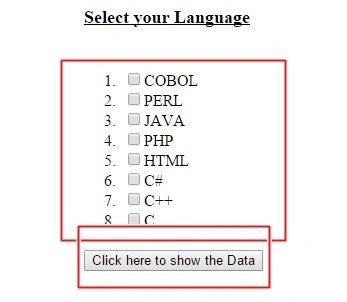
Finally open your CheckBoxList_demo.aspx.cs file to write the code for making the list box like we assumed.
Here's the code:
- using System;
- using System.Collections.Generic;
- using System.Linq;
- using System.Web;
- using System.Web.UI;
- using System.Web.UI.WebControls;
- using System.Data;
- using System.Data.SqlClient;
- public partial class _Default : System.Web.UI.Page
- {
- protected void Page_Load(object sender, EventArgs e)
- {
- if (!Page.IsPostBack)
- {
- SqlConnection con = new SqlConnection(@"Data Source=.\SQLEXPRESS;AttachDbFilename=|DataDirectory|\Database.mdf;Integrated Security=True;User Instance=True");
- SqlCommand cmd = new SqlCommand("select * from tbl_data", con);
- SqlDataAdapter sda = new SqlDataAdapter(cmd);
- DataTable dt = new DataTable();
- sda.Fill(dt);
- CheckBoxList1.DataSource = dt;
- CheckBoxList1.DataBind();
- }
- }
- protected void Button1_Click(object sender, EventArgs e)
- {
- string k = "";
- for (int i = 0; i < CheckBoxList1.Items.Count; i++)
- {
- if (CheckBoxList1.Items[i].Selected)
- {
- k = k + CheckBoxList1.Items[i].Text + "</br>";
- }
- }
- lbmsg.Text = k;
- lbmsg.ForeColor = System.Drawing.Color.ForestGreen;
- }
- }

I hope you liked it. Thank you for reading. Have a good day.
Ravi BirlaPosted Mar 2, 2017, 2:11 AM
Hi sir i want to use checkbox for gender,Employement Type (permanant or Trainee),Maritail Status and Ex-Serviceman(YES OR NO).
Shweta GawkarPosted Jul 11, 2016, 7:36 AM
Thanks
Arul RPosted Oct 28, 2015, 5:40 AM
Good one !!!
Amol SarkatePosted Jun 30, 2015, 5:15 AM
nice good
Santhakumar MunuswamyPosted Jun 29, 2015, 2:41 PM
Good work
Upendra Pratap ShahiPosted Jun 29, 2015, 7:29 AM
nice Nilesh Jadav
Debendra DashPosted Jun 29, 2015, 6:20 AM
good one.............
Sibeesh VenuPosted Jun 29, 2015, 6:09 AM
Good one.
Pankaj Kumar ChoudharyPosted Jun 29, 2015, 5:17 AM
Nice Article Sir..........
Rajeesh MenothPosted Jun 29, 2015, 4:44 AM
Good Nilesh Jadav
Gopi ChandPosted Jun 29, 2015, 4:15 AM
Good work