

Today we will learn a new way to bind the data to the the control using CollectionViewSource. CollectionViewSource provides a proxy over collection classes to enable Position in the list of objects. It also support grouping feature in binding.
You can also see the binding modes in Windows Store Apps from here.
We can define a CollectionViewSource either in the page resources or in the immediate parent control. It has a property called Source that defines the collection of objects or data to bind to the control. We can set it in our code behind.
CollectionViewsSource is XAML markup and for all our data lists and bind them to the corresponding controls all in XAML. Then at runtime in our code we set the Source properties.
In this article we will show an example of how to use a CollectionViewSource in Windows Store Apps using XAML and C#.
Here is how to do it.
Step 1
Create a Blank Windows Store application using C#.
Step 2
First of all we need to create a class in which we put all the data and create a custom source.
Add a .cs file to the application:
- Go to Solution Explorer.
- Right-click on the root.
- Select add option and click on the Class.
- Give it name.
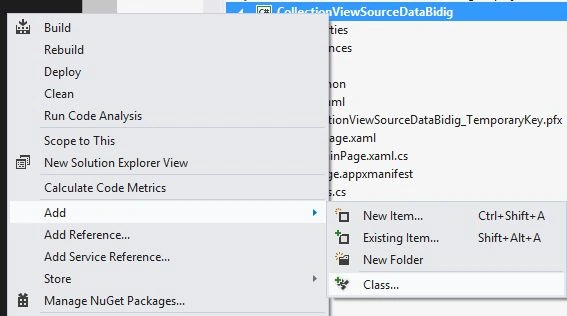
Write the following code in the .cs file:
namespace CollectionViewSourceDataBidig
{
public class Players
{
public string Name { get; set; }
public string Country { get; set; }
public string Sport { get; set; }
// this is how you can create a custom indexer in C#
}
// This class is used to demonstrate grouping.
public class PlayerList
{
List<Players> player = new List<Players>();
public PlayerList()
{
player.Add(new Players() { Name = "Sachin Tendulkar", Country = "India", Sport = "Cricket" });
player.Add(new Players() { Name = "Kevin Peterson", Country = "England", Sport = "Cricket" });
player.Add(new Players() { Name = "Greme Smith", Country = "South Africa", Sport = "Cricket" });
player.Add(new Players() { Name = "Brett Lee", Country = "Australia", Sport = "Cricket" });
}
public List<Players> GetPlayerList()

MightyOnePosted Feb 11, 2013, 3:04 AM
But if any of the data in the collection contains images, the image will not display. Have you been able to solve that. I only see these type of examples online that contain only text when CollectionViewSource is being demonstrated. I need a working example that contains images. Any help appreciated.
Vithal WadjePosted Oct 26, 2012, 1:10 AM
useful article,gaurav sir thanks for sharing