

This article shows how to change a window's appearance by creating a borderless and draggable window in WPF using C# and XAML.The primary purpose of the windows is to host content that displays information and enables the user to interact with information.
Here I use a handler called a MouseDown event for calling a DragMove method to make a window drag-gable.
private void rectangle2_MouseDown(object sender, MouseButtonEventArgs e)
{
this.DragMove();
}
Step 1
To create a WPF application, use the following procedure:
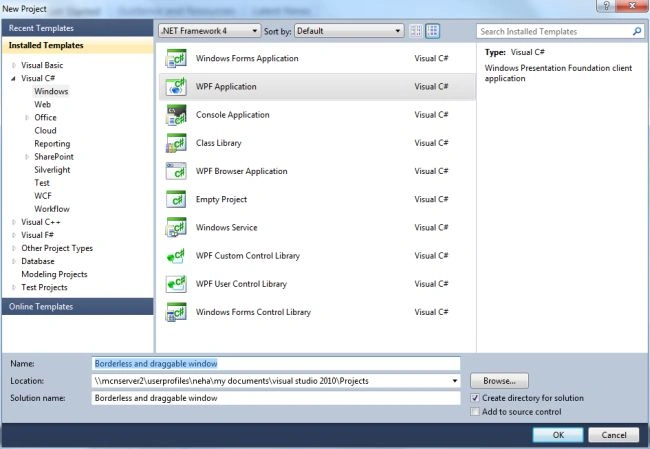
- Open the Visual Studio.
- Select the C# language and "WPF" Application.
- Name the project as "Borderless and draggable window".
- Click on the "OK" button .
Step 2
To get a borderless window , you need to set the following attributes:
-
WindowStyle = "None"; that makes the window borderless.
-
AllowTransparency ="False".
Step 3
Now we start designing the window.
-
Go to "view" -> "Toolbox".
-
Drag and Drop the 2 rectangles onto the window named "rectangle1" and "rectangle2" .
-
Now go to the MainWindow.xaml and write the following code between the rectangle1 tag.
<Rectangle Height="323" HorizontalAlignment="Left" Name="rectangle1" Stroke="Black" VerticalAlignment="Top" Width="510" RadiusX="9" RadiusY="9" MouseDown="rectangle1_MouseDown">
<Rectangle.OpacityMask>
<LinearGradientBrush EndPoint="1,0.5" StartPoint="0,0.5">
<GradientStop Color="Black" Offset="0" />
<GradientStop Color="#CDFFFF00" Offset="1" />
</LinearGradientBrush>
</Rectangle.OpacityMask>
<Rectangle.Fill>
<LinearGradientBrush EndPoint="1,0.5" StartPoint="0,0.5">
<GradientStop Color="Black" Offset="0" />
<GradientStop Color="#FFD8D8B0" Offset="0.008" />
</LinearGradientBrush>
</Rectangle.Fill>
</Rectangle>
- Similarly write the following code between the rectangle2 tag.
<Rectangle Height="35" HorizontalAlignment="Left" Name="rectangle2" Stroke="Black" VerticalAlignment="Top" Width="503" Fill="#FFCEAB37" MouseDown="rectangle2_MouseDown" RadiusX="9" RadiusY="9"></Rectangle>
- Then Drag and Drop some other control onto the window, such as calendar, label and 3 buttons. Here is the final source code of the MainWindow.xaml:
<Window x:Class="Dragable_window_in_wpf.MainWindow"
xmlns="http://schemas.microsoft.com/winfx/2006/xaml/presentation"
xmlns:x="http://schemas.microsoft.com/winfx/2006/xaml"
Title="MainWindow" Height="361" Width="526" WindowStyle="None" AllowsTransparency="False" Loaded="Window_Loaded" IsHitTestVisible="True" ResizeMode="NoResize" >
<Window.Background>
<SolidColorBrush />
</Window.Background>
<Grid Background="Red" Width="508" Height="319">
<Rectangle Height="323" HorizontalAlignment="Left" Name="rectangle1" Stroke="Black" VerticalAlignment="Top" Width="510" RadiusX="9" RadiusY="9" MouseDown="rectangle1_MouseDown">
<Rectangle.OpacityMask>
<LinearGradientBrush EndPoint="1,0.5" StartPoint="0,0.5">
<GradientStop Color="Black" Offset="0" />
<GradientStop Color="#CDFFFF00" Offset="1" />
</LinearGradientBrush>
</Rectangle.OpacityMask>
<Rectangle.Fill>
<LinearGradientBrush EndPoint="1,0.5" StartPoint="0,0.5">


Join the conversation! Your thoughts help the community grow.