

INITIAL CHAMBER
Step 1
Open Your Visual Studio 2010 and create an Empty Website, provide a suitable name (BoundControl_demo).
Step 2
In Solution Explorer you get your empty website, add a web form and SQL Database. By going like this:
For Web Form: BoundControl_demo (your empty website) then right-click then select Add New Item -> Web Form. Name it BoundControl_demo.aspx.
For SQL Server Database: BoundControl_demo (your empty website) then right-click then select Add New Item -> SQL Server Database. (Add database inside the App_Data_folder.)
DATABASE CHAMBER
Step 3
In Server Explorer, click on your database (Database.mdf) then select Tables -> Add New Table. Make the table like this:
Table -> tbl_data (Don't forget to make ID as IS Identity -- True.)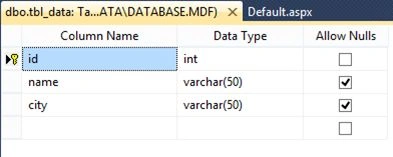
Figure 1 Data Table
DESIGN CODE
Step 4
Open your BoundControl_demo.aspx file from Solution Explorer and start designing you're application.
Here is the Code
- <body>
- <form id="form1" runat="server">
- <asp:GridView ID="GridView1" runat="server" AutoGenerateColumns="False" CellPadding="4"
- DataSourceID="SqlDataSource1" ForeColor="#333333" GridLines="None">
- <AlternatingRowStyle BackColor="White" />
- <Columns>
- <asp:TemplateField HeaderText="id">
- <EditItemTemplate>
- <asp:TextBox ID="TextBox1" runat="server" Text='<%# Bind("id") %>'>
- </asp:TextBox>
- </EditItemTemplate>
- <ItemTemplate>
- <asp:Label ID="Label1" runat="server" Text='<%# Bind("id") %>'>
- </asp:Label>
- </ItemTemplate>
- </asp:TemplateField>
- <asp:TemplateField HeaderText="Name">
- <EditItemTemplate>
- <asp:TextBox ID="TextBox2" runat="server" Text='<%# Bind("name") %>'>
- </asp:TextBox>
- </EditItemTemplate>
- <ItemTemplate>
- <asp:Label ID="Label2" runat="server" Text='<%# Bind("name") %>'>
- </asp:Label>
- </ItemTemplate>
- </asp:TemplateField>
- <asp:TemplateField HeaderText="City">
- <EditItemTemplate>
- <asp:TextBox ID="TextBox3" runat="server" Text='<%# Bind("city") %>'>
- </asp:TextBox>
- </EditItemTemplate>
- <ItemTemplate>
- <asp:Label ID="Label3" runat="server" Text='<%# Bind("city") %>'>
- </asp:Label>
- </ItemTemplate>
- </asp:TemplateField>
- </Columns>
- <EditRowStyle BackColor="#7C6F57" />
- <FooterStyle BackColor="#1C5E55" Font-Bold="True" ForeColor="White" />
- <HeaderStyle BackColor="#1C5E55" Font-Bold="True" ForeColor="White" />
- <PagerStyle BackColor="#666666" ForeColor="White" HorizontalAlign="Center" />
- <RowStyle BackColor="#E3EAEB" />
- <SelectedRowStyle BackColor="#C5BBAF" Font-Bold="True" ForeColor="#333333" />
- <SortedAscendingCellStyle BackColor="#F8FAFA" />
- <SortedAscendingHeaderStyle BackColor="#246B61" />
- <SortedDescendingCellStyle BackColor="#D4DFE1" />
- <SortedDescendingHeaderStyle BackColor="#15524A" />
- </asp:GridView>
- <asp:SqlDataSource ID="SqlDataSource1" runat="server"
- ConnectionString="<%$ ConnectionStrings:ConnectionString %>"
- DeleteCommand="INSERT INTO tbl_data(id, name, city) VALUES (5, Keyur, Pune)"
- SelectCommand="SELECT * FROM [tbl_data] ">
- </asp:SqlDataSource>
- <div></div>
- </form>
- </body>

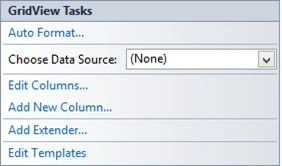

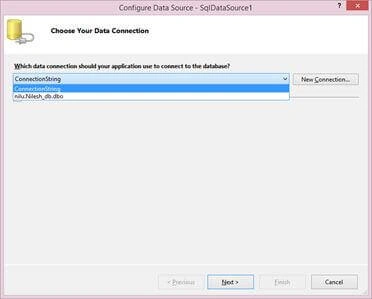

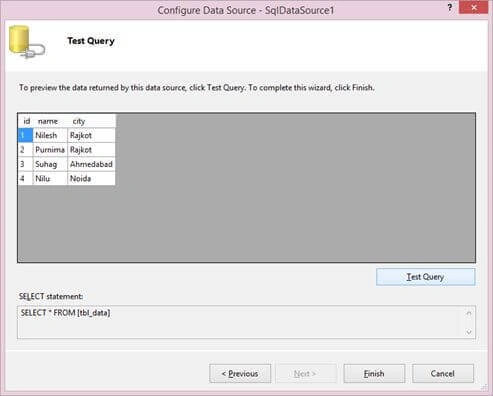
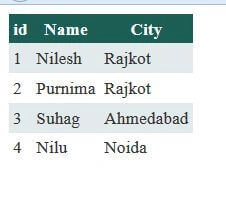
Arul RPosted Oct 28, 2015, 5:46 AM
Nice share!!!
Gowtham RajamanickamPosted May 26, 2015, 8:57 AM
congrats..
Sibeesh VenuPosted May 26, 2015, 7:07 AM
Good one.
Rahul Kumar SaxenaPosted May 24, 2015, 11:24 PM
Good Show..
Shubham KumarPosted May 24, 2015, 10:53 PM
Detail Info :) good
NitinPosted May 23, 2015, 8:50 AM
nice
Pankaj Kumar ChoudharyPosted May 22, 2015, 8:18 PM
Nice Explanation ...........
Santhakumar MunuswamyPosted May 22, 2015, 2:44 PM
Thanks for sharing