

Introduction
This article explains how the buffer load statement works in a QlikView application and how to load data.
There are basic steps for the buffer load statement. So let's start with these steps.
Step 1: Open the QlikView application
In the first step you need to open the QlikView application then go to "File" -> "New" then this window will be opened.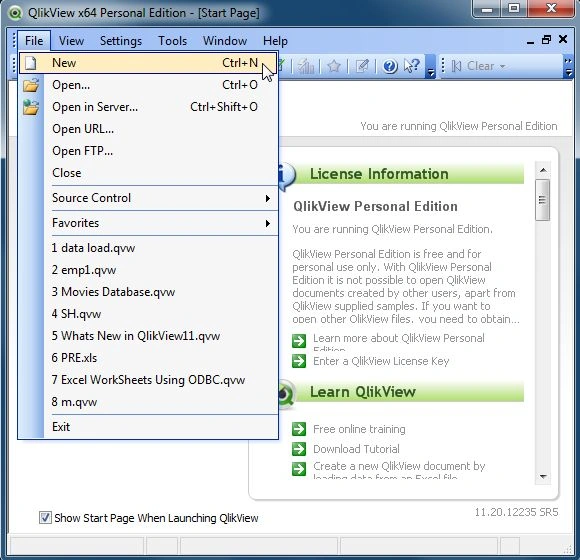
Step 2: Open Edit Script
The second step is open the edit script window from, "File" -> "Edit Script".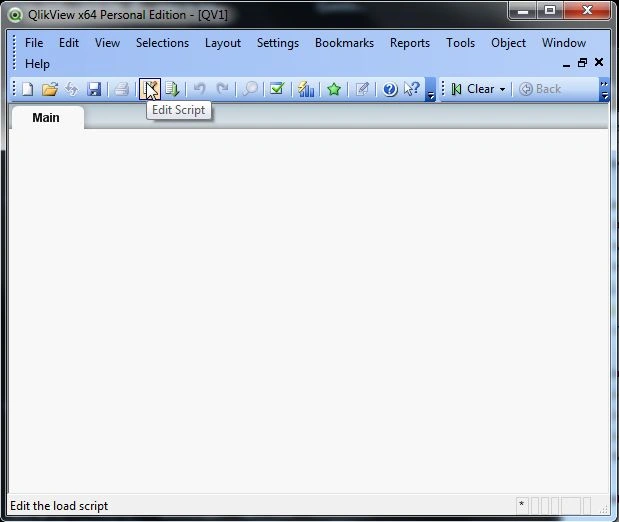
- Then this window will be opened.
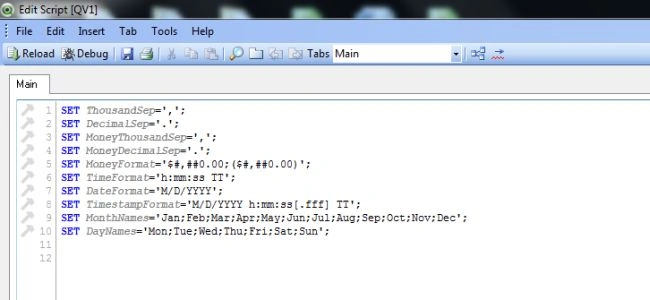
Step 3: Select Database
The third step is to select the database from the data tab and click on the Connect Button.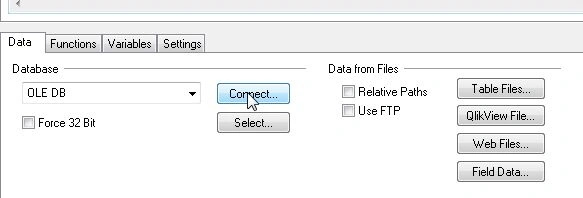
Step 4: Data link property window
In this window we select SQL Server and click on the Next Button.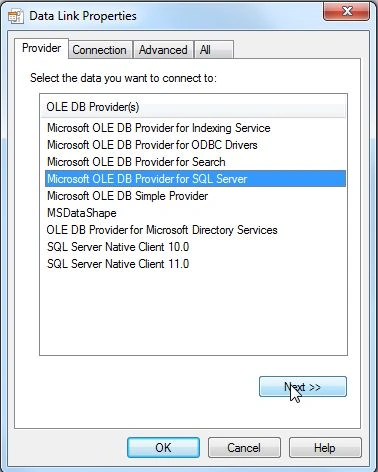
Step 5: Connection tab
In the connection tab, enter the server name and user name and password and select the database from your server and click on the Ok button.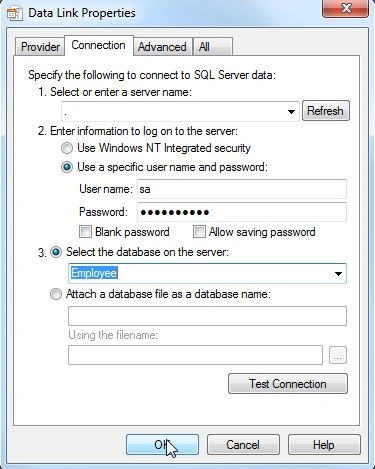
- Then you find that the test connection succeeded.
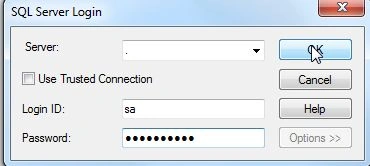
Step 6: Connection to SQL Server
Now you will see the connection to SQL Server as in the following: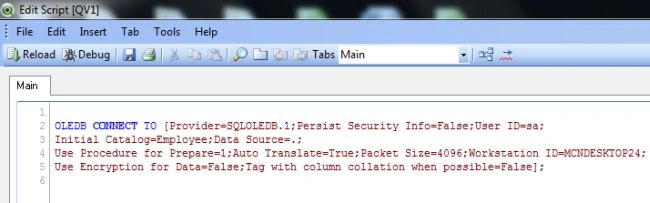
Step 7: Select database
Now the next step is to select the database for loading the data.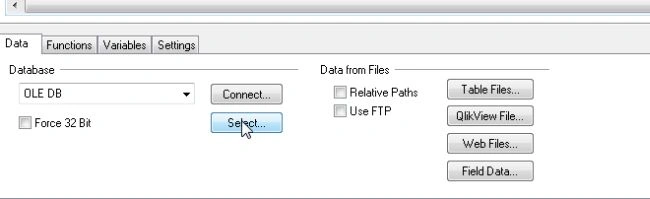
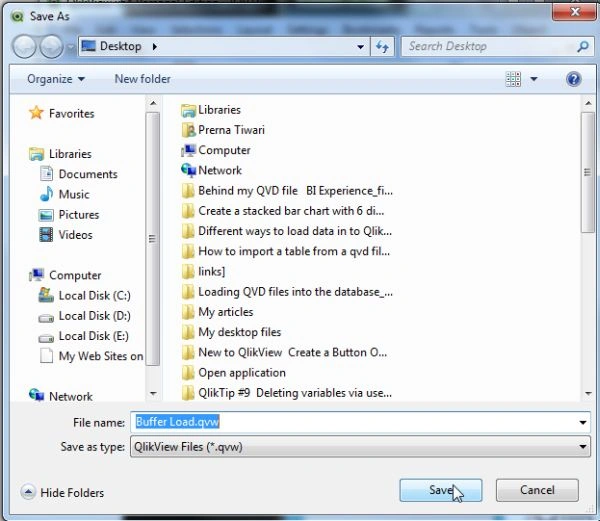
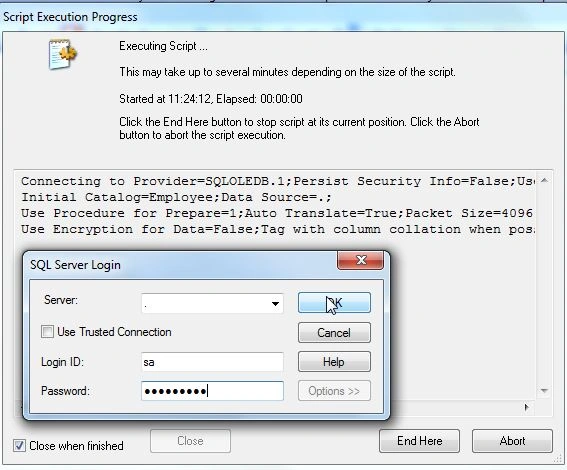
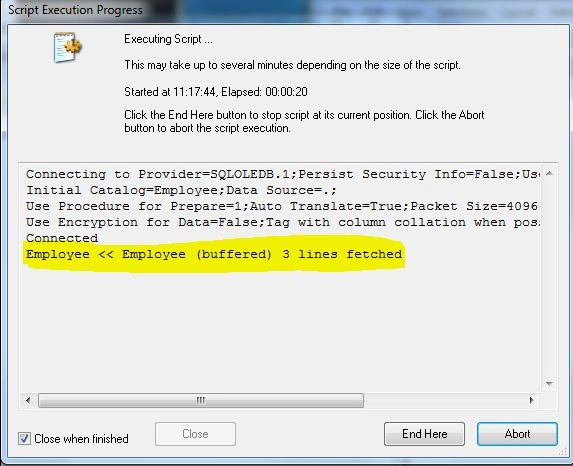
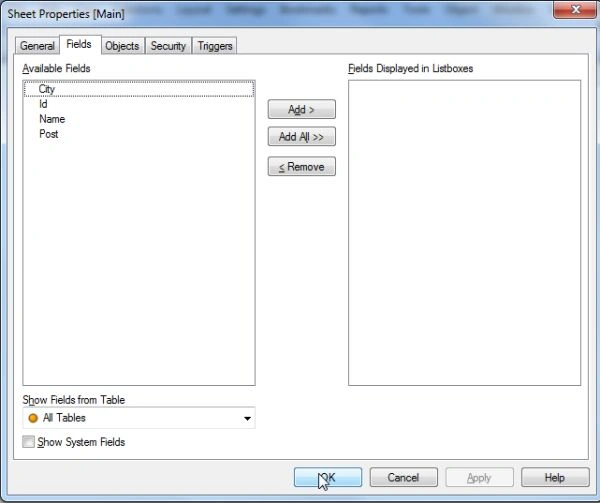
Step 8: Import data
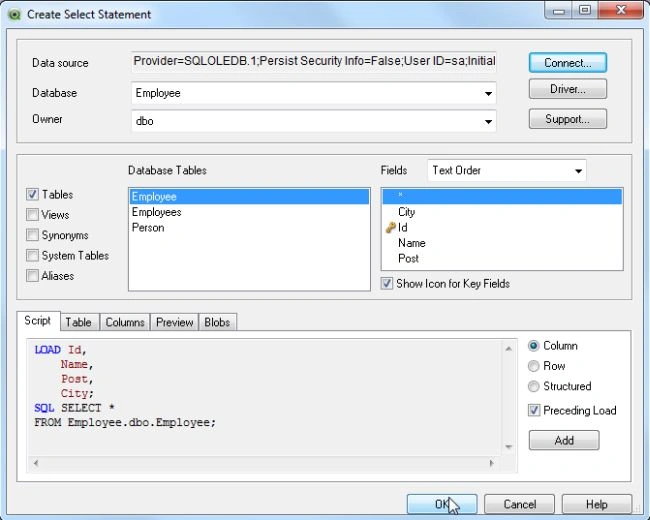
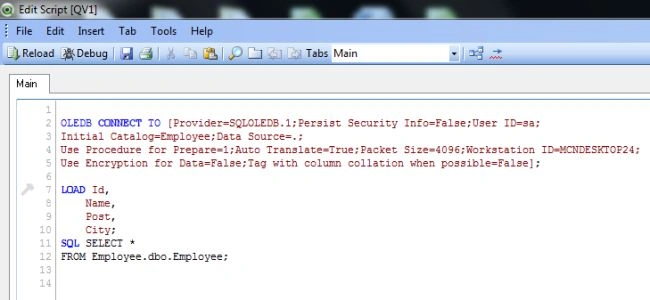
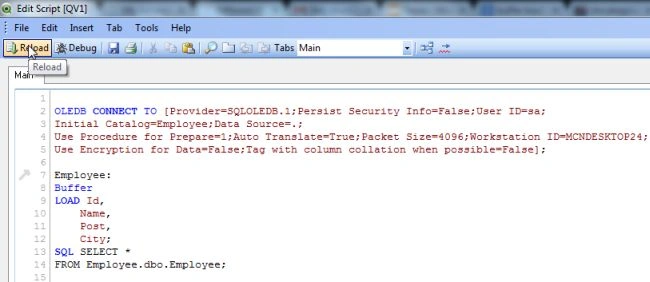
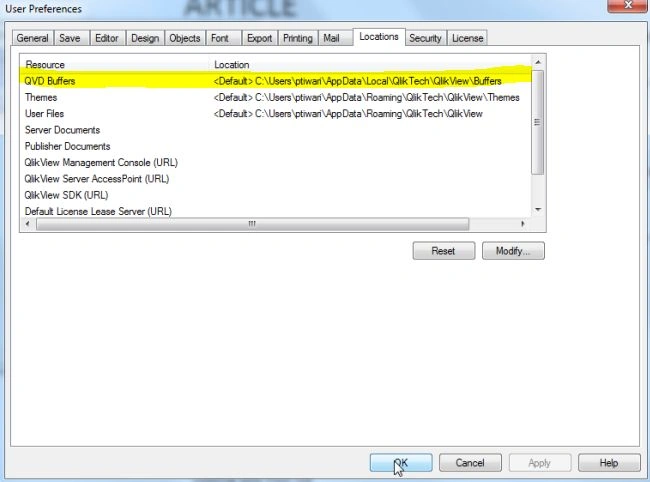
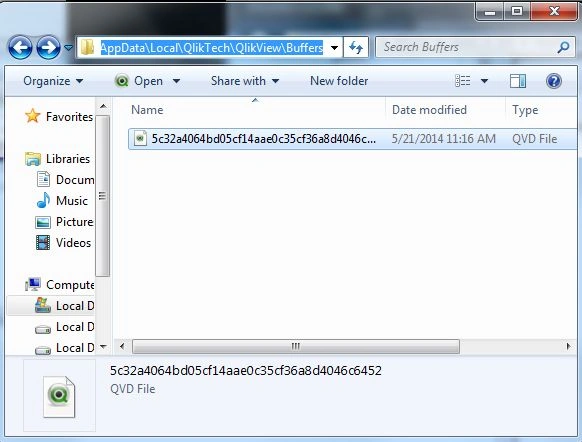
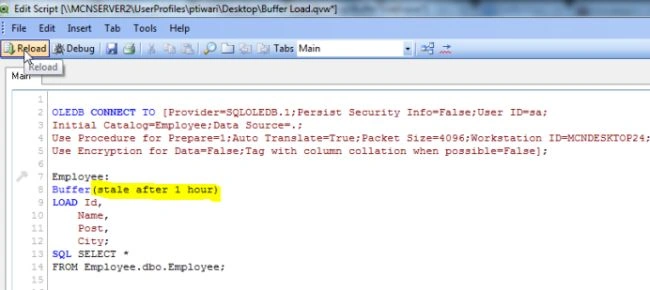
Sandeep SharmaPosted May 22, 2014, 12:03 AM
w'c
Sandeep SharmaPosted May 21, 2014, 1:12 PM
Nice Name and Nice Article .. @Prerana- so with your help, im gonna xploring .. Thanks (Its a link here if anybody wanna make download for QlikView http://www.qlik.com/us/explore/experience/free-download size almost 348 MB )