

Introduction
Amazon Bedrock Flows enables you to build and orchestrate AI workflows using a visual builder, seamlessly integrating with Amazon Bedrock services like foundational models, knowledge bases, and prompt management. It also connects with other AWS services, such as AWS Lambda and Amazon S3.
This article shows you how to integrate AWS Lambda with Amazon Bedrock Prompt Flow to create an intelligent data retrieval and processing system. This solution helps you automate data processing and generate user-friendly summaries, improving efficiency and user experience. You will learn how to create a serverless solution that:
- Retrieves data from Amazon DynamoDB using the Lambda function
- Processes the retrieved data using Bedrock Prompt Flow
- Generates user-friendly summaries of access request details
Architecture Diagram
The following diagram illustrates the solution architecture:
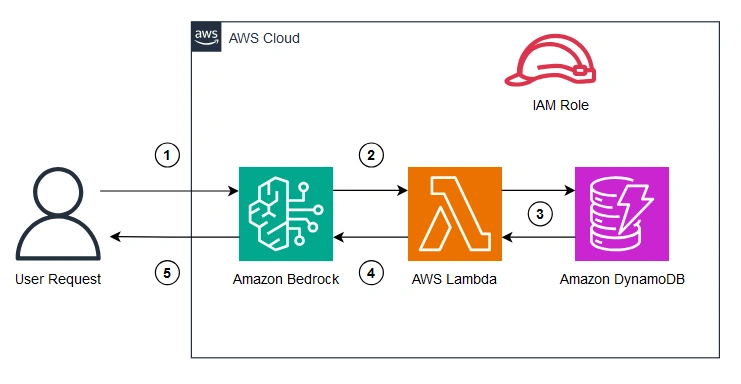
The solution works as follows.
- The user sends a request with input parameters to Bedrock Prompt Flow.
- Bedrock Prompt Flow invokes the Lambda function with the request parameters.
- The lambda function queries DynamoDB using the provided Request ID to fetch record details.
- Lambda returns the DynamoDB response to Bedrock prompt flow.
- Bedrock prompt flow generates a user-friendly summary and returns it to the user.
Note: The condition node checks the Lambda response. If no data is found, it sends the response directly to the output. Otherwise, the data is sent to the prompt node for summarization.
Flow design
The following diagram shows the components and their interactions in the prompt flow:

Prerequisites
- AWS Account with these permissions:
- Amazon Bedrock: Create/manage flows and access foundation models
- IAM: Create/manage policies and roles
- AWS Lambda: Create/manage functions
- Amazon DynamoDB: Create/manage tables
- Install or update to the latest version of the AWS CLI (version 2.x or later).
- Get credentials to grant programmatic access.
Implementation Steps
1. Create a DynamoDB Table
Create a table to store access request details.
- Open Command Prompt.
- Create a DynamoDB table using the CLI command:
aws dynamodb create-table ^ --table-name SharePointAccessRequests ^ --attribute-definitions AttributeName=RequestId,AttributeType=S ^ --key-schema AttributeName=RequestId,KeyType=HASH ^ --billing-mode PAY_PER_REQUEST ^ --table-class STANDARD - Add sample items using the CLI command:
aws dynamodb put-item ^
    --table-name SharePointAccessRequests  ^
    --item ^
        "{\"RequestId\": {\"S\": \"REQ27022025001\"}, \"Approver\": {\"S\": \"[email protected]\"},\"Requester\": {\"S\": \"[email protected]\"},\"SiteURL\": {\"S\": \"https://xxxx.sharepoint.com/sites/projectx\"},\"Status\": {\"S\": \"In Progress\"},\"BusinessJustification\": {\"S\": \"I am part of Project X team and need to collaborate with the team and project documents so kindly provide access to the SharePoint site\"}, \"Comments\": {\"S\": \"Work in progress\"}, \"CreatedDate\": {\"S\": \"2025-02-27 10:10:10\"}, \"ModifiedDate\": {\"S\": \"2025-02-27 11:10:10\"}}"

aws dynamodb put-item ^
    --table-name SharePointAccessRequests  ^
    --item ^
        "{\"RequestId\": {\"S\": \"REQ27022025002\"}, \"Approver\": {\"S\": \"[email protected]\"},\"Requester\": {\"S\": \"[email protected]\"},\"SiteURL\": {\"S\": \"https://xxxx.sharepoint.com/sites/projecty\"},\"Status\": {\"S\": \"In Progress\"},\"BusinessJustification\": {\"S\": \"I am part of Project Y team and need to collaborate with the team and project documents so kindly provide access to the SharePoint site\"}, \"Comments\": {\"S\": \"Work in progress\"}, \"CreatedDate\": {\"S\": \"2025-02-27 10:10:10\"}, \"ModifiedDate\": {\"S\": \"2025-02-27 11:10:10\"}}"
2. Create a Lambda Execution Role
Create an IAM role that grants Lambda permission to access other AWS services.
- Create a JSON file with the following content and save it as trust-policy.json.
{ "Version": "2012-10-17", "Statement": [ { "Effect": "Allow", "Principal": { "Service": "lambda.amazonaws.com" }, "Action": "sts:AssumeRole" } ] } - Open Command Prompt. Navigate to your JSON file location using the 'cd' command.
- Create Lambda execution role using CLI command:
aws iam create-role ^
  --role-name AWSLambdaRetrieveRequestByIdServiceRole ^
  --assume-role-policy-document file://trust-policy.json
3. Create a Permission Policy for Lambda Function
Create a permission policy to allow Amazon CloudWatch log creation, log writing, and DynamoDB table read/write access.
- Create a JSON file with the following content and save it as lambda-function-policy.json. Replace the <region> and <account-id> with the actual values.
{ "Version": "2012-10-17", "Statement": [ { "Effect": "Allow", "Action": "logs:CreateLogGroup", "Resource": "arn:aws:logs:<region>:<account-id>:*" }, { "Effect": "Allow", "Action": [ "logs:CreateLogStream", "logs:PutLogEvents" ], "Resource": [ "arn:aws:logs:<region>:<account-id>:log-group:/aws/lambda/retrieve-request-by-id:*" ] }, { "Effect": "Allow", "Action": [ "dynamodb:DescribeTable", "dynamodb:GetItem" ], "Resource": "arn:aws:dynamodb:<region>:<account-id>:table/SharePointAccessRequests" }, { "Effect": "Allow", "Action": "dynamodb:ListTables", "Resource": "*" } ] } - Open Command Prompt. Navigate to your JSON file location using the 'cd' command.
- Create a permission policy using the CLI command:
aws iam create-policy ^
  --policy-name AWSLambdaRetrieveRequestByIdServicePolicy ^
  --policy-document file://lambda-function-policy.json
4. Attach the permission policy to the Lambda Execution Role
Attach the created policy to enable Lambda to access CloudWatch and DynamoDB.
- Open Command Prompt.
- Attach the policy to the execution role using the CLI command: Replace <account-id> with the actual value.
aws iam attach-role-policy ^
  --role-name AWSLambdaRetrieveRequestByIdServiceRole ^
  --policy-arn arn:aws:iam::<account-id>:policy/AWSLambdaRetrieveRequestByIdServicePolicy
5. Create the Lambda function
Create the Lambda function to retrieve the request details from the DynamoDB table based on the Request ID.
- Create a Python file (.py extension) and add the following code. Save it as lambda_function.py.
import json import boto3 import os from botocore.exceptions import ClientError # Initialize a session using Amazon DynamoDB dynamodb = boto3.resource('dynamodb') def lambda_handler(event, context): # Fetch environment variables table_name = os.environ['DYNAMODB_TABLE_NAME'] # Extract RequestId from the event request_id = event.get('node', {}).get('inputs', [{}])[0].get('value', {}).get('requestId', None) if not request_id: return { 'statusCode': 400, 'body': json.dumps('RequestId is missing in the input') } # Reference to the DynamoDB table table = dynamodb.Table(table_name) try: # Get the item based on RequestId response = table.get_item( Key={ 'RequestId': request_id } ) # Check if the item exists in the table if 'Item' in response: return { 'statusCode': 200, 'body': json.dumps(response['Item']) # Return the item data as JSON } else: return { 'statusCode': 404, 'body': json.dumps(f"No item found with RequestId: {request_id}") } except ClientError as e: return { 'statusCode': 500, 'body': json.dumps(f"An error occurred: {e.response['Error']['Message']}") } - Zip the Python file and name it as function.zip.
- Open Command Prompt. Navigate to your function.zip file location using the 'cd' command.
- Create Lambda function using CLI command: Replace <account-id> with actual value.
aws lambda create-function ^
    --function-name retrieve-request-by-id ^
    --runtime python3.13 ^
    --handler lambda_function.lambda_handler ^
    --zip-file fileb://function.zip ^
    --role arn:aws:iam::<account-id>:role/AWSLambdaRetrieveRequestByIdServiceRole ^
    --environment Variables={DYNAMODB_TABLE_NAME="SharePointAccessRequests"} ^
    --timeout 180
6. Create a Bedrock Service Role
Create an IAM role that allows Amazon Bedrock to access other AWS services.
- Create a JSON file with the following content and save it as trust-policy.json. Replace the <region> and <account-id> with the actual values.
{ "Version": "2012-10-17", "Statement": [ { "Effect": "Allow", "Principal": { "Service": "bedrock.amazonaws.com" }, "Action": "sts:AssumeRole", "Condition": { "StringEquals": { "aws:SourceAccount": "<account-id>" }, "ArnLike": { "aws:SourceArn": "arn:aws:bedrock:<region>:<account-id>:flow/*" } } } ] } - Open Command Prompt. Navigate to your JSON file location using the 'cd' command.
- Create service role using CLI command:
aws iam create-role ^
  --role-name AmazonBedrockFlowInvokeLambdaServiceRole ^
  --assume-role-policy-document file://trust-policy.json
7. Create the permission policy for the Bedrock Service Role
Create a permission policy to allow Amazon Bedrock to invoke the model and Lambda function.
Vijai Anand RamalingamPosted Mar 6, 2025, 3:43 PM
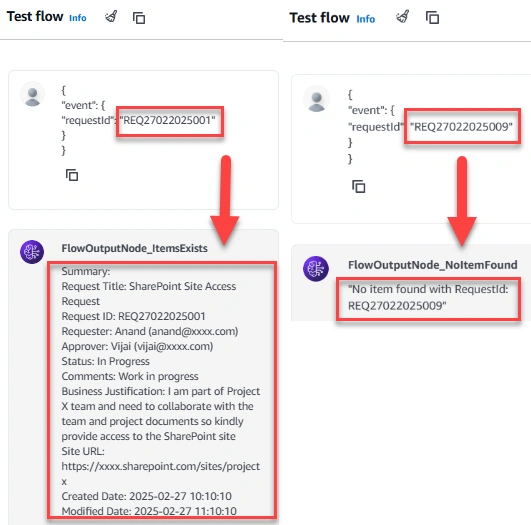
{ "event": { "requestId": "REQ27022025001" } }