

In this article I'll show you how to build a
simple "GUI Editor". First of all lets talk about what GUI Editor means.
What's GUI Editor?
"GUI Editor" or "GUI Builder" is a Software Development Tool. It has a kind of
WYSIWYG structure and helps the user to build a structure without coding or less
coding. Without GUI's we had to write code for everything.
Lets Start...
STEP BY STEP BUILDING A "GUI EDITOR"
First of all, we are creating a new XNA 3.1 Game Project...
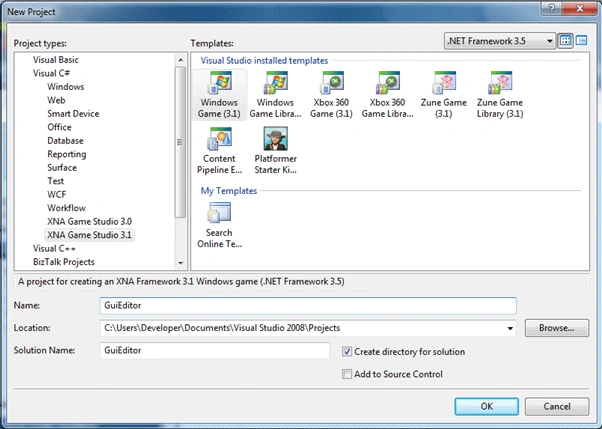
Here it is..
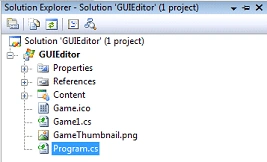
Now lets talk about everything we are going to do:
- Add a resource file that includes Skin images for controls.
- A Structure that will help us export the control List as an XML File.
- A "Screens" Folder that will help us to read this controls.
- For Communication of Windows & XNA creating a class where we will declare "public static" variables
- A "Properties Panel" where we can change the properties of selected controls.
- A "Toolbox Panel" where we can add controls.
- Our Custom Controls
1. Add a resource file that includes Skin
images for controls
We are adding 3-4 skin images for our Button control...
First of all we're creating a Resource File that will help us storing the skins:
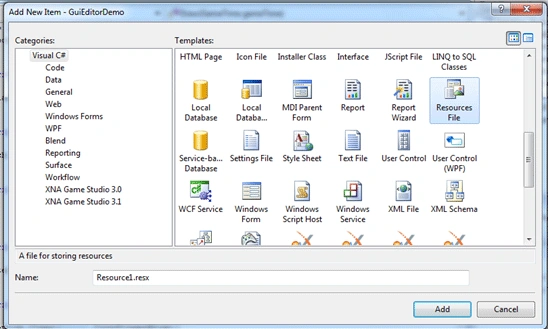
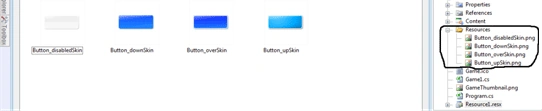
After that open the resource file and "Add Resource->Add Existing File..."
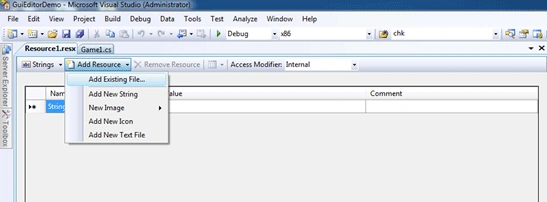
Then add 4 sample skins(you can create your own skins named 'disabled','down','over' and 'up'):
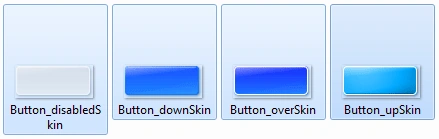
Here they are added at Resources...
2. A Structure that will help us export the control List as an XML File
First creating a new XML File:
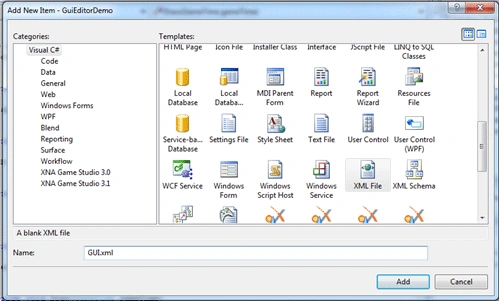
Then make it similar to the codes below:
<?xml
version="1.0"
encoding="utf-8"
?>
<GUI>
<Control
Name="">
<Type></Type>
<AllowDrop></AllowDrop>
<Enabled></Enabled>
<ForeColor></ForeColor>
<LocationX></LocationX>
<LocationY></LocationY>
<SizeW></SizeW>
<SizeH></SizeH>
<Text></Text>
</Control>
</GUI>
We are taking advantage of XML for the structure we will be building on GUI Editor & as you can see we added elements as they are already properties of the controls.Actually it would be a big mistake not to use XML in this kind of applications.
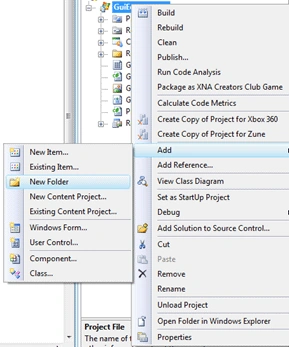
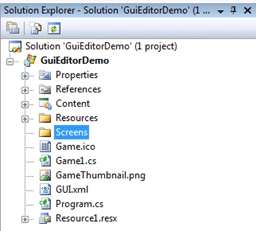
3. A "Screens" Folder that will help us to read this controls.
Just create a new Folder in the project and call it Screens.
4. For Communication of Windows & XNA, creating a class where we will declare "public static" variables
Create a new Class & name it Infos.cs...
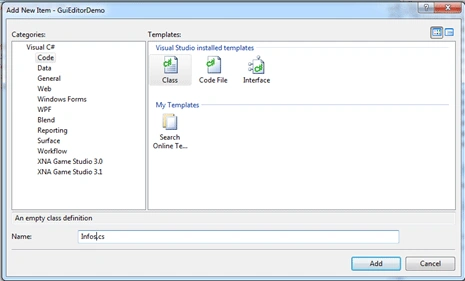
It seems just like this:
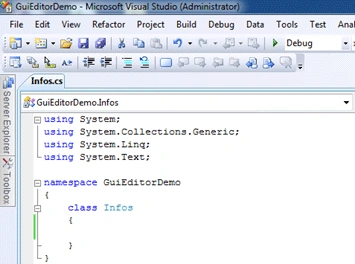
In this point we aren't writing any code.
5. A "Properties Panel" where we can change the properties of selected controls
We need to add a Properties Panel. First we need to create a Windows Forms:
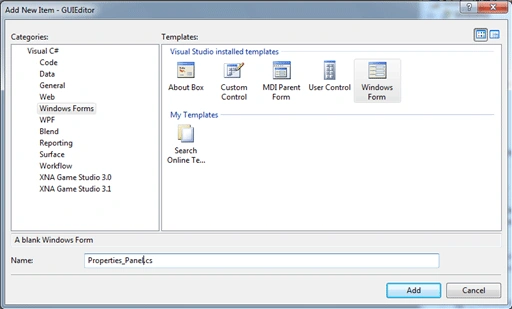
Then set its properties just as below...
Backcolor =White
Size
Width=219
Height=600
Text=Properties Panel
Create a new Folder and UserControl named Control_Properties
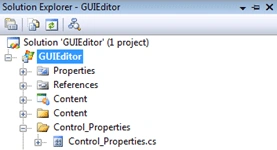
Set its Properties as below:
BackColor = White
Size
Width=175
Height=400
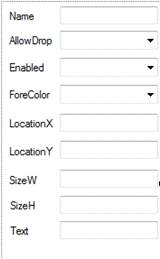
It should look like above + add a timer control on the user control
Set the controls above as given properties:
// label1
Text = "Name";
// textBox1
Name = "textBox1";
// Label2
Name = "Label2";
Text = "AllowDrop";
// comboBox1
Items = "True","False"
Name = "comboBox1";
// label3
Name = "label3";
Text = "Enabled";
// comboBox2
Items = "True","False"
Name = "comboBox2";
// label4
Name = "label4";
Text = "ForeColor";
// comboBox3
Name = "comboBox3";
// label5
Name = "label5";
Text = "LocationX";
// textBox2
Name = "textBox2";
// label6
Name = "label6";
Text = "LocationY";
// textBox3
Name = "textBox3";
// label7
Name = "label7";
Text = "SizeW";
// textBox4
Name = "textBox4";
// label8
Name = "label8";
Text = "SizeH";
// textBox5
Name = "textBox5";
// textBox6
Name = "textBox6";
// label9
Name = "label9";
Text = "Text";
// timer1
Interval = 2;
Add a GroupBox then set its Text property as "Properties".
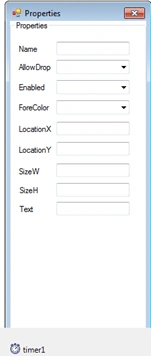
Add this UserControl inside your previously built "Properties_Panel" Windows Form
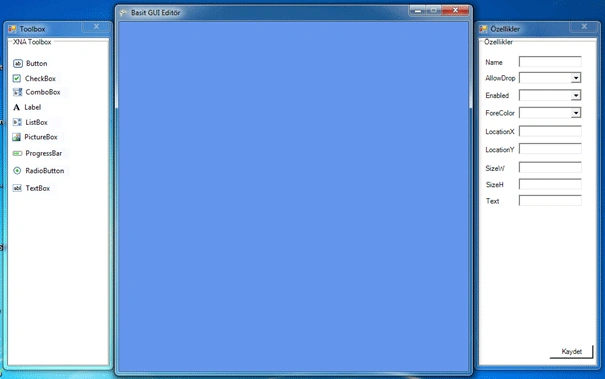
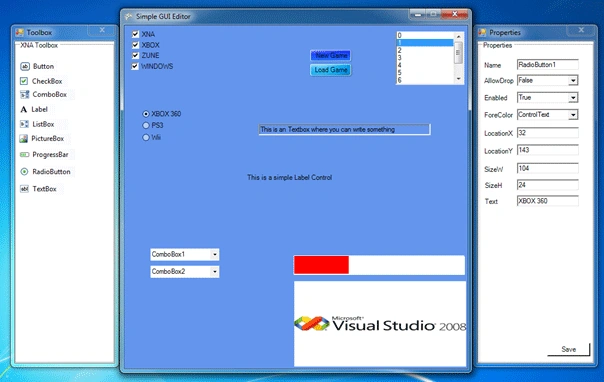
Your Properties_Panel shall look like this:
6. A "Toolbox Panel" where we can add controls.
Now were going to create a Windows Form for "ToolBox Panel" and then add the images being used in this toolbox.
Add a New Form and name it Toolbox.cs
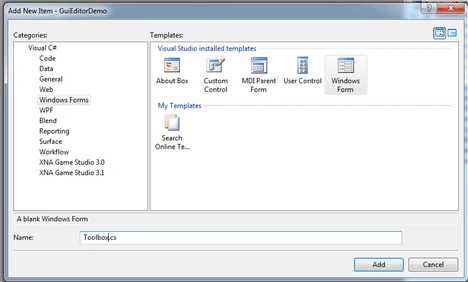
Set the Properties below:
BackColor= White
Size
Width=190
Height=562
Add a GroupBox,set its Text value "Toolbox",Dock value "Fill" deyin...
Now add the Control images were going to use in Toolbox Panel:
"Add Resource -> Add Existing Item";
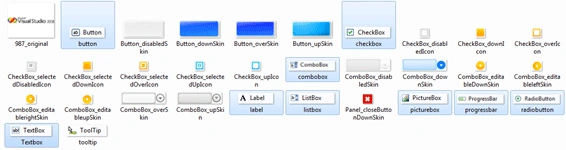
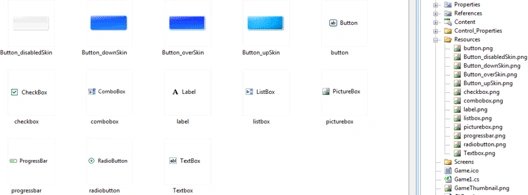
Added the controls' images.
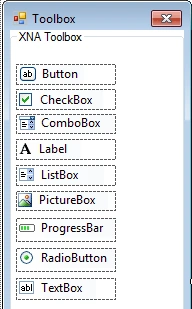
Add 9 picturebox and assign the images that we currently added on Resource and it will look like below:
7. Our Custom Controls
Now were going to create our own controls just
like listed below:
XButton
XCheckBox
XComboBox
XLabel
XListBox
XPictureBox
XProgressBar
XRadioButton
XTextBox
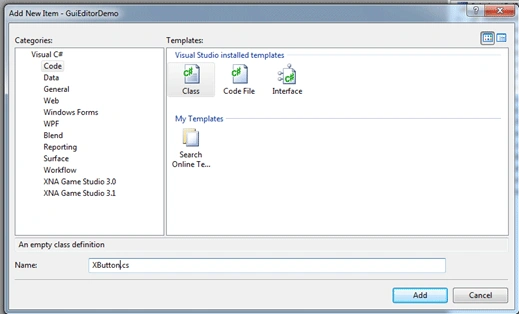
Create a new Class & name it "XButton.cs"
Update the class like that:
XButton
using
System;
using
System.Collections.Generic;
using
System.Linq;
using
System.Text;
using
System.Windows.Forms;
namespace
GuiEditor
{
class XButton:Button
{
public XButton()
{
}
}
}
Create classes for other controls with the same
process we made above.
Now lets talk about our INFOS Class...
This class stores all the information's needed for interaction between XNA &
Windows Forms(Properties & Toolbox)
Allright lets look at the codes & try to explain them:
public static Control kontrool;
This static control variable is the selected
control on XNA Window.When you select a control,this variable will store its
name...
public
static List<Control>
kontroller = new
List<Control>();
This stores all of the controls(repeating) on
XNA Window.
public
static List<Control>
strunq = new List<Control>();
This stores all of the controls(unique) on XNA Window.
public
static Control
selectedcontrol;
This static control variable is the selected control on XNA Window.When you
select a control,this variable will store its name...
public
static bool
xmlbuild;
If true we will be creating an XML File.
//Button Variables
public
static bool varpub;
public static
int a;
public static
bool close;
public static
bool atleastone;
"varpub" controls whether the specified control is added or not."a" makes control's name & text property +1. "close" variable prevents the specified control added more than once.You can think it as a lock. "atleastonce" controls the specified control added for once.
//Button Events
public void
Button_Added(bool varb)
{
varpub = varb;
close = true;
ButtonAdd_Num();
}
public int
ButtonAdd_Num()
{
a++;
return a;
}
"Button_Added" function is the key where controls a Button added on Game Window.ButtonAdd_Num helps to increase "a" variable.
public static
void CreateUniqueList(List<Control>
oDup, ref List<Control>
oUniq)
{
for (int
x = 0; x < oDup.Count; x++)
{
bool bDuplicate =
false;
foreach (object
oItem in oUniq)
{
if (oItem == oDup[x])
{
bDuplicate = true;
oDup.RemoveAt(x);
break;
}
}
if (!bDuplicate)
{
oUniq.Add(oDup[x]);
}
}
}
This function takes all the repeating controls
and makes them unique in strunq control list by reference.
You can call it by coding: CreateUniqueList(Infos.kontroller,ref Infos.strunq);
public
static void
XMLBuild()
{
FileStream fs =
new FileStream("controls.xml",
FileMode.Create);
XmlWriter w =
XmlWriter.Create(fs);
w.WriteStartDocument();
w.WriteStartElement("GUI");
foreach (Control
v in Infos.strunq)
{
w.WriteStartElement("Control");
w.WriteAttributeString("Name",
v.Name);
w.WriteElementString("Type",
v.GetType().ToString());
w.WriteElementString("AllowDrop",
v.AllowDrop.ToString());
w.WriteElementString("Enabled",
v.Enabled.ToString());
w.WriteElementString("ForeColor",
v.ForeColor.ToKnownColor().ToString());
w.WriteElementString("LocationX",
v.Location.X.ToString());
w.WriteElementString("LocationY",
v.Location.Y.ToString());
w.WriteElementString("SizeW",
v.Size.Width.ToString());
w.WriteElementString("SizeH",
v.Size.Height.ToString());
w.WriteElementString("Text", v.Text);
w.WriteEndElement();
}
w.WriteEndElement();
w.WriteEndDocument();
w.Flush();
fs.Close();
}
In this XML Creation function we query all the unique controls inside strunq and write them on a XML File.
CONTROLS' Structure
Now lets talk about Controls' Code Structures and try to explain them :
As I said above we have created 9 controls Starts With "X", now we are going to
explain XButton controls codes step by step:
private
Boolean dragInProgress =
false;
int MouseDownX = 0;
int MouseDownY = 0;
"dragInProgress" gives us the value whether the Drag process continues or not.
"MouseDownX" ve "MouseDownY" stores X & Y coordinates of the selected control.
public
XButton()
{
this.BackgroundImage =
Resource1.Button_overSkin;
this.FlatStyle =
FlatStyle.Flat;
this.BackColor =
Color.CornflowerBlue;
this.FlatAppearance.BorderColor =
Color.CornflowerBlue;
this.FlatAppearance.BorderSize = 0;
this.FlatAppearance.CheckedBackColor =
Color.CornflowerBlue;
this.FlatAppearance.MouseDownBackColor =
Color.CornflowerBlue;
this.FlatAppearance.MouseOverBackColor =
Color.CornflowerBlue;
this.BackgroundImageLayout =
ImageLayout.Stretch;
this.MouseDown +=
new MouseEventHandler(MDown);
this.MouseUp += new
MouseEventHandler(MUp);
this.MouseMove +=
new MouseEventHandler(MMove);
this.Click += new
EventHandler(BClick);
this.MouseEnter +=
new EventHandler(MEnter);
this.MouseLeave +=
new EventHandler(MLeave);
}
When we are creating a new XButton Control this property will be the default values...
protected
override bool
ShowFocusCues
{
get
{
return false;
}
}
This bool property is readonly by default but we overriding it.When we select a control it automatically draws a rectangle with lines.We are setting its value false to prevent it.
private
void MUp(Object
sender, MouseEventArgs e)
{
if (e.Button ==
MouseButtons.Left)
{
this.dragInProgress =
false;
this.BackgroundImage =
Resource1.Button_downSkin;
}
else if
(e.Button == MouseButtons.Right)
{
Infos.kontroller.Clear();
foreach (Control
c in Infos.strunq)
{
Infos.kontroller.Add(c);
}
Infos.strunq.Remove(Infos.secilikontrol);
this.Dispose(true);
}
return;
}
This function processes when we are on the control.
if
(e.Button == MouseButtons.Left)
{
this.dragInProgress
= false;
this.BackgroundImage
= Resource1.Button_downSkin;
}
aba babaPosted Apr 8, 2014, 5:39 PM
Hello Ibrahim! Great article! Are yous till around? :) would like to ask you a couple of questions if possible:)
payjo payjoeditedPosted Nov 22, 2012, 9:37 AMEdited Nov 22, 2012, 9:38 AM
I mean from outside. like this http://grumblegrumble.net/?p=123 the difference is form application is main program that call xna game when click a button
Ibrahim ErsoyPosted Nov 22, 2012, 5:56 AM
inside or outside windows form? if its inside your looking for look at here: http://xbox.create.msdn.com/en-US/education/catalog/sample/winforms_series_1 if its outside call a built XNA game using Process.Start("game.exe");
payjo payjoPosted Nov 22, 2012, 12:16 AM
Hiii Ibrahim, how can I run XNA from winform for example when I press button1 and then XNA games will appear
kiranPosted Oct 25, 2012, 2:06 AM
Very Nice
HosseinPosted Apr 19, 2010, 7:10 AM
Thank you very much . would you give us the tutorial number two and number 3? i mean the rest of the article . its the greatest tutorial i have ever seen . God bless you Ibrahim .
Mahesh ChandPosted Feb 21, 2010, 10:48 PM
This is a good article Ibrahim. Flows well and reads well. I am impressed with your style. Look forward reading more from you. Keep up the good work! Cheers!
Raj KumarPosted Feb 17, 2010, 11:32 PM
good work well done !!