

Introduction
In many organizations, requests are not approved by just one person. Things like software access, purchases, onboarding, or finance approvals usually need permission from multiple people. When this is handled only via email, it often leads to delays, missed responses, and no clear way to track status.
In this article, we will build a practical Multi-Level Approval Workflow using SharePoint and Power Automate. A request will automatically be sent to different approvers in turn. If anyone rejects the request, the process will stop immediately.
This solution is easy to understand, scalable, and designed for real business use cases.
Business Scenario
Let’s take a simple example of a Software Access Request process.
When a user submits a request:
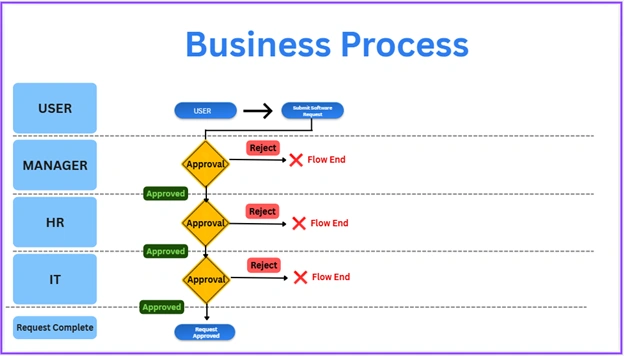
The request is first sent to the Manager for approval.
If the Manager approves, it is then sent to HR.
If HR approves, it is sent to IT.
If IT approves, the request status is updated to Completed.
If anyone rejects the request, the workflow stops and the status is updated to Rejected.
All approval actions, comments, and status updates are automatically saved and tracked in SharePoint, giving full visibility into the entire process.
SharePoint List Design
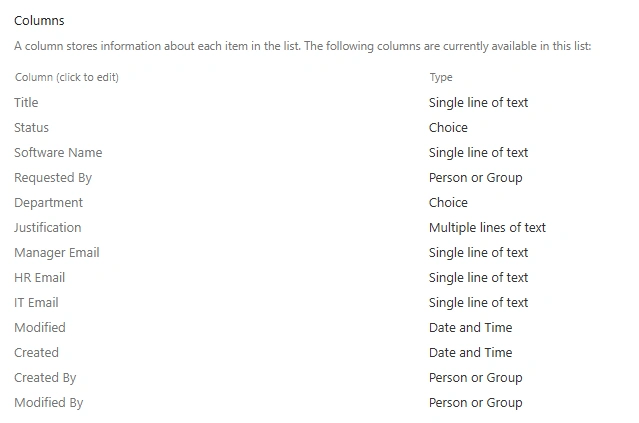
Create a SharePoint list named Software Requests.
Add the following columns:
Title – Request title
Software Name – Single line of text
Requested By – Person
Department – Choice
Justification – Multiple lines of text
Manager Email – Single line of text
HR Email – Single line of text
IT Email – Single line of text
Status – Choice
(New, Pending Manager Approval, Pending HR Approval, Pending IT Approval, Approved, Rejected)Manager Comments – Multiple lines of text
HR Comments – Multiple lines of text
IT Comments – Multiple lines of text
This list will work as the central tracking system for the entire approval workflow, where all requests, approval decisions, and comments are stored and monitored.
Step-by-Step Flow Logic
Step 1: Trigger and Initial Status
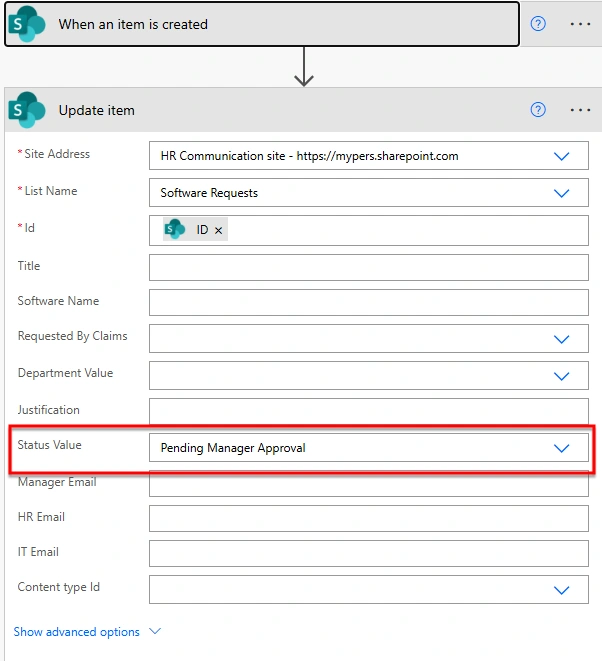
The flow starts when a new item is created in the Software Requests SharePoint list.
As the first action, update the same item and set:
Status = Pending Manager Approval
This clearly shows that the request has entered the approval process and is now waiting for the Manager’s review.
Step 2: Manager Approval
Add the action Start and wait for an approval.
Configure it as follows:
Approval type: Approve/Reject – First to respond
Assigned to: Manager Email column
Title: Software Request – Manager Approval
Details: Include the software name, department, justification, and requester name.
After the approval response, add a Condition based on the outcome.

If Approved:
Update the SharePoint item
Save the Manager’s comments
Set Status = Pending HR Approval
If Rejected:
Update Status = Rejected
Store the Manager’s comments
Terminate the flow
This ensures that only approved requests move forward, and rejected requests are stopped immediately.

Step 3: HR Approval
This step should run only if the Manager has approved the request.
Add another Start and wait for an approval action and configure:
Assigned to: HR Email column
(Keep approval type as Approve/Reject – First to respond)
After the response, add a condition.

If HR Approves:
Update the SharePoint item
Save the HR comments
Set Status = Pending IT Approval
If HR Rejects:
Update Status = Rejected
Save the HR comments
Stop the workflow
This ensures the request moves to IT only after HR approval.

Step 4: IT Approval
This step should run only if HR has approved the request.
Add another Start and wait for an approval action and configure:
Assigned to: IT Email column
(Approval type: Approve/Reject – First to respond)
After the response, add a condition.

If IT Approves:
Update the SharePoint item
Save the IT comments
Set Status = Approved
Optionally, send an email to the requester to inform them that the software access process can begin.
If IT Rejects:
Update Status = Rejected
Save the rejection comments
This completes the multi-level approval process.

If Approved user will be notified through email.

If Rejected user will be notified through email.

Throughout the workflow:
The Status column always shows the current stage of the request.
All approver comments are saved back to the SharePoint list.
Users and administrators can easily create views or filters for:
Pending approvals
Completed requests
Rejected requests
This approach provides clear visibility, supports auditing needs, and makes the system easy to monitor and manage.
Conclusion
Multi-level approval workflows are one of the most practical and powerful use cases of Power Automate. By combining SharePoint with sequential approvals, organizations can remove manual follow-ups, improve accountability, and reduce overall processing time.
Join the conversation! Your thoughts help the community grow.