What is Xamarin
We can’t just create an android project and start writing C# in it. That would
be crazy! Right? We need some kind of wrapper or framework for that. You may
have heard of a JavaScript framework called Cordova which allow you to write
cross platform mobile apps using the web stacks (HTML, CSS, JavaScript).
Likewise, now we can also make cross platform apps with C# using Xamarin
framework. Xamarin provides three solution templates to build mobile apps,
- Xamarin.iOS
Only for making iOS apps. Use storyboard to design UI and connect that to your C# code behind instead of Objective C or Swift.
- Xamarin.Android
Only for making Android apps. Use AXML for UI designing whereas you will use C# as code behind instead of Java as backend code.
- Xamarin.Forms
For making apps for iOS, Android and Windows. Framework provides a set of UI components for creating layout that can be shared across multiple platforms. Use XAML for UI designing and C# as code behind.
Why Xamarin.Forms
I am using Xamarin.Forms for the demo which I’ll demonstrate soon. Reason behind choosing Xamarin.Forms is I am a windows phone developer (guilty of charge) which means I already know XAML. Other than that I’m a huge fan of code sharing which means I like to write code once and get it working in all the possible platforms. If you want to know more about Xamarin, you can go to their official site from this link.
What are we Building
Xamarin.Forms is a great choice for building data driven apps. So let’s make one. Let’s make an app which will show all the characters from STAR WARS movies in a ListView. I found a free API online from where I can get all the movie characters in a JSON format from this link.
Building the App
Open up the Xamarin Studio. Create a new Xamarin.Forms app. Give your app a name. You can keep the Identifier as it is. If you are on a MAC, you will have the iOS checkbox enabled for you. Since I’m on Windows I can only target the Android platform. Select portable or shared class library in the Shared Code section. Finish the next steps.
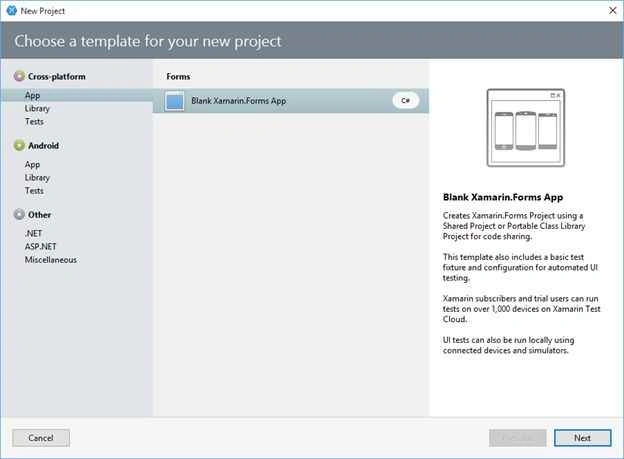

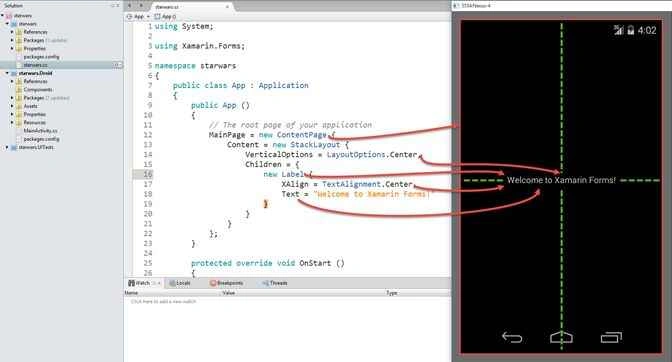
After you create the solution, you will have three projects in your solution. One for the shared code (starwars), one for the android app and last one as the name goes is a UI testing project for you app. Just set the starwars.Droid as a startup project and run your app.

Let’s discuss some of the basics of this skeleton app. So where this “Welcome to Xamarin Forms!” is coming from? If you go to the startwars.cs file, you will see the exact reason of this magic! In the App() constructor, we have set the MainPage (the starting page) property to a newly instantiated ContentPage. This is one of many built in classes that Xamarin gives us to build the UI of our app. Everything else inside ContentPage is self-explanatory. We added a StackLayout to the Content property. StackLayout is used to place your controls in a stack on the ContentPage. The StackLayout itself is vertically centered ( VerticalOptions = LayoutOptions.Center ) on the page. We have Label which is used for showing raw text as child to the StackLayout. And the text is aligned in the center ( XAlign = TextAlignment.Center ) of the Label. I’ve mapped the whole code to the output layout so that you have a good understanding on what is happening.
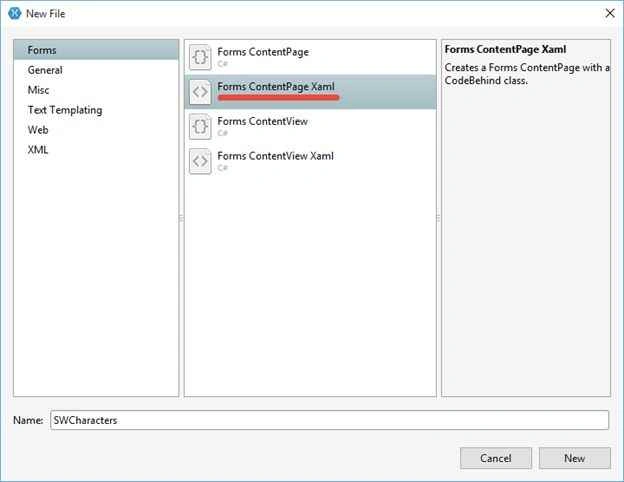
We can add a standalone ContentPage in the project and mimic all these things with XAML, so right click and add a new file to the shared project. Select the “Forms ContentPage Xaml” from the list. Since this is where I’ll show all the STAR WARS characters, so I named it SWCharacters.
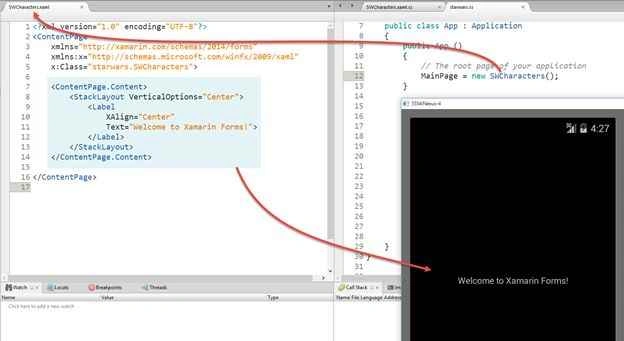
After adding we’ll have a XAML document with a connected C# code behind.

If you notice carefully, you will see that we have a ContentPage and the Content node set up for us. Time to add the other pieces we are missing.

As you can see, I have added the equivalent XAML markup for the view. Now, we can remove all the codes attached to the MainPage property and attach a new instance of our newly created ContentPage. Save everything and give your app a spin. You will have the same result as before.
Enough with the basics. Let’s get back to our app. We need to make a HTTP call to the API to get all the characters. To do that we need to add the Microsoft HTTP Client Libraries package. We also need the Json.NET which will help us parsing raw JSON data to class objects. Search and add both of those in your project from Nuget (Select the shared project > Go to “Project” menu from top menu bar > Add Nuget Packages).
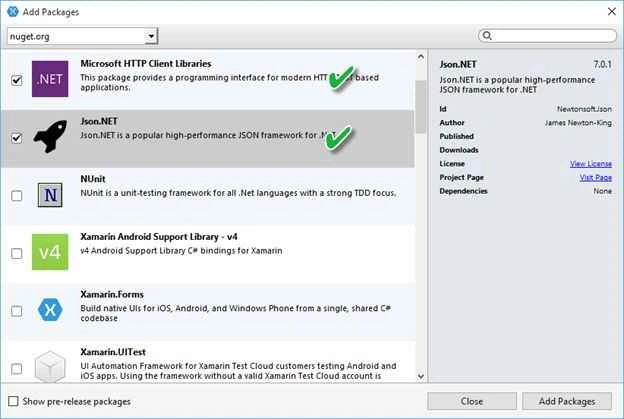
Go to the SWCharacters code behind (SWCharacters.cs) and add these lines of code given below,
- public ObservableCollection<People> Peoples { get; set; }
- private HttpClient _client;
-
- private const string PeopleDataUrl = "http://swapi.co/api/people";
-
- public SWCharacters ()
- {
- InitializeComponent ();
- Peoples = new ObservableCollection<People>();
- }
-
- public async Task GetAllCharacters()
- {
- try
- {
- _client = new HttpClient();
- var response = await _client.GetStringAsync(PeopleDataUrl);
-
- if (!string.IsNullOrEmpty(response))
- {
- var data = JsonConvert.DeserializeObject<RootObject>(response);
- foreach (var people in data.Peoples)
- {
- Peoples.Add(people);
- }
- }
- }
- catch (Exception)
- {
- await DisplayAlert("Error", "Something went wrong", "Ok");
- }
- }
- private async void PeopleButton_OnClicked(object sender, EventArgs e)
- {
- GetAllCharacters();
- }
I’ve grabbed all the characters through a HTTP ‘GET’ call to
swapi.co/people and serialized into a
ObservableCollection (an extended version of the List class in C#) of people objects using Json.Net’s
JsonConvert.DeserializeObject.
Here is the serialized object class that I was talking about. The attribute (
[JsonObject("Result")], [
JsonProperty("results")] are used only for giving those class and property a generic name.
People.cs
- [JsonObject("Result")]
- public class People
- {
- public string name { get; set; }
- public string height { get; set; }
- public string mass { get; set; }
- public string hair_color { get; set; }
- public string skin_color { get; set; }
- public string eye_color { get; set; }
- public string birth_year { get; set; }
- public string gender { get; set; }
- public string homeworld { get; set; }
- public string created { get; set; }
- public string edited { get; set; }
- public string url { get; set; }
- }
-
- public class RootObject
- {
- public int count { get; set; }
- public string next { get; set; }
- public object previous { get; set; }
-
- [JsonProperty("results")]
- public List<People> Peoples { get; set; }
- }
Now, you can ask me where I got this class from. It’s really easy to generate class objects for serialization. I went to the swapi website and initiated a request to their
API. I copied the JSON result. Then I went to this
site and pasted my JSON to get the appropriate class objects. See the images below,
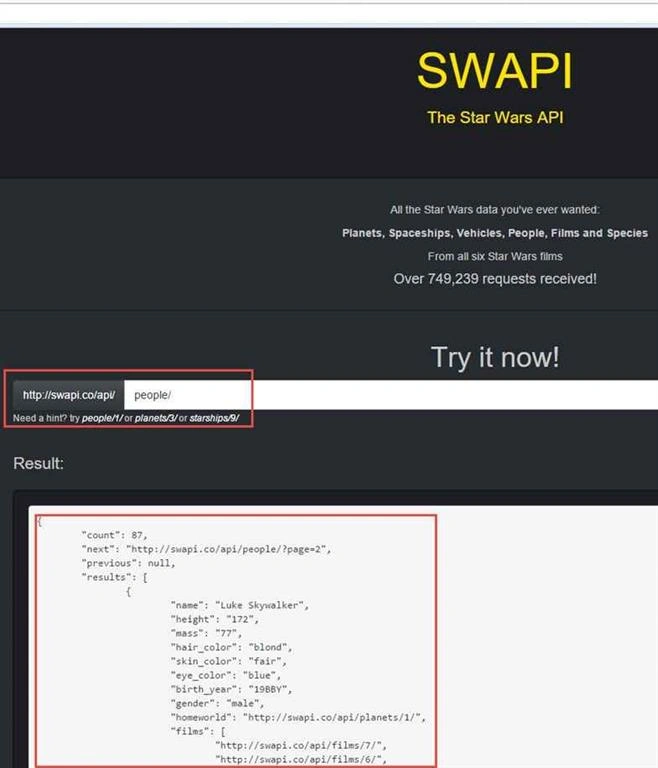
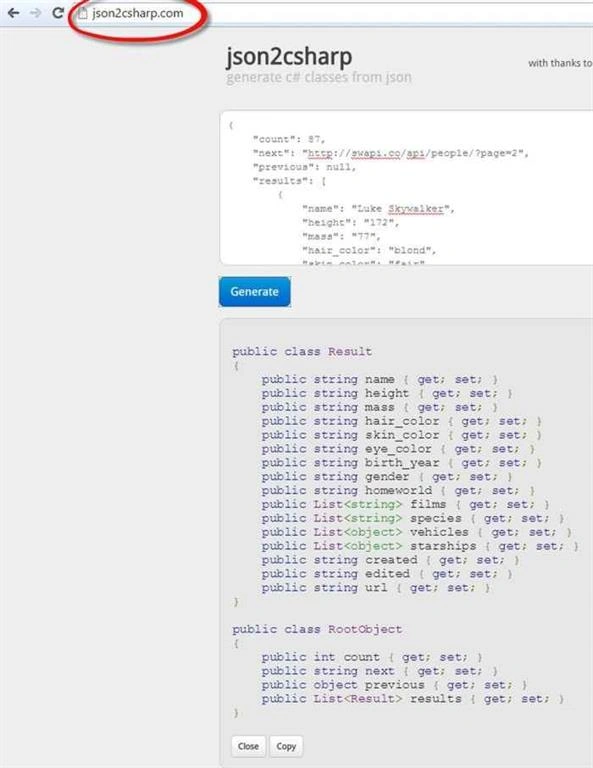
I’ve created a class file in my project and paste those two classes inside that. I’m done here. You can see a
PeopleButton_OnClicked event in the
SWCharacters.cs. That’s because I wanted to initiate the HTTP call only when I click on that button from the UI. Here is new XAML markup for the app that creates the button.
- <ContentPage.Content>
- <StackLayout VerticalOptions="Center">
- <Button x:Name="PeopleButton" Text="Get People" Clicked="PeopleButton_OnClicked"></Button>
- </StackLayout>
- </ContentPage.Content>
Now if you run the project and click on the button, you will get the people data from the API. The button is only for checking whether we have a successful call to the API or not. I’ve placed some debug points and check if everything’s okay or not.
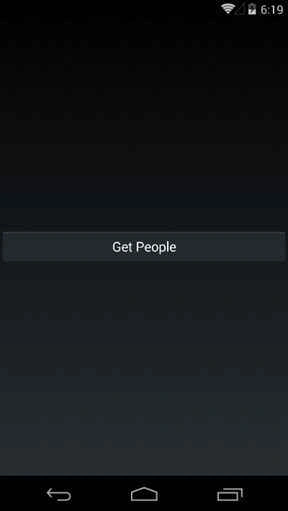
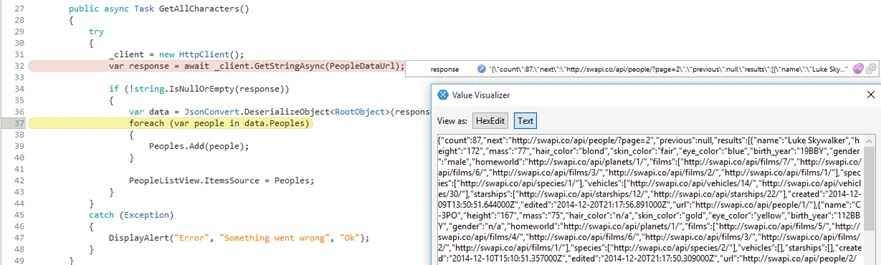
Next we will replace the button with a ListView control and attached its ItemSource property to our
ObservableCollection of people. Replace your previous XAML markup with the following:
- <ContentPage.Content HorizontalOptions="FillAndExpand" VerticalOptions="FillAndExpand">
- <StackLayout>
- <ListView x:Name="PeopleListView" HasUnevenRows="True">
- <ListView.ItemTemplate>
- <DataTemplate>
- <ViewCell>
- <ViewCell.View>
- <Grid Padding="5">
- <Grid.RowDefinitions>
- <RowDefinition Height="Auto"></RowDefinition>
- <RowDefinition Height="Auto"></RowDefinition>
- </Grid.RowDefinitions>
-
- <Label Text="{Binding name}" FontSize="16" Grid.Row="0"></Label>
- <Label Text="{Binding height}" Grid.Row="1"></Label>
- </Grid>
- </ViewCell.View>
- </ViewCell>
- </DataTemplate>
- </ListView.ItemTemplate>
- </ListView>
- </StackLayout>
- </ContentPage.Content>
So, we have a
ListView instead of the button we previously had. To set the look and feel of the items added to the ListView, we have
ListView.ItemTemplate. To be able to bind controls inside a ListView.ItemTemplate to appropriate list item’s properties, we have
DataTemplate. ViewCell in one of the many Cell controls of Xamarin.
ViewCell is used just for showing raw data, you can use
EntryCell if you want textbox control as a part of your list item. I’ve placed another
Grid layout inside ViewCell.View and lastly added two Labels. One of the Label is bound to the name propety of the character while the second one is bound to the height property. The new code behind looks like the following,
- public partial class SWCharacters : ContentPage
- {
-
- public ObservableCollection<People> Peoples { get; set; }
- private HttpClient _client;
-
- private const string PeopleDataUrl = "http://swapi.co/api/people";
-
- public SWCharacters ()
- {
- InitializeComponent ();
- Peoples = new ObservableCollection<People>();
- GetAllCharacters();
- }
-
- public async Task GetAllCharacters()
- {
- try
- {
- _client = new HttpClient();
- var response = await _client.GetStringAsync(PeopleDataUrl);
-
- if (!string.IsNullOrEmpty(response))
- {
- var data = JsonConvert.DeserializeObject<RootObject>(response);
- foreach (var people in data.Peoples)
- {
- Peoples.Add(people);
- }
-
- PeopleListView.ItemsSource = Peoples;
- }
- }
- catch (Exception)
- {
- DisplayAlert("Error", "Something went wrong", "Ok");
- }
- }
- }
Since I’ve removed the button from the view, so I also deleted the event handler associated with that and initiated the HTTP request from the main constructor. Again I’ve bound the ItemSource property of our ListView to the observable collection I talked about (
PeopleListView.ItemsSource = Peoples;). Now if you run this project, after a while you will get the character list with the name and height property shown on the respective labels.
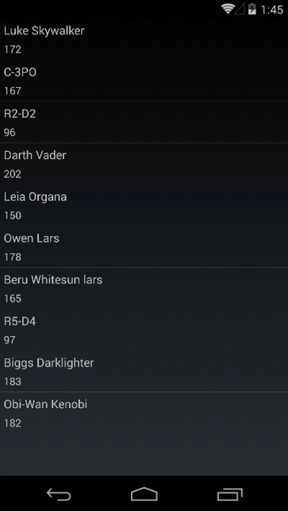 What you should be concerned of
To make this demo project simple and easy to understand I’ve done some things against the rules. Like I called an asynchronous process from the constructor, which is definitely bad! You can search the web and follow the best practices in writing asynchronous code. Again, write whole lot of code in the XAML code behind. Basically in real life you would follow pattern like MVVM which will omit these codes from the UI backend and make your app unit testable.
Downloading and running the App
Download the solution as a zip format. Unzip and open it in your Xamarin Studio. I’ve removed all the packages .dll files from the project. So you will need to restore the packages. Just like you added a nuget package in the project, restore the packages from the option right below it.
What’s Next
These were some of the basic building apps with Xamarin Forms. Consider this as a “Hello World” program. Download the project and add some more functionalities like a detail page for a specific character, add a loading indicator to allow user to know that you are downloading stuffs from the internet. Again play with the APIs available on the swapi website and make full-fledged STAR WARS fan app. You can find a whole lot of control available for you to use
here. Follow Xamarin’s API documentation if you stuck anywhere. Have fun and I’ll see you in the next post. Bye bye geeks!


Aribalakrishnan GPosted Apr 9, 2019, 6:07 AM
How to set Ui element auto focus in accessibility mode
Humayun Kabir MamunPosted Mar 27, 2016, 11:51 PM
Nice...
Asfend YarPosted Mar 7, 2016, 3:23 PM
brother .. I'm stuck in xamarin forms /Actually I am working on visual studio and got a lot of errors.When first I open a new project then at the first build I receive 1600+ errors and if I create a Xamarin forms portable prohect then some namespace issues are occured that is System and App so kindly tell me know what will i do
Santhakumar MunuswamyPosted Oct 25, 2015, 11:55 AM
Good one
Priyaranjan K SPosted Oct 19, 2015, 12:43 PM
Good Write Up
Sibeesh VenuPosted Oct 19, 2015, 8:53 AM
Nice Share
Nilesh JadavPosted Oct 19, 2015, 8:06 AM
Good share
Humayun Kabir MamunPosted Oct 19, 2015, 6:47 AM
Nice...
Harshad PansuriyaPosted Oct 19, 2015, 6:30 AM
Nice one
Mukesh KumarPosted Oct 19, 2015, 5:11 AM
Good Job