

So, I guess you have been running wild with Angular lately. If that so, then I’m pretty much sure that you are familiar with the concept of directives. HTML5 too came up with this concept of creating custom components and they call it web components. But today’s lesson is not about web components; rather it is on a third party library that is built upon web components. Like jQuery which is basically a library to work with JavaScript somewhat easily, Polymer is a library that can help us work with the web components easily. Also, it makes web components cross-browser supported. Now, let’s stop there and start making a simple todo app with Polymer.
N.B: I’M USING ASP.NET CORE WEB API TEMPLATE FOR CREATING A SERVER TO HOST THE PROJECT. IN THE NEXT PART OF THIS SERIES, WE WILL SEE HOW TO MAKE APIS AND CALL THEM FROM THE CLIENT SIDE.
In Polymer, component creation starts with defining a template in a <dom-module> tag. It’s a way of saying that we are creating a Local DOM under our Light DOM. Basically, a Local DOM is a way of encapsulating a part of HTML code inside the Light DOM (Light DOM is the basic DOM that we see when we open our developer console in a web browser). Inside Local DOM, the defined HTML area has its own styling and scripting capabilities. When we create a component, we give the name of it as an id to the <dom-module>and initialize it with Polymer like this,
- Polymer({is : "id-of-the-dom-module"});
Okay! Let’s create our first component now. Everybody starts with a component named <hello-world> which is, of course, boring. We will start with creating a component called <hello-universe> which is also boring :D
- <dom-module id="hello-universe">
- <template>
- <style>
- h1 {
- color: blueviolet;
- }
- </style>
- <h1>Hello Universe Component</h1>
- </template>
- <script>
- Polymer({
- is: "hello-universe"
- });
- </script>
- </dom-module>
Okay, so you have your first good for nothing Polymer component. To make that component show up on your main page, you have to make a link to that component inside the <head> tag like this.
- <link ref="import" href="hello-universe.html"/>
Before that, you also have to refer to Polymer itself. To do that, download Polymer or get the Polymer CND link and place it inside the <head> tag. Remember, to make Polymer work, you also have to add the web component script file in your project. So, the final look of your mainpage.html should look like the following.
- <!DOCTYPE html>
- <html>
- <head>
- <meta charset="utf-8" />
- <title>Asp.Net Core Polymer Starter Template</title>
- <link rel="import" href="lib/polymer/polymer.html" />
- <!--Custom Elements-->
- <link rel="import" href="components/hello-universe.html" />
- </head>
- <body>
- <hello-universe></hello-universe>
- <script src="lib/webcomponentsjs/webcomponents-lite.js"></script>
- </body>
- </html>
So far so good. But what if you want to inject HTML from your Light DOM to your Local DOM like this,
- <hello-universe>
- <p>Hello</p>
- </hello-universe>
There is a special tag for that. It is the <content> tag. You have to define this tag inside your Local DOM where you want to inject some Light DOM HTML.
- <dom-module id="hello-universe">
- <template>
- <style>
- h1 {
- color: blueviolet;
- }
- </style>
- <h1>Hello Universe Component</h1>
- <content select='p'></content>
- </template>
- <script>
- Polymer({
- is: "hello-universe"
- });
- </script>
- </dom-module>
If you just simply put the <content> your Shadow DOM, it will have all the Light DOM HTML injected directly into your Shadow DOM.
But you can of course filter them. Like if you want to put every single paragraph defined in your Light DOM into your Local DOM then you will have to set an attribute called “select” in your content tag and assigned it to the paragraph tag like this
- <hello-universe>
- <p>Hello</p>
- </hello-universe>
- <content select="p"></content>
You can even go further and filter the specific tag on their id, class name and attribute. Like if you want to select a paragraph with an class of description, you can inject that paragraph into your Local DOM like this
- <hello-universe>
- <p class="description">Hello</p>
- </hello-universe>
- <content select="p.description"></content>
Like bootstrap, Polymer offers you many components ready to use in your project. Here is the link for the component catalog from where you can install any component of your like. All you have to do is to copy the bowerinstall command for that specific component and run that on your project root. And then you have to refer those component just like you referred your own component.
https://elements.polymer-project.org/
We should have an input component paper-input for our todo application, a template paper-item for showing the added todos in a decent format and other than these we need the button component paper-icon-button and the checkbox component paper-checkbox. Oh! Another thing we need to build our application layout using CSS Flex. So we need iron-flex-layout. And for the icons which will be shown in the button we need iron-icons(Only for styling purpose).Well done!!!
- <link rel="import" href="lib/paper-input/all-imports.html" />
- <link rel="import" href="lib/paper-checkbox/paper-checkbox.html" />
- <link rel="import" href="lib/paper-button/paper-button.html" />
- <link rel="import" href="lib/paper-item/all-imports.html" />
- <link rel="import" href="lib/iron-icons/iron-icons.html" />
- <link rel="import" href="lib/iron-ajax/iron-ajax.html" />
Refer those components like we did before
So, we have all the things we need. Now it’s time to build our own todo component. Let me show you the markup first then ill discuss what’s going on. Here you go
- <dom-module id="simple-todo">
- <template>
- <style is="custom-style">
- .flex-horizontal-with-ratios {
- @apply(--layout-horizontal);
- }
- .flex4child {
- @apply(--layout-flex-4);
- }
- #content-checkbox {
- display: -ms-flexbox;
- display: -webkit-flex;
- display: flex;
- -ms-flex-direction: row;
- -webkit-flex-direction: row;
- flex-direction: row;
- -ms-flex-align: center;
- -webkit-align-items: center;
- align-items: center;
- width: 56px;
- }
- </style>
- <div class="container flex-horizontal-with-ratios">
- <div class="flex4child"></div>
- <div class="flex4child">
- <paper-input-container>
- <label>what do you wanna do next?</label>
- <input is="iron-input" value="{{newTodo::input}}" />
- <paper-icon-button icon="icons:add-circle-outline" suffix on-tap="addTodo"></paper-icon-button>
- </paper-input-container>
- <template is="dom-repeat" items="{{data}}" as="todo">
- <paper-item>
- <div id="content-checkbox">
- <paper-icon-button icon="icons:done" alt="check this!" on-tap="deleteTodo"></div>
- <paper-item-body>
- <div>{{todo.title}}</div>
- </paper-item-body>
- <paper-icon-button icon="icons:done" alt="check this!">
- </paper-icon-button>
- </paper-item>
- </template>
- </div>
- <div class="flex4child"></div>
- </div>
- </template>
- <script>
- Polymer({
- is: "simple-todo",
- properties: {
- newTodo: {
- type: String,
- notify: true,
- value: 'make some custom web components'
- },
- data: {
- type: Array,
- value: [],
- notify: true
- }
- },
- addTodo: function () {
- this.push('data', {
- "title": this.newTodo,
- "isDone": false
- });
- this.newTodo = "";
- },
- deleteTodo: function (e) {
- var index = this.data.indexOf(e.model.todo);
- if (index !== -1) {
- this.splice('data', index, 1);
- }
- }
- });
- </script>
- </dom-module>
Now this is a very basic shell for creating a todo component. Before going further let’s see if we can get familiar with some of the new construct used in the markup. We are already familiar with the is property, like that we also have a new property called properties. This properties property is used to set properties for the component. In that our first property is newTodo. It’s a String type property and the default value is set to a static text. To make that newTodo property two way bindable, we use notify: true. The same concept goes for data property too. Here it’s an Array property since we want to store the list of todos into it. The initial value is an empty array and it is also set to notify: true. Other important things to notice in the markup is the two-way binding syntax which is denoted by double curly braces {{ }}. Here we put {{newTodo::input}} on the text input attribute value. ::input means that the value will be updated when there is some changes in the text field i.e. typing something. Polymer gives us a dom-repeater template which we can use if we want to generate a defined template over and over again with different data. So here we have an attribute called itemsset to data, means we want to iterate through the items in the data array. The as keyword is used to define an instance name for the items. If we don’t use the as keyword by default your item instances will be called item. In the dom-repeater template we have a checkbox which is bind to the isDone property. A div is used, of which the text content is bind to the title of the todo.
Okay, as you can see. We have our basic todo template but yet we don’t have any events attached to it. We want to add a new todo to the data array when we click on the paper-icon-button button with the add icon on it. So we have an on-tap attribute for that where we can pass a name of the function which will run when user tap on that button. So let’s do that first,
- <paper-icon-button icon="icons:add-circle-outline" suffix on-tap="addTodo"></paper-icon-button>
After attaching to the on-tap attribute a function, it’s time to define it in our script.
- addTodo: function () {
- this.push('data', {
- "title": this.newTodo,
- "isDone": false
- });
- this.newTodo = "";
- }
If you notice carefully, you will see that the array push syntax is kind of different from what we use in the good old javascript. The syntax will automatically update the data array and reflect the changes in the ui. If instead we would have used data.push it would have add the todo to that array but it wouldn’t fire the change event behind the scene which will make the todo array looks like it is updated with new value. Another event will be a single todo delete event. Let’s attach the respective on-tapattribute on the paper-icon-button with the icon of done in the template repeater section.
- <paper-icon-button icon="icons:done" alt="check this!" on-tap="deleteTodo">
Here is the function definition for that
- deleteTodo: function (e) {
- var index = this.data.indexOf(e.model.todo);
- if (index !== -1) {
- this.splice('data', index, 1);
- }
- }
Here, first I’m getting the index of the current todo item. The current todo item on which the delete function is called can be found in the e.model.todofield (here e is the function argument). Then we check if the index is greater than -1. If it is so, then we remove the todo by calling the splicefunction on the data array. The third argument to the splice function is for saying how many elements I want to remove from the selected index.
Notice that I’m binding the item.isDone property to the checkbox’s checkedattribute.
We are done with our simple todo. Here is the final look of the main page markup after refering the new <simple-todo> in the markup
We are done with our simple todo. Here is the final look of the main page markup after refering the new <simple-todo> in the markup
- <link rel="import" href="components/simple-todo.html" />
- <!DOCTYPE html>
- <html>
- <head>
- <meta charset="utf-8" />
- <title>Asp.Net Core Polymer Starter Template</title>
- <link rel="import" href="lib/polymer/polymer.html" />
- <!--Paper Elements-->
- <link rel="import" href="lib/paper-input/all-imports.html" />
- <link rel="import" href="lib/paper-checkbox/paper-checkbox.html" />
- <link rel="import" href="lib/paper-icon-button/paper-icon-button.html" />
- <link rel="import" href="lib/paper-item/all-imports.html" />
- <link rel="import" href="lib/iron-icons/iron-icons.html" />
- <link rel="import" href="lib/iron-flex-layout/iron-flex-layout.html" />
- <!--Custom Elements-->
- <link rel="import" href="components/simple-todo.html" />
- </head>
- <body>
- <simple-todo></simple-todo>
- <script src="lib/webcomponentsjs/webcomponents-lite.js"></script>
- </body>
- </html>
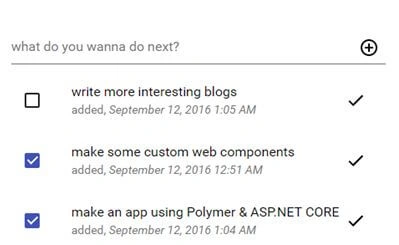
If you run your project and go to the page where you defined the todo component. You should have your basic working todo application that looks like this

Let’s make APIs using ASP.NET CORE Web API to be able to Add, Update, Edit and Delete todo items on the server side. Good news is ASP.NET CORE documentation already has an article on that. Here is the link,
https://docs.asp.net/en/latest/tutorials/first-web-api.html
Wait a minute! That doesn’t mean I’m not going to do anything in this post. If you went through that article already then you may have noticed that on the server side they are using a ConcurrentDictionary to store the todo items in the memory. Problem is if I stop the project, all my todo items will be wiped out of the memory. So, we need a persistent data storage system. We could have store them in a simple file system but why don’t we store them in a database?
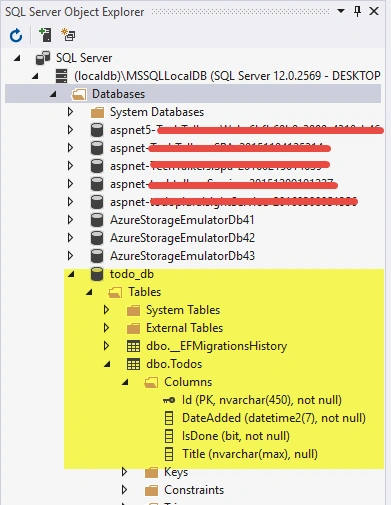
Our database will be local so there is no additional installation of third party software. If you have Visual Studio 2015 installed then you already have SQLSERVER local databse in your machine. We are going to talk with our database using Entity Framework. Entity Framework is a ORM (Object Relational Mapping) tool. Basically it allows you to map a POCO (Plain Old Class Object) to a database table. To be more precise, think of the POCO(In Entity Framework, the POCOs are called entities) as a shadow to a specific database table. Every property defined in the POCO represents a column in that table. To actually make a POCO represent a database table, you have to pass the type of the POCO in a generic class called DbSet<POCO> and give it a name. Like this for example,
- public DbSet Todos { get; set; }
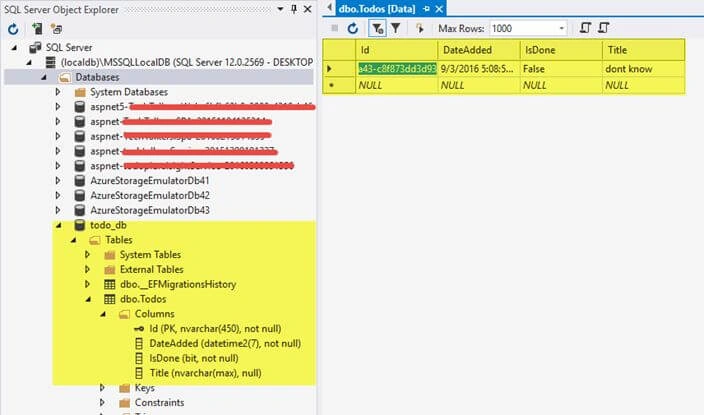
This statement will create a database table named Todos with columns named after the properties defined in the Todo class. We can execute queries against this Todos property using C# code. No need to use those old ADO.NET queries like: SELECT, UPDATE, DELETE. There can be multiple DbSets which will represent additional tables in the database. But they must be defined in an Entity Framework database context. More clearly, we must create these DbSets in a class and extend the class from DBContextlike this,
- public class TodoContext : DbContext
- {
- public DbSet<Todo> Todos { get; set; }
- }
Let’s do those things I talked about now in our project (If you followed the article on the link I provided earlier, you should have an up and running project by now). Add a new folder in the project and name it Data and create a class under it. I named the class TodoContext since my application is a todo application, or you can choose a name of your like. Code for that class is given below,
- using Asp.Net.Core.With.Polymer.Starter.Models;
- using Microsoft.EntityFrameworkCore;
- namespace Asp.Net.Core.With.Polymer.Starter.Data
- {
- public class TodoContext : DbContext
- {
- public TodoContext(DbContextOptions<TodoContext> options) : base(options) {}
- public DbSet<Todo> Todos { get; set; }
- }
- }
Remember to add the using statements. In this case DbSet and DbContext is a part of a package called Microsoft.EntityFrameworkCore. To install that package, simply add the package name with the version along with the other packages (under the dependencies node) which are already installed when the project was created,
- "Microsoft.AspNetCore.Diagnostics.EntityFrameworkCore": "1.0.0"
Before using the Todos DbSet in our TodoRepository (Repositories are responsible for working with data) we have to configure a database connection for the project. Add a ASP.NET Configuration File in the project. By default it will create a ConnectionStrings node where a connection string is placed in the DefaultConnection node.
Join the conversation! Your thoughts help the community grow.