
The most part of the questions, which I have been asked when the article "Building the Address control"(part 1 , part 2 , part 3) has been published, I can formulate as follows: how a control can be built in Visual Studio 2005 and how can be used XML as data source. In this article, I share how you can build your own Windows controls in Visual Studio 2005 using XML as data source. The examples are written using C#.
In order to reduce quantity of parts of this article we will use (as a basis) the article mentioned above. Thus, our task will be defined as follows :
On a form our control should look (see fig.1 , part 1) as Label and TextBox with the text property like that : Street NumBuilding/NumApartment, NumEntrance, City, ZIP (for example : Green Street 5/9, A, Sun City, 99999). With any trying to change text our control changes to editing mode : some special address form appears which includes a few TextBoxes (TextBoxStreet, TextBoxBuilding, etc.) and special controls for choosing/finding city (see fig.2 , part 1); the list of cities is got as (here are the differences): DataTable or DataSet or XmlDocument.
To tell the truth, there are not big differences in building a Windows user control (at least such kind as our "Address" control ) for Visual Studio 2003 and for Visual Studio 2005. Of course, there are "partial class ...." , "using System.Collections.Generic;", new controls and many new other excellent things in 2005 version. But ..., it is not exactly the theme of this article.
OK ! Now we should create a solution for building our control. The solution (by analogy) consists of three projects : the first project (Windows Control Library) named "Address" has Output Type of "Class Library" ( fig 1.);
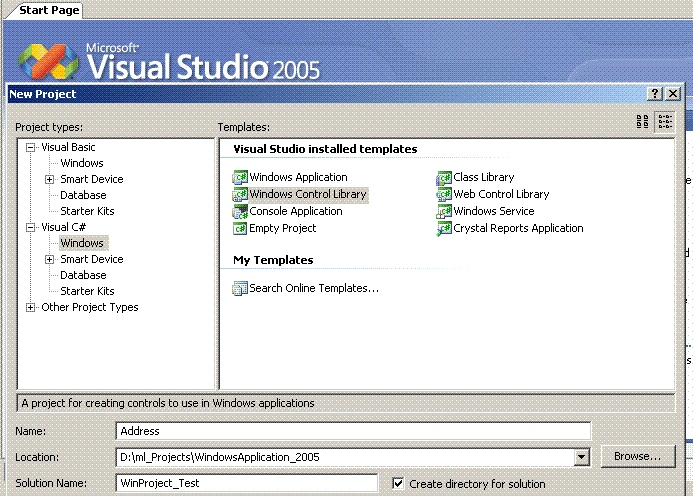
Figure 1.
The second one, that we add to solution, named "UC_Test" has Output Type of "Windows Application" ( fig 2 , fig 3.);
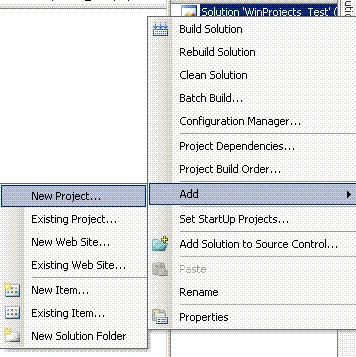
Figure 2.
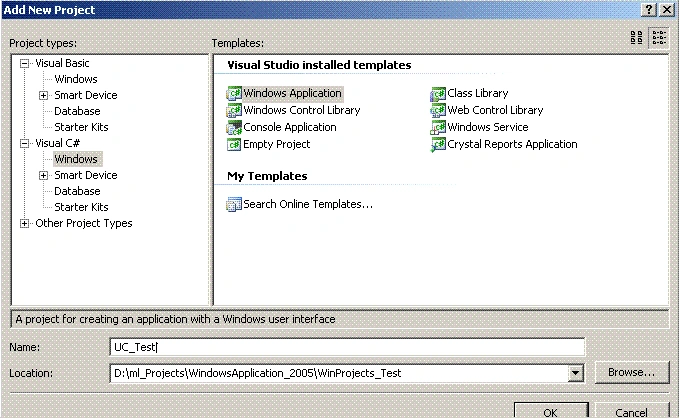
Figure 3.
The third project named "GetData" has Output Type of "Class Library" (fig 4.).
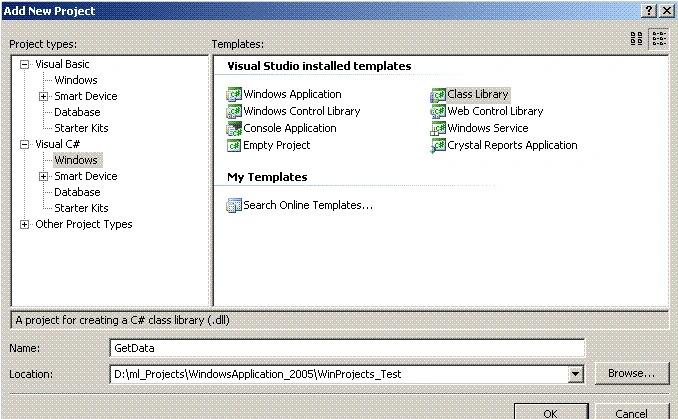
Figure 4.
The "Address" project includes such items as "User Control" named "Address" and "Windows Form" named "FormAddress". In fact this project will be our "independent unit" (dll). The project "UC_Test" includes only one Windows Form named "Form1". With its help we just test our "Address" control. The "GetData" project includes only one class named "GetDataHelp" that has two methods :
//The method getDataSetCities that returns dataSet with
//one dataTable "DataTableCities". The dataTable consists of
//two columns : "SYMBOL_CITY" and "CITY".
public DataSet getDataSetCities(int iRows)
and
//The method getXMLCities that returns XmlDocument for
//XML data like this:
//<?xml version="1.0" encoding = "WINDOWS-1255"?>
//<CITIES>
// <CITY_ROW ROW_NUM="0">
// <SYMBOL_CITY>000000</SYMBOL_CITY>
// <CITY>
// </CITY_ROW>
// <CITY_ROW ROW_NUM="1">
// <SYMBOL_CITY>000001</SYMBOL_CITY>
// <CITY>awtCity_1g</CITY>
// </CITY_ROW>
//...................................
//...................................
//</CITIES>
public XmlDocument getXMLCities(int iRows)
The project "UC_Test" is "independent unit" (dll) and helps us to get needed data.
The solution is shown on fig.5.
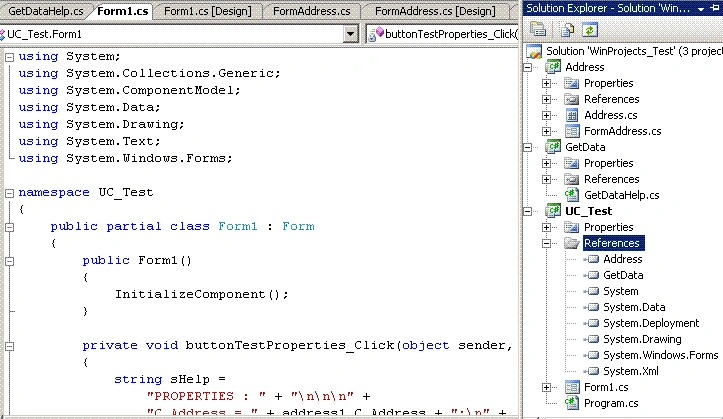
Figure 5.
Now we are ready to add some code. The method getDataSetCities is the same (part 1) and you just do "copy - paste". In order to create and return necessary for us XmlDocument we should do following steps :
- with the help of the XmlProcessingInstruction object to create the processing instruction :
<?xml version="1.0" encoding = "WINDOWS-1255"?> ;
- with the help of the XmlNode object to create the single "Root" node <CITIES> :
<?xml version="1.0" encoding = "WINDOWS-1255"?>
<CITIES>
</CITIES> ;
- with the help of the XmlElement and XmlAttribute objects and For loop to create (as many as we want!) elements ( <CITY_ROW> with attributte ROW_NUM, <SYMBOL_CITY>, <CITY> ) and then to "fill" attribute values and inner text :
<?xml version="1.0" encoding = "WINDOWS-1255"?>
<CITIES>
<CITY_ROW ROW_NUM="0">
<SYMBOL_CITY>000000</SYMBOL_CITY>
<CITY>Sun City</CITY>
</CITY_ROW>
............................. and so on
</CITIES> ;
OK! Now add to GetDataHelp.cs the following code:
//The method getXMLCities that returns XmlDocument for
//XML data like this:
//<?xml version="1.0" encoding = "WINDOWS-1255"?>
//<CITIES>
// <CITY_ROW ROW_NUM="0">
// <SYMBOL_CITY>000000</SYMBOL_CITY>
// <CITY>
// </CITY_ROW>
// <CITY_ROW ROW_NUM="1">
// <SYMBOL_CITY>000001</SYMBOL_CITY>
// <CITY>awtCity_1g</CITY>
// </CITY_ROW>
//................
// ..............
//</CITIES>
public XmlDocument getXMLCities(int iRows)
{
XmlDocument xmlDoc = new XmlDocument();
XmlProcessingInstruction xmlInstruction =
xmlDoc.CreateProcessingInstruction(
"xml", "version =" + "'1.0'" + " encoding=" +
"'WINDOWS-1255'" );
XmlNode nodeRoot;
XmlElement elementCITY;
XmlElement elementSYMBOL_CITY;
XmlElement elementCITY_ROW;
XmlAttribute attributeCITY_ROW;
string sSYMBOL_CITY;
string sCITY = "";
string sHelp_0 = "City";
xmlDoc.AppendChild(xmlInstruction);
nodeRoot = xmlDoc.CreateElement("CITIES");
xmlDoc.AppendChild(nodeRoot);
for (int i = 0; i < iRows; i++)
{
//---------------------------------------
if (i < 10)
{
sSYMBOL_CITY = "00000" + i.ToString();
}
else
{
if (i < 100 && i >= 10)
{
sSYMBOL_CITY = "0000" + i.ToString();
}
else
{
if (i < 1000 && i >= 100)
{
sSYMBOL_CITY = "000" + i.ToString();
}
else
{
sSYMBOL_CITY = i.ToString();
}
}
}
sCITY = sHelp_0;
sCITY = sCITY + "_" + i.ToString();
if (i % 2 == 0)
{
sCITY = sCITY + "g";
}
else if (i % 3 == 0)
{
sCITY = sCITY + "gff";
}
else if (i % 5 == 0)
{
sCITY = "abc" + sCITY;
}
else if (i % 7 == 0)
{
sCITY = "awc" + sCITY;
}
else
{
sCITY = "awt" + sCITY + "g";
}
if (i == 0)
{
sCITY = "
}
Join the conversation! Your thoughts help the community grow.