

In this step-by-step tutorial, you will learn how to create reports from a Database using a DataSet and the ReportViewer control and Visual Studio 2005.
Step 1. Generate a Typed DataSet
First of all, we need a typed DataSet that will represent the data types. You can generate a typed DataSet from a database table, stored procedure, and a view or from a SQL query. After generating the typed DataSet, report generation is same.
Right click on the project in Solution Explorer, select Add >> New Item and select DataSet from the list.
Change DataSet1.xsd to Company.xsd. After adding the DataSet, you will see the designer. On the designer, click Server Explorer link, which will let you create a Database connection and can view database objects including tables, views, and stored procedures.
Drag a database table, or view, or stored procedure where you want to display the data from and it will create a DataSet schema for you. Once you have a typed DataSet, just follow these steps.
Before that, make sure you Rebuild the project.
Step 2. Create a Report
Now we will add a new report file to the project. Right click on the project in Solution Explorer and select Add >> New Item and select Report from the Items list. It will add Report1.rdlc file to the project.
Once the report is added, our next step is to add a data source. First double click on the Form and select Data Menu item from the Main Menu. Click on Data Menu item and select Add New Data Source item.
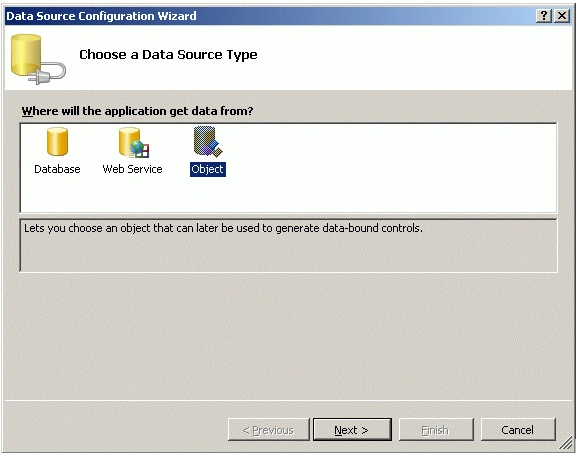
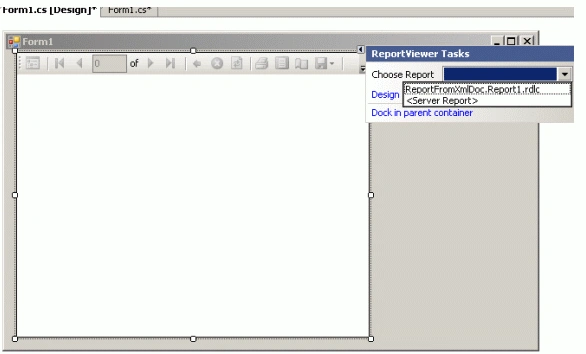
It will launch Data Source Configuration Wizard. Select Object from the list and click the Next button on the Wizard. See Figure 1.
On next dialog, you should see all namespaces and classes in your project. Expand your namespace and you will see class Company. See Figure 2.
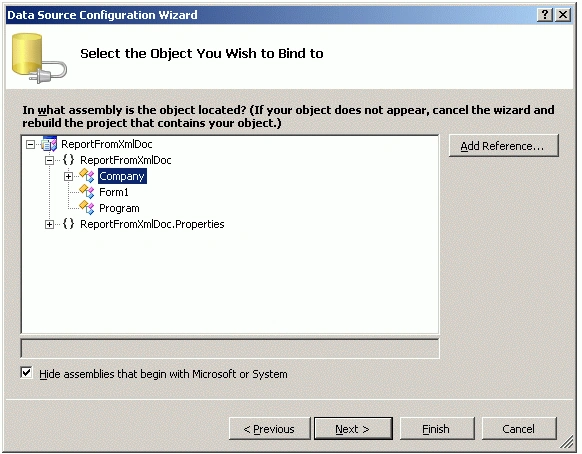
Select Company class and click the Next button. On next dialog, you will see a confirmation message. Select Finish there and get out of the wizard.
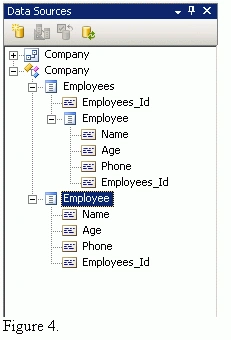
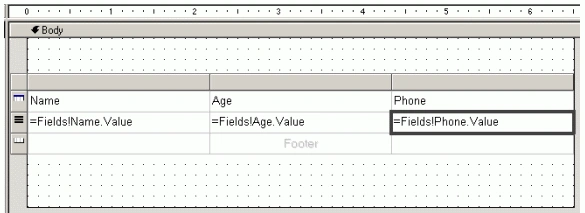
Now double click on the Report1.rdlc file and you should see Figure 3 in your Data Sources window.
Jayson DagsaaneditedPosted Feb 16, 2010, 3:05 AMEdited Feb 16, 2010, 3:09 AM
Hi. your post about report viewer helps me alot..
Charlston BajuyoPosted Jul 7, 2009, 10:44 PM
chand can u help me present a dynamically reportviewer datasource sample...tnx
Anthony FonsecaPosted Oct 21, 2008, 8:39 PM
Hi Mahesh I saw some of your articles and are very interesting. I am learning visual basic 2005 and i did a table in SQL 2005, using Visual Studio 2005 and attached to a form. Everyday a post in it some transactions and i specify them using the date i posted it. So at the end of the month i want to pull data to the report using a date between 09/01/08 to 09/30/08, but i can't do that. Could you please help me how to do that? Thanks Tony
Martin MbonuPosted Oct 12, 2008, 6:17 PM
Great tutorial. but what if I want to do all this using codes, how do I go about it. I mean using my own sql query
Eng Wei ChuaPosted Mar 16, 2008, 11:42 PM
Hi Mahesh I want to move the order of column, let say by default the column is Name, Age, Phone. I want to make it dynamic for user to let them change the order of column to Age, Name, Phone. Name, Age, Phone and so on. Is this possible to do that? Thanks
logesh kasiPosted Feb 29, 2008, 11:06 AM
I need to create a single rdlc file and use that in many projects, i have written the rdlc file in Class library, i a windows application.can you please help me out. Thanks in advance
Dan UmstattdPosted Feb 11, 2008, 1:20 PM
I want to allow the user to change which query(dataset) they are running by selecting a value from a report parameter. Any Ideas how this could be done?
santoPosted Dec 31, 2007, 1:18 PM
Hi, Thanks for the article.It works fine if i specify databasec connection and create a dataset with table from dataset.But wht iam trying to do is iam getting a string of values which i need to convert it to dataset by declaring columns in code.Then i need to display the report with the data in dataset.Currently i created a xsd and able to drag columns to the table in rlc file.DataSet ds1 = new DataSet(); ds1 = GetVlaues(); int count = ds1.Tables[0].Rows.Count; DataTable1BindingSource.DataSource = ds1; this.reportViewer1.RefreshReport(); THis is the code iam using in form load event.Iam getting runtime error as a datasource instance as not been supplied for datasource. Let me know if you can help with this issue. Thank you
Edward JoelleditedPosted Nov 5, 2007, 1:49 PMEdited Nov 6, 2007, 2:51 AM
Tried to do getting started methodology with Web page. However, Web page shows error message no datasource has been instantiated for datasource1_tblComments. Then tried to follow this tutorial for Web page. However data menu for WebForm does not show Add New datasource and there is no way to bring up Data Source Configuration Wizard. In addition, initially the building datasource wizard would not allow me to select the stored procedure I desired to show the data, instead reporting that it did not exist. I had to created another datasource for the same database and the sa user in order to see the stored proc I desired to use. I then created a windows Forms project to test out the methodology in this article. However, after dragging the table onto the report visual interface, I was unable to see any columns in the stored Procedure I desired to use to drag into the Report Table. At no point was I able to get to the point of displaying data from my stored procedure. I then returned to my web application and created the report object using a table in the database vice the real resultset that I need. It was my intent to create the report then change the dataset to that I need the way it was done it the above example. (I was not and am not sure how this change of data set is going to update the columns established in the table in the report object interface designer, but I decided that was an issue I could tackle later.) After adding the report to the reportviewer, I tried to change the datasource of the the objectdatasource that appeared on the page. This was not permitted. I then tried to create a local report object programmatically as shown in the MSDN localreport class example. I was able to successfully add the new datasource to the localreport object instantiated, but then was not able to programmatically add the localreport thus created to the reportview as the localreport property of the viewer is readonly. Perhaps you could redo the above step by step example as a web page using a stored procedure with parameters (all with default values) as the data source? Thanks
mahmoud beshrPosted Jul 25, 2007, 3:27 AM
hello mahesh , the tutorial is very nice but when i creat the report in the datasource conf wizard i didnt find the reportxml file in the list but all the steps was exist and working expect that step (imusing mysql database and and ODBC V 3.51.12 ) , when i was trying to creat and format the report , i didnt find the table i need in the toolbox it was empty please help ..............
Thabang MatlatlePosted Jul 16, 2007, 10:36 AM
How do i pass parameter values on reportviewer using textboxes and a button to query
Srivatsa HaridasPosted Jun 4, 2007, 1:10 AM
Hi Mahesh Is there any way to get the columns dynamically during runtime using Reports. Say i want Name and Age initially. I select Name and Age in the form ... i generate a report out of it ... Again next time i want Name,Age and Phone... Is this supported in the ReportViewer in .NET Thanx in advance for the info Srivatsa