

There is one category of web applications where the MVVM pattern can be especially useful: line of business applications. Yes, these crazy large web sites with hundreds of grids, large and complicated forms with hundreds of fields, tabs, wizards and modal dialogs.
It is not easy to build such applications. Today, most of these apps are built with one of the popular Javascript frameworks like Angular or React on the client side, and with REST API on the server side. You need to deal with things like validation, localization, date & time formatting, error handling, API versioning and plenty of other features. And if you don't have any previous experience with JavaScript or TypeScript, you will need to learn a lot of new stuff – the language itself, many new libraries and tools like Require JS, webpack or npm.
In this article, I would like to show you an open source framework called DotVVM. It is an MVVM framework based on ASP.NET and its purpose is to make building these complicated websites easier. In most cases, you won’t even need to know Javascript. You will be able to stay in Visual Studio and use C#, HTML and CSS to do all the magic.
DotVVM supports both ASP.NET (thanks to OWIN) and ASP.NET Core and is actively developed on GitHub.
> I am one of the authors of DotVVM. I started this project more than 2 years ago. I have built a lot of web applications using Knockout, Angular, and React before, and I was not satisfied with the number of new things you need to learn and understand in order to build a simple “Hello world” application. That’s why I have decided to build this framework which abstracts the developer from the Javascript part.
How to Start
The first thing you need to start with DotVVM is to install a free Visual Studio extension called DotVVM for Visual Studio. You will need Visual Studio 2017 – the Community Edition is sufficient.
> There is also a commercial version of the extension which has more features (better IntelliSense for example). But for the purpose of this article, the free extension is good enough.
In order to create a new DotVVM website, you can use the File / New Project window. The extension adds several project templates to Visual Studio.
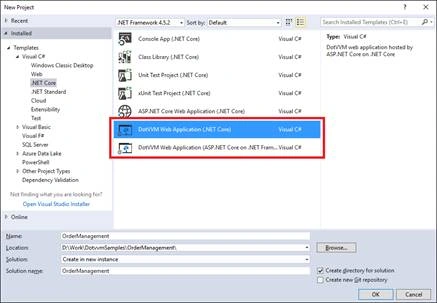
There is a template for .NET Framework and OWIN (the good old ASP.NET), and there are two templates for ASP.NET – one for .NET Core and one for full .NET Framework.
In this article, I will be using the .NET Core version of DotVVM which works on all platforms.
Sample Application
Instead of creating a new project from scratch, you can download and open the sample app from GitHub. I have already prepared a simple Entity Framework Core model, some sample data and a simple business layer with methods to provide everything the application needs.
> Please do not use this application as an example how a large line of business application should be architected. The purpose of this sample is to demonstrate some of the DotVVM features, like data-binding and validation, which may be useful in real line of business web applications.
The sample application assumes that you have SQL Server Express edition installed. If you don’t, look in the Database/AppDbContext.cs file and change the connection string which is hard-coded in the file.
MVVM
There are several client-side libraries which let you build web UI using the Model-View-ViewModel pattern. One of them is Knockout JS and DotVVM is something like a layer on top of Knockout JS.
View
DotVVM comes with its own HTML-based syntax for views. The views in DotVVM have the .dothtml file extension and the HTML syntax is extended with two main concepts – the server controls and the data-binding expressions.
- <dot:TextBox Text="{value: PersonName}" />
The <dot:TextBox> element represents a DotVVM TextBox control. The value of the Text attribute is a data-binding expression which tells DotVVM to bind the control to the PersonName property in the viewmodel (which I will describe later).
When the server receives a HTTP request pointing to this page, DotVVM processes the .dothtml file and renders the following HTML code,
- <input type="text" data-bind="value: PersonName" />
This is a syntax used by the Knockout JS library (which is added to the page). DotVVM also prepares the viewmodel object and passes it to the Knockout library so the data-binding expressions in the page can work.
ViewModel
In MVVM, the purpose of the viewmodel is to maintain the state of the view and respond to actions made by the user.
In DotVVM, you declare the viewmodel as a C# class with public properties and methods.
- Every value which the user can change in the page should be stored in some public property in the viewmodel. For example, every form field should have its own property which maintains the value of the form field. Additionally, any state information the page needs must be exposed as a public property in the viewmodel.
- All actions that the user can do in the page (clicking a button) are bound to public methods in the viewmodel.
- <dot:Button Text="Save" Click="{command: SaveChanges()}" />
In DotVVM, every page must have its viewmodel. That’s why each DotVVM page starts with the @viewModel directive. This directive specifies the viewmodel type.
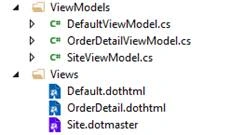
By default, the views are placed in the Views directory and the viewmodels are placed in the ViewModels directory. However, you don’t need to follow this convention.
> DotVVM needs to serialize the viewmodel in JSON to be able to include it in the HTML it renders. That’s why any state information needs to be a public property. Otherwise the JSON serializer would just ignore it.
Model
Model refers to the objects and methods provided by the “business layer”. In my sample application, you can find the following folders:
- The Database folder contains the Entity Framework DbContext object and the entitity classes. This represents the data access layer.
- The Services folder contains two classes which provide all the data for the user interface. You can find methods like GetProducts or GetOrderDetail
- The Model folder contains object which are used in the views. The DTO suffix stands for the Data Transfer Object. The purpose of these objects is to represent the data. There are no methods in the DTO classes. The DTO objects are returned by the classes in the Services
To keep our code clean, you should not put the “business logic” of the application in the viewmodel. Instead, all the logic should be implemented in the service classes, and the viewmodel should only call methods from these “services”.
Rendering a GridView
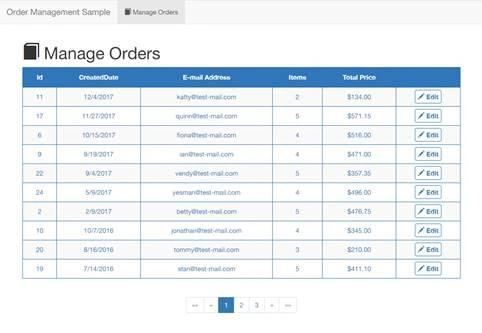
DotVVM comes with several built-in controls which cover the basic stuff needed in the line of business applications. The GridView control can be used to render a table with data and it supports server-side paging and sorting.
- <dot:GridView DataSource="{value: Orders}" class="table table-striped">
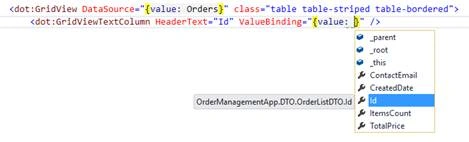
- <dot:GridViewTextColumn HeaderText="Id"
- ValueBinding="{value: Id}" />
- <dot:GridViewTextColumn HeaderText="CreatedDate"
- ValueBinding="{value: CreatedDate}"
- FormatString="d" />
- </dot:GridView>
You can see that the GridView control is bound to the Orders collection in the viewmodel. This collection contains all the rows displayed in the grid.
The control specifies two columns – the first displays the Id property of every order, the second displays the CreatedDate and uses the d format string (which stands for a default short date format). The syntax of format strings for dates and numbers is exactly the same as in .NET Framework.
Notice that I have added the class attribute to a DotVVM GridView control. This CSS class will be appended to the <table> element which is rendered by the control.
To render a clickable e-mail address in the table cells, I use the template column,
- <dot:GridViewTemplateColumn HeaderText="E-mail Address">
- <a href="{value: "mailto:" + ContactEmail}">{{value: ContactEmail}}</a>
- </dot:GridViewTemplateColumn>
Notice that you can use data-bindings also with regular HTML elements (such as <a>) and that you can use simple C# expressions in the data-bindings, not just the property names.
In order to print a value of a property in an HTML element, you need to use double curly braces, because the single curly braces have special meaning e.g. in the script or style elements.
If the binding expression is a value of an HTML attribute, you can use just one.
Working with Data
In order to provide data to the GridView control, you need to declare a collection in the viewmodel and load the data to it.
You can use any .NET of the collections: array, List<OrderDTO> or any other IEnumerable. If you do so, you would need to handle the sorting and paging of the records by yourself. You will need to keep track of the page at which the user is and the track of the column which is used for sorting. This information is part of the page state and therefore there should be several properties in the viewmodel to represent this information.
To make this easier, DotVVM comes with the GridViewDataSet<T> class. It is a collection which stores its paging (page index, page size and the total number of records) and sorting (sort column and direction) parameters together with the current page of the records.
You can declare the Orders property in the viewmodel, initialize it with the new GridViewDataSet instance and set the default parameters for the paging and sorting.
- public GridViewDataSet<OrderListDTO> Orders { get; set; }
- = new GridViewDataSet<OrderListDTO>()
- {
- PagingOptions =
- {
- PageSize = 20
- },
- SortingOptions =
- {
- SortExpression = "CreatedDate",
- SortDescending = true
- }
- };
The GridViewDataSet data can be loaded directly from an IQueryable object which is returned by the Entity Framework queries.
Notice that I don’t use the Order entity from the Entity Framework model, but I use the OrderListDTO object instead. This object contains only the properties I really need in the GridView.
> Remember that DotVVM serializes the viewmodel in JSON and sends it to the client. Be careful not to expose sensitive data like password hashes. It is very similar how you’d build a REST API.
Loading Data
You can override the PreRender method in the viewmodel and use it to load the data into the collection. The PreRender method is called by the framework right before the HTML is rendered and it is a good place to grab the data from the database.
- IQueryable<OrderListDTO> orderListDtos = orderService.GetOrdersQuery();
- this.Orders.LoadFromQueryable(orderListDtos);
You can see that I use the OrderService class to get the IQueryable<OrderListDTO> object. Then I pass it to the LoadFromQueryable method which applies the OrderBy, Skip and Take methods automatically, so I don’t need to care about paging and sorting in my code: it just works.
Finally, I have added the DataPager control and bound it to the GridViewDataSet object. It renders a list of pages and lets the user switch between them.
- <dot:DataPager class="pagination" DataSet="{value: Orders}" />
Editing Data
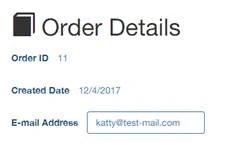
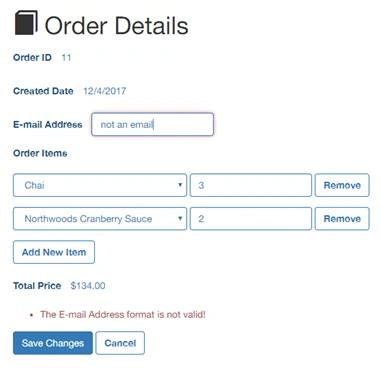
I see the main advantage of MVVM when I build forms. No matter how the form is complicated and structured, the two-way data-binding in MVVM allows to pass a complex object in the UI, have its values modified by the user, and returned the object back so I can save it.

Darwin DowPosted Feb 8, 2018, 6:46 AM
I cannot get your demos to run. I am using VS2017. I installed the DOTVVM framework. What am I missing?
Code PoliticsPosted Jul 18, 2017, 1:49 PM
Wow, I've been playing around with DOTVVM for the last couple of hours... I'm shocked, incredible product... I really hope this is here to stay.
Alex LiPosted Jul 13, 2017, 6:49 AM
Welcome to C# Corner Tomas
Dinesh BeniwalPosted Jun 29, 2017, 5:52 AM
Welcome to C# Corner.
Mahesh ChandPosted Jun 29, 2017, 12:48 AM
Welcome to C# Corner Tomas.