Introduction
In this article, we will see how we can automate the C# Corner Signup page using Selenium Web driver. Selenium is one of the automation testing tools used for the automation of a web application, a Windows or desktop application with the help of Winium, a headless browser application, a mobile Android or iOS app, with the help of Appium etc.
It is developed using Java and its libraries can be used with either C#, PHP, Python, Perl, Ruby, or JavaScript etc. It has various Selenium drivers, such as ChromeDriver, InternetExplorerDriver, GeckoDriver, OperaDriver, SafariDriver etc.
Selenium is language-independent, which means Selenium is developed using Java, and it can be used with either - C#, Java, PHP,
and JavaScript etc. Selenium can be executed on various operating systems like Windows, Linux, MacOS, Solaris etc.
As Selenium is language independent, it is also platform independent. That means the framework that is developed using C# or
Java can be executed in different platforms or operating systems like Windows OS, Mac OS, Linux etc.
Selenium is a library or API which consists of Classes, Methods, Interfaces, etc. to be used and integrated with various
programming languages mentioned above. Selenium is written using one of the most famous programming languages, i.e., Java,
and it's cross-platform.
Each browser has its own driver. For executing the test scripts on their browsers, such as, for executing the Selenium scripts on Chrome, we have Chrome drivers; for executing the Selenium scripts on Internet Explorer, we have Internet Explorer drivers; for executing the Selenium scripts on Safari, we have Safari drivers; for executing the Selenium scripts on Opera, we have Opera drivers.
Selenium Program For C# Corner SignUp
In the below code, I am performing the automation of C# Corner Signup page using Selenium Webdriver since Selenium Webdriver is one of the most powerful tools used for the automation of web applications.
- using System;
- using System.Collections.Generic;
- using System.Linq;
- using System.Net;
- using System.Text;
- using System.Threading;
- using System.Threading.Tasks;
- using MbUnit.Framework;
- using Microsoft.VisualStudio.TestTools.UnitTesting;
- using OpenQA.Selenium;
- using OpenQA.Selenium.Chrome;
- using OpenQA.Selenium.Support.UI;
-
- namespace PageObjectModel
- {
- [TestClass]
- public class CsharpCornerSignUp
- {
- IWebDriver webDriver;
-
-
-
-
-
-
-
-
-
-
-
-
-
- public CsharpCornerSignUp()
- {
- ServicePointManager.SecurityProtocol = SecurityProtocolType.Tls12;
- ChromeOptions chromeOptions = new ChromeOptions();
- chromeOptions.AddArgument("disable-infobars");
- webDriver = new ChromeDriver(@"D:\chromedriver_win32", chromeOptions);
- webDriver.Navigate().GoToUrl("https://www.c-sharpcorner.com/");
- webDriver.Manage().Window.Maximize();
- WebDriverWait waitForControl = new WebDriverWait(webDriver, TimeSpan.FromSeconds(10));
- }
-
- [TestMethod]
- public void CsharpSignUp()
- {
-
- IWebElement signUpClick = webDriver.FindElement(By.XPath("//*[@id='ctl00_HeaderHomeNewDesign_Login1_HyperLinkRegister']"));
- signUpClick.Click();
- WebDriverWait waitForControl = new WebDriverWait(webDriver, TimeSpan.FromSeconds(40));
-
- IWebElement enterEmail = webDriver.FindElement(By.Name("ctl00$ContentMain$TextBoxEmail"));
- enterEmail.SendKeys("[email protected]");
- WebDriverWait enterMail = new WebDriverWait(webDriver, TimeSpan.FromSeconds(10));
-
- IWebElement firstName = webDriver.FindElement(By.Name("ctl00$ContentMain$TextBoxFirstName"));
- firstName.SendKeys("Khaja");
- WebDriverWait fName = new WebDriverWait(webDriver, TimeSpan.FromSeconds(10));
-
- IWebElement lastName = webDriver.FindElement(By.Name("ctl00$ContentMain$TextBoxLastName"));
- lastName.SendKeys("Moizuddin");
- WebDriverWait lName = new WebDriverWait(webDriver, TimeSpan.FromSeconds(10));
-
- IWebElement enterPassword = webDriver.FindElement(By.XPath("//*[@id='ctl00_ContentMain_TextBoxPassword']"));
- enterPassword.SendKeys("C#Corner12345");
- WebDriverWait password = new WebDriverWait(webDriver, TimeSpan.FromSeconds(10));
-
- IWebElement confirmPassword = webDriver.FindElement(By.Name("ctl00$ContentMain$TextBoxPasswordConfirm"));
- confirmPassword.SendKeys("C#Corner12345");
- WebDriverWait confirmPasswordWait = new WebDriverWait(webDriver, TimeSpan.FromSeconds(10));
-
- IWebElement dropcountry = webDriver.FindElement(By.Name("ctl00$ContentMain$DropdownListCountry"));
- dropcountry.Click();
- SelectElement select = new SelectElement(dropcountry);
- select.SelectByValue("India");
- WebDriverWait dropCountryWait = new WebDriverWait(webDriver, TimeSpan.FromSeconds(10));
-
- IWebElement enterzip = webDriver.FindElement(By.Name("ctl00$ContentMain$TextBoxZip"));
- enterzip.SendKeys("500076");
- WebDriverWait enterZipWait = new WebDriverWait(webDriver, TimeSpan.FromSeconds(10));
-
- IWebElement entercity = webDriver.FindElement(By.XPath("//*[@id='TextBoxCity']"));
- entercity.SendKeys("Hyderabad");
- WebDriverWait enterCityWait = new WebDriverWait(webDriver, TimeSpan.FromSeconds(10));
-
- IWebElement selectsecurity = webDriver.FindElement(By.Name("ctl00$ContentMain$DropdownListSecurityQuesion"));
- SelectElement se = new SelectElement(selectsecurity);
- se.SelectByValue("What is the name of the company of your first job?");
- WebDriverWait securityWait = new WebDriverWait(webDriver, TimeSpan.FromSeconds(10));
-
- IWebElement answer = webDriver.FindElement(By.Id("ctl00_ContentMain_TextBoxAnswer"));
- answer.SendKeys("XYZ Technologies");
- WebDriverWait answerWait = new WebDriverWait(webDriver, TimeSpan.FromSeconds(10));
-
- IWebElement registerMe= webDriver.FindElement(By.Name("ctl00$ContentMain$ButtonSave"));
- registerMe.Click();
- WebDriverWait answerWait = new WebDriverWait(webDriver, TimeSpan.FromSeconds(10));
-
-
- IWebElement clickhome = webDriver.FindElement(By.XPath("//*[@id='ctl00_HeaderNewDesign1_HeaderMenu']/div/div/ul/li[1]/a"));
- clickhome.Click();
- WebDriverWait clickHomeWait = new WebDriverWait(webDriver, TimeSpan.FromSeconds(10));
-
- IWebElement searchClick = webDriver.FindElement(By.Name("ctl00$HeaderHomeNewDesign$searchImageButton"));
- searchClick.Click();
- WebDriverWait searchClickWait = new WebDriverWait(webDriver, TimeSpan.FromSeconds(10));
-
- IWebElement peopleClick = webDriver.FindElement(By.Id("tabAuthorSearch"));
- peopleClick.Click();
- WebDriverWait TabWait = new WebDriverWait(webDriver, TimeSpan.FromSeconds(10));
-
- IWebElement firstNamePeople = webDriver.FindElement(By.Id("TextBoxFirstName"));
- firstNamePeople.SendKeys("khaja");
- WebDriverWait firstNameWait = new WebDriverWait(webDriver, TimeSpan.FromSeconds(10));
-
- IWebElement clickgo = webDriver.FindElement(By.XPath("//*[@id='ctl00_ContentMain_PanelAuthorSearch']/input[3]"));
- clickgo.Click();
- WebDriverWait goWait = new WebDriverWait(webDriver, TimeSpan.FromSeconds(10));
-
- IWebElement profileClick = webDriver.FindElement(By.XPath("//*[@id='authorSearchResult']/div/div/ul/li[1]/a"));
- profileClick.Click();
- WebDriverWait profileWait = new WebDriverWait(webDriver, TimeSpan.FromSeconds(10));
-
- IWebElement articlesClick = webDriver.FindElement(By.XPath("//*[@id='divContributes']/ul/li[1]/a"));
- articlesClick.Click();
- WebDriverWait articlesWait = new WebDriverWait(webDriver, TimeSpan.FromSeconds(10));
-
- IWebElement articleClick = webDriver.FindElement(By.XPath("//*[@id='ctl00_ContentMain_contentBoxUL']/li[1]/div[2]/h3/a"));
- articleClick.Click();
- WebDriverWait articleWait = new WebDriverWait(webDriver, TimeSpan.FromSeconds(10));
-
- webDriver.Quit();
- }
-
-
-
-
-
-
-
-
- }
- }
In the above program, in constructor CsharpCornerSignUp, this is the code.
- public CsharpCornerSignUp() {
- ServicePointManager.SecurityProtocol = SecurityProtocolType.Tls12;
- ChromeOptions chromeOptions = new ChromeOptions();
- chromeOptions.AddArgument("disable-infobars");
- webDriver = new ChromeDriver(@ "D:\chromedriver_win32", chromeOptions);
- webDriver.Navigate().GoToUrl("https://www.c-sharpcorner.com/");
- webDriver.Manage().Window.Maximize();
- WebDriverWait waitForControl = new WebDriverWait(webDriver, TimeSpan.FromSeconds(10));
- }
In the above piece of code, I am navigating to C# Corner website in the constructor by using the latest Chrome drivers downloaded from Selenium's official website. In chromeOptions, I am using "disable-infobars" to remove the popup. Once the automation starts, the popup will appear on the C# Corner webpage. If we don't remove the popup, the controls under the popup will not be able to be identified and automated.
Once the driver is navigated to ChromeDriver by navigating to C# Corner website, here I am maximizing the browser and waiting for 10 seconds using the WebDriverWait class provided by Selenium.
The use of WebDriverWait is that if we provide 10 seconds wait time, suppose the control is identified within 4 seconds, it will not wait for another 6 seconds and will proceed to automate the next control in the sequence.
- IWebElement signUpClick = webDriver.FindElement(By.XPath("//*[@id='ctl00_HeaderHomeNewDesign_Login1_HyperLinkRegister']"));
- signUpClick.Click();
- WebDriverWait waitForControl = new WebDriverWait(webDriver, TimeSpan.FromSeconds(40));
- IWebElement enterEmail = webDriver.FindElement(By.Name("ctl00$ContentMain$TextBoxEmail"));
- enterEmail.SendKeys("[email protected]");
- WebDriverWait enterMail = new WebDriverWait(webDriver, TimeSpan.FromSeconds(10));
- IWebElement firstName = webDriver.FindElement(By.Name("ctl00$ContentMain$TextBoxFirstName"));
- firstName.SendKeys("Khaja");
- WebDriverWait fName = new WebDriverWait(webDriver, TimeSpan.FromSeconds(10));
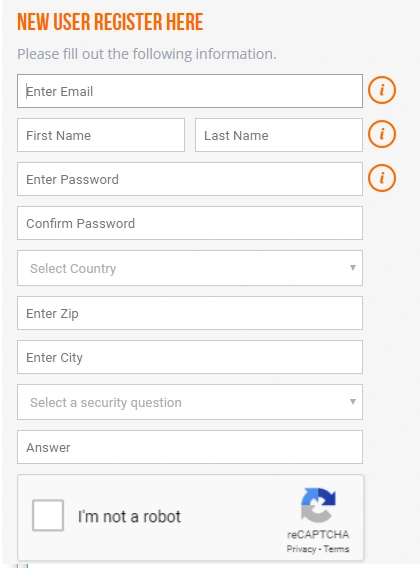
In the above piece of code, once the C# Corner webpage is loaded properly, I am clicking the SignupClick by using its control property as an XPath and waiting for some 40 seconds with WebdriverWait class. Once the page is navigated to signup page after waiting the given time, I am entering the Enter Email by using one of its control property, such as "Name" and entering the emailId. Once the emailId is entered correctly, it will wait for 10 seconds and I am performing the automation on firstName control by using its Name property. Once the control is identified, I am entering the given value as "Khaja".
- IWebElement lastName = webDriver.FindElement(By.Name("ctl00$ContentMain$TextBoxLastName"));
- lastName.SendKeys("Moizuddin");
- WebDriverWait lName = new WebDriverWait(webDriver, TimeSpan.FromSeconds(10));
- IWebElement enterPassword = webDriver.FindElement(By.XPath("//*[@id='ctl00_ContentMain_TextBoxPassword']"));
- enterPassword.SendKeys("C#Corner12345");
- WebDriverWait password = new WebDriverWait(webDriver, TimeSpan.FromSeconds(10));
- IWebElement confirmPassword = webDriver.FindElement(By.Name("ctl00$ContentMain$TextBoxPasswordConfirm"));
- confirmPassword.SendKeys("C#Corner12345");
- WebDriverWait confirmPasswordWait = new WebDriverWait(webDriver, TimeSpan.FromSeconds(10));
In the above code, once the FirstName value is entered, I am performing the automation on LastName control by providing the control property as "Name" and entering the data as "Moizuddin" and waiting for another 10 seconds.
For entering the password control, I am using its control property as XPath and entering the password as "C#Corner12345" and waiting for the time provided.
Similarly, to automate the "Confirm Password" control, I am using Name property and entering the Confirm Password as "C#Corner12345" and waiting for the time as 10 seconds.
- IWebElement dropcountry = webDriver.FindElement(By.Name("ctl00$ContentMain$DropdownListCountry"));
- dropcountry.Click();
- SelectElement select = new SelectElement(dropcountry);
- select.SelectByValue("India");
- WebDriverWait dropCountryWait = new WebDriverWait(webDriver, TimeSpan.FromSeconds(10));
- IWebElement enterzip = webDriver.FindElement(By.Name("ctl00$ContentMain$TextBoxZip"));
- enterzip.SendKeys("500076");
- WebDriverWait enterZipWait = new WebDriverWait(webDriver, TimeSpan.FromSeconds(10));
- IWebElement entercity = webDriver.FindElement(By.XPath("//*[@id='TextBoxCity']"));
- entercity.SendKeys("Hyderabad");
- WebDriverWait enterCityWait = new WebDriverWait(webDriver, TimeSpan.FromSeconds(10));
For automating the Country Dropdown, I am identifying this control by its Name property and expanding it. Then, I am selecting the given value that is "India" using the SelectByValue method which is provided by SelectElement class.
For entering the Zip Code, I am using the Name property in order to find a control and entering the value into the given ZipCode textbox with the value "500076". The controls wait for 10 seconds provided with the WebDriverWait class.
In order to automate the City control, we have used XPath locator for finding the control on the webpage. Once the control is identified, I am using SendKeys to enter the value to the City textbox with the value as "Hyderabad".
- IWebElement selectsecurity = webDriver.FindElement(By.Name("ctl00$ContentMain$DropdownListSecurityQuesion"));
- SelectElement se = new SelectElement(selectsecurity);
- se.SelectByValue("What is the name of the company of your first job?");
- WebDriverWait securityWait = new WebDriverWait(webDriver, TimeSpan.FromSeconds(10));
- IWebElement answer = webDriver.FindElement(By.Id("ctl00_ContentMain_TextBoxAnswer"));
- answer.SendKeys("XYZ Technologies");
- WebDriverWait answerWait = new WebDriverWait(webDriver, TimeSpan.FromSeconds(10));
-
- IWebElement registerMe= webDriver.FindElement(By.Name("ctl00$ContentMain$ButtonSave"));
- registerMe.Click();
- WebDriverWait answerWait = new WebDriverWait(webDriver, TimeSpan.FromSeconds(10))
From the above code, in order to select a security question from the dropdown, I am using the SelectElement class by passing the webEelement object reference and selecting the value as "What is the name of the company of your first job?".
In order to provide the answer for the above security question, I am finding the answer textbox control with its Control Id as "ctl00_ContentMain_TextBoxAnswer". Once the control is identified, I am providing the input value as XYZ Technologies to the answer textbox.
The next control is Captcha which cannot be automated with the help of Selenium. However, it can be automated by using some third-party DLL.
For clicking the Register button, we have a Name property as it's Control's unique property. Once the control is identified, we can click on it by using the Click() method.
- IWebElement clickhome = webDriver.FindElement(By.XPath("//*[@id='ctl00_HeaderNewDesign1_HeaderMenu']/div/div/ul/li[1]/a"));
- clickhome.Click();
- WebDriverWait clickHomeWait = new WebDriverWait(webDriver, TimeSpan.FromSeconds(10));
- IWebElement searchClick = webDriver.FindElement(By.Name("ctl00$HeaderHomeNewDesign$searchImageButton"));
- searchClick.Click();
- WebDriverWait searchClickWait = new WebDriverWait(webDriver, TimeSpan.FromSeconds(10));
- IWebElement peopleClick = webDriver.FindElement(By.Id("tabAuthorSearch"));
- peopleClick.Click();
- WebDriverWait TabWait = new WebDriverWait(webDriver, TimeSpan.FromSeconds(10));
Once we have registered to the C# Corner website by providing our information, in the above code, I am just navigating to my C# Corner profile by performing the certain operations like below.
In the above code, I am clicking on the Home button by providing the control property as XPath. Once the control is identified, I am clicking on the Home button using the Click() method.
In order to search for a particular Username, I am trying to find the search control with its Name control property. Once the control is identified, I am clicking it using the Click() method.
Here, we have two different tabs like Content and People. I am clicking on People because we can find the User's profile in the People tab.
To click on a People tab, we have a control property as Id="tabAuthorSearch".
Once the control is identified, I am clicking on the People tab.
- IWebElement firstNamePeople = webDriver.FindElement(By.Id("TextBoxFirstName"));
- firstNamePeople.SendKeys("khaja");
- WebDriverWait firstNameWait = new WebDriverWait(webDriver, TimeSpan.FromSeconds(10));
- IWebElement clickgo = webDriver.FindElement(By.XPath("//*[@id='ctl00_ContentMain_PanelAuthorSearch']/input[3]"));
- clickgo.Click();
- WebDriverWait goWait = new WebDriverWait(webDriver, TimeSpan.FromSeconds(10));
- IWebElement profileClick = webDriver.FindElement(By.XPath("//*[@id='authorSearchResult']/div/div/ul/li[1]/a"));
- profileClick.Click();
- WebDriverWait profileWait = new WebDriverWait(webDriver, TimeSpan.FromSeconds(10));
In the above piece of code, for the First Name textbox, I am identifying it using the Id control property that is Id="TextBoxFirstName". Once the control is identified, I am entering my first name as "Khaja".
To perform a click or to search the UserName "Khaja", I am finding a control with its XPath control property and clicking on the control.
Once we get the list of C# Corner registered users, I am clicking on my profile by identifying a control with XPath Control Property and clicking on it.
- IWebElement articlesClick = webDriver.FindElement(By.XPath("//*[@id='divContributes']/ul/li[1]/a"));
- articlesClick.Click();
- WebDriverWait articlesWait = new WebDriverWait(webDriver, TimeSpan.FromSeconds(10));
- IWebElement articleClick = webDriver.FindElement(By.XPath("//*[@id='ctl00_ContentMain_contentBoxUL']/li[1]/div[2]/h3/a"));
- articleClick.Click();
- WebDriverWait articleWait = new WebDriverWait(webDriver, TimeSpan.FromSeconds(10));
- webDriver.Quit();
In the above code, once the page is navigated to my profile, I am clicking on the Articles link by identifying a control with its XPath property. Once the control is identified, I am clicking on the Articles link and waiting for the provided wait time.
When we get the list of articles, I want to click on the first article. In order to click on it, I am identifying it using its XPath Control property. When the control is identified with XPath property, I am clicking on the first article's link.
When all the control operations are done, I want to close the browser. In order to do that, we need to use the webDriver.Quit() method.
-
- [FixtureTearDown]
- public void FinalCode()
- {
- webDriver.Quit();
- }
The above method, that is, FinalCode(), contains a Selenium attribute [FixtureTearDown]. This method will be executed after executing all the test methods and executing a FinalCode method.
If we want to quit or close a browser, we can use this code in FinalCode Method.
-
- [SetUp]
- public void Initialization()
- {
- ServicePointManager.SecurityProtocol = SecurityProtocolType.Tls12;
- ChromeOptions chromeOptions = new ChromeOptions();
- chromeOptions.AddArgument("disable-infobars");
- webDriver = new ChromeDriver(@"D:\chromedriver_win32", chromeOptions);
- webDriver.Navigate().GoToUrl("https://www.c-sharpcorner.com/");
- webDriver.Manage().Window.Maximize();
- WebDriverWait waitForControl = new WebDriverWait(webDriver, TimeSpan.FromSeconds(10));
- }
The above method Initialization() has an attribute [SetUp] which is a part of MbUnit.Framework. It works similar to a constructor and is executed before the execution of the test methods. In order to keep the code or the initialization code, we can keep it in SetUp method instead of keeping it in constructor. When we run or execute our Selenium Scripts, the first SetUp method will be executed. All the methods will be executed later after FixtureTearDown is executed.
To execute the Selenium script with MbUnit's Gallio framework, we need to use [TestFixture] attribute instead of [TestClass] which is above the Selenium Class, as well as, above the Selenium's Test Method. We need to use [Test] attribute instead of [TestMethod].


Khaja MoizuddinPosted Dec 27, 2018, 1:53 PM
Captcha is must for C# Corner sign up, so just automating various controls was my focus and navigating one screen to another screen was my goal to use with selenium webdriver.
Khaja MoizuddinPosted Dec 27, 2018, 1:51 PM
I have automated the sign up page, but the captcha control can't be automated using selenium directly, we need to use third party tools, the reason for automating sign up page was there are various controls available on the sign up page.
Mahesh ChandPosted Dec 27, 2018, 1:30 PM
Did you automate the signup page for new users to signup? Or to find bugs? Also it seems like you have to write ton of code to automate this testing. Is this right?
Sarathlal SaseendranPosted Dec 27, 2018, 1:24 PM
Very good article Khaja. I really liked your way of presentation. You have mentioned about 3rd party libraries to automate CAPTCHA. If you worked with any libraries kindly tell me. I am also interested. Cheers!