

Here, in this article, we're going to extend JS Tree from JS to MVC and we'll render the HTML tags from the database using custom development in the model.
Basically, we'll create a sample DB that contains main/sub categories with self referencing; then we'll add support for Razor like (@HTML.TreeView); and after, we'll render the HTML tags (<ul> <li>) based on our relations in the database.
Let's get started.
Basically, we'll create a sample DB that contains main/sub categories with self referencing; then we'll add support for Razor like (@HTML.TreeView); and after, we'll render the HTML tags (<ul> <li>) based on our relations in the database.
Let's get started.
We will proceed with the following sections.
- Getting Started
- Creating the (Code First) model
- Creating TreeView Component
- Representing Data
Getting Started
In this step, we're going to create the MVC application using Visual Studio 2017 with the following steps.
Step1
Open Visual Studio 2017 and click on “New Project”.

Figure 1 Start Page of VS 2017
Step 2
Select "Web" tab from the left panel and select the “ASP.NET Web Application”.

Figure 2 Creating Web Application in VS 2017
In this step, we're going to create the MVC application using Visual Studio 2017 with the following steps.
Step1
Open Visual Studio 2017 and click on “New Project”.
Figure 1 Start Page of VS 2017
Step 2
Select "Web" tab from the left panel and select the “ASP.NET Web Application”.
Figure 2 Creating Web Application in VS 2017
Step 3
Select “MVC project template” from the ASP.NET Template Wizard to create MVC app.
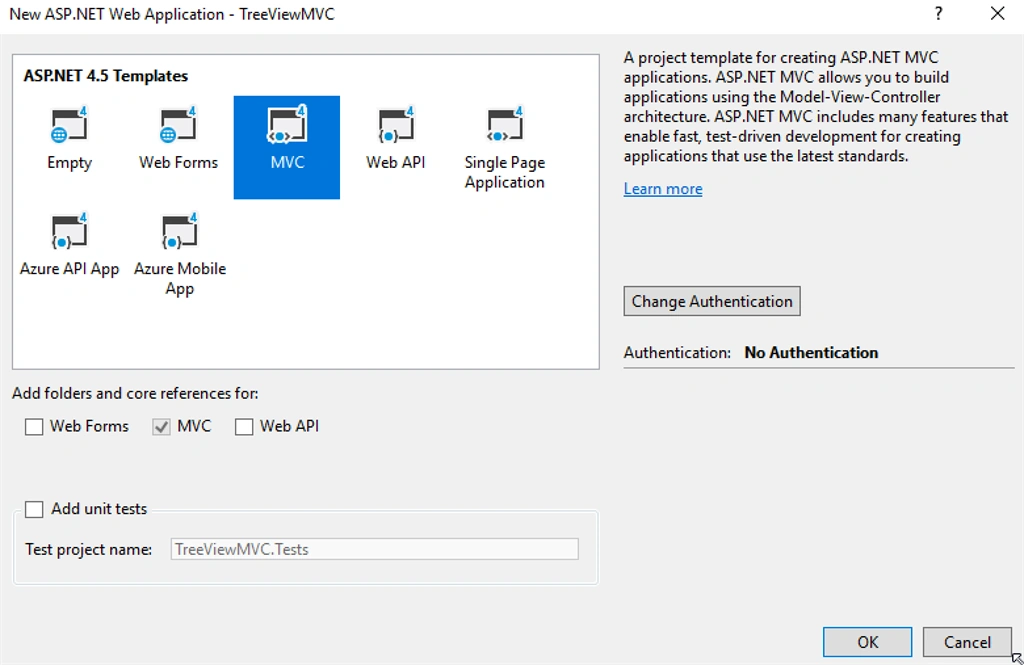
Figure 3 MVC Project Template
This will create an MVC application. After some changes in default layout page, run the application.
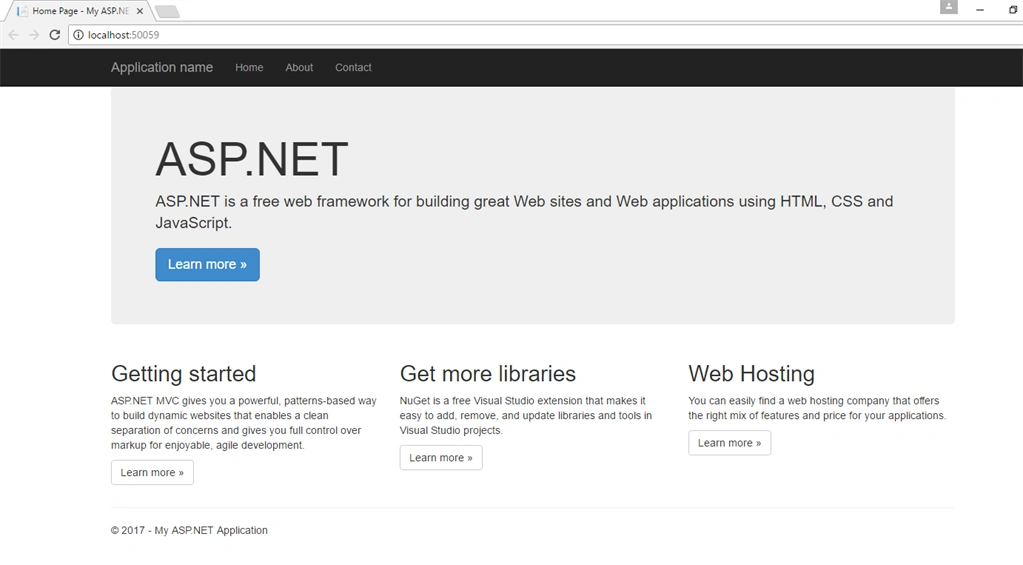
Figure 4 Runing the Project
Creating the (Code First) Model
Now, let's create our Model that handles many to many relationships with self referencing (Categories and unlimited sub categories).
Step 1
Right click on Models folder and select Add->Class and name it (Category).
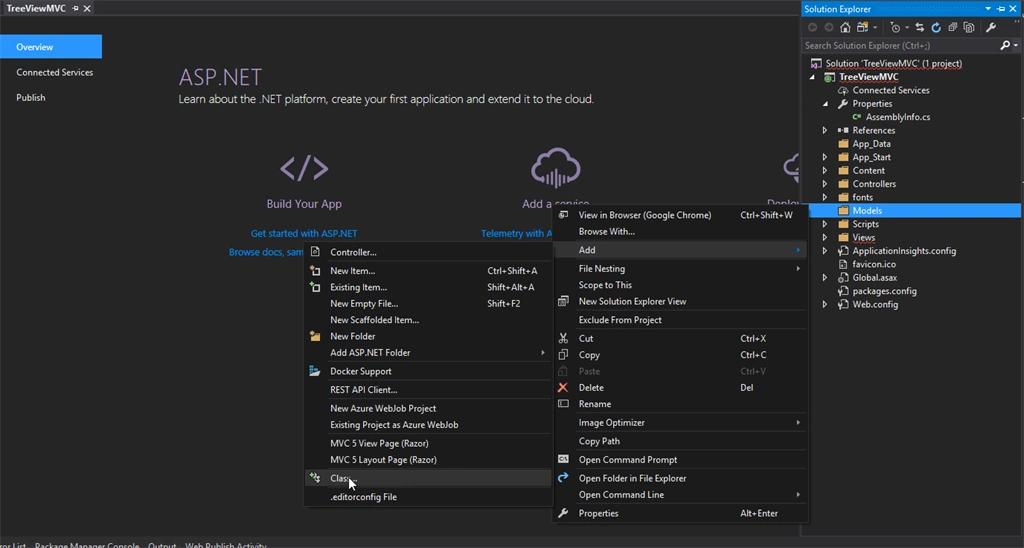
Figure 5 Adding category model
Right click on Models folder and select Add->Class and name it (Category).
Figure 5 Adding category model
Step 2
Now, Category Model will contain the follwing peroperties.
Id // Category ID
Id // Category ID
Name // Category name
Description //Category description
PID // Parent id
- using System;
- using System.Collections.Generic;
- using System.ComponentModel.DataAnnotations.Schema;
- using System.Linq;
- using System.Web;
- namespace TreeViewMVC.Models
- {
- public class Category
- {
- //Cat Id
- public int ID { get; set; }
- //Cat Name
- public string Name { get; set; }
- //Cat Description
- public string Description { get; set; }
- //represnts Parent ID and it's nullable
- public int? Pid { get; set; }
- [ForeignKey("Pid")]
- public virtual Category Parent { get; set; }
- public virtual ICollection<Category> Childs { get; set; }
- }
- }
Figure 6 Adding model proprties
Step 3 Creating Database context
Right click on the project name from Solution Explorer window and choose Add-> class, and name it "context".

Figure 7 Creating Context
Step 4
Now, we have to install Entity Framework to generate our database.
From the top bar in Visual Studio, click on Tools->Nuget Package Manager -> Manage nuGet packges for sulotion. From the "Browse" tab at the top, select Entity Framwork, then from the right pane, select your project and click on "Install" button.
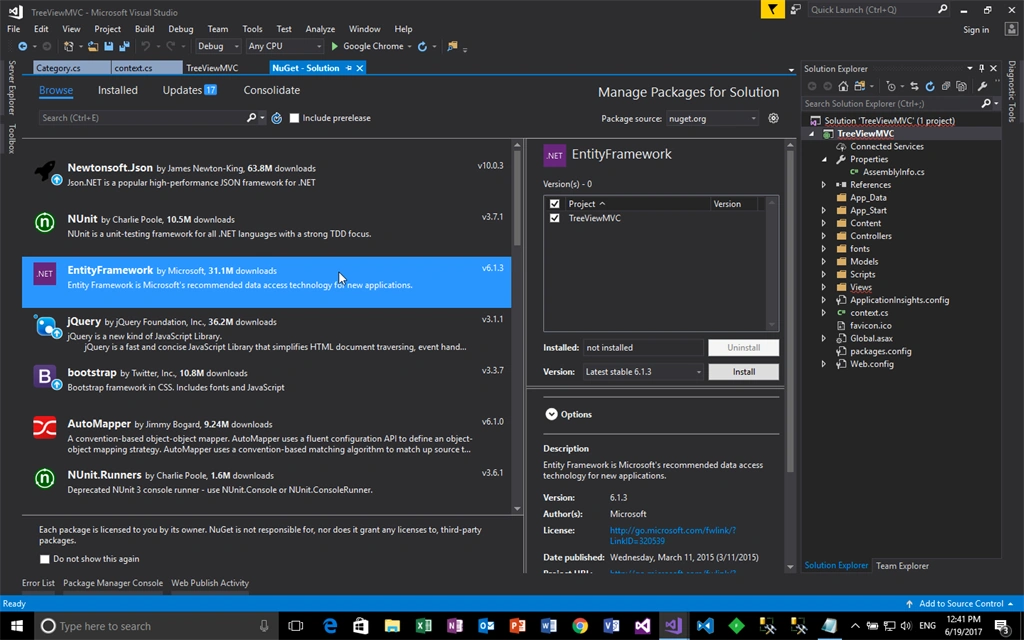
Figure 8 Installing EntityFramework
Step 3 Creating Database context
Right click on the project name from Solution Explorer window and choose Add-> class, and name it "context".
Figure 7 Creating Context
Step 4
Now, we have to install Entity Framework to generate our database.
From the top bar in Visual Studio, click on Tools->Nuget Package Manager -> Manage nuGet packges for sulotion. From the "Browse" tab at the top, select Entity Framwork, then from the right pane, select your project and click on "Install" button.
Figure 8 Installing EntityFramework
Step 5
Now, we have to include the Model of (Category) that we created recently along with Entity Framework, and map our Category Model.
Now, we have to include the Model of (Category) that we created recently along with Entity Framework, and map our Category Model.
- using System;
- using System.Collections.Generic;
- using System.Linq;
- using System.Web;
- using System.Data.Entity;
- using TreeViewMVC.Models;
- namespace TreeViewMVC
- {
- public class context: DbContext
- {
- public context()
- //Your connection string in Web.Config File
- :base("ConnectionString")
- {
- }
- DbSet<Category> Categories { get; set; }
- }
- }
Step 6
Now, let's create our Database and add migrations to it with some example data in seed. From the top bar in VS, click on Tools -> NuGet Package Manager -> Package Manager console.

Figure 9 Opening Nuget package manager console
Now, let's enable migrations for our Project using Enable-Migrations command.
After excuting this, EF will create a migration in the root of our project, now, we have to add the migration ( let's call it "init").
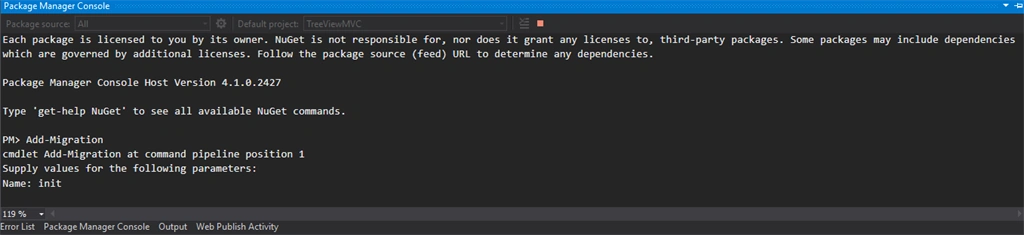
Now, let's create our Database and add migrations to it with some example data in seed. From the top bar in VS, click on Tools -> NuGet Package Manager -> Package Manager console.
Figure 9 Opening Nuget package manager console
Now, let's enable migrations for our Project using Enable-Migrations command.
After excuting this, EF will create a migration in the root of our project, now, we have to add the migration ( let's call it "init").
Figure 10 Adding init migration
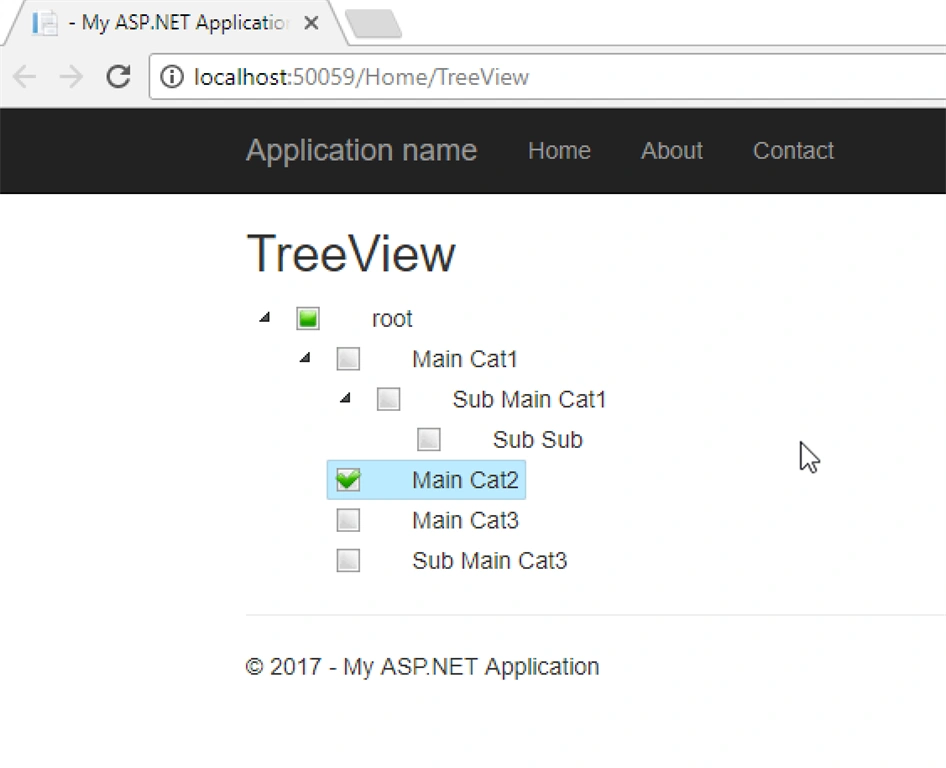
Then, let's add some dummy data into seed. We'll be creating categories and sub categories as the follwing,
- Main Cat1 -> Sub Main Cat1 -> Sub Sub
- Main Cat2
- Main Cat3 -> Sub Main Cat3
- namespace TreeViewMVC.Migrations
- {
- using System;
- using System.Data.Entity;
- using System.Data.Entity.Migrations;
- using System.Linq;
- using TreeViewMVC.Models;
- internal sealed class Configuration : DbMigrationsConfiguration<TreeViewMVC.context>
- {
- public Configuration()
- {
- AutomaticMigrationsEnabled = false;
- }
- //Creating an object from our context class to make the DB operations using EF
- protected override void Seed(TreeViewMVC.context context)
- {
- //Creating Dummy categories and sub categories
- context.Categories.AddOrUpdate(c=>c.Name,
- new Category { ID =1 , Name="Main Cat1" , Pid = null , Description = "Main Cat1" },
- new Category { ID =2 , Name="Sub Main Cat1" , Pid = 1 , Description ="Sub Main Cat1" },
- new Category { ID =3 , Name="Sub Sub" , Pid = 2 , Description ="Sub Sub" },
- new Category { ID =4 , Name="Main Cat2" , Pid = null , Description ="Main Cat2" },
- new Category { ID =5 , Name="Main Cat3" , Pid = null , Description ="Main Cat3" },
- new Category { ID =6 , Name="Sub Main Cat3" , Pid = null , Description ="Sub Main Cat3" }
- );
- }
- }
- }
Go to Tools -> NuGet Package Manager -> Package Manager console and type "Update-Database".
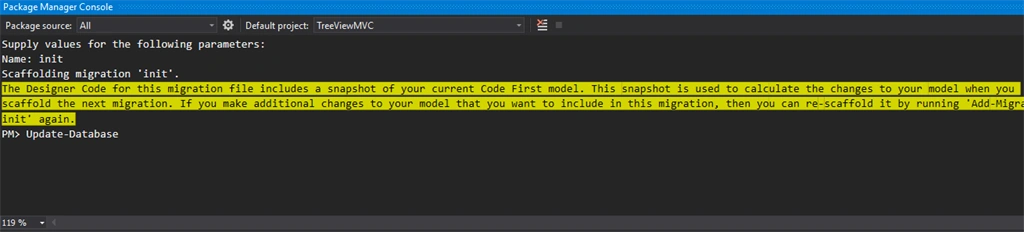 Figure 11 Creating the database from Code First using EF
Let's see what we got in the database:

Figure 12 Our Database after executing Update-Database
Creating TreeView class
Step 1
Now, we have to develop the TreeView class "component"
From soulotion explorer window, right click on Models folder ->add ->class and let's name it "Tree"
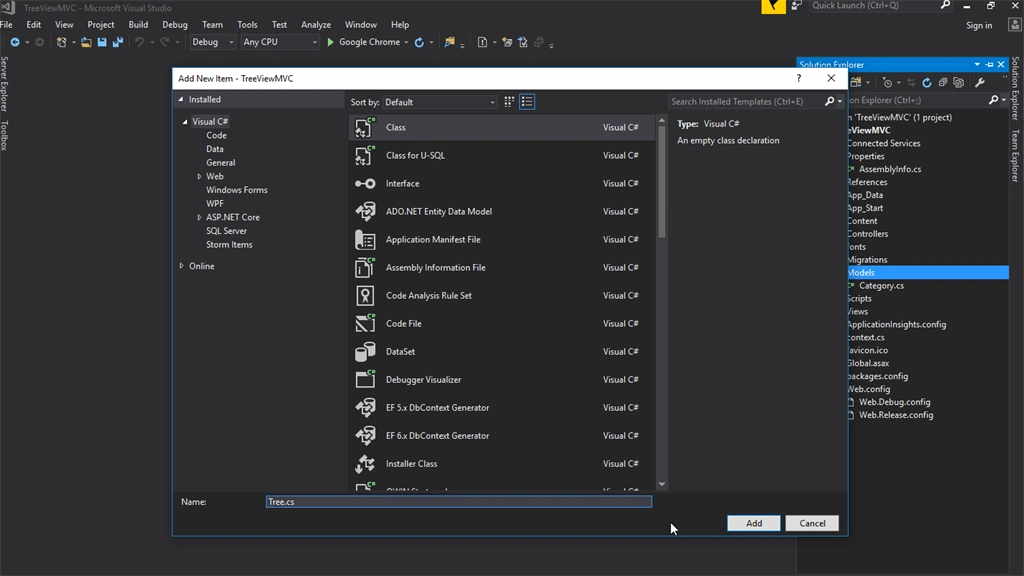
Figure 13 Adding class "Tree" for creating TreeView component
Step 2
Here we go with our component,
The Tree class will create an HTML tree from a recursive collection of items and handle the (X) model in our case "Category" model and generate <ul> <li> items based on relations we added in the seed.
Here we go with our component,
The Tree class will create an HTML tree from a recursive collection of items and handle the (X) model in our case "Category" model and generate <ul> <li> items based on relations we added in the seed.


RamPosted Nov 23, 2022, 10:38 AM
I have around 7k records in the table, if i using this TreeViewHelper application is very slow. It will take 16 min to take into UI. Could you please help me to get data fast ?
Nik KatPosted Jul 31, 2022, 9:55 PM
This article lacks general explanations on how this multicomponent system works. E.x. what's going on here db.Categories.Where(x => !x.Pid.HasValue).ToList()
Katrina EngelbrechtPosted Dec 11, 2020, 12:30 PM
Hello do you have an example project which builds TreeView with Razor Page instead of MVC? I am looking for an example. Thank you!
QuickWire QuickWirePosted Aug 10, 2019, 9:37 AM
I'm thinking you should have just made an endpoint that generates the JSON data model that JSTree uses. Then use the JSTree data option to fetch it. Am I missing something?
Daniel NguyenPosted Jul 17, 2019, 11:04 AM
How do you make this TreeView to collapse and expand when click? Thank you!
G Krishna RaoPosted May 28, 2019, 6:56 AM
Can i get the same code without entity framework plz.? So that i can save my job.. :(
John BeckwithPosted Sep 20, 2018, 5:46 PM
Hello Jameel, Really great example. Question: I don't want to use codefirst, so to test your example out, I did this in the controller: public ActionResult TreeView () { List<Category> cat = new List<Category> { new Category { ID =1 , Name="Main Cat1" , Pid = null, Description = "Main Cat1" }, etc return View (cat.Where (x => x.Pid.HasValue).ToList()); } but, I get null errors in AppendChildren, which I then fixed but it is not recursing through anymore. Shouldn't the above work?
OemsPosted May 30, 2018, 12:21 PM
Thanks Jammel for sharing. Best regards.
Fauzan FebriPosted Feb 26, 2018, 7:40 PM
Good Sharing. How can I get the ID for selected item on the TreeView? Could you please help me to show it?
ritu cdPosted Jan 13, 2018, 3:19 AM
Public virtual ICollection<Category> Childs { get; set; } in this section
ritu cdPosted Jan 13, 2018, 3:18 AM
What is the role of childs
mike idowuPosted Nov 29, 2017, 5:59 PM
The post only talk about Display what is already inn the database. Please, How do I save, edit into database in ASP.NET MVC Treeview
Manoj SevdaPosted Nov 1, 2017, 5:01 AM
Thank you for sharing
Jaco ZwartsPosted Jul 5, 2017, 6:45 AM
Interesting, thank you for sharing