
The Microsoft .NET Framework and ‘managed’ code usage seem to be everywhere. More and more companies are adopting the use of managed frameworks to provide greater flexibility in their development environments and take advantage of the numerous features and benefits of the framework. But what if your shop isn’t on the road to .NET yet or fully? What if you have an existing COBOL environment that is not managed but in ‘native’ mode? How do you interact with managed code? How can you extend the use of your current application to reach out and utilize the features others have derived and published from the .NET Framework?
This article is an update of a previous article that was posted on the Micro Focus Community site in 2011 using NetExpress. This updated article will utilize the previous COBOL COM Server and client, but we will update the client from NetExpress to Visual COBOL. So let’s get started!
The Approach
The technology we will be using to enable the call to the managed environment is part of the .NET Interop technology and is known as COM Callable Wrapper or “CCW”. Basically what happens is the .NET class you create is registered as a COM server so the native COBOL program can call it as such using the COM support available in Visual COBOL. One benefit of this approach is that once the COM module is registered within the environment any client can then call the server. Our example we are using COBOL but you could also create a “C” or VB client to call the server.
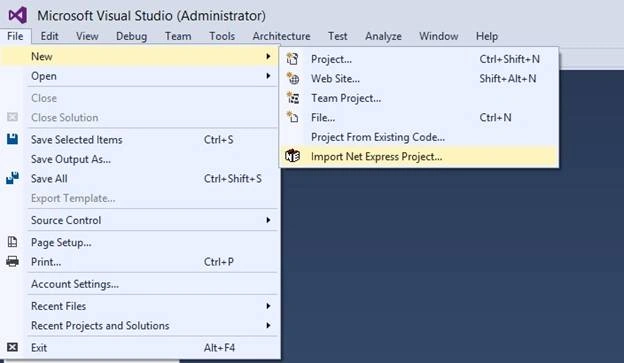
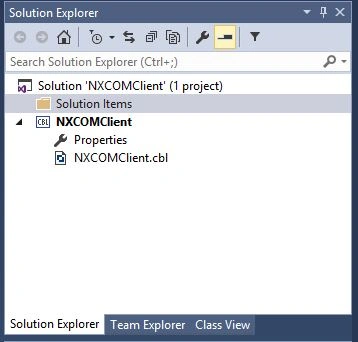
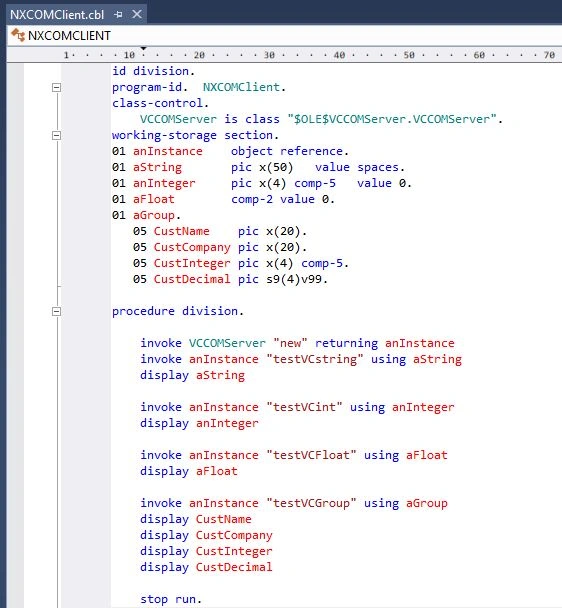
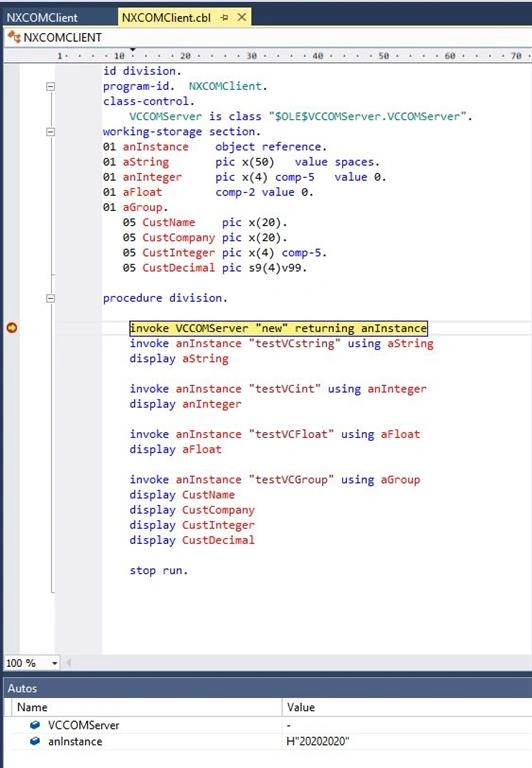
The demonstration consists of two parts, a managed Visual COBOL project called VCCOMServer and a native Net Express project called NXCOMClient. We are going to import the NetExpress project into Visual COBOL for Visual Studio so the developer will be working in one environment, Visual Studio. Please unzip the attached file VCCOMDemo.zip onto your hard drive, retaining the folder structure of the zip file. We’re going to start with the server program since it is already created and will require minimal effort to update.
Managed Code
When you unzip the supplied file you will have a directory called “VCCOMDemo” and it will contain two sub-directories, “NXCOMClient” and “VCCOMServer”.
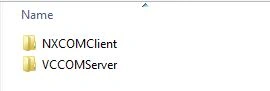
The VCCOMServer folder contains the managed code we will be using and defining as our COM server. Since the previous article was about using a managed environment we already have the managed code. If you select the VCCOMServer folder you will find a solution named “VCCOMServer.sln”, either double click on the solution file to open or from within Visual Studio navigate to the file and open it.
The VCCOMServer solution has a single program, VCCOMServer.cbl that implements an interface to the class. We are not going to spend time reviewing the class or interface as the intent is to demonstrate how to enable the code to be called as a COM Wrapper from within Visual Studio.
The secret is to tell Visual Studio when it builds the assembly, to register it as a COM assembly. This is conveniently done via a check box in the Project Properties. Double clicking on the ‘Properties’ entry and then selecting the ‘COBOL’ tab the following is presented.
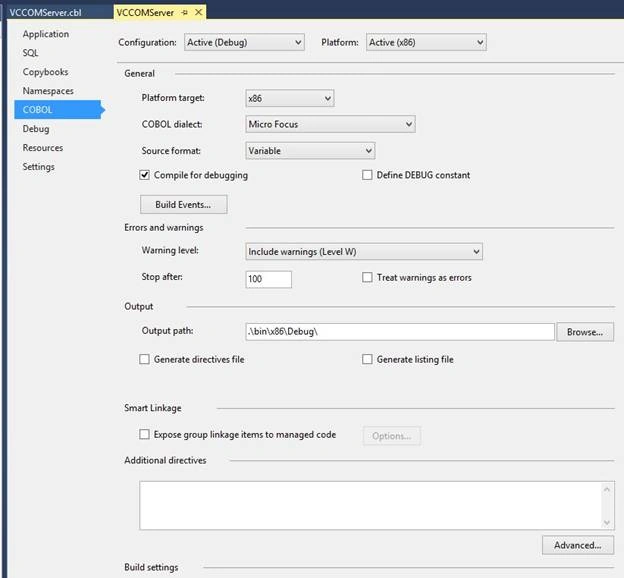
Click on the ‘Advanced…’ button to display the settings and you will see the following,
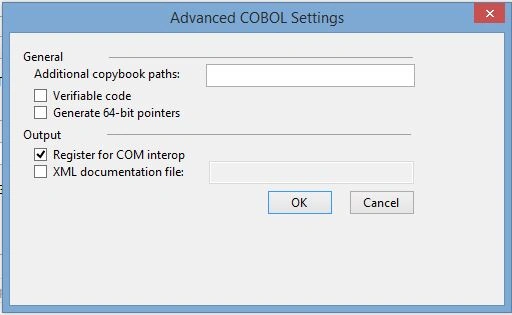
In our example the checkbox for ‘Register for COM interop’ is already selected. By enabling this checkbox the build process will, once compilation is successful and completed, register the object as a COM service. Behind the scenes this is invoking “Regasm.exe” with the parameters of ‘tlb’ and ‘codebas.’ The parameter ‘codebase’ creates a Codebase entry in the registry. The Codebase entry specifies the file path for an assembly that is not installed in the global assembly cache or GAC. ‘tlb’ generates a type library from the specified assembly containing definitions of the accessible types defined within the assembly. You can review the ‘Regasm’ utility at for further information.
Once you have this setting enabled, save your work and rebuild the solution. The object will be registered as a ‘COM’ object and available in your environment. One note of caution, if you experience the following error when trying to register the object.

You will need to close Visual Studio and reopen it with Administrator privileges. Executing the Regasm utility requires a higher level of authentication and this is achieved by running Visual Studio as an Administrator.
One additional note, when you are ready to promote your updates to production you will need to execute Regasm for the module via the command line. The Visual Studio implementation of Regasm is enabled for development and testing, you will need to execute Regasm to register your module for production use. In order to execute the Regasm utility you will need Administrator rights.
You should be building your COM server assemblies using the exact target type of your client application when registering it for use with COM. This is because an in-process COM Server DLL is loaded into the process space of the client program so they need to be the same “bitism”. You should therefore use a target CPU of either x86 or x64 in your Visual Studio project properties and not “anyCPU” when it needs to be registered for COM.
Prior to using these assemblies on a production computer they must first be registered on that computer using the Regasm tool. The file “Regasm.exe” comes with the .NET framework installation and can be found in the Microsoft.NET framework folder. There are different versions of regasm.exe available depending on the version of the .NET Framework you are targeting and whether the assembly is compiled for x86 or x64.
You execute “regasm.exe” from an Administrative command prompt by using the hardcoded path to the correct version as shown below:
(for explanation of options please see this.
Targeting:

Calling Managed COBOL From Unmanaged COBOL With Micro Focus Visual COBOL
Join the conversation! Your thoughts help the community grow.
Sign in to leave a comment
It is the same account you read, post and publish with — and you will come straight back to this page.
Asfend YarPosted Feb 29, 2016, 1:37 PM
where we use cobol now a days
Asfend YarPosted Feb 29, 2016, 1:36 PM
good
Santhakumar MunuswamyPosted Feb 16, 2016, 3:05 PM
Thanks for nice work
Raja TPosted Feb 15, 2016, 3:06 AM
Nice,Thanks for sharing
Sibeesh VenuPosted Feb 15, 2016, 12:36 AM
Nice Share
Mohammed IbrahimPosted Feb 14, 2016, 11:26 PM
nice
Kumaresh RajalingamPosted Feb 13, 2016, 6:52 AM
Nice share