

Introduction
We are familiar with a canvas used in a painting, it is used as a surface for oil painting.
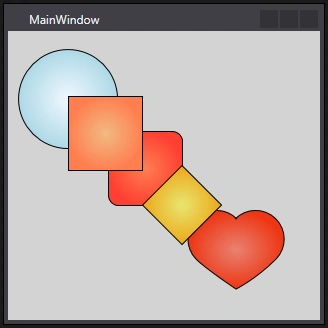
Artists can paint in any direction at any point, he can even overlap some of his art.
A canvas looks something like this. (The white paper on the board)
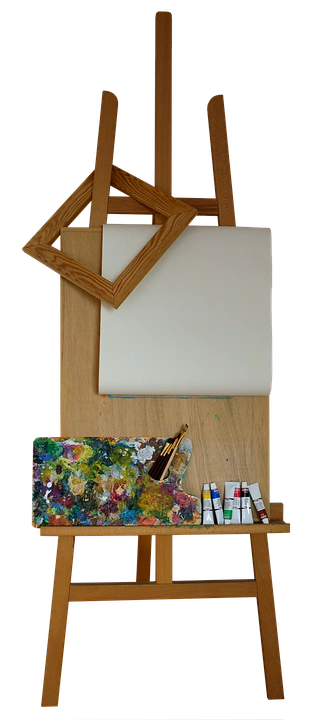
WPF canvas panel follows the same rules as per the real-life canvas, it gives complete control to the developer.
It allows child controls to be overlapped or to be placed in any direction as per the developer's wish.
Canvas has 4 attached properties that specify the position of child controls.
Left, Right, Top, Bottom
Canvas.Left="10"
Canvas.Top="10"
Here, 10 specifies the margin from that coordinate, Canvas.left = "10", that control will be positioned on the left side by keeping a margin of 10
Let's see a basic example.
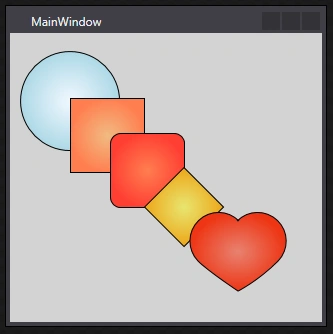
We will draw some basic 2D shapes, and see how to place them in the canvas panel.
Shapes in the following order:
- Ellipse
- Rectangle
- Rectangle with curved edges
- Path
- Path with heart shape
Lets's see how the code will look:
- <Window x:Class="A.MainWindow"
- xmlns="http://schemas.microsoft.com/winfx/2006/xaml/presentation"
- xmlns:d="http://schemas.microsoft.com/expression/blend/2008"
- xmlns:x="http://schemas.microsoft.com/winfx/2006/xaml"
- xmlns:mc="http://schemas.openxmlformats.org/markup-compatibility/2006"
- mc:Ignorable="d"
- Title="MainWindow" Height="320" Width="320">
- <Window.Resources>
- <BooleanToVisibilityConverter x:Key="BooleanToVisibilityConverter"/>
- </Window.Resources>
- <Canvas x:Name="CanvasPanel"
- Background="LightGray">
- <Ellipse x:Name="TwoDEllipse"
- Width = "100"
- Height = "100"
- Stroke="Black"
- Margin="10 0 0 0"
- StrokeThickness="1"
- Canvas.Left="0"
- Canvas.Top="18">
- <Ellipse.Fill>
- <RadialGradientBrush>
- <GradientStop Offset = "0" Color = "AliceBlue"/>
- <GradientStop Offset = "1" Color = "LightBlue"/>
- <GradientStop Offset = "2" Color = "DarkBlue"/>
- </RadialGradientBrush>
- </Ellipse.Fill>
- </Ellipse>
- <Rectangle x:Name="TwoDRectangle"
- Width="75"
- Height="75"
- Margin = "10 0 0 0"
- Stroke="Black"
- StrokeThickness="1"
- Canvas.Left="50"
- Canvas.Top="65">
- <Rectangle.Fill>
- <RadialGradientBrush>
- <GradientStop Offset = "0" Color = "#f1ba82"/>
- <GradientStop Offset = "1" Color = "Coral"/>
- <GradientStop Offset = "2" Color = "Coral"/>
- </RadialGradientBrush>
- </Rectangle.Fill>
- </Rectangle>
- <Rectangle x:Name="TwoDRectangle2"
- Width="75"
- Height="75"
- Margin = "10 0 0 0"
- Stroke="Black"
- StrokeThickness="1"
- RadiusX="10"
- RadiusY="10"
- Canvas.Left="90"
- Canvas.Top="100">
- <Rectangle.Fill>
- <RadialGradientBrush>
- <GradientStop Offset = "0" Color = "Coral"/>
- <GradientStop Offset = "1" Color = "#ff3f33"/>
- <GradientStop Offset = "2" Color = "#ff5733"/>
- </RadialGradientBrush>
- </Rectangle.Fill>
- </Rectangle>
- <Path x:Name="TwoDPath"
- Margin = "10 0 0 0"
- Height = "80"
- Width="80"
- Stroke="Black"
- StrokeThickness="1"
- Stretch = "Fill"
- Canvas.Left="124"
- Canvas.Top="134">
- <Path.Data>
- <PathGeometry x:Name="PathGeoMetry">
- <PathFigure StartPoint = "50,0" IsClosed = "True">
- <LineSegment Point = "100,50"/>
- <LineSegment Point = "50,100"/>
- <LineSegment Point = "0,50"/>
- </PathFigure>
- </PathGeometry>
- </Path.Data>
- <Path.Fill>
- <RadialGradientBrush>
- <GradientStop Offset = "0" Color = "#e8e670"/>
- <GradientStop Offset = "1" Color = "#eda619"/>
- <GradientStop Offset = "2" Color = "#edea19"/>
- </RadialGradientBrush>
- </Path.Fill>
- </Path>
- <Path x:Name="PathHeart"
- Data="M 241,200
- A 20,20 0 0 0 200,240
- C 210,250 240,270 240,270
- C 240,270 260,260 280,240
- A 20,20 0 0 0 239,200"
- Stroke="Black"
- StrokeThickness="1"
- Canvas.Right="35"
- Canvas.Bottom="30"
- Visibility="{Binding IsButtonClicked, Converter={StaticResource BooleanToVisibilityConverter}}">
- <Path.Fill>
- <RadialGradientBrush>
- <GradientStop Offset = "0" Color = "#e88270"/>
- <GradientStop Offset = "1" Color = "#ee3514"/>
- <GradientStop Offset = "2" Color = "#ee1414"/>
- </RadialGradientBrush>
- </Path.Fill>
- </Path>
- </Canvas>
- </Window>
Join the conversation! Your thoughts help the community grow.