

Silverlight Canvas Control
The Canvas control, used as a container for child controls, defines functionality to position the child controls. This article demonstrates how to create and use a Canvas control in Silverlight using C# and XAML.
Creating a Canvas
The Canvas element represents a Silverlight Canvas control in XAML.
<Canvas/>
The Canvas control has three properties. The Left property represents the distance between the left side of a control and its parent container Canvas. The Top property represents the distance between the top of a control and its parent container Canvas.
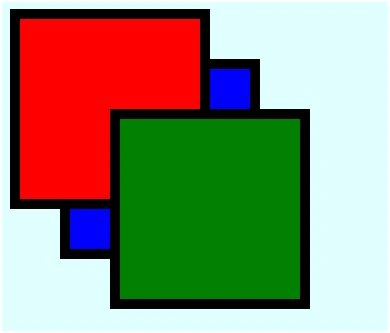
The code in Listing 1 creates a Canvas and adds three Rectangle controls and position them using Canvas control properties.
<Canvas Background="LightCyan" >
<Rectangle
Canvas.Left="10" Canvas.Top="10"
Height="200" Width="200"
Stroke="Black" StrokeThickness="10" Fill="Red" />
<Rectangle
Canvas.Left="60" Canvas.Top="60"
Height="200" Width="200"
Stroke="Black" StrokeThickness="10" Fill="Blue" />
<Rectangle
Canvas.Left="110" Canvas.Top="110"
Height="200" Width="200"
Stroke="Black" StrokeThickness="10" Fill="Green" />
</Canvas>
Listing 1
The output looks like Figure 1.
Figure 1
The z-order of a control determines whether the control is in front of or behind another overlapping control. The default z-order of controls is the order controls are created in. The ZIndex property of Canvas represents the z-order of a control. The maximum value

g 2 changes the z-order of these rectangles using the ZIndex property of the Canvas.
The code snippet in Listing 2 sets the position of the Canvas control in the left top corner of the page.
<Canvas Background="LightCyan" >
<Rectangle
Canvas.Left="10" Canvas.Top="10"
Height="200" Width="200"
Stroke="Black" StrokeThickness="10"
Fill="Red" Canvas.ZIndex="2" />
<Rectangle
Canvas.Left="60" Canvas.Top="60"
Height="200" Width="200"


Nasurudeen YasuPosted Jul 7, 2012, 2:57 AM
Very usefull.
sumanPosted May 31, 2009, 11:14 AM
its very good and simple...