The Silverlight Toolkit released on November 2008 comes with
a data visualization assembly called
Microsoft.Windows.Controls.DataVisualization.dll that hosts the functionality
related to charts in Silverlight. This
article demonstrates how to draw charts using the Silverlight Toolkit.
Before you can use any
charting related functionality in a Silverlight application, you must download
the Silverlight Toolkit. After that you need to add a reference to an assembly.
To add a reference,
right click the References folder of your project in Solution Explorer and
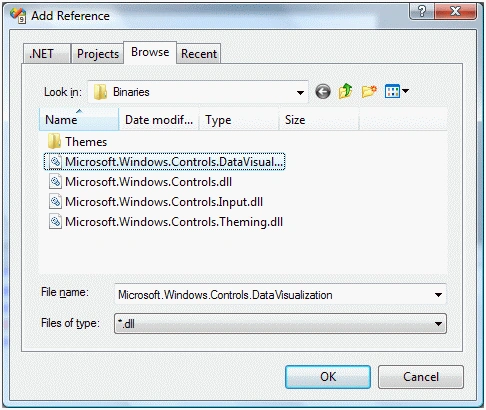
select Add Reference. This action will open the Add Reference dialog as you can
in the following Figure 1. On this dialog, select Browse option and browse the
Microsoft.Windows.Controls.DataVisualization.dll assembly from the folder where
you installed the Silverlight Toolkit. This assembly resides in the Binaries
folder.
Figure 1
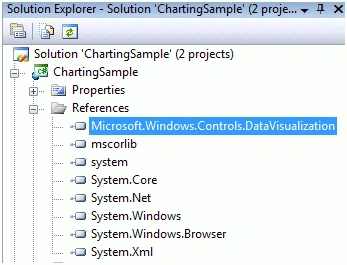
Once you add the reference, you will see the Microsoft.Windows.Controls.DataVisualization
added to your References dialog as you see in Figure 2.
Figure 2
Now, the next step is to import the
Microsoft.Windows.Controls.DataVisualization and the
Microsoft.Windows.Controls.DataVisualization.Charting namespaces to the
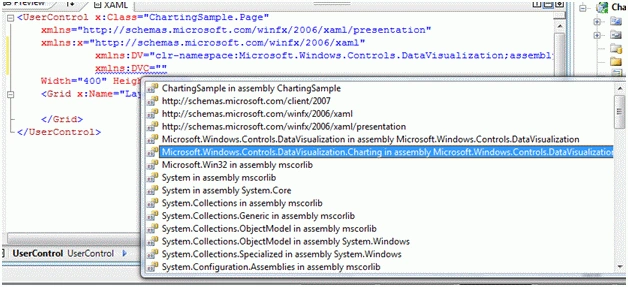
page.Once you type xmlns= in your page,
you will see these namespaces in the Intellisense. Select and add both of them
to your page as you can see in Figure 3.
Figure 3
The final reference added to the page looks like following.
As you can see here, I added name of this reference to ToolkitRef.
Now you will see ToolkitRef in your page and once you select
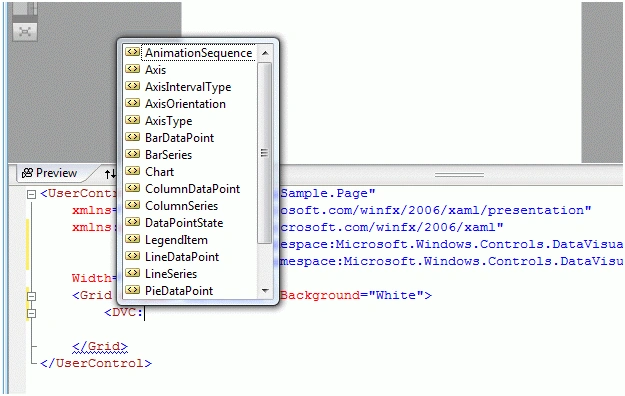
it, you will notice all Charting related elements added to the Intellisense. To
add a Chart control to your page, just select the Chart control from the list.
The list of charting related elements looks like Figure 4.
Figure 4
Creating a Chart
The Chart element
represents a Silverlight Chart control in XAML.
< DVC:Chart></DVC:Chart>
The code snippet in Listing 1 creates a Chart and sets its
width, height, and background properties of the Chart control.
The Series attribute of
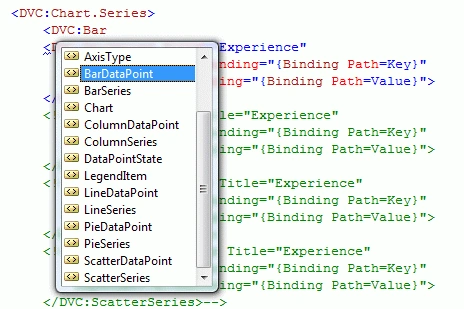
the Chart element is used to create a chart type. If you see in Figure 6, you
will notice BarSeries, ColumnSeries, LineSeries, PieSeries, and ScatterSeries
attributes and based on the attribute, the chart will be created.
Figure 6
Bar Chart
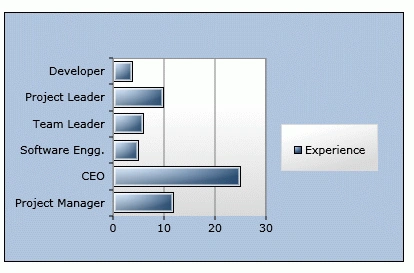
The code snippet in
Listing 2 creates a bar chart by setting Chart.Series to BarSeries. As you see,
the binding is occurred on Key and Value fields of a data source.
The code snippet in
Listing 3 creates a collection in KeyValuePair form and sets the ItemsSource
property of the chart series. Same data can be used for other chart types.
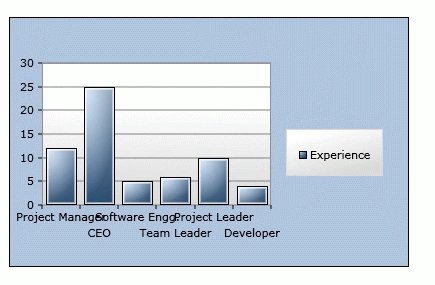
The code snippet in
Listing 4 creates a column chart by setting Chart.Series to ColumnSeries. As
you may see, the binding is occurred on Key and Value fields of a data source.
The code snippet in
Listing 5 creates a collection in KeyValuePair form and sets the ItemsSource
property of the chart series. Same data can be used for other chart types.
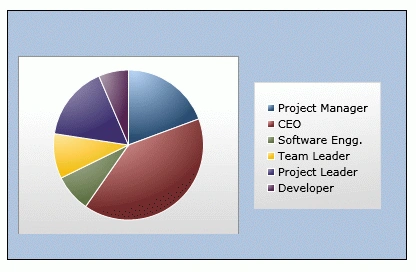
The code snippet in
Listing 6 creates a pie chart by setting Chart.Series to BarSeries. As you may
see, the binding is occurred on Key and Value fields of a data source.
The code snippet in
Listing 7 creates a collection in KeyValuePair form and sets the ItemsSource
property of the chart series. Same data can be used for other chart types.
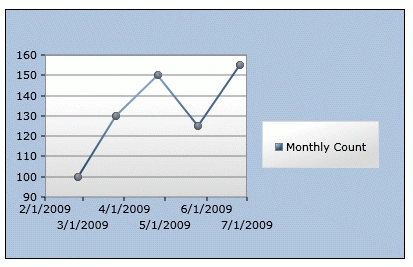
The code snippet in
Listing 8 creates a line chart by setting Chart.Series to LineSeries. As you
may see, the binding is occurred on Key and Value fields of a data source.
The code snippet in
Listing 9 creates a collection in KeyValuePair form and sets the ItemsSource
property of the chart series. Same data can be used for other chart types.
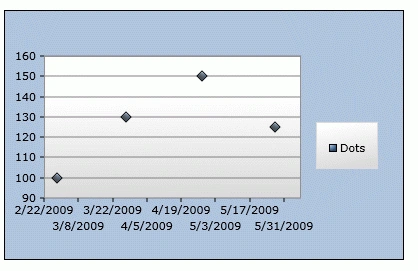
The code snippet in
Listing 9 creates a scatter chart by setting Chart.Series to ScatterSeries. As
you may see, the binding is occurred on Key and Value fields of a data source.
The code snippet in
Listing 10 creates a collection in KeyValuePair form and sets the ItemsSource
property of the chart series. Same data can be used for other chart types.
This tutorial discusses how to the Silverlight Toolkit to
create various charts including a bar chart, column chart, pie chart, scatter
chart and a line chart.
Charting componentCharting in SilverlightSilverlight Charting
4 Comments
Join the conversation! Your thoughts help the community grow.
Sign in to leave a comment
It is the same account you read, post and publish with — and you will come straight back to this page.
Hi Mahesh,
Nice Artice!!But can u please tell me how to use multiple bar charts in a single chart control like the below one...
http://www.c-sharpcorner.com/Forums/Thread/136634/use-multiple-barcharts-in-a-single-chart-controlin-silverlig.aspx
Can you please help on this...
Thanks,
Prasant



kiran kumarPosted Aug 31, 2012, 4:33 AM
wonderful mahesh.....Really it is very helpful in my project..
Prasant JinagaPosted Aug 18, 2011, 5:58 AM
Hi Mahesh, Nice Artice!!But can u please tell me how to use multiple bar charts in a single chart control like the below one... http://www.c-sharpcorner.com/Forums/Thread/136634/use-multiple-barcharts-in-a-single-chart-controlin-silverlig.aspx Can you please help on this... Thanks, Prasant
nmjh ShettyPosted Mar 24, 2011, 3:15 AM
EXCELLENT WORK DUDE ............ It works Yaar !!!! Thanks
Anjaiah KeesariPosted Aug 13, 2010, 5:02 PM
thanks Mahesh it's really helpful, planning to use the same in my application