

Azure Devops is the best suite for incorporating DevOps culture in a project or company. Azure DevOps contains some MicroApps associated with each stage of the software cycle.
Let’s review each MicroApps in Azure Devops,
- Azure Boards: Tool related to Agile and project planning
- Azure Repos: Tool for managing repos using Git or TFS
- Azure Pipelines: Tool for creating pipelines to implement continuous integration and continuous deployment
- Azure Test plan: Tool for managing manual and automation test
- Azure Artifacts: Tool for managing and delivering internal packages or libraries
In this article, we will keep the focus on Azure Pipelines, we will create a pipeline to verify, compile and publish a Blazor WebAssembly Application.
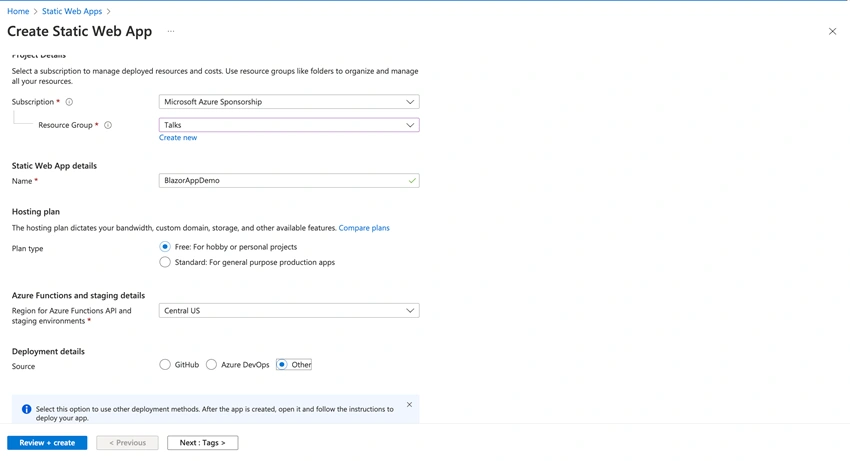
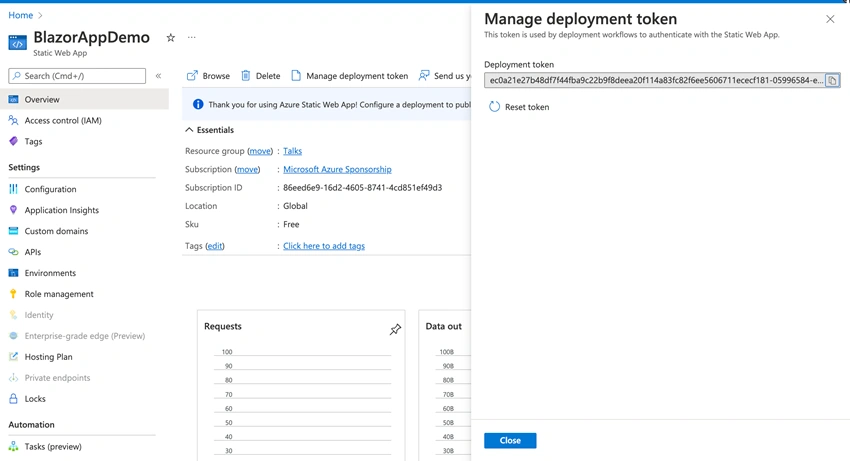
A Blazor WebAssembly App is a single page application (SPA) which means we can use a service for this kind of application to host our website. Azure has a service called Azure Static Web Apps that support, React, Vue.js, Blazor WebAssembly and other technologies.
First, we need to have a repo with a Blazor WebAssembly application using .NET 6 or 7.
Then we will create a new pipeline for this application, since Blazor is a dotnet application we can use the dotnet CLI to execute the unit tests, compile and publish the project.
On the screen you can select Azure repos git
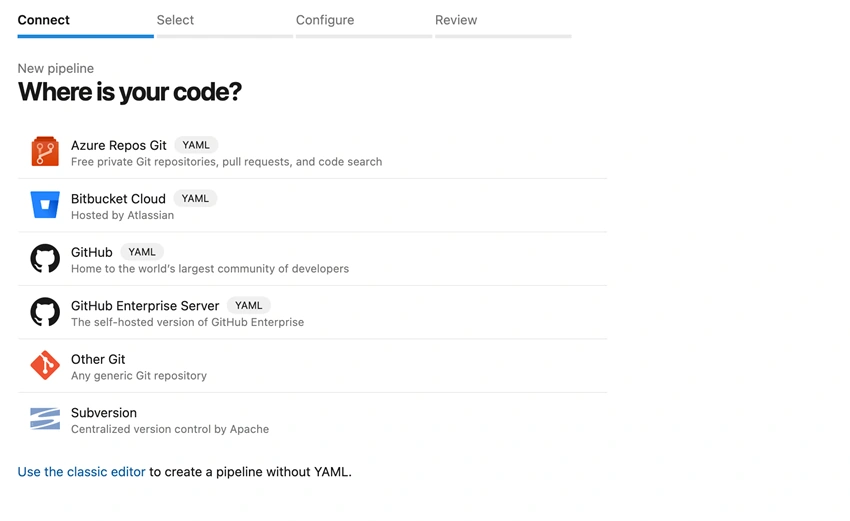
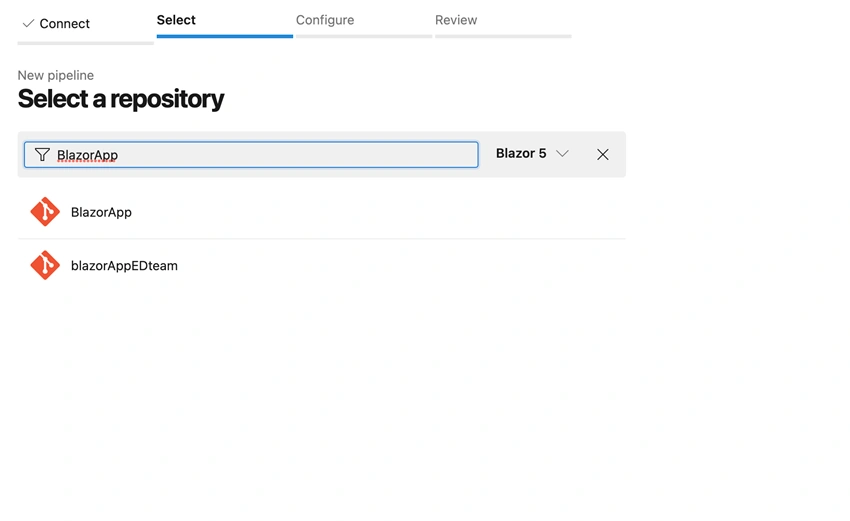
And select the repository that contains the code related to your app:
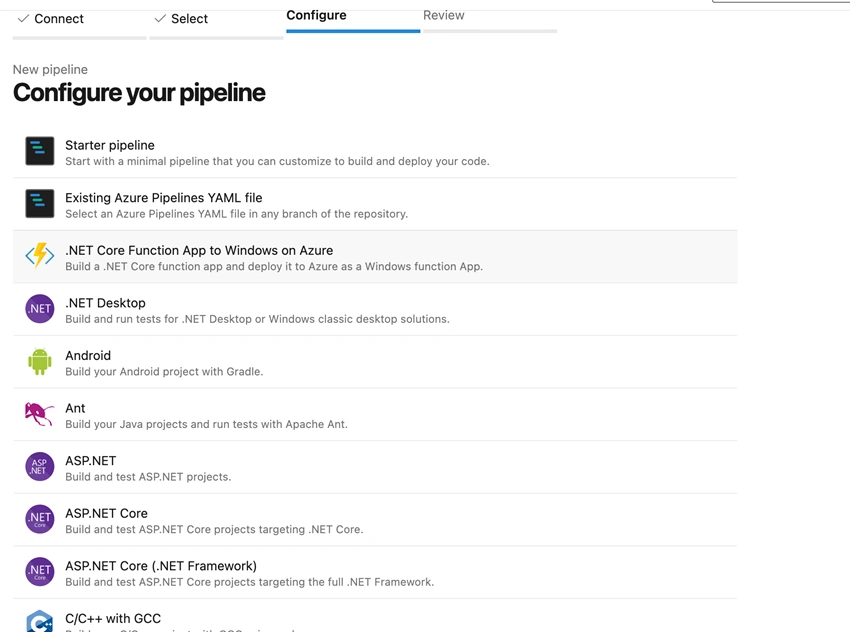
We can select in the configuration “ASP.NET Core” and automatically we will have the normal steps for any .NET Application or just an empty job.
We also need to add a task to publish the artifacts to use it during the deploy. This is the final YAML file:
# ASP.NET Core
# Build and test ASP.NET Core projects targeting .NET Core.
# Add steps that run tests, create a NuGet package, deploy, and more:
# https://docs.microsoft.com/azure/devops/pipelines/languages/dotnet-core

trigger:
- main

pool:
  vmImage: ubuntu-latest

variables:
  buildConfiguration: 'Release'

steps:
- task: DotNetCoreCLI@2
  displayName: Publish
  inputs:
    command: publish
    publishWebProjects: True
    arguments: '--configuration $(BuildConfiguration) --output $(build.artifactstagingdirectory)'

- task: PublishBuildArtifacts@1
  inputs:
    PathtoPublish: '$(Build.ArtifactStagingDirectory)'
    ArtifactName: 'drop'
    publishLocation: 'Container'
The artifactName is "drop" we need to use this name
Let’s execute the pipeline and see if everything is working as expected. You can use the option save and run.
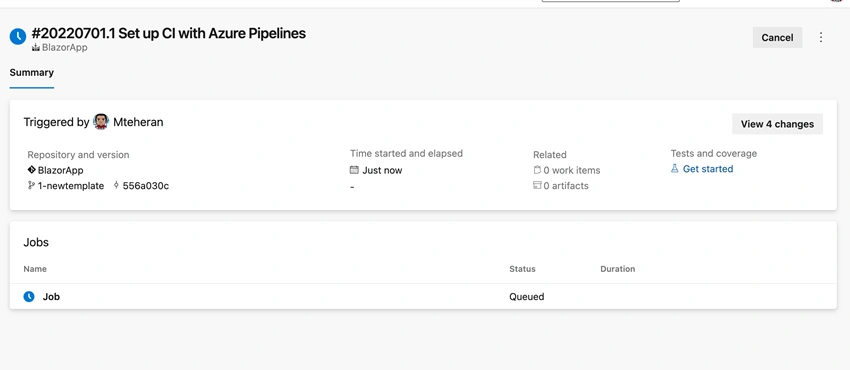
We need to wait and see a green status when the job finishes to confirm if the pipeline is working fine:
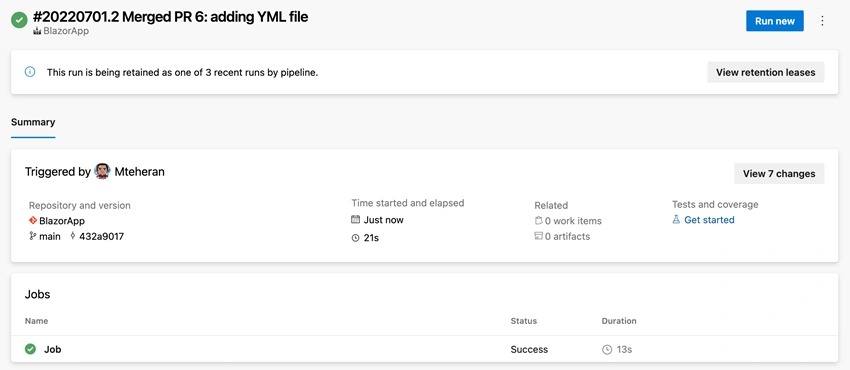
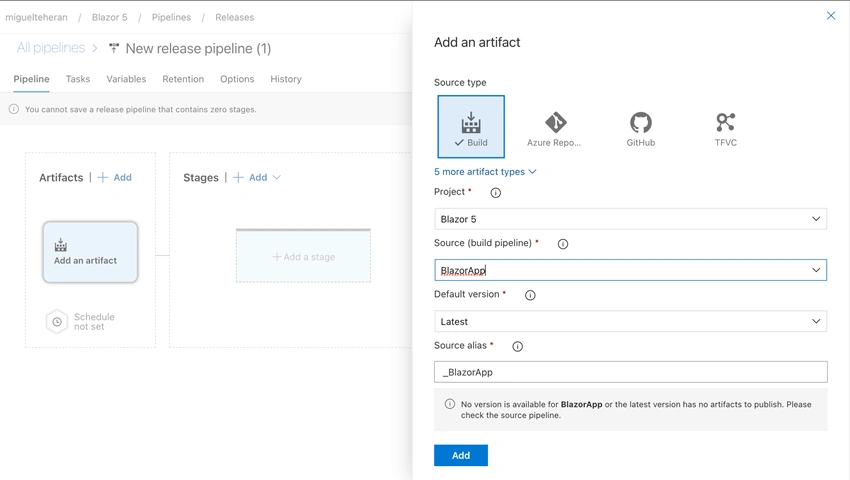
Now navigate to the release section and create a new pipeline for publishing the application in Azure.
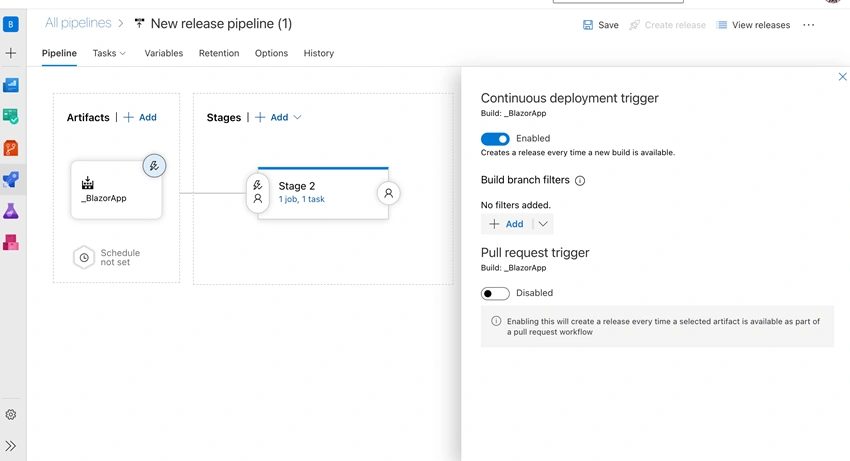
Select the artifact from the current project and the pipeline created before:
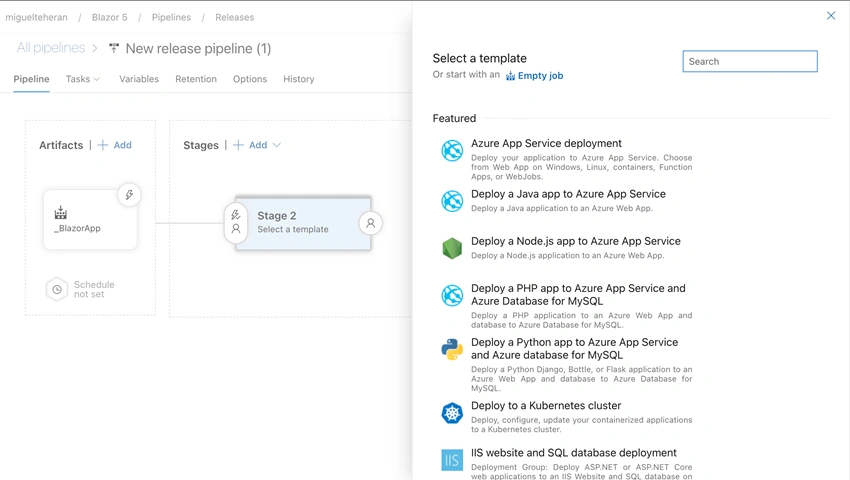
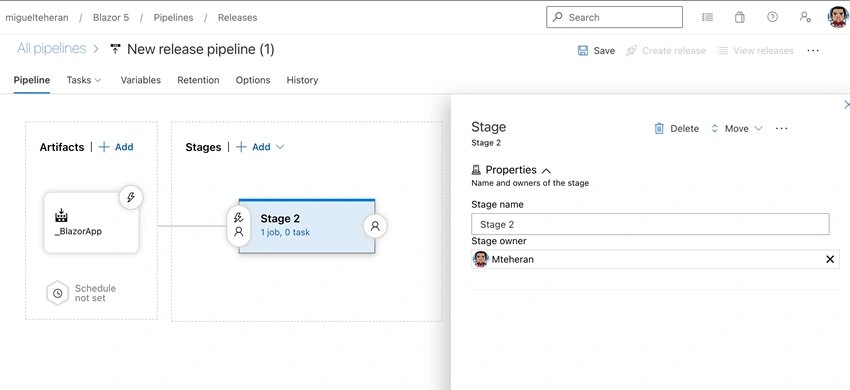
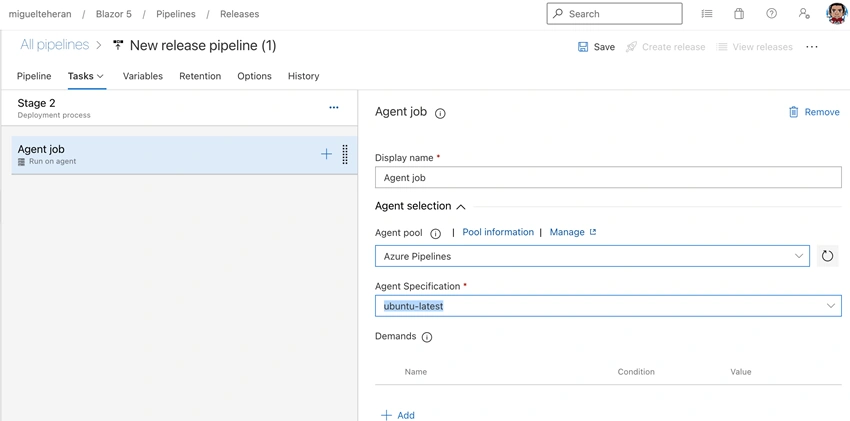
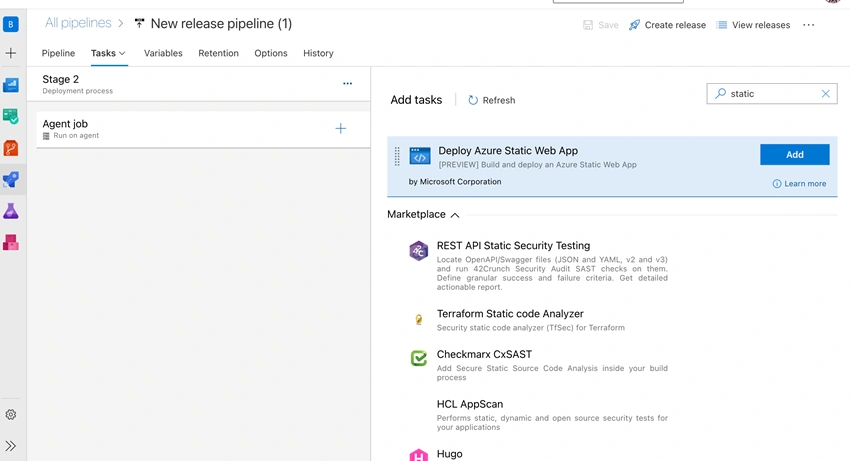
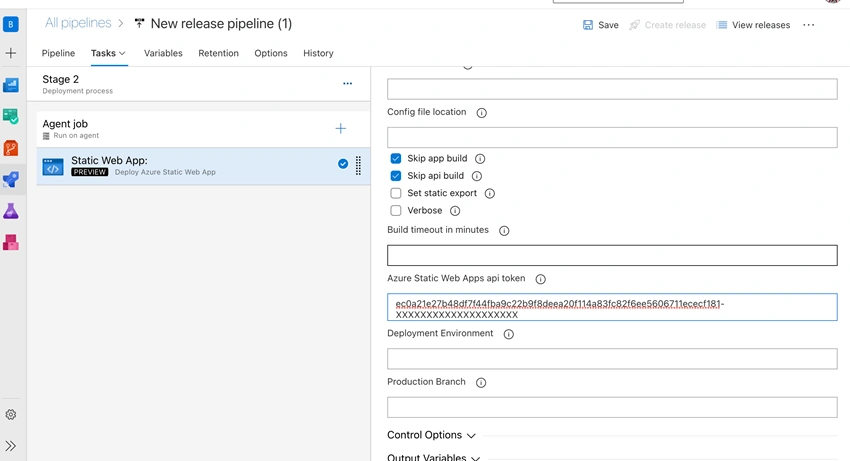
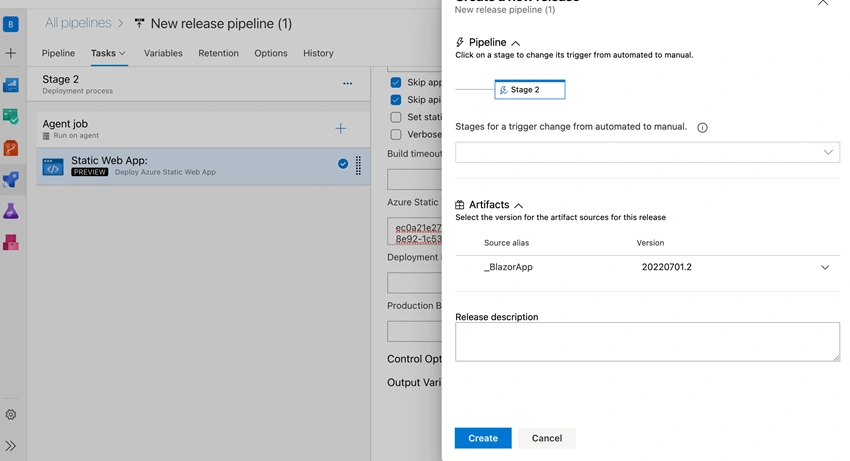
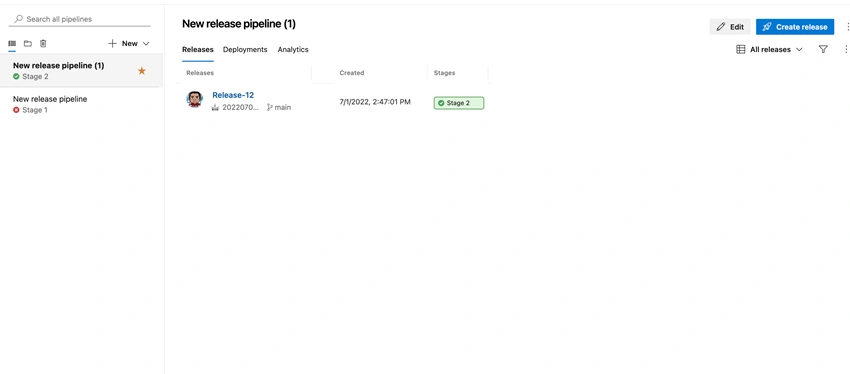
Then add a new Stage and select an empty job:
Thomas KellyPosted Jun 12, 2023, 6:58 PM
Hello, works pretty well except as of 06-2023 I had to add "zipAfterPublish: false" to the Pipeline publish step. steps:- task: DotNetCoreCLI@2 displayName: Publish inputs: command: publish publishWebProjects: True arguments: '--configuration $(BuildConfiguration) --output $(build.artifactstagingdirectory)' -> zipAfterPublish: false