

Generating a PDF in any business application is a common use case. For example, we generate reports, invoices, blog content, documents, guidelines, forms, etc in PDF form.
There are various ways to generate PDFs in web applications,
-
Server Side PDF Generation
We can generate PDF on the server-side and download it on the client-side application. This approach is useful when you have a very large dataset which you want to generate in PDF. This approach will require the extra API call on the server to get the PDF which can be extra overhead if your PDF is small.
-
Client-Side PDF Generation
Another popular approach is we generate PDF on the client-side application directly in the browser. This approach is very common when you want to generate a small size PDF for reports, invoices, forms, etc. This approach also gives us an advantage of real-time pdf generation; e.g. We can generate the PDF based on the user interaction.
We can generate PDF on client side in the following ways,
- Using the browser window.print() function
This is a straightforward approach, where we directly save the web page as a PDF form. - This approach doesn't require any other implementation. also, we can control the divisions which we want to show in PDF up to some level using CSS. Using this approach we have to create the HTML page for our PDF layout and then execute the window.print() to save it as PDF. This approach is not useful when we want to generate custom PDF (not the same as a web page).
- Using JavaScript Library
This helps us to generate custom PDF layouts, add the styling, images, meta information, tables, list, and many more things. This gives us more control over the PDF formatting.
In this article, we will use JavaScript Library to generate PDF in the browser.
In this article, we will use PDFMake to export a PDF in an angular application. We will create the Invoice Generator Angular application with PDFMake. We will get the invoice details from form and generate the PDF.

We will demonstrate the various features of PDFMake like columns, table, list, QR code, Custom Styles. At the end of this article, our application will look like this,
We will demonstrate the various features of PDFMake like columns, table, list, QR code, Custom Styles. At the end of this article, our application will look like this,
Before we start with application development let's see an introduction about PDFMake.
PDFMake Introduction
PDFMake is a popular client-side and server-side pdf generation javascript library.
It provides various features like adding tables, columns, lists, links, images, styling, headers/footers, document meta-information, and all other important PDF generation features.
It also provides some extraordinary features like adding QR Code, Watermark, Table of Content, Encryption and Access Privileges.
It has around 8.4 K stars and 1.5 K forks on GitHub.
Now, let's see How to generate PDF with PDFMake in Angular using Invoice Generator demo application. Let's start the step by step implementation.
Create an Angular Application
We will create a new angular application using the following Angular CLI command.
Note
If you want to generate PDF in your existing application then skip this step.
- ng new [application-name]
At the time of writing this article, I was using Angular 10.
Install PDFMake library
Execute the following command to Install the PDFMake library.
- npm install --save pdfmake
Once it is installed, to use PDFMake in the browser we need to import pdfmake.js and vfs_fonts.js file. Add the following statements on top of the component or service where you want to use PDFMake.
In our application, we will generate a PDF in the AppComponent. So we will add the following two statements on top of the AppComponent.
- import pdfMake from "pdfmake/build/pdfmake";
- import pdfFonts from "pdfmake/build/vfs_fonts";
- pdfMake.vfs = pdfFonts.pdfMake.vfs;
Generate the Simple PDF for testing the PDFMake Setup
PDFMake follows the declarative approach. It means, you’ll never have to calculate positions manually or use commands like writeText(text, x, y), moveDown etc…, as you would with a lot of other libraries. - From PDFMake Official Document
The most fundamental concept to be mastered is the document definition object. The document definition object is a kind of JSON object where you provide all your PDF configuration with different keys. Like content, column, table, ul, image, style, etc.
For example, we can generate the simple PDF with header and content as follows
- /** app.component.ts**/
- import { Component } from '@angular/core';
- import pdfMake from "pdfmake/build/pdfmake";
- import pdfFonts from "pdfmake/build/vfs_fonts";
- pdfMake.vfs = pdfFonts.pdfMake.vfs;
- export class AppComponent {
- generatePDF() {
- let docDefinition = {
- header: 'C#Corner PDF Header',
- content: 'Sample PDF generated with Angular and PDFMake for C#Corner Blog'
- };
- pdfMake.createPdf(docDefinition).open();
- }
- }
- <!-- app.component.html -->
- <button (click)="generatePDF()">Generate PDF</button>
In generatePDF() we have added a simple document definition object to generate simple PDF. pdfMake has createPdf(docDefinition) method to create PDF from document definition object and open() method to open created PDF in browser.
It also has other inbuilt methods to download and print PDF.
-
pdfMake.createPDF(docDefinition).open();
-
pdfMake.createPDF(docDefinition).download();
-
pdfMake.createPDF(docDefinition).print();
So now when you will click on Generate PDF button, you will get PDF as below

If you can generate this PDF then Great  . You have successfully set up the PDFMake in Angular application. If you are facing any issue then check the above steps again, even if it is not resolved comment in the below comment section.
. You have successfully set up the PDFMake in Angular application. If you are facing any issue then check the above steps again, even if it is not resolved comment in the below comment section. Our basic application set up is done. Now let's start with building an invoice generator application.
Invoice Generator Application
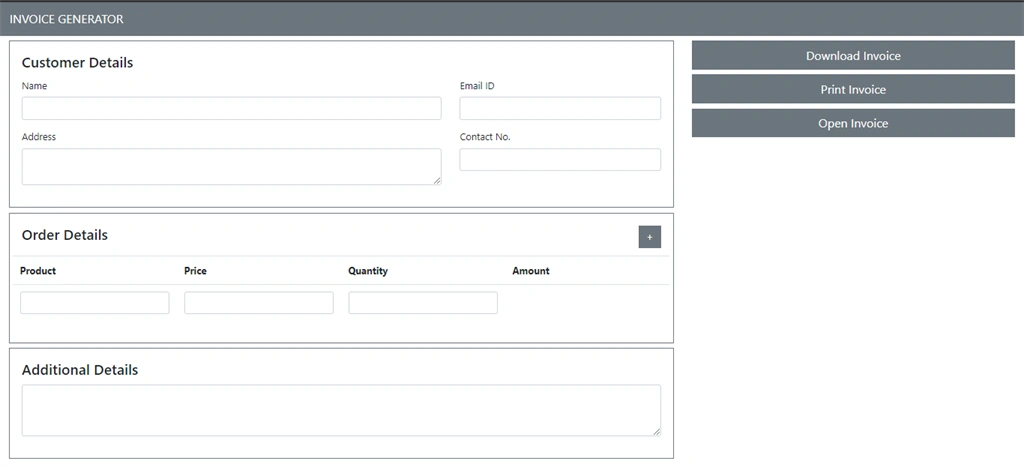
We will first design the invoice form in app.component.html, from where we will get the customer details, order details, and additional details.
This page will also have three buttons - Download Invoice, Print Invoice, and Open Invoice.
- <!-- app.component.html : Invoice Form UI -->
- <nav class="navbar navbar-expand-sm navbar-dark bg-secondary">
- <a class="navbar-brand" href="#">INVOICE GENERATOR</a>
- </nav>
- <div class="container-fluid pt-2">
- <div class="row">
- <div class="col-md-8">
- <div class="card border-secondary">
- <div class="card-body">
- <h4 class="card-title">Customer Details</h4>
- <div class="row">
- <div class="col-md-8">
- <div class="form-group">
- <label for="name">Name</label>
- <input type="text" class="form-control" name="name" id="name">
- </div>
- <div class="form-group">
- <label for="address">Address</label>
- <textarea class="form-control" name="address" id="address" row="3"></textarea>
- </div>
- </div>
- <div class="col-md-4">
- <div class="form-group">
- <label for="email">Email ID</label>
- <input type="email" class="form-control" name="email" id="email">
- </div>
- <div class="form-group">
- <label for="contactNo">Contact No.</label>
- <input type="number" class="form-control" name="contactNo" id="contactNo">
- </div>
- </div>
- </div>
- </div>
- </div>
- <div class="card border-secondary mt-2">
- <div class="card-body">
- <h4 class="card-title d-flex justify-content-between">Order Details <button type="button"
- class="btn btn-secondary">+</button></h4>
- <div class="row">
- <table class="table">
- <thead>
- <tr>
- <th width="25%">Product</th>
- <th width="25%">Price</th>
- <th width="25%">Quantity</th>
- <th width="25%">Amount</th>
- </tr>
- </thead>
- <tbody>
- <tr>
- <td scope="row">
- <input type="text" class="form-control" name="productName" id="productName">
- </td>
- <td>
- <input type="number" class="form-control" name="price" id="price">
- </td>
- <td>
- <input type="number" class="form-control" name="quantity" id="quantity">
- </td>
- <td></td>
- </tr>
- </tbody>
- </table>
- </div>
- </div>
- </div>
- <div class="card border-secondary mt-2">
- <div class="card-body">
- <h4 class="card-title">Additional Details</h4>
- <div class="form-group">
- <textarea class="form-control" name="additionalDetails" rows="3"></textarea>
- </div>
- </div>
- </div>
- </div>
- <div class="col-md-4">
- <button type="button" name="" class="btn btn-secondary btn-lg btn-block">Download Invoice</button>
- <button type="button" name="" class="btn btn-secondary btn-lg btn-block">Print Invoice</button>
- <button type="button" name="" class="btn btn-secondary btn-lg btn-block">Open Invoice</button>
- </div>
- </div>
- </div>
Haseeb SultanPosted Jan 16, 2023, 7:09 PM
Hi, Ankit! Thanks a lot for such an amazing and detailed demonstration for PDF generation in Angular. I have a question that instead of adding table rows and columns dynamically through form inputs, is it possible to convert an already rendered HTML table into a PDF document? I had done this task using jsPDF, but there were a lot of limitations in that library (i.e. I couldn't add page margins and other custom styling in the PDF document). Please, educate me if it's possible because my project requirements are not being fulfilled this way. Thank you!
Mike AsequiaPosted Aug 13, 2022, 10:36 AM
Pdfmake on iOS or iphone is only showing page 1 and blurry, how to solve this?
Aquib IqbalPosted Oct 21, 2021, 5:04 PM
Hi Ankit Prajapati, How to add image in pdf?
Kanishka NaikPosted Aug 30, 2021, 4:10 PM
@ankit prajapati please let me know as soon as possible.
Kanishka NaikPosted Aug 30, 2021, 4:09 PM
Ankit Prajapati how to connect html to content in options
Drilon KukajPosted Jul 7, 2021, 2:56 PM
Can we make e qr code that can send us to the link with that same pdf so we can later download it.