

Introduction
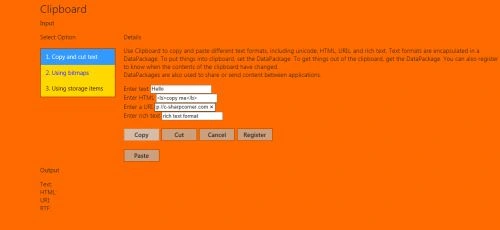
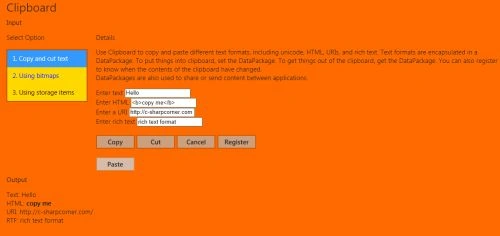
In this section we will discuss the clipboard; how to copy and paste various text formats, HTML, URLs and rich text. Text formats are encapsulated in a data package. To put things into the clipboard, set the data package. Data packages are also used to share or send content between applications.
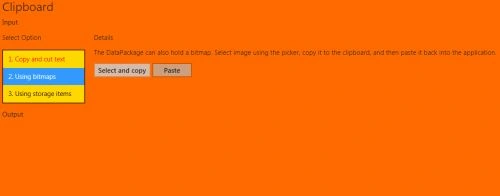
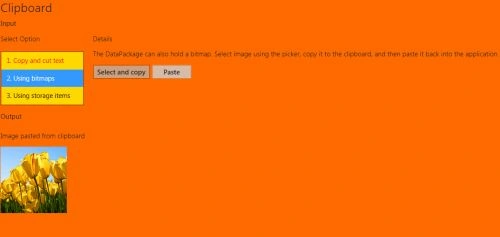
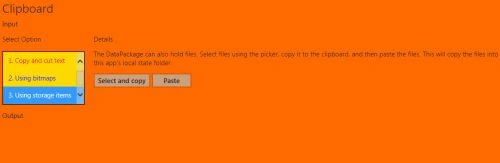
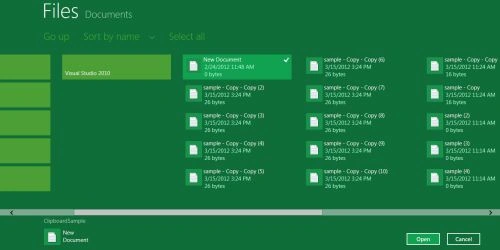
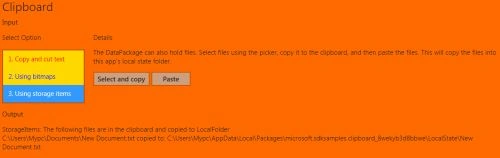
By using bitmaps we can select any file to copy and paste to the clipboard. The data package can also hold a bitmap. Select an image using the picker, copy it to the clipboard and then paste it back to the application. The DataPackage can also hold files. Select files using the picker, copy it to the clipboard, and then paste the files. This will copy the files into this app's local state folder.
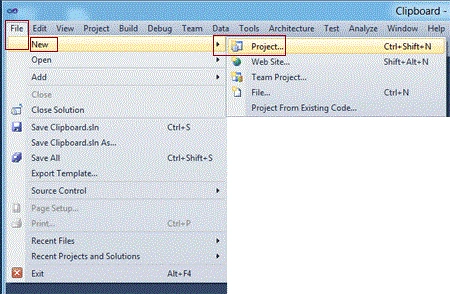
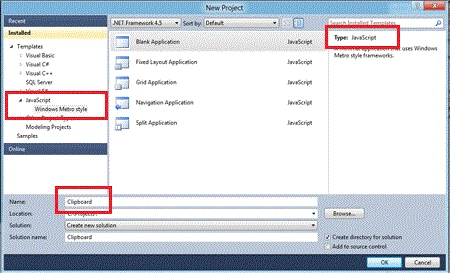
Step 1 : First of all you will create a new Metro Style Application; let us see the description with images of how you will create it.
- Open Visual Studio 2011
- File -> New -> Project
- Choose Template -> JavaScript-> Windows Metro Style -> Application
- Rename this Application
Step 2 : In the Solution Explorer there are two files that we will primarily work with, default.js and default.html.

Step 3 : Open the default.html page and add the following code. The code will look as shown below.
Code :
<!DOCTYPE html>
<html>
<head>
<title>Clipboard</title>
<!-- WinJS references -->
<link href="winjs/css/ui-light.css" rel="stylesheet" type="text/css" />
<script type="text/javascript" src="WinJS/js/base.js"></script>
<script type="text/javascript" src="WinJS/js/ui.js"></script>
<script type="text/javascript" src="WinJS/js/wwaapp.js"></script>
<!-- Base references -->
<link rel="stylesheet" type="text/css" href="css/base-sdk.css" />
<script type="text/javascript" src="base-sdk.js"></script>
<!-- Application references -->
<link rel="stylesheet" type="text/css" href="css/program.css" />
<script type="text/javascript" src="program.js"></script>
</head>
<body role="application" style="background-color:#ff6a00">
<div id="rootGrid">
<div id="header" role="contentinfo">
</div>
<div id="content">
<h1 id="featureLabel">
Clipboard</h1>
<h2 id="inputLabel">
Input</h2>
<div id="input" role="main" aria-labelledby="inputLabel">
<div class="options">
<h3 id="listLabel">
Select Option</h3>
<select size="3" id="Sections" aria-labelledby="listLabel" style="background-color:#ffd800">
<option selected="selected" value="1" style="color:#f00">1. Copy and cut text </option>
<option value="2" style="color:#001cff">2. Using bitmaps</option>
<option value="3" style="color:#300202">3. Using storage items</option>
</select>
</div>
<div class="details" role="region" aria-labelledby="descLabel" aria-live="assertive">
<h3 id="descLabel">
Details</h3>
<!-- Section 1 Input -->
<div class="item" id="Section1Input">
<p>
Use Clipboard to copy and paste different text formats, including unicode, HTML,
URIs, and rich text. Text formats are encapsulated in a DataPackage. To put things
into clipboard, set the DataPackage. To get things out of the clipboard, get the
DataPackage. You can also register to know when the contents of the clipboard have
changed.
<br />
DataPackages are also used to share or send content between applications.
</p>
<div id="text">
Enter text
<input id="Section1Text" value="regular ol' unicode" />
</div>
<div id="HTML">
Enter HTML
<input id="Section1Html" value="<b>copy me!</b>" />
</div>
<div id="URI">
Enter a URI
<input id="Section1URI" value="http://www.microsoft.com" />
</div>
<div id="RTF">
Enter rich text
<input id="Section1Rtf" value="rich text format" />
</div>
<br />
<button class="action" id="Section1Copy">
 e
e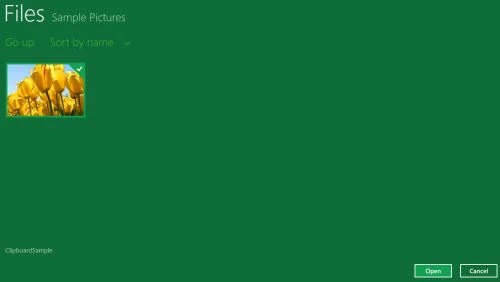
Join the conversation! Your thoughts help the community grow.