

Introduction
I will demonstrate how to clone things in PowerApps in this article. In the article below, I'll present the scenario and its steps or screenshots.
Scenario
Clone things by the requester or user to save time on duplicate entries is an interesting requirement. This article will explain how to open the duplicated item immediately in the form and how to clone objects with confirmation messages.
Objective
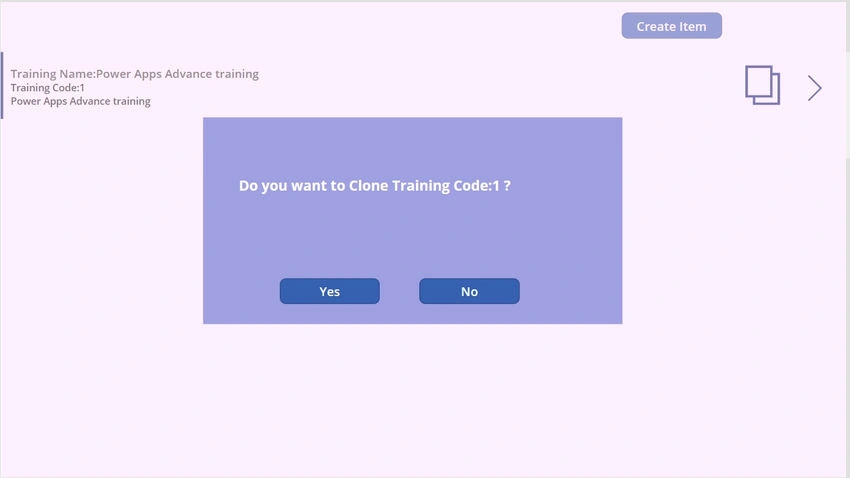
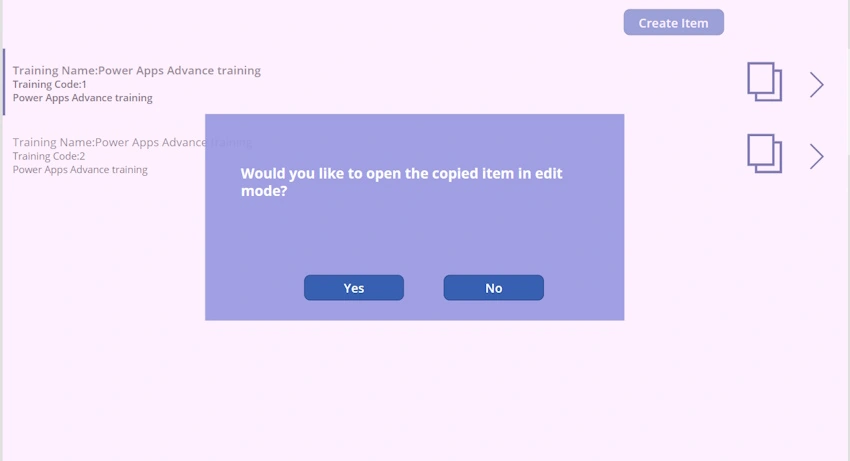
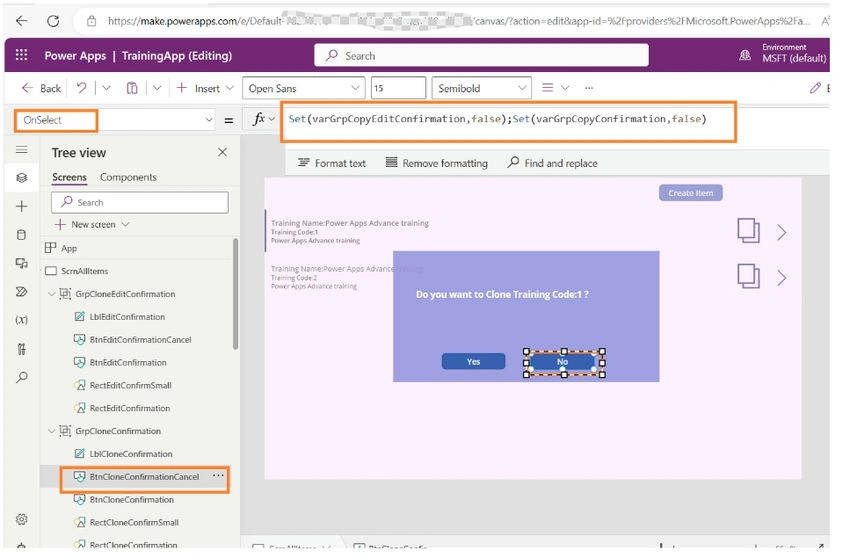
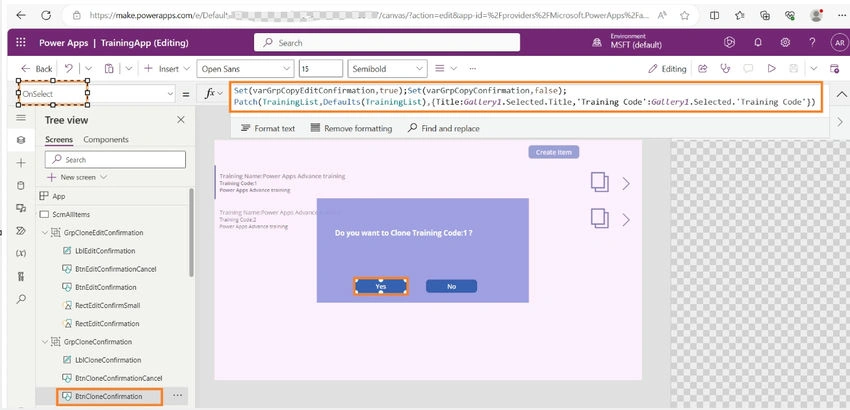
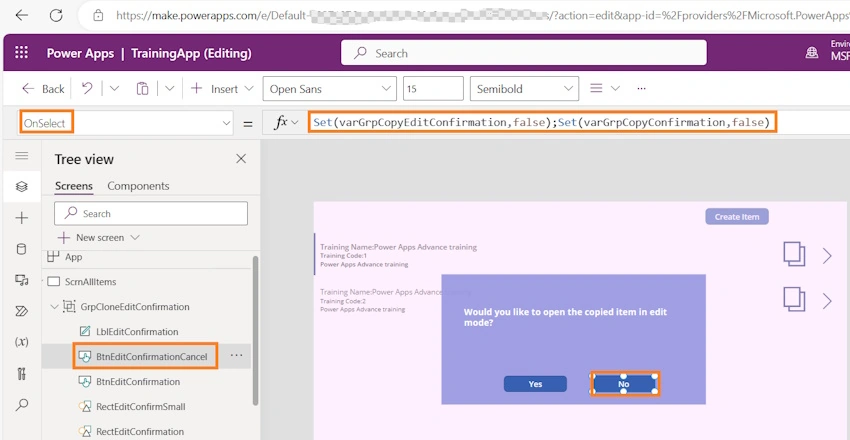
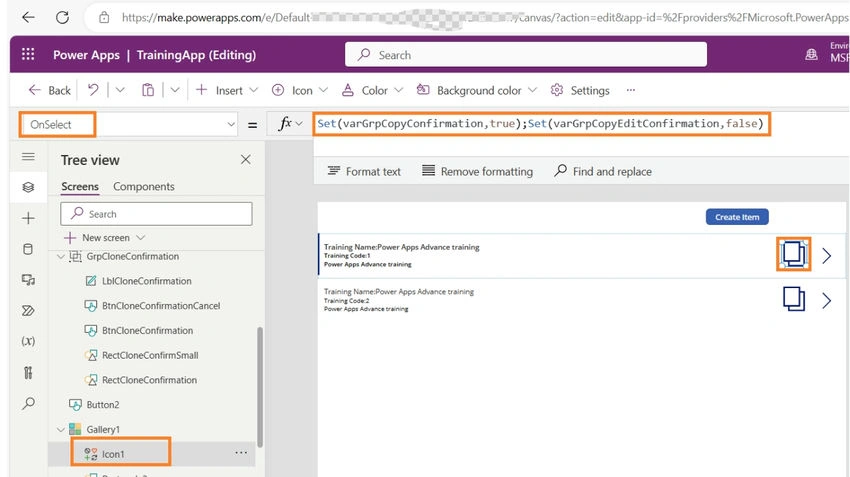
I've used a common gallery with two icons: one to open the item in a form so you can read or update its details and another to clone it. A popup window asking the user to confirm that they truly want to clone will show up when they click Clone. The item will be cloned, and a second popup asking if the user wants to open the item in edit form will show up if they answer in the affirmative. The item will open in edit form if the user hits yes. The user will be returned to the gallery if they choose to cancel on either of the two popups. The cloned item will show up as the first item in the gallery if the user chooses not to open the item in the edit form (if the gallery is sorted in descending order).
I've included a Clone icon in my gallery to carry out the particular activity. To create a request, save an item in a list, and open an item from the gallery to amend the form, please refer to my article. Only the creator is able to clone their own work in this gallery. Therefore, a formula is added to the visible property to verify whether the logged user is also the item's creator.
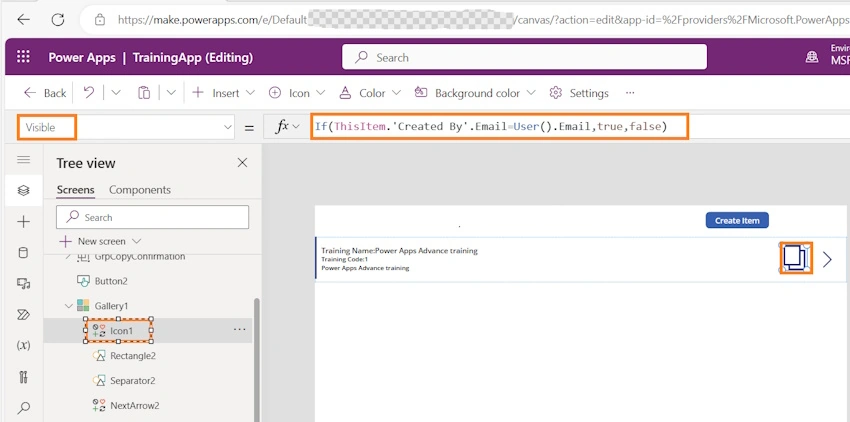
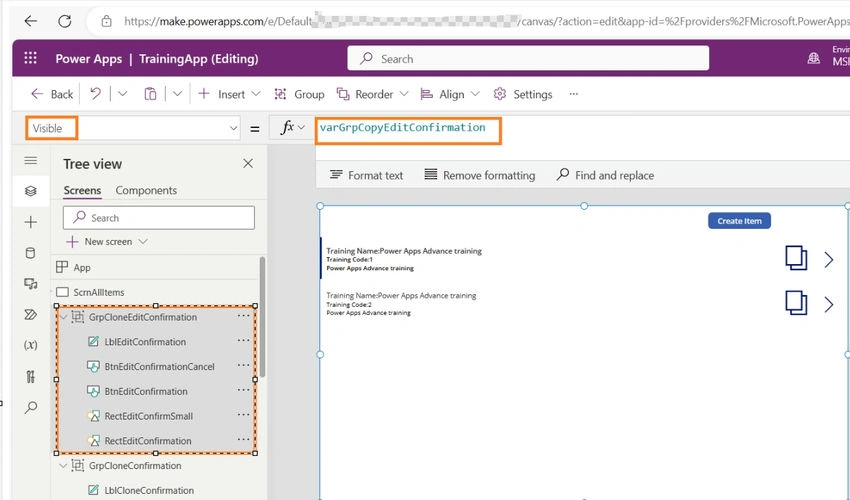
We will be building two groups because we are creating two pop-ups. Let's examine each category separately. Variables will be used to both show and hide Pop Up.
Step 1. Build the First Confirmation Box to Clone the item/request
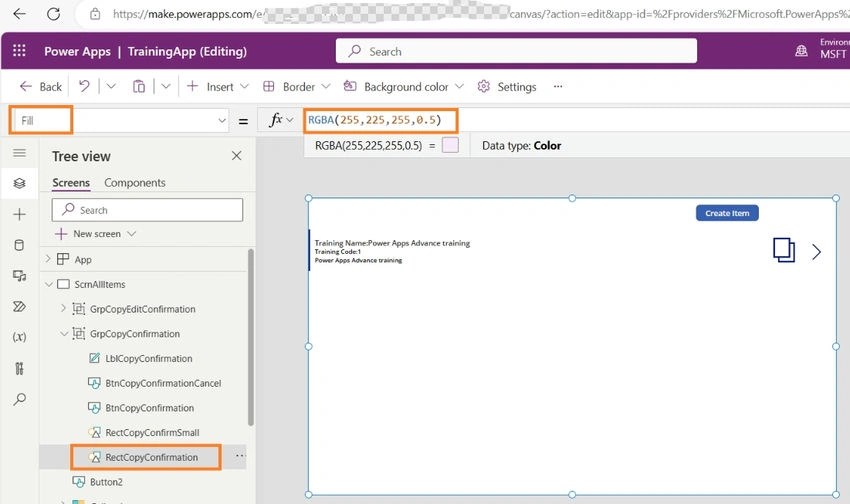
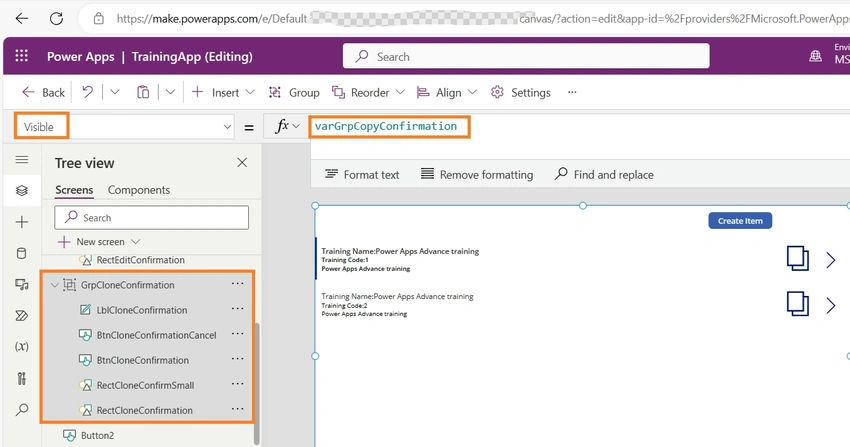
Important: The group's control sequence should follow the pattern in the image below. Even if there is a random addition of controls, utilize the bring the front menu to bring in the items in the picture below in that order. I'm going to work on the user interface for each control separately and then put them all together. In order to disable background actions, I am aligning the Background rectangle (RectCloneConfirmation), which fills the full screen and is fading, given that every other control has already been added and renamed. On top of the background grayed-out rectangle (RectCloneConfirmation), all of the controls are visible.
Note. We might wonder why a rectangle is not being shown, i.e because a rectangle’s visible property is set to false through a variable. I will share the screenshot below.
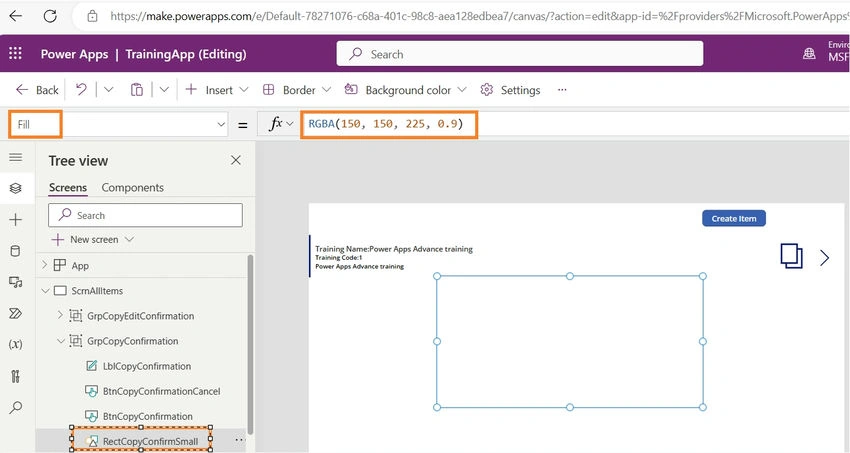
In a similar manner, the Popup Rectangle (RectCloneConfirmSmall) is dragged to the center of the screen in the image below. The smaller rectangle (RectCloneConfirmSmall) has its height and width set as well.
Once the label and buttons are in alignment, modify the label's text. ID is maintained in the control known as Subtitle2. Within the gallery, Subtitle2 is the control.
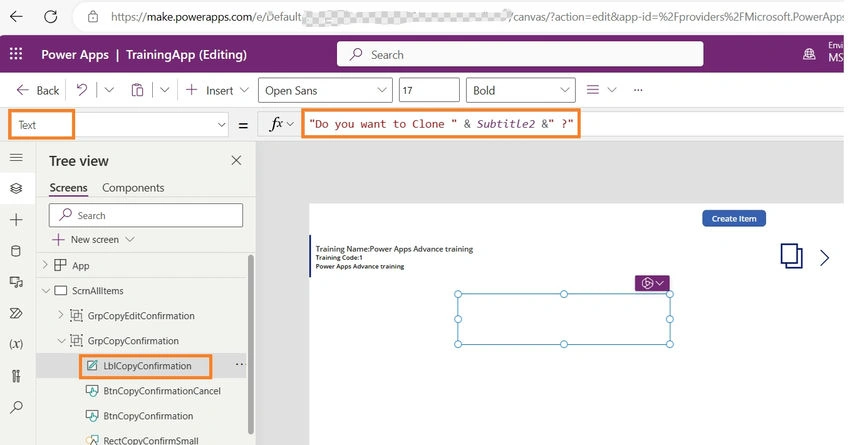
To improve visibility, change the color of the label text to white.



Join the conversation! Your thoughts help the community grow.