

Introduction
Visual Studio has already given us many controls, yet we need more for an even better UI. They must however be easy to implement.
So, in this article, we try to get into the Codeing4fun tool kit.

Without wasting any time, open a tab with this: http://coding4fun.codeplex.com/ and click on the "download" button.
When you extract the Zip file, you will get three folders, Windows Store, Windows Phone 8, and Windows Phone7.
Because of my platform issue, I will show you the toolkit on Visual Studio 2010 with Windows Phone 7.1 SDK.
So, the first question you might have is, what does Codeing4fun actually have for me?
So, my answer would be ease and comfort.
From now, you can easily implement a few harsh tasks on your Windows Phone.
In codeing4 Fun you have:
- About Prompt
- Input Prompt
- Progress Bar
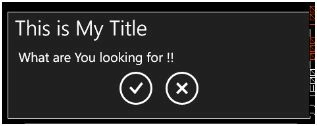
- Messageprompt
- wordprompt
- ToastPrompt
Background
You just need a Windows Phone 7 or above SDK on your Visual Studio.
And start your Windows Phone project.
Procedures
Without a DLL file, you can’t do anything in your project.
So, add the "Codeing4Fun.Tookit.Controls.dll" to your project.
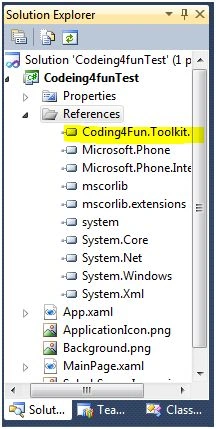
Note:
Add a "using Codeing4fun.Tookit.Controls" to the C# file, or add the following in XAML:
- xmlns:Controls="clr-namespace:
- Coding4Fun.Phone.Controls;assembly=Coding4Fun.Phone.Controls"
About Prompt
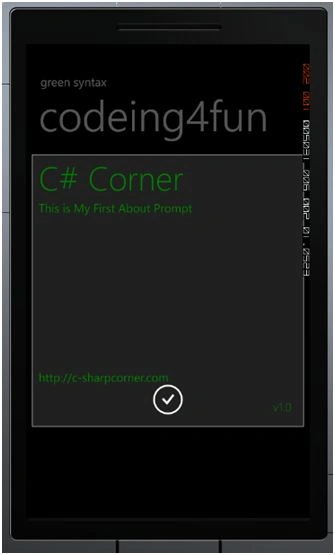
In simple words, it is a small canvas that pops up when your event raises it.
Let’s get inside it.
Since we already have the codeing4fun(.dll) reference in our project.
- private void button1_Click(object sender, RoutedEventArgs e) {
- // About Prompt: Raised by the button 1
- AboutPrompt about = new AboutPrompt();
- //Set the Property of AboutPrompt
- about.Title = "C# Corner";
- about.Footer = "http://c-sharpcorner.com";
- about.VersionNumber = "v1.0";
- about.FontSize = 20;
- about.VerticalAlignment = VerticalAlignment.Center;
- about.Body = new TextBlock { Text = "This is My First About Prompt", TextWrapping = TextWrapping.Wrap };
- about.Background = new SolidColorBrush(Colors.Red);
- about.Foreground = new SolidColorBrush(Colors.Green);
- about.Completed += new EventHandler < PopUpEventArgs < object, PopUpResult >> (about_Completed);
- about.Show();
- }
- void about_Completed(object sender, PopUpEventArgs < object, PopUpResult > e) {
- // This will be MAIN part of AboutPrompt
- }
Explanation
First, we have created an object of AboutPrompt, and then we set corresponding values to the fields of the AboutPrompt class.
Major Fields are:
- Title
- Body
- FooterVersionNumber
- InputScope
InputPrompt
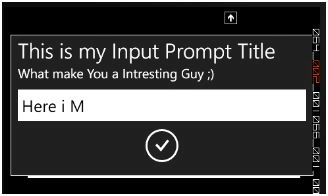
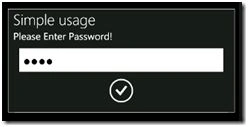
It looks similar to the earlier prompt with a little TextBox inside it.
You can use this when you want single user input.
What will be the code for this?
Here it is:
- InputPrompt input = new InputPrompt();
- private void button2_Click(object sender, RoutedEventArgs e) {
- // Input Prompt
- input.Title = "This is my Input Prompt Title";
- input.Message = "What make You a Intresting Guy ;)";
- input.InputScope = new InputScope { Names = { new InputScopeName() { NameValue = InputScopeNameValue.Number } } };
- input.Completed += new EventHandler < PopUpEventArgs < string, PopUpResult >> (input_Completed);
- input.Show();
- }
- void input_Completed(object sender, PopUpEventArgs < string, PopUpResult > e) {
- if (input.Value != null) {
- MessageBox.Show("You Have Entred This : " + input.Value);
- }
- }
- }


Join the conversation! Your thoughts help the community grow.