

Make your Windows application a more animated and colorful attraction.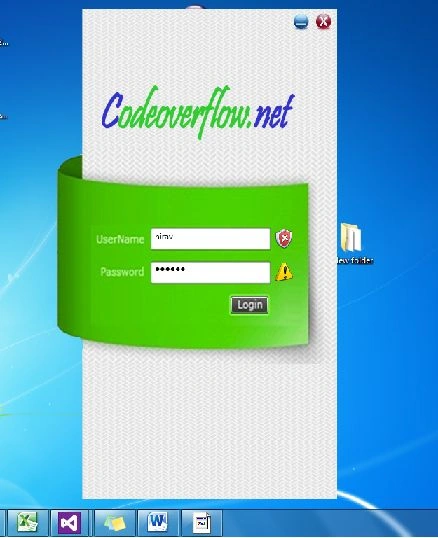
Use the following procedure.
- Open Visual Studio. (Here I used Visual Studio 2012).
- Go to New project then select WPF application as shown in the figure.

- Now go to Solution Explorer and add a new folder as shown in the figure.
- Provide it the “Images”.
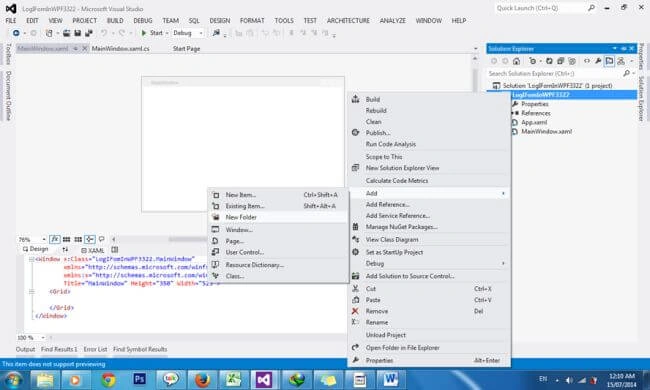
- Add the entire image to this folder. (Here the image is given in the scours code demo project).
- Add a new window to the project and give it the name “login2.xaml”.
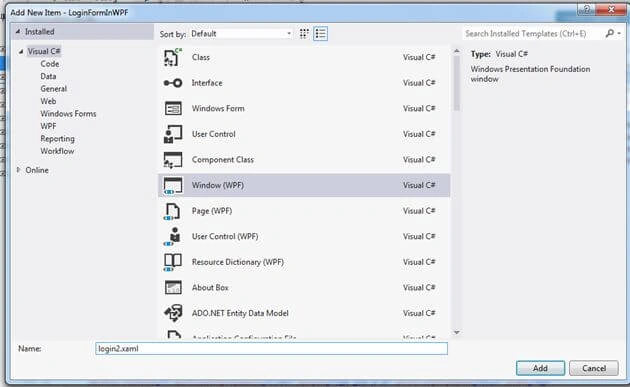
- Now open “login2.xaml” and write the code for displaying the images.
- Set the main window properties.
- <Window x:Class="LoginFormInWPF.login2"
- xmlns="http://schemas.microsoft.com/winfx/2006/xaml/presentation"
- xmlns:x="http://schemas.microsoft.com/winfx/2006/xaml"
- Title="login2" Height="700" Width="400" AllowsTransparency="True" WindowStyle="None" WindowStartupLocation="CenterScreen">
- Now add a background image display in the code.
- <Window.Background>
- <ImageBrush ImageSource="Images/Untitled-1.png"/>
- </Window.Background>
- Now add other code for displaying the validation of images, textboxes, login button and so on.
Now open in App.xamp and change the startup form name like:- <Grid>
- <TextBox HorizontalAlignment="Left" Height="30" Margin="135,313,0,0" TextWrapping="Wrap" Text="" VerticalAlignment="Top" Width="169"/>
- <Button Content="" HorizontalAlignment="Left" Margin="248,410,0,0" VerticalAlignment="Top" Width="54" Height="24" Click="Button_Click_1">
- <Button.Background>
- <ImageBrush/>
- </Button.Background>
- </Button>
- <Image HorizontalAlignment="Left" Source="Images/worng.png" Height="30" VerticalAlignment="Top" Width="41" Margin="309,313,0,0">
- </Image>
- <Image HorizontalAlignment="Left" Source="Images/Warning.png" Height="30" VerticalAlignment="Top" Width="41" Margin="309,361,0,0"/>
- <PasswordBox HorizontalAlignment="Left" Margin="135,361,0,0" VerticalAlignment="Top" Width="169" Height="30"/>
- <Image HorizontalAlignment="Left" Height="25" VerticalAlignment="Top" Width="30" Margin="368,6,0,0" Source="Images/close.png" MouseDown="Image_MouseDown_1"/>
- <Image HorizontalAlignment="Left" Height="25" VerticalAlignment="Top" Width="30" Margin="336,6,0,0" Source="Images/minimize.png" MouseDown="Image_MouseDown_2"/>
- </Grid>
Here this open the Login2.xaml form when you run the project.- StartupUri="login2.xaml"
- Now run your projects. It will show the output such as you shown in the preceding image. If you have any query then provideit in the comments section.
Kashif Ahmad KhanPosted Sep 16, 2016, 2:50 AM
Nicely explained
Shobana JPosted Jul 7, 2016, 7:41 AM
Nice explanation
Hemant SrivastavaPosted Jul 20, 2015, 11:14 AM
Looks really good!
Sibeesh VenuPosted Jul 20, 2015, 4:48 AM
Nice Share.
Naren Kumar KumaresanPosted Jul 20, 2015, 4:00 AM
good one
Debendra DashPosted Jul 20, 2015, 1:45 AM
good one.......
Debasis SahaPosted Jul 20, 2015, 1:26 AM
Good One...
Santhakumar MunuswamyPosted Jul 19, 2015, 7:44 AM
Good one
RakeshPosted Jul 19, 2015, 7:39 AM
Good One
SharadPosted Jul 19, 2015, 7:01 AM
great...
Mubarak AhmadPosted Jul 19, 2015, 6:10 AM
Nice Information..
Abhishek YadavPosted Jul 19, 2015, 1:06 AM
Wow!!! That's looks good.... (Y)
Gopi ChandPosted Jul 18, 2015, 3:36 PM
Nice effort