

Introduction
This
article shall describe an approach that may be used to collect files from
multiple locations and zip them up into a single zipped folder. The code
contained in the sample project may be useful, if one needs to gather up
multiple files, zip them up, and then do something with them, such as upload the
zipped files to a server location for storage or processing. The application
uses the SharpZipLib for the basis of the compression function.
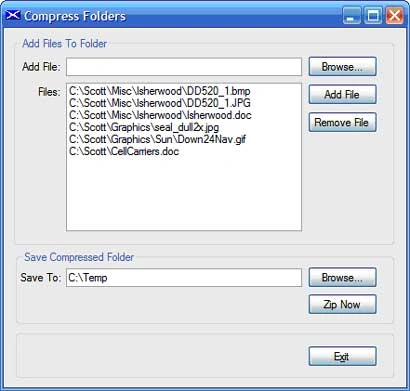
Figure 1: Demo User Interface for Folder Compression Project.
As was mentioned, the example code is dependent upon the SharpZipLib libraries;
these libraries may be downloaded from this location:
http://www.icsharpcode.net/OpenSource/SharpZipLib/
In addition to handling zip files, the library also handles tar, gzip, and bzip2
compression.
The Solution
The solution contains a single project. The example is provided in the form
of a single Windows Forms project; the project contains a single main form
(frmMain); the references are all in the default configuration, with the
exception being that the SharpZipLib DLL has been added. Having downloaded the
DLL from thewww.icsharpcode.net web,
the download was installed into the local file system and was adding by using
the "Add Reference" dialog's Browse option. All of the code necessary to drive
the application is included in the main form's code file.
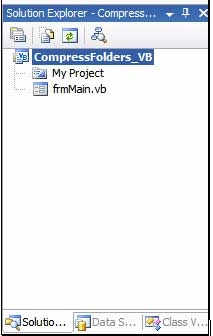
Figure 2:The Solution Explorer Showing the Project.
The Code: Compress Folders - Main Form
The Compress Folders project is a Windows Forms project containing a single
form. All UI and code required by the project are contained in the single main
form (frmMain.vb).
The only references added to the project were those necessary to support the use
of the SharpZipLib in the project, System.IO, and System.Text. The imports and
class declaration are as follows:
Imports ICSharpCode.SharpZipLib.Checksums
Imports ICSharpCode.SharpZipLib.Zip
Imports ICSharpCode.SharpZipLib.GZip
Imports System.IO
Imports System.Text
Public Class frmMain
The next block of code is used to handle the browse button's click event. This
button is used to display the open file dialog; this dialog is used to capture
the path to a folder that the user wants to include in the zipped folder. The
code is annotated such that you may review descriptions of what each section of
the code is doing by reading though this code block:
Private Sub btnBrowse_Click(ByVal sender As System.Object, ByVal e As System.EventArgs) HandlesbtnBrowse.Click
' configure the open file dialog
openFileDialog1.Title = "Add File"
openFileDialog1.Filter = "All Files (*.*)|*.*"
openFileDialog1.FileName = ""
' return if the user cancels the operation
If openFileDialog1.ShowDialog() = DialogResult.Cancel Then
Return
End If
' set a local variable to contain the file name
' captured from the open file dialog
Dim sFilePath As String
sFilePath = openFileDialog1.FileName
If sFilePath = "" Then
Return
End If
' make sure the file exists before adding
' its path to the list of files to be
' compressed
If System.IO.File.Exists(sFilePath) = False Then
Return
Else
txtAddFile.Text = sFilePath
End If
End Sub
The next block of code is used to add a file selected by the previous method (Browse button) and add to a list of files to included in the zipped folder. Again, this section of code is annotated to describe what each part of the code does.
Private Sub btnAddFile_Click(ByVal sender As System.Object, ByVal e As System.EventArgs) HandlesbtnAddFile.Click
' Check for content in the text box
If txtAddFile.Text = String.Empty Then
MessageBox.Show("Use the browse button to search for " & _
"the file to be added.", "Missing File Name")
Return
End If
' Only allow the file to be added if the file is not a duplicate
Dim i As Integer
For i = 0 To lstFilePaths.Items.Count - 1
If lstFilePaths.Items(i).ToString() =
txtAddFile.Text.ToString() Then
MessageBox.Show("That file has already been added to the list.", "Duplicate")
Return
End If
Next
' Add the file to the listbox list
If txtAddFile.Text <> String.Empty Then
lstFilePaths.Items.Add(txtAddFile.Text.ToString())
End If
' clear the textbox and move the focus back to the textbox
txtAddFile.Text = String.Empty
txtAddFile.Focus()
End Sub
The next section of code is the Remove button's click event handler; this method allows the user to remove items from the listbox list after they have been added using the browse button and add button.
Private Sub btnRemoveFile_Click(ByVal sender As System.Object, ByVal e As
System.EventArgs) Handles btnRemoveFile.Click
' remove the selected item from the listbox
Try
lstFilePaths.Items.Remove(lstFilePaths.SelectedItem)
Catch ex As Exception
MessageBox.Show(ex.Message, "Error")
End Try
End Sub
Next up is a button event handler that uses the Folder Browser Dialog control to
help the user to specify a destination path for the finished zip file.
Private Sub btnSaveBrowse_Click(ByVal sender As System.Object, ByVal e As
System.EventArgs) Handles btnSaveBrowse.Click
' clear the folder path
txtSaveTo.Text = String.Empty
' Show the FolderBrowserDialog.
' use the selected path to set the save to location
Dim result As DialogResult
result = folderBrowserDialog1.ShowDialog()
If result = DialogResult.OK Then
txtSaveTo.Text = folderBrowserDialog1.SelectedPath
End If
elham yyPosted Mar 17, 2016, 9:55 AM
how to decompress zip folder
uzoma ibezimPosted Aug 10, 2015, 4:36 PM
showing error messages
Khalid KhalidPosted Sep 11, 2014, 6:38 AM
that's awesome but it only need 1 more thing ( Progressbar !!!! ) how to make progress bar to it ??
Cede LitePosted Jul 6, 2013, 4:52 PM
What if i wanna compress a whole Directory? :(