
This article describes what the Concatenate Operator is in QlikView through SQL database.
Introduction
Concatenation is a process of combining two strings into one longer string. It is the most common operation performed with strings. Basically it combines two strings in one string. Concatenation is the table operator. It is similar to a Union table operator in ANSI SQL.
Example
First string: C#
Second string: Corner
The concatenation does an operation and adds these two strings to create "C#Corner".
Concatenation in QlikView
In QlikView, if two tables are concatenated with various sets of fields, then the concatenation of the two tables will be performed with the concatenation prefix. CONCATENATE prefix adds rows to a previously loaded table.
The Syntax is:
concatenate[ (tablename ) ] ( loadstatement | selectstatement )
Use the following procedure to create a sample of concatenation in QlikView.
Step 1: Open the QlikView application
In the first step you need to open the QlikView application then go to File -> New then this window will be opened.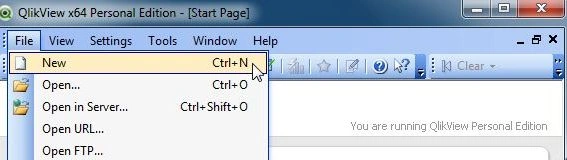
Step 2: Open Edit Script
The second step is to open the edit script window from File -> Edit Script.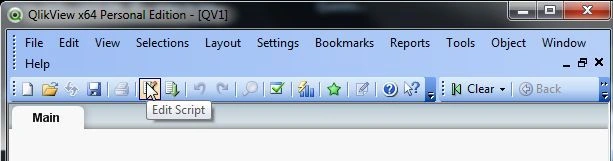
Then this window will be opened.
Step 3: Select Database
The third step is to select the database from the data tab and click on the Connect Button.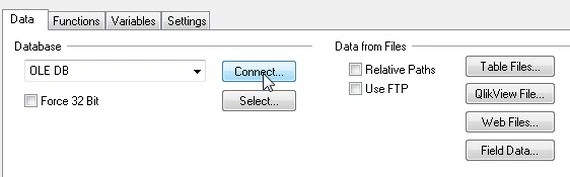
Step 4: Data link property window
In this window we select SQL Server and click on the Next Button.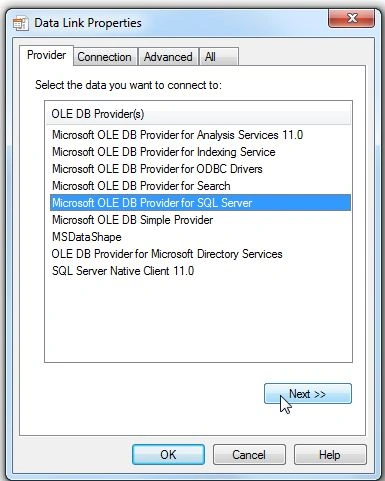
Step 5: Connection tab
In the connection tab enter the server name and user name and password and select the database from your server and click on Test Connection.
Then you find that the connection has succeeded; click on the OK button.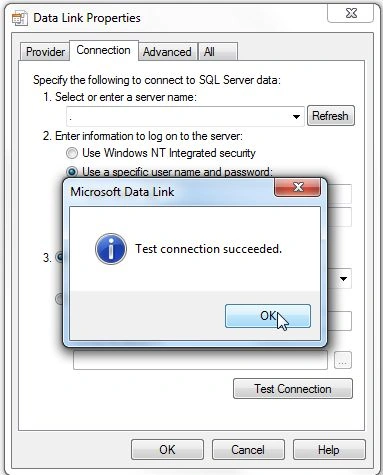
Then click on the OK button.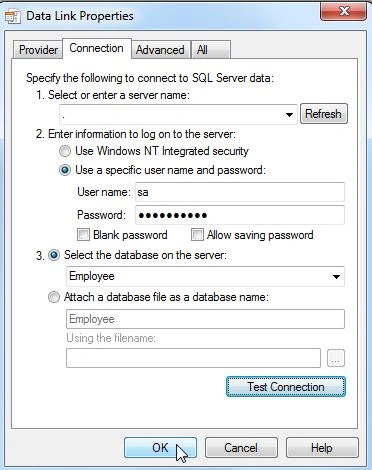
Step 6: SQL Server login
Then the SQL Server login is required so enter a valid login id and password and click on the OK button.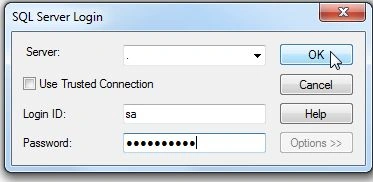
Then this window will be opened.
Step 7: Select database
Now the next step is to select the database from the table.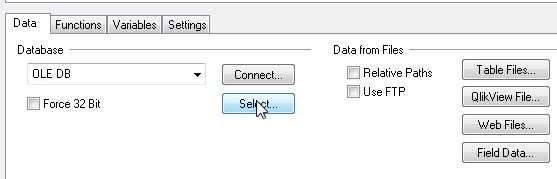
Then this box will be opened and select the table from your database.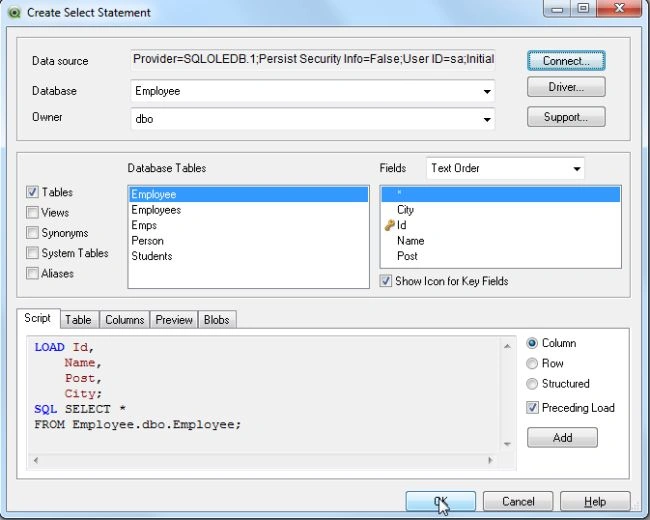
Step 8: Write code and reload it
Now in the edit script, write this code and after this reload it.
Step 9: Save QlikView file
After reloading the edit script, the next step is to save the QlikView file and click on the Save button.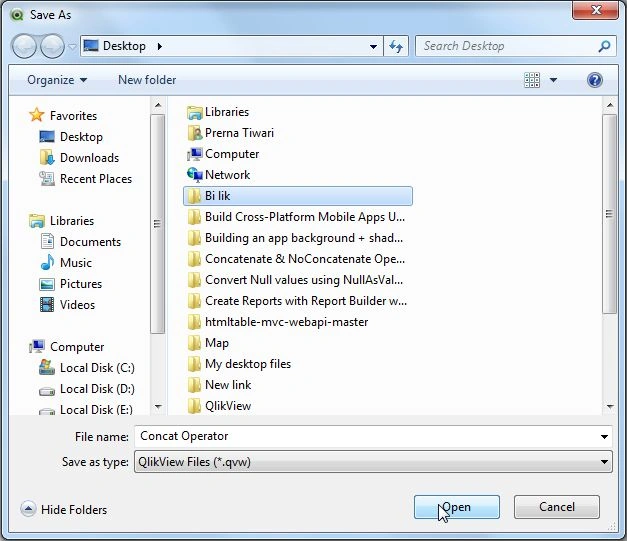
Step 10: Script execution progress
Then the script execution progress window will be opened and requires a login Id and password and click on the OK button.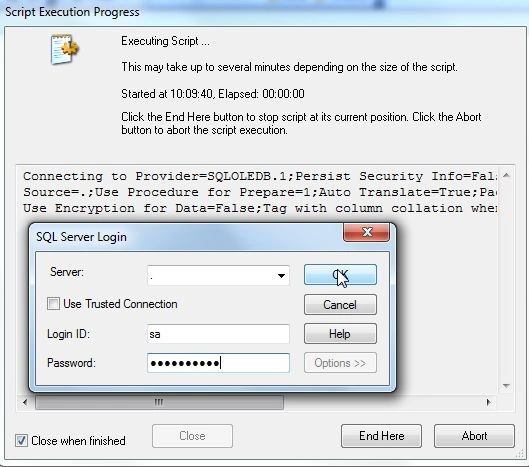
Step 11: Sheet property Window
After this process, the sheet property window will be opened. Now here you will see table fields. If you want to show these table fields as a list box then click on the add button otherwise click on the OK button.
Step 12: Select a table
The next step is to select a table for displaying a table field in a table. Then go to Layout -> New Sheet Object -> Table Box.
Then this window will be opened. Here add all fields to the table then click on the Ok button.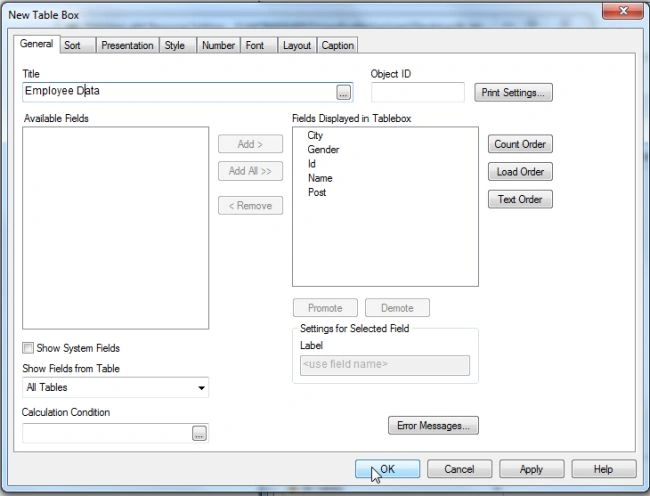
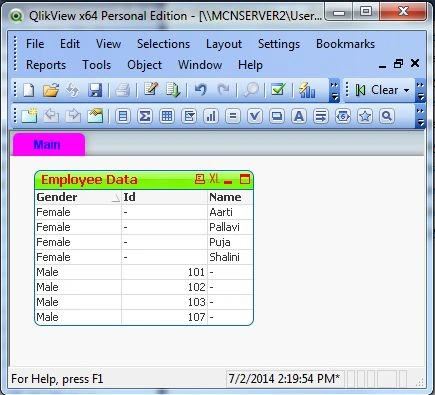
Now you will see this output.
Step 13: Perform Concatenate operation
The next step is to open the edit script again and do a concatenate operation in the edit script and reload it.

Concatenation Operation in QlikView Application: Part 1
Join the conversation! Your thoughts help the community grow.
Sign in to leave a comment
It is the same account you read, post and publish with — and you will come straight back to this page.

Shamim UddinPosted Sep 7, 2016, 10:07 PM
Nice Article
Surender KumarPosted Jul 3, 2014, 4:57 AM
nice article