

Introduction
In this article, we will learn about Configure Database Mail - Send Email From SQL Server Database. We can send an email using the SQL Server.
Send Email From SQL Server Database
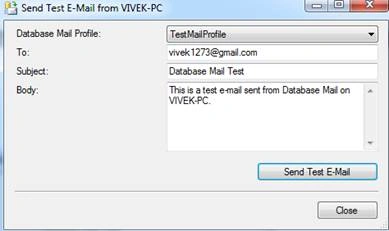
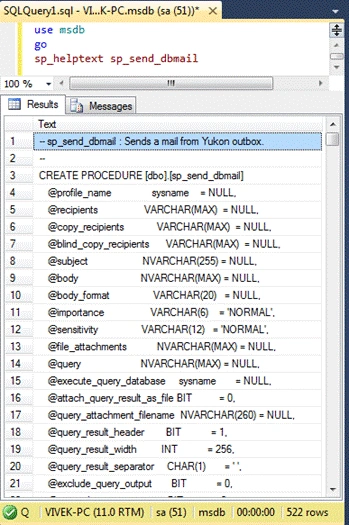
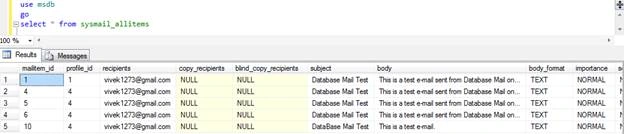
We can send an email using the SQL Server. Database mail configuration information is maintained in an MSDB database. It is supporting logging and auditing features, using system tables of MSDB. We can send mail as a text message, HTML, query results, and files as an attachment. We have to follow some simple steps to achieve this.
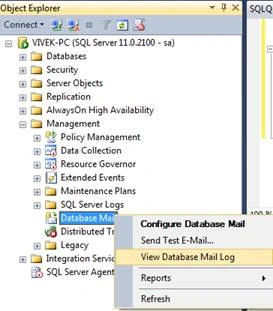
Step 1. Go to Object Explorer.
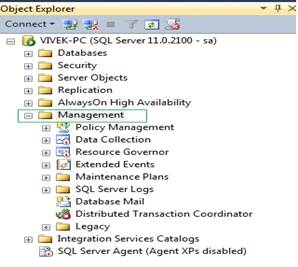
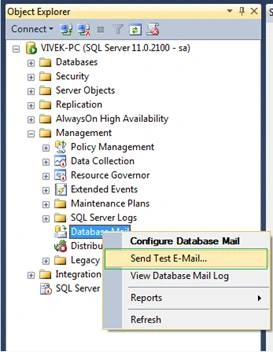
Step 2. Expand the management menu, as shown below:
Step 3. Right-click on database mail and select configure database mail, as shown below.
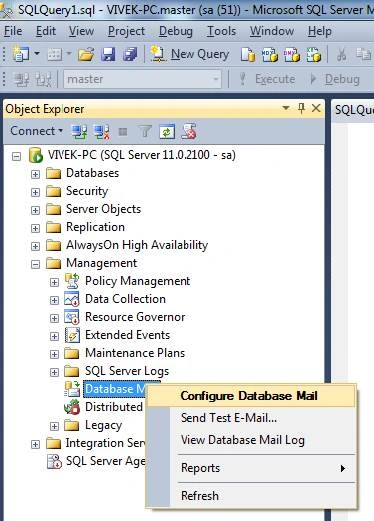
After selecting “Configure Database Mail”, we will get the screenshot as shown below:
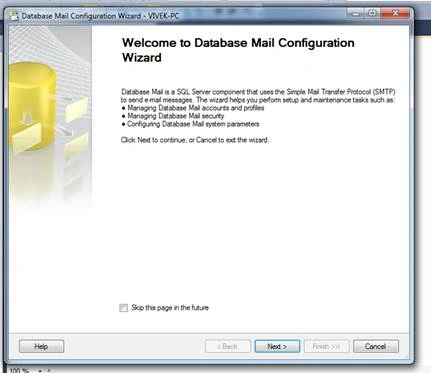
Step 4. Click the Next button and after clicking the next button; we will get a new screenshot, as shown below.
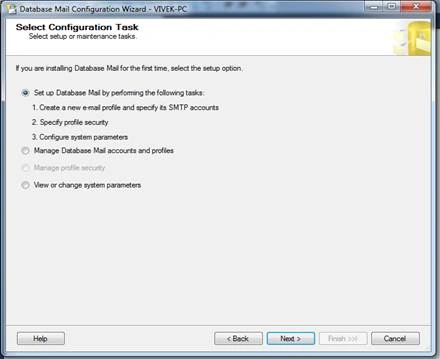
Step 5. Select the Radio button on the first option “Set up Database Mail by performing the following tasks” and click the Next button.
We will get a new Screen for setting up the account details for configuring the mail.
Step 6. Enter "Profile name" and "Description", as shown below:
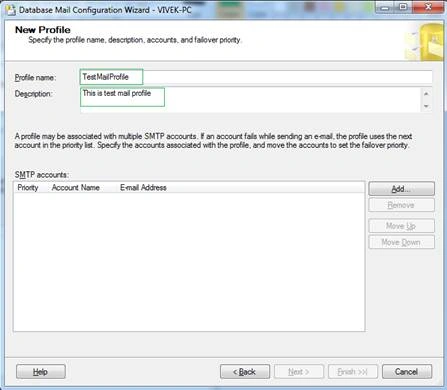
Step 7. Click ADD button and we will get a new prompt where we can add more details related to the mail setup, as shown below:
- Account name Enter the name of your new account.
- Description Enter a description for the account. It is optional.
- E-mail address Enter your e-mail address, which we will use for sending an e-mail, here you can specify your domain email id also as [email protected].
- Display name Enter the name which will use for displaying the name of the sender and it is optional.
- Reply e-mail Enter the reply e-mail address, which will use for replies to e-mail messages sent from this account. It is also optional.
- Server name Enter the IP address of the SMTP server for your e-mail account.
This server requires a secure connection (SSL) - checked or unchecked as per your e-mail Domain. - SMTP Authentication We have to choose one Authentication type among three Authentication types.
Here, I am using my Gmail account credentials to configure the mail setup. In most cases, we are using a company account.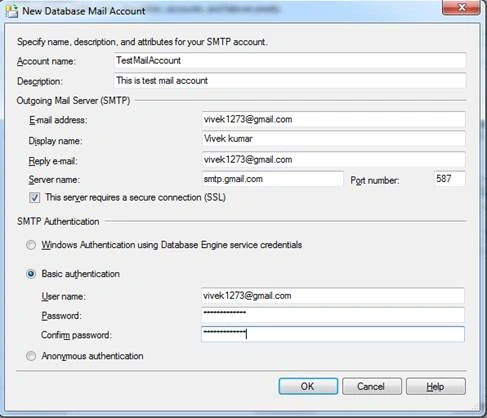
Step 8. Click OK. This screen will close and the previous screen is shown below.
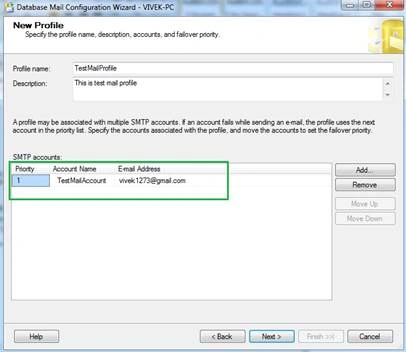
Step 9. Click Next and we will get the prompt.
Step 10. Check the checkbox on “TestMailProfile” and make it the default profile, as shown below.
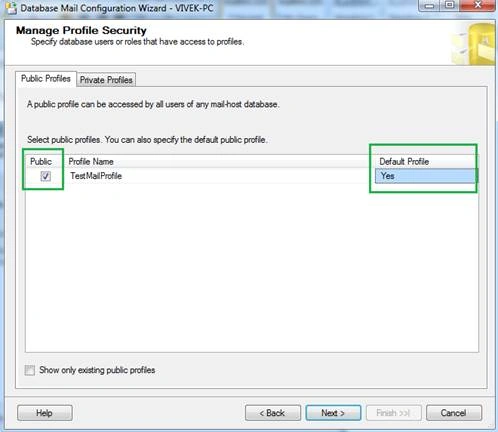
Step 11. Click Next and we will get a new screen.
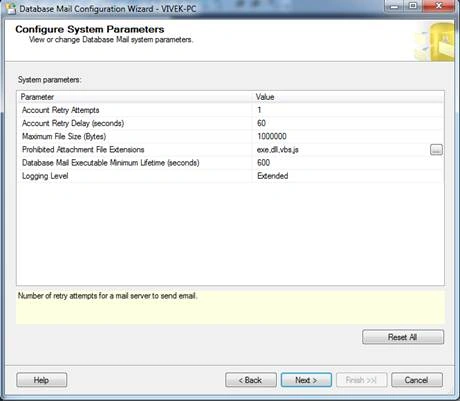
Step 12. Keep the default setting for the system parameters and click the Next button, as shown below:
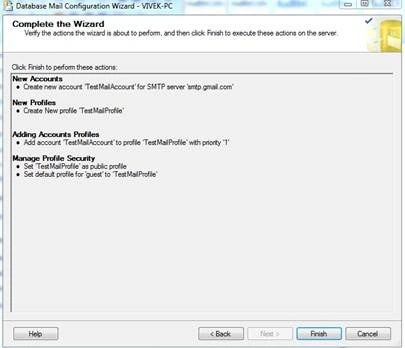
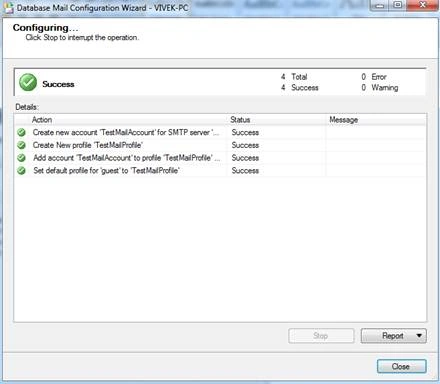
Step 13. Click the Finish button to complete the configuration, as shown below.
Roberto TellesPosted Jan 20, 2023, 12:36 PM
What version? SQLServer?
Vignesh ManiPosted Jun 9, 2016, 5:13 AM
Nice one
Santhakumar MunuswamyPosted Jun 9, 2016, 12:16 AM
Thank you for nice share
Gajanan ShindePosted Jun 8, 2016, 12:42 PM
Nice..
RakeshPosted Jun 8, 2016, 11:27 AM
Good explanation
Jaipal ReddyPosted Jun 8, 2016, 3:01 AM
Good One. .
Yashwant VishwakarmaPosted Jun 8, 2016, 2:41 AM
Nicely explained, keep on writing !!
Debasis SahaPosted Jun 7, 2016, 3:52 PM
Nice share..